Announcements
Send one email or text to many members at once, schedule it for later, and see who got it.
What an announcement is
An announcement is one message the local sends to many members at once: a contract vote at Harvest Foods, a stewards training on Saturday, a rally at the front gate. It goes by email or by text message, to the members you pick, and each member gets their own copy with their own name filled in.
A message to one member alone is not an announcement. That lives in the member's conversation instead.
Open Announcements under Communications in the sidebar. Everyone who can see Communications can read the list and each announcement. Writing, scheduling, sending, and stopping an announcement need the right to send messages. A staffer who is limited to some employers only reaches, and only sees results for, the members at those employers.
What the list shows
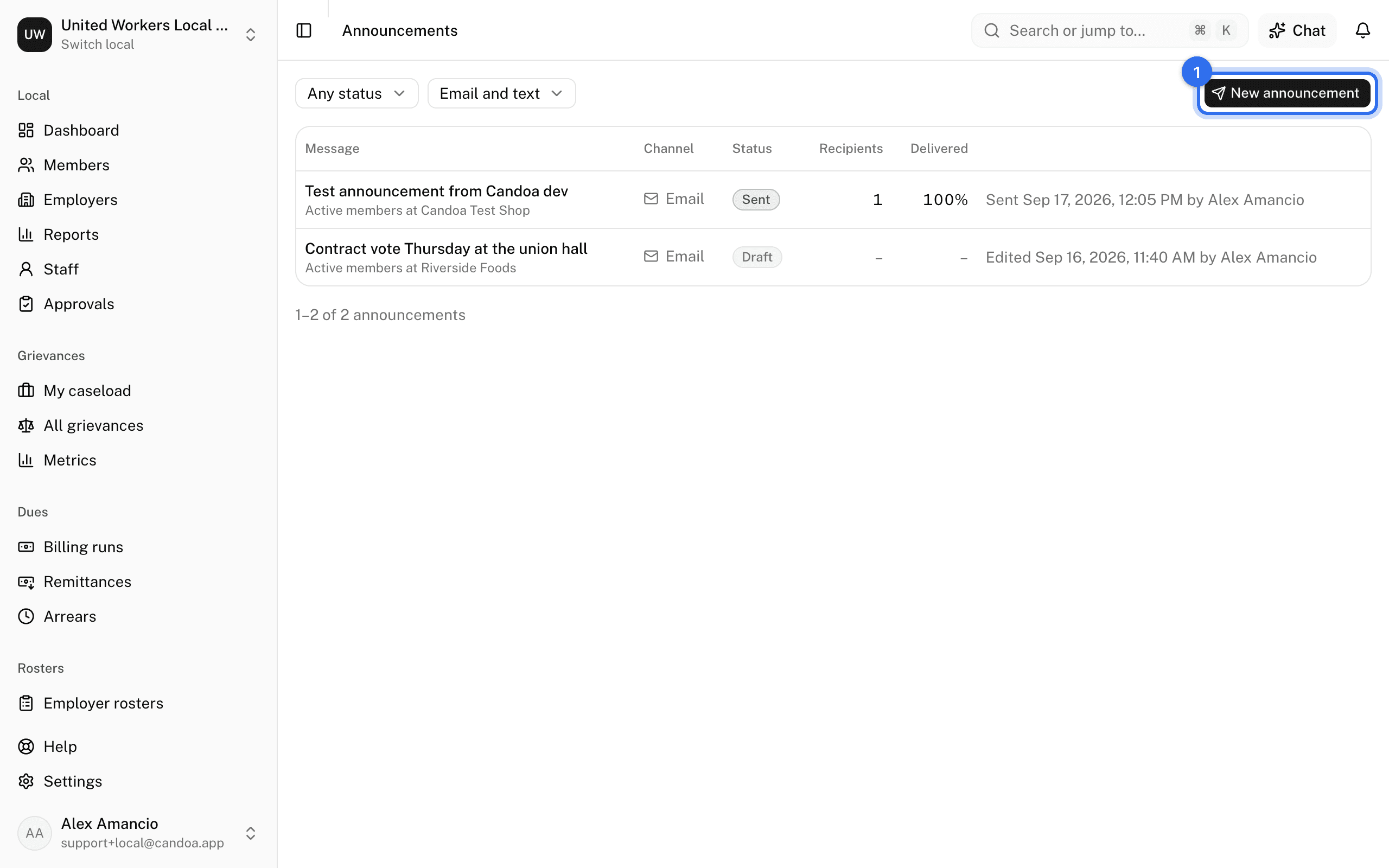
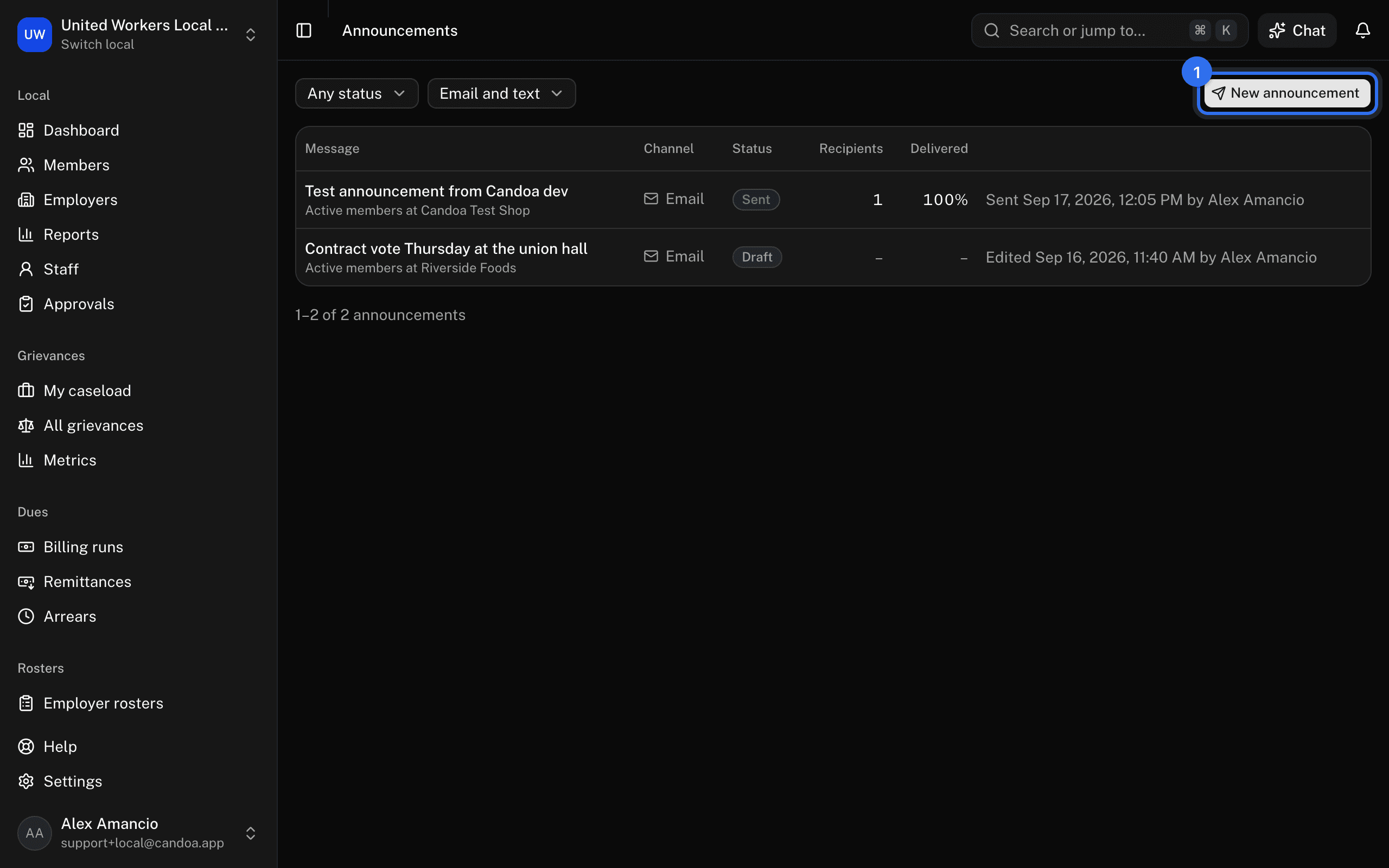
Every announcement is in one list, newest first: drafts, scheduled ones, ones going out, and ones sent. Each row shows the subject (or the start of a text), who it was for, Email or Text, where it stands, how many members it went to, the share that was Delivered, and when and by whom. Pick a Status or a Channel above the list to narrow it. The list shows 25 at a time; the page you are on stays when you open an announcement and come back.
Send an announcement
- In Announcements, click New announcement. You can also press Cmd+K and choose New announcement.
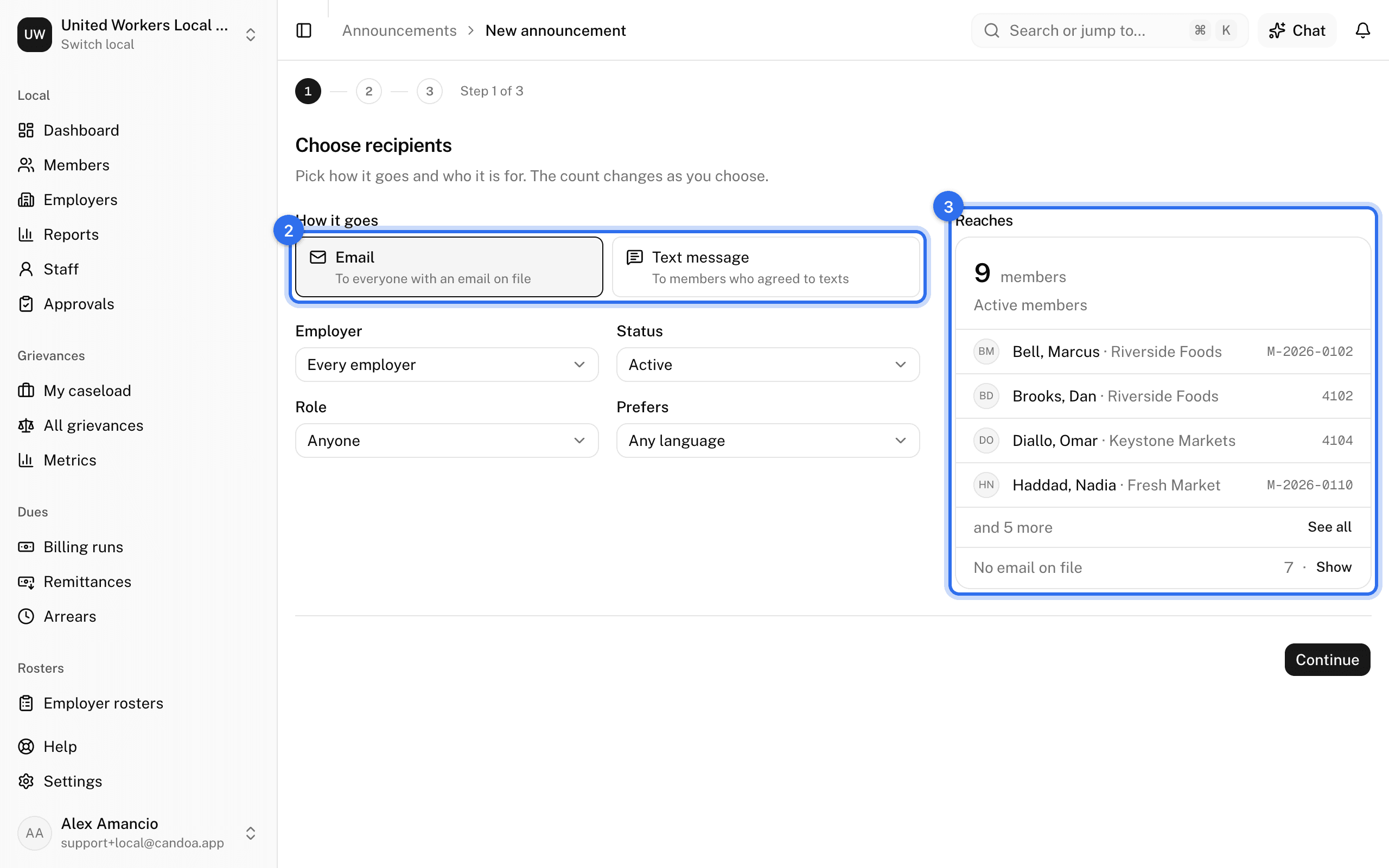
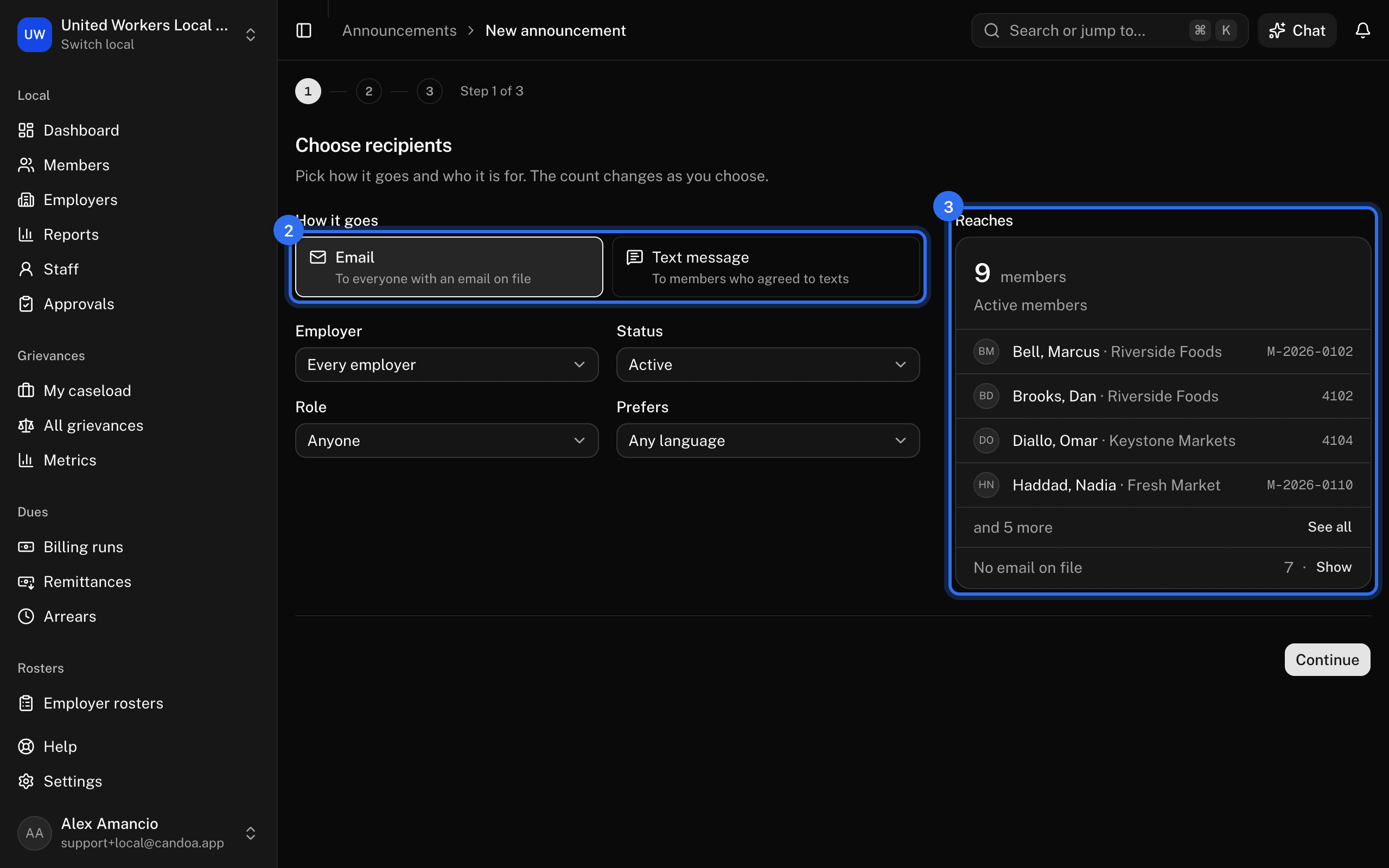
- Choose recipients. Pick Email or Text message under How it goes, then narrow who it is for:
- Employer: members whose current main job is at that employer, or Every employer.
- Status: Active, Active or on leave, or Any status except withdrawn.
- Role: Anyone, current Stewards, or current Officers.
- Prefers: members who prefer a language, or Any language.
- Watch the card under Reaches. It shows how many members it will reach, the first few names, and who is left out and why. Click See all or Show to page through the full list. Click Continue.
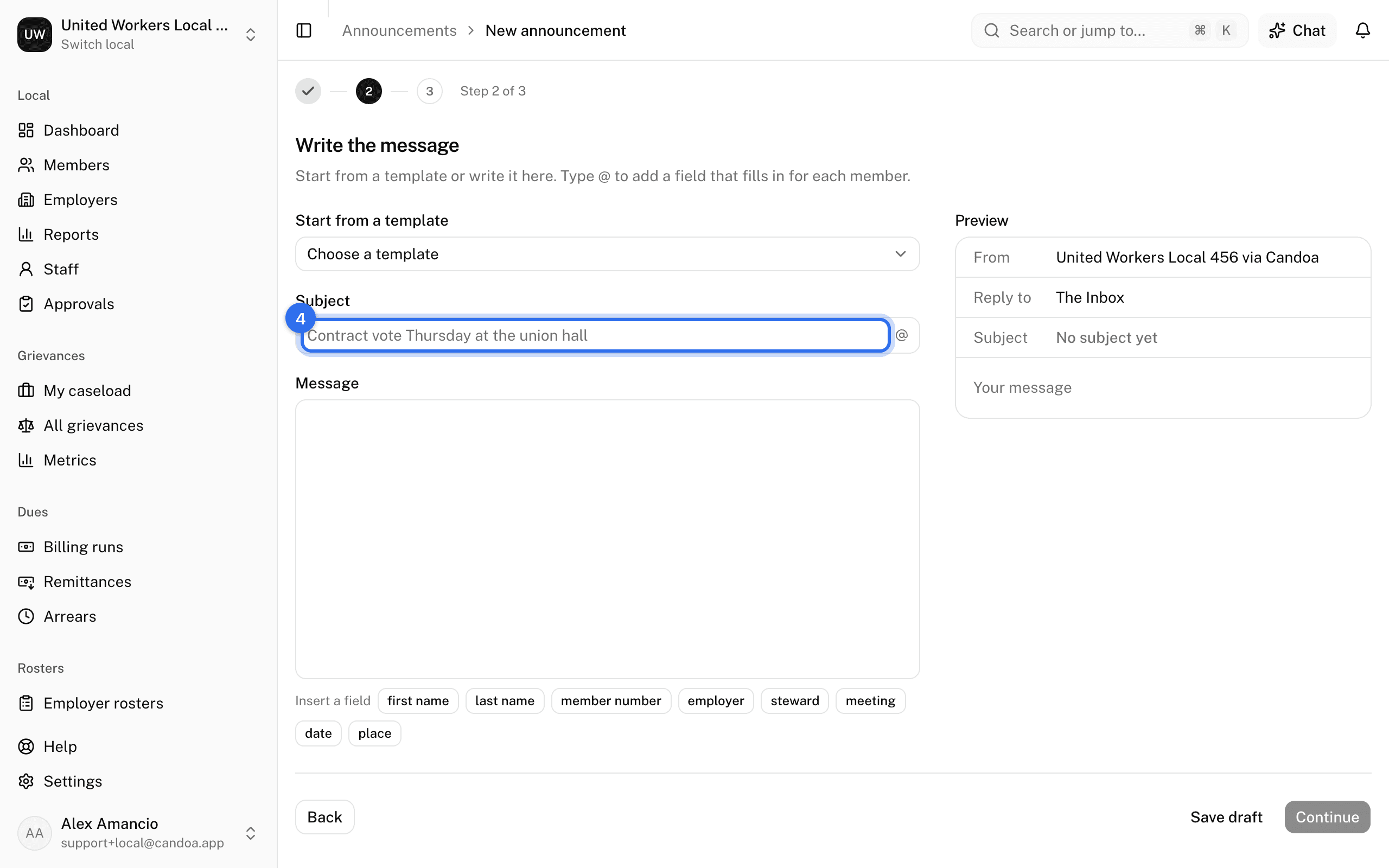
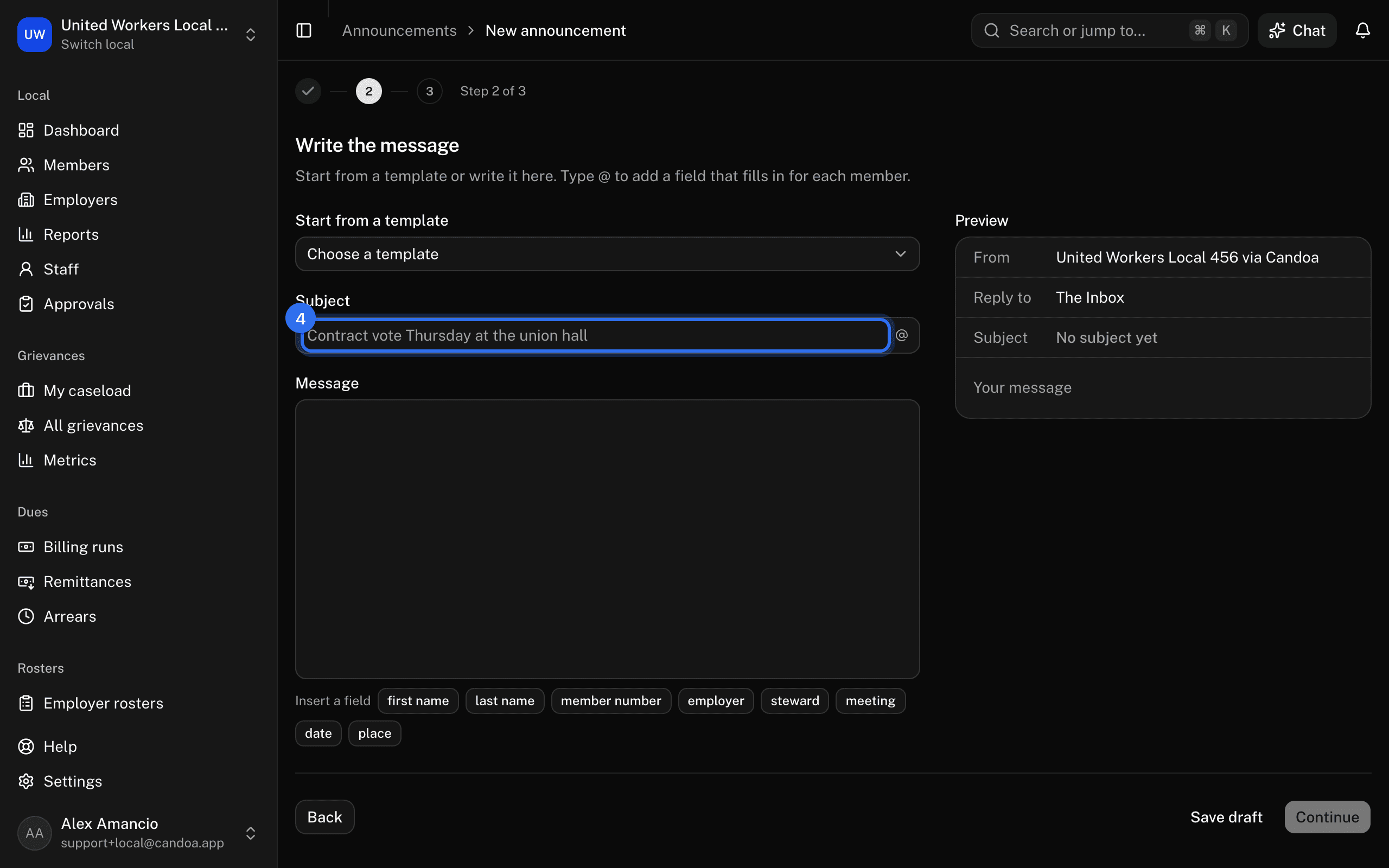
- Write the message. Pick one under Start from a template, or write your own. An email needs a Subject. Type @ in the message to add a field such as first name, employer, or steward; it fills in for each member. Fields like meeting, date, and place are filled in once, under Fill in, and are the same for everyone. The Preview shows what a member receives. Click Continue.
- Review and send. Check Goes by, To, Reaches, From, and Replies. Under When, keep Send now.
- Click Send to and confirm with Send. It starts going out right away, and its page opens so you can watch it go.
A sent announcement cannot be taken back. When one would reach more than 500 members, the review step says so before you send.
Schedule an announcement for later
- Write the announcement as above.
- In Review and send, choose Schedule under When and pick the date and time. The time is on the local's clock, the time zone set on your local's profile.
- Click Schedule and confirm.
The audience is counted again when it goes out, so a member who joins before then is included.
Send yourself a test
In Review and send, click Send me a test. An email test goes to your own email address. A text test goes to the work phone on your staff profile; without one, the button says to add it. Fields are filled with your name where a member's would be. A test is not sent to any member and is not kept on anyone's record.
Save a draft and finish it later
- On the second or third step, click Save draft. The draft opens on its own page.
- To finish it, open it from Announcements and click Edit.
To remove a draft you no longer need, open it and click Delete draft. Only drafts can be deleted.
Change or call off a scheduled announcement
- Open the scheduled announcement from Announcements.
- Click Edit to change it, or Cancel schedule to call it off.
A canceled announcement stays in the list as Canceled. Nothing was sent, and you can still send it again as new.
Stop an announcement that is going out
- Open the announcement while it shows Sending.
- Click Stop sending and confirm.
Members who already got it keep it. Everyone still waiting is left as Stopped.
Send an earlier announcement again
- Open an announcement that was sent or canceled.
- Click Send again as new. A new announcement opens with the same message and recipients, ready to change and send.
See who got an announcement
Open the announcement from Announcements. How it went shows the number of Recipients, the share Delivered, and how many were Opened (emails only), Bounced, Failed, Still waiting, and Not sent. Sent, no word back yet counts messages that went out but that the email or phone company has not yet reported on.
Under Recipients, every member it was for is listed, 25 at a time. Choose an outcome under What happened to see only those members, or type a name or member number in the search box.
Not sent lists why some members were left out:
- No email on file: the member has no email address.
- No mobile number on file: the member has no number that can get texts.
- Number can't receive texts: the member's mobile is outside the United States and Canada, which the local's toll-free number can't reach.
- Has not agreed to texts: the member has not agreed to texts and has never texted the local.
- Replied STOP: the member's number replied STOP to a text from the local.
Add what is missing on the member's record and the next announcement reaches them.
Which announcements a member got
Open the member's record and click the Announcements tab. It lists every announcement that went to them, newest first, and what happened to each one. More load as you scroll.
What happens with texts
Texts come from the local's own texting number. Before it can text members, the carriers have to verify that number; until they do, Text message cannot be sent, and the screen says why. An owner sets the number up in Settings, Communications.
Each text ends with "Reply STOP to opt out" unless it already says STOP, and, when the local signs its texts, it starts with the sender's first name and the local's name. Replies come to the Inbox.
Each month includes a number of texts for the local. A long text counts as more than one. Past the included texts, each one is 2¢ on the bill, up to the extra usage limit the owner set under Settings › Billing; with no limit, that is where texting stops. When an announcement would need more texts than can go this month, it cannot be sent, and the review step shows how many it needs and how many are left, with a link to settings. If texts run out while an announcement is going out, the rest wait, and the announcement page says it is paused until the limit is raised or the month turns over.
When the local holds texts overnight, an announcement's texts wait between 9 PM and 8 AM on the local's clock and carry on in the morning.
Where email replies go
An announcement email comes from your local's name "via Candoa". When a member replies, the reply comes back to the Inbox, attached to that member.
These pages are the help for Candoa, the software a local runs its members, employers, and grievances on.
Set up your localUpdated 2026-09-17