Communications settings
See who the local's emails come from and where replies go, get the local's texting number, see this month's texts, and keep the templates staff start messages from.
Open Settings › Communications. Owners and admins. The tab is there while your local has the Communications add-on. Setting the extra usage limit, under Settings › Billing, is for the owner only.
What the local's texting number is
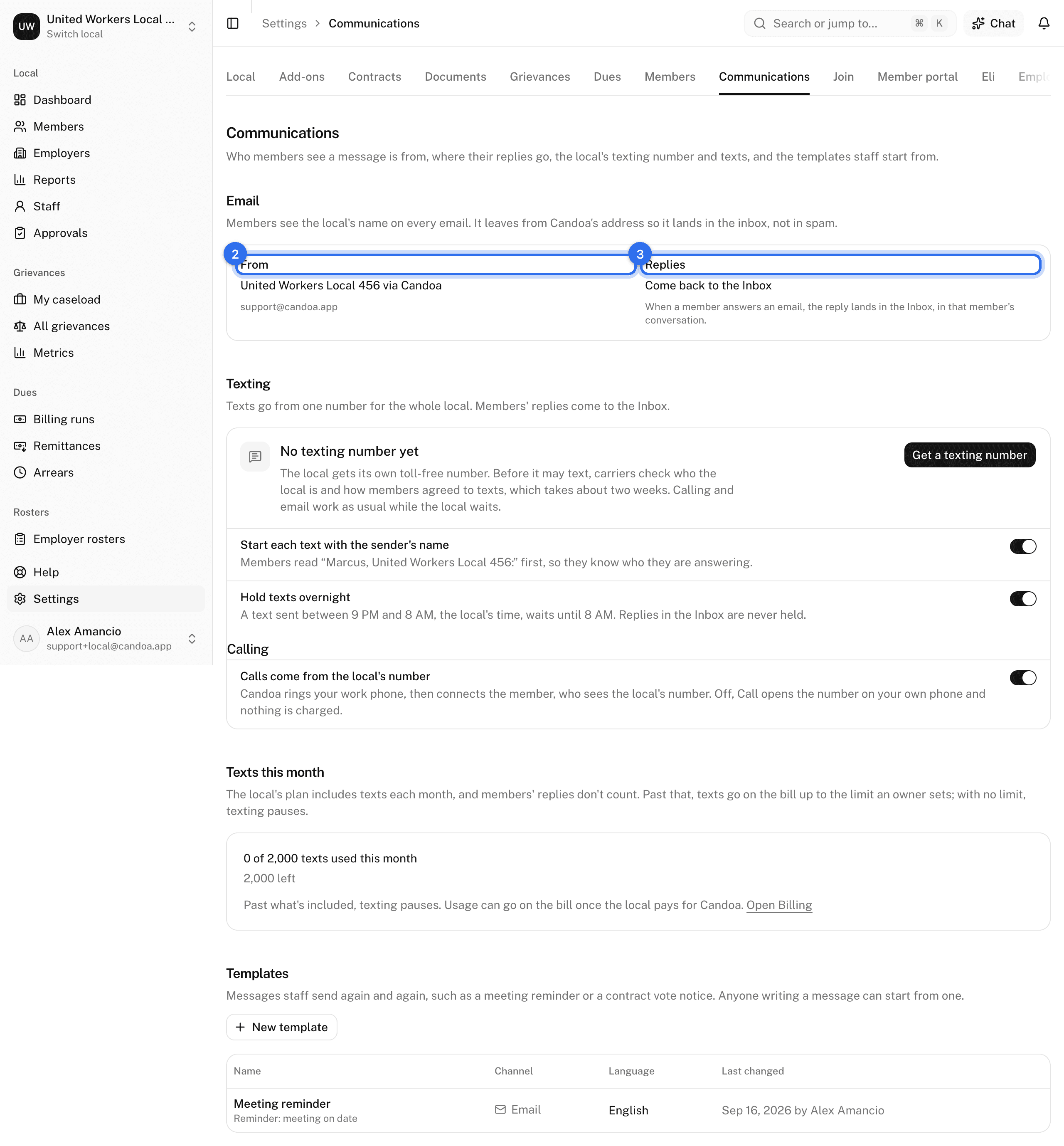
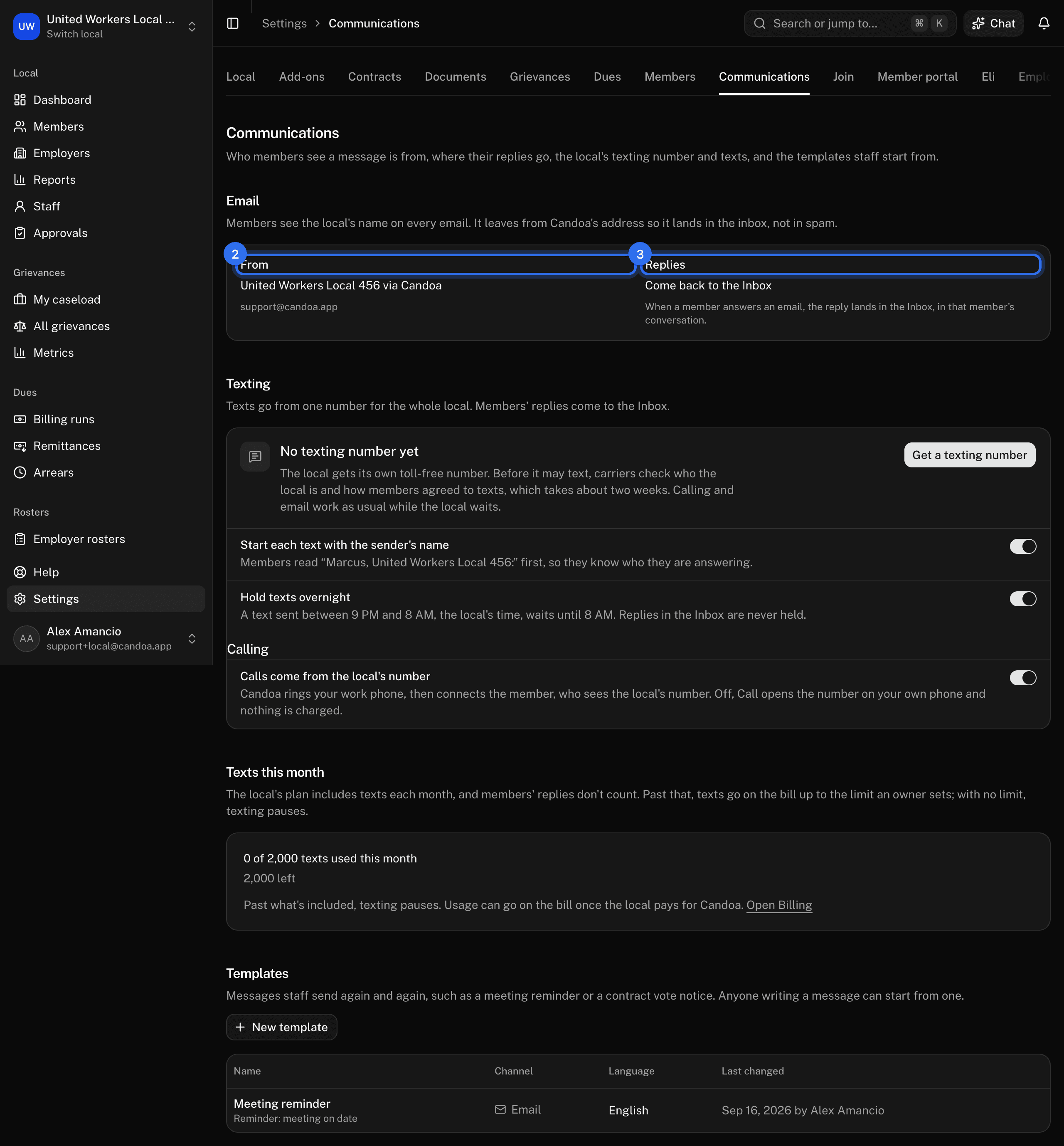
Every text the local sends to members goes from one toll-free number that belongs to the whole local, and members' replies to it come back to the Inbox. Before a new number may text anyone, the phone carriers check who the local is and how members agreed to get texts. That review takes about two weeks. Until the carriers approve the number, nothing can be texted from it.
The card under Texting shows the number and where it stands:
- Waiting on carriers: the form is with the carriers. Nothing needs doing.
- Needs a correction: the carriers want something fixed. What they said is shown under the number.
- Registered: the carriers approved the number on the date shown, and the local can text members.
- Not approved: the carriers said no. What they said is shown under the number.
When the carriers approve the number, the owner gets a line in the bell.
What the texts this month are
The local's plan includes a number of texts each month, set by how many members the local has. A text counts once for every part it is sent in, so a long text can count as two or three. Texts that fail to go out don't count, and texts members send to the local never count.
When the local has used 80% of the month's included texts, the owner gets an email and a line in the bell. When nothing more can go, because the included texts are used and the extra usage limit is nothing or reached, texting pauses until the limit is raised or the next month starts, and the owner is told again. Each notice comes once a month. Nothing is ever added to the bill past the limit the owner set. Emails keep going out, and members' replies keep coming in.
Turn on calling from the local's number
Calls can come from the local's own number instead of a staffer's mobile, so members see the union calling and a steward doesn't hand out their personal number.
- Open Settings › Communications and find Calling.
- Turn on Calls come from the local's number.
Candoa then rings the staffer's work phone, from their Account page, and connects the member when they answer. The minutes are the local's, at about a cent a minute. Until the local has a number for calls, the section says so and Call keeps opening the member's number on the staffer's own phone, which costs nothing.
See who emails come from and where replies go
- Open Settings › Communications and look under Email.
- From shows the local's name as members see it, followed by "via Candoa", and the address the email leaves from. Emails go from Candoa's address so they reach members' inboxes rather than spam.
- Replies says where a member's answer to an email goes. It either says Come back to the Inbox, or shows the local's office email.
The office email is kept in one place, the local's profile. To change it, press Change it in the local's profile, which opens Settings › Local. See Your local's profile.
Get a texting number
- Open Settings › Communications and press Get a texting number under Texting.
- Check what the form filled in from the local's profile: Legal name, Website, the address, and Who carriers can contact. The legal name and address must match the local's tax forms. Start typing the street and pick the address from the list to fill the city, state, and ZIP.
- Fill in the local's registration number. In the United States that's the EIN, the employer identification number from the IRS, written 12-3456789. In Canada it's the Business Number from the Canada Revenue Agency, written 123456789RC0001. The form asks for whichever one belongs to the Country in the address, so check that country is right first.
- Under How members agree to texts, say where members agree, such as a box on the membership card or the join form.
- Write A sample text the local would really send, with the local's name and "Reply STOP to stop texts".
- Pick about how many Texts a month the local sends in a busy month.
- Press Send to carriers.
While the local waits, calling and email work as usual; only texting is held up. The number appears on the settings page with Waiting on carriers. If something went wrong partway, the page says so; press Send to carriers again and it picks up where it stopped, without buying a second number. The one time pressing again won't help is when the page says Candoa's texting provider isn't letting Candoa buy numbers yet: your answers are kept, and once Candoa tells you it's fixed, Send to carriers picks up from there.
Texting works for locals in the United States and Canada, because those carriers check a number against a register Candoa can reach. If the local's country is anywhere else, the card says so and there's no number to apply for; the country comes from the local's profile, so fix it there if it's wrong. If the page instead says texting is not available yet, the local can't get a number at the moment.
Correct the form when carriers ask
Anyone who manages add-ons gets an email the moment the carriers answer with anything but a yes, so nobody has to watch this page for two weeks. An approval arrives as a notice in the bell instead.
- Open Settings › Communications. The card under Texting says Needs a correction or Not approved, with what the carriers said.
- Press Correct and send again. The form opens with what was sent last time.
- Fix what the carriers named and press Send the correction.
The number goes back to Waiting on carriers. If the carriers refuse it again, give up the number and send feedback so Candoa can help.
Give up the texting number
- Open Settings › Communications and press Give up this number under Texting.
- Press Give up this number in the box that asks.
The local stops paying for the number and can't text from it anymore. Members who saved the number can no longer text the local. Getting a number later gives the local a new number and another carrier review, which takes about two weeks again.
Choose how texts go out
Under Texting, turn either switch on or off. Each change saves at once.
- Start each text with the sender's name: a text begins with the first name of the person who sent it and the local's name, so members know who they are answering. On by default.
- Hold texts overnight: a text sent between 9 PM and 8 AM, the local's time, waits until 8 AM. Replies from the Inbox are never held. On by default.
See how many texts are left this month
Open Settings › Communications and look under Texts this month. It shows how many of the month's included texts were used, how many are left, and, when the local has gone past the included ones, how many texts are over and what they have added to the bill. It says Texts are running low. past 80% of the included texts, and Texting is paused for the rest of the month. when nothing more can go.
Send more texts than the month includes
Every plan includes a number of texts a month, by the local's size; the settings page shows it. Past that, each text is 2¢ on the month's invoice, but only up to the Extra usage limit the owner sets under Settings › Billing, and only once the local pays for Candoa. With no limit, which is where every local starts, texting pauses at the included amount. Eli tokens past their included amount share the same limit. See Add-ons and billing.
Add a template
A template is a message staff send again and again, such as a meeting reminder or a contract vote notice. Anyone writing a message can start from one.
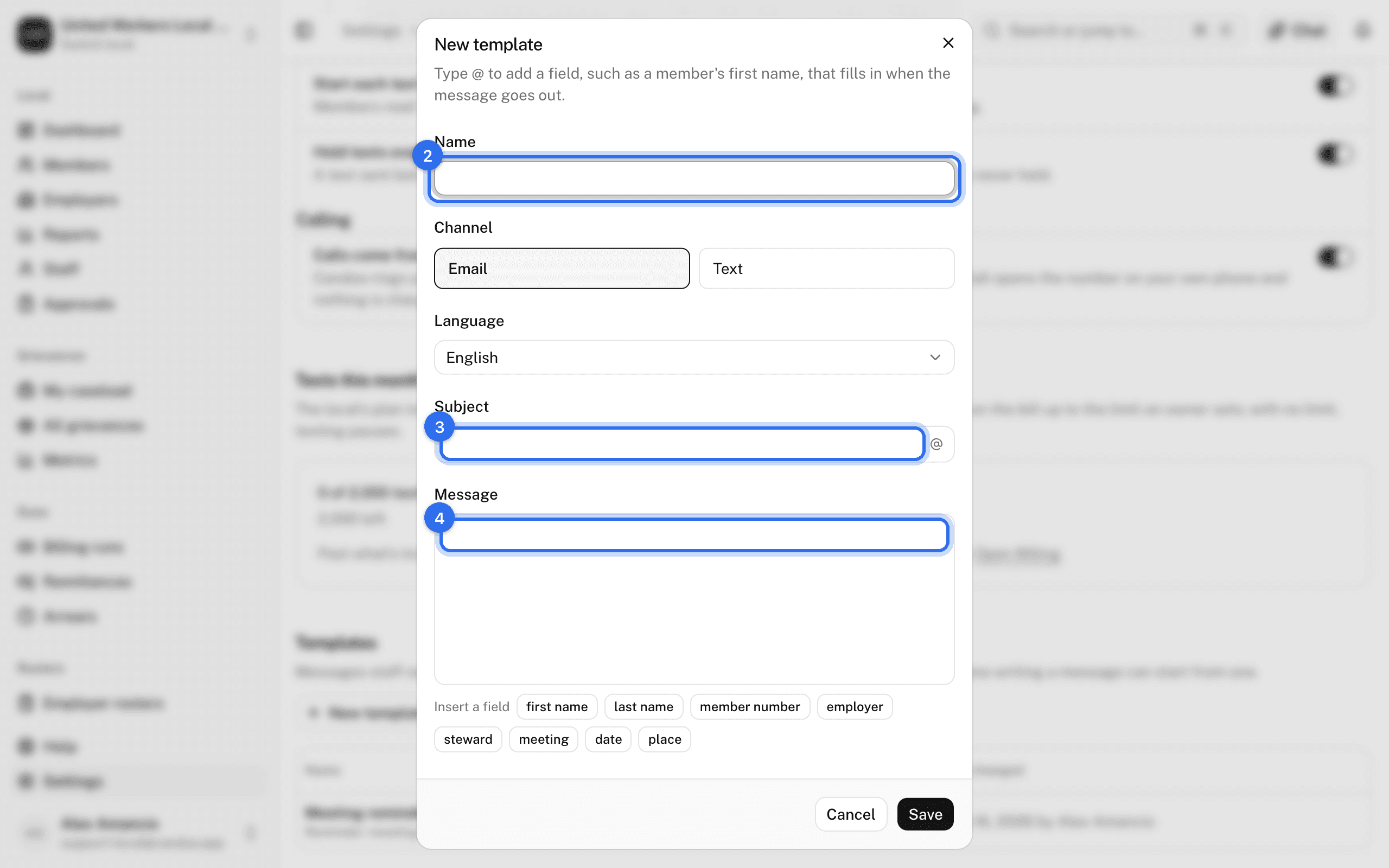
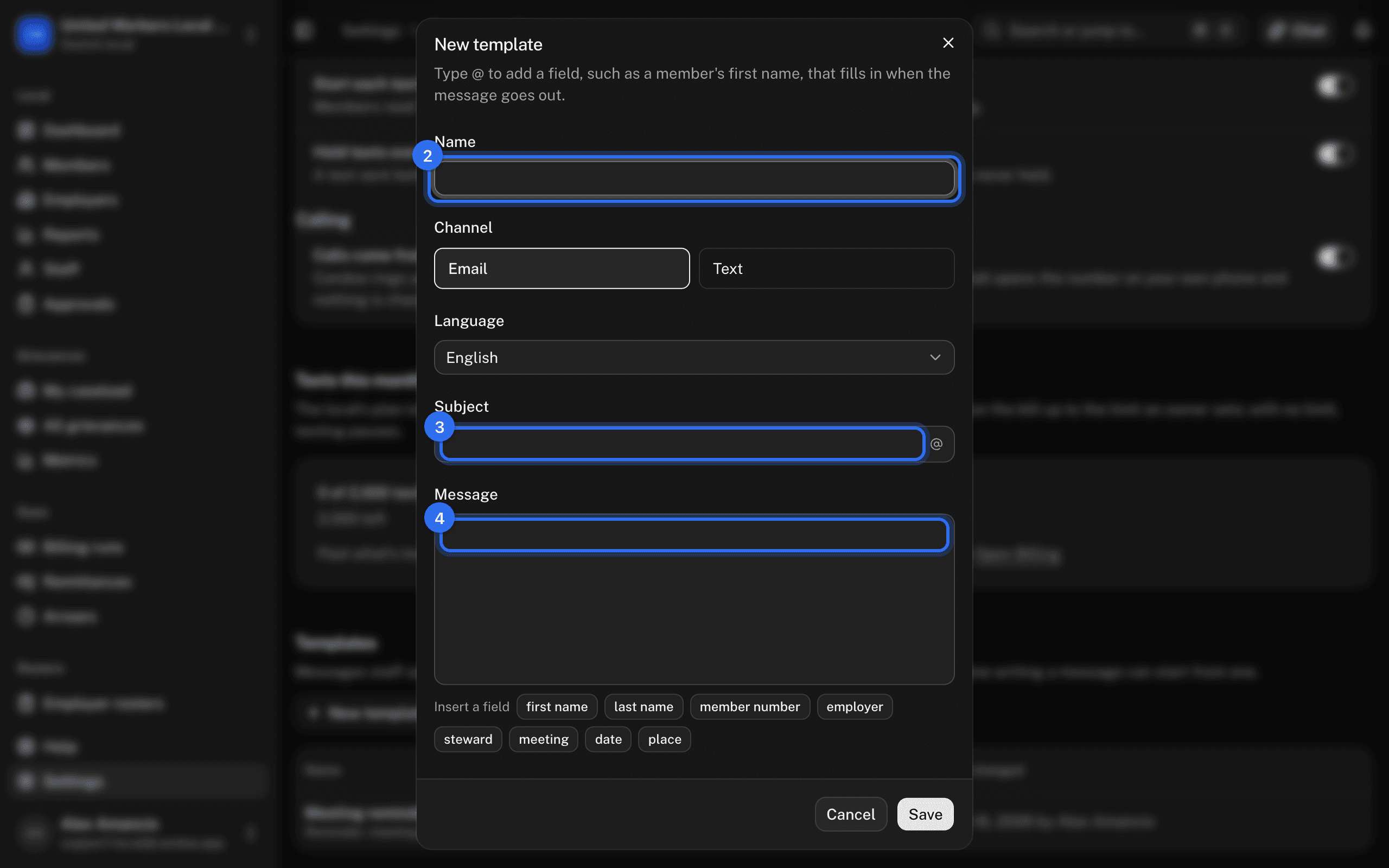
- Open Settings › Communications and press New template under Templates.
- Enter a Name, pick Email or Text under Channel, and pick the Language the template is written in.
- For an email, write the Subject.
- Write the Message. Type @ to add a field, such as a member's first name, that fills in when the message goes out.
- Press Save.
Change or delete a template
- Open Settings › Communications and click the template in the Templates list.
- Change what you need and press Save, or press Delete and then Delete again to remove it.
Messages already started from a deleted template keep their words.
These pages are the help for Candoa, the software a local runs its members, employers, and grievances on.
Set up your localUpdated 2026-09-17