The Inbox and conversations
Read and answer members' texts and email replies, text a member, note a call made from your phone, link an unknown number to a member, and what STOP does.
What a conversation is
A conversation is everything between the local and one member: the texts you send them and the texts they send back, the emails you send them and their replies, and the calls you make to them with how each one went. It stays on the member's record for good, so whoever picks it up next sees what was already said.
A text can also come from a number that isn't on any member's record, or that more than one member has on their record. It gets a conversation of its own under the number, marked Not on any member's record, until someone links it to the right member.
Conversations open in the panel down the side of the screen, where Eli opens, so you can keep working on whatever screen you're on. Only one of the two is out at a time. If you want Eli and a conversation open together, switch Eli to its Floating layout from its header: on a computer, the card in the corner leaves the side of the screen to the conversation.
The Inbox and conversations come with the Communications add-on.
What the Inbox shows
Open Inbox under Communications in the sidebar. The number beside it counts the conversations with something nobody on staff has opened yet.
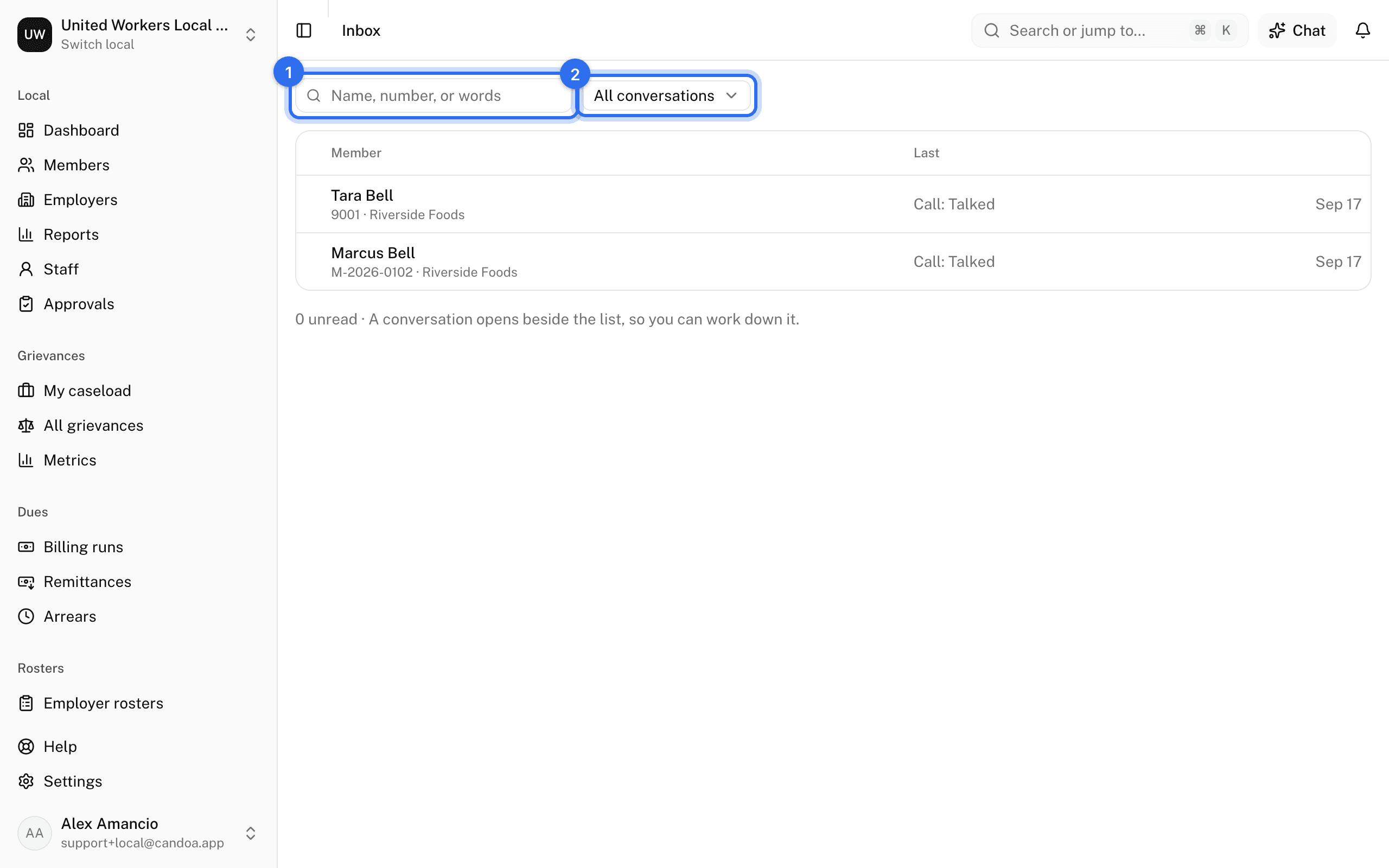
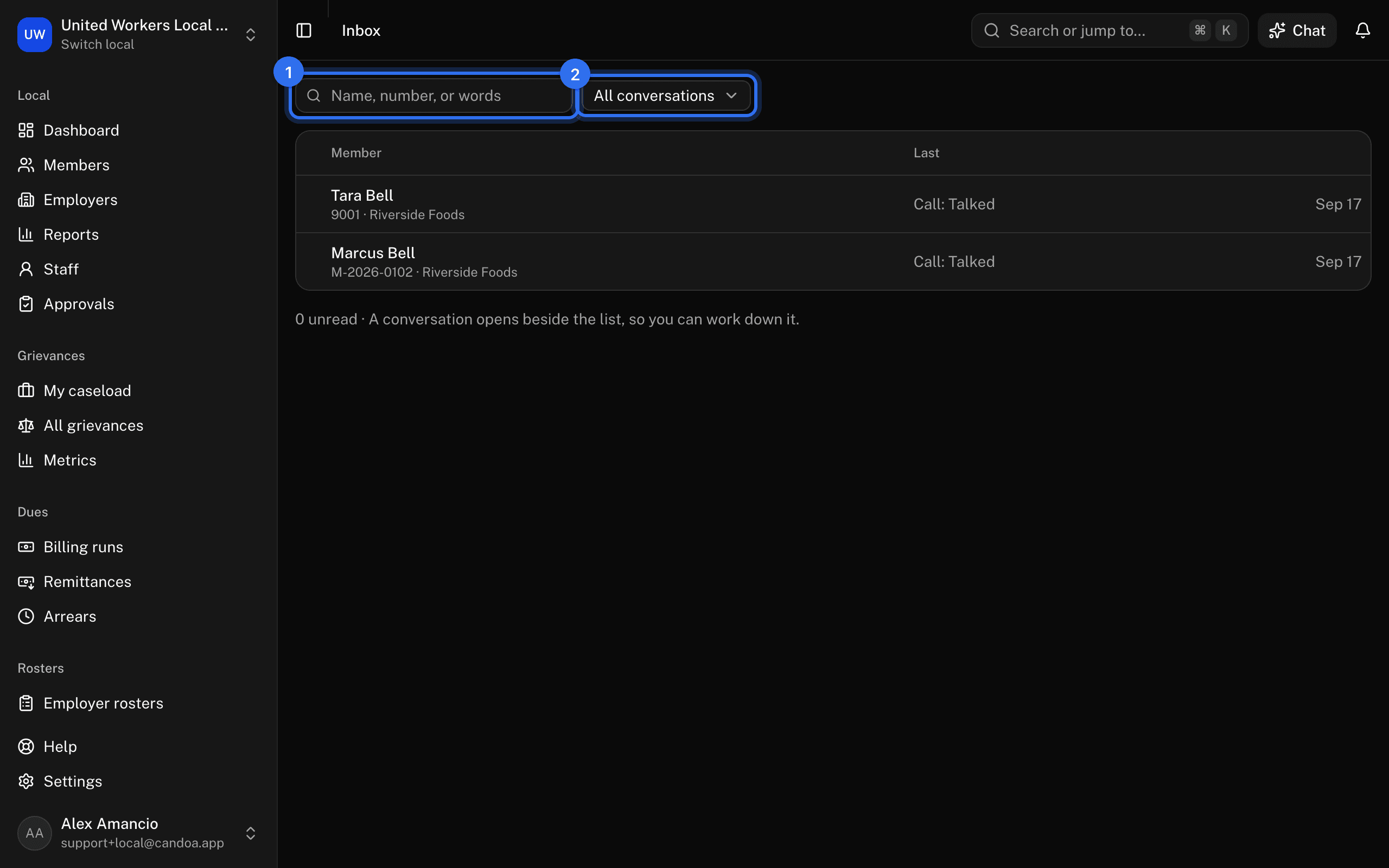
The Inbox lists every conversation, the most recent first. Each row shows the member's name, their member number and employer, the last thing said, and the day it was said. A dot and bold type mark a conversation with something unread. A message sent to many members at once as an announcement shows inside each member's conversation, but it doesn't bring a conversation to the top of the Inbox; the member's answer to it does.
Unread is shared by everyone on staff: once anyone opens a conversation, it's read for the whole local. More conversations load as you scroll down the list.
Staff limited to some employers see only conversations with members at those employers, and don't see texts from numbers that aren't on a member's record.
Find a conversation
- In Inbox, type in the search box. It finds a member's name, their member number, a phone number however you type it, or any words from the texts and emails in a conversation.
- To see only what still needs reading, choose Unread in the menu beside the search box. Choose All conversations to see everything again.
Open a conversation
- Click a row in Inbox. The conversation opens in the side panel, with the newest messages at the bottom.
- Scroll up in the panel to load earlier messages.
- Under the member's name you see where they work, their steward, an open grievance if your local has the Grievances add-on, whether they agreed to texts and since when, and when anyone last contacted them. Press the person button to open their record.
- Press the X at the top of the panel, or Esc, to close it.
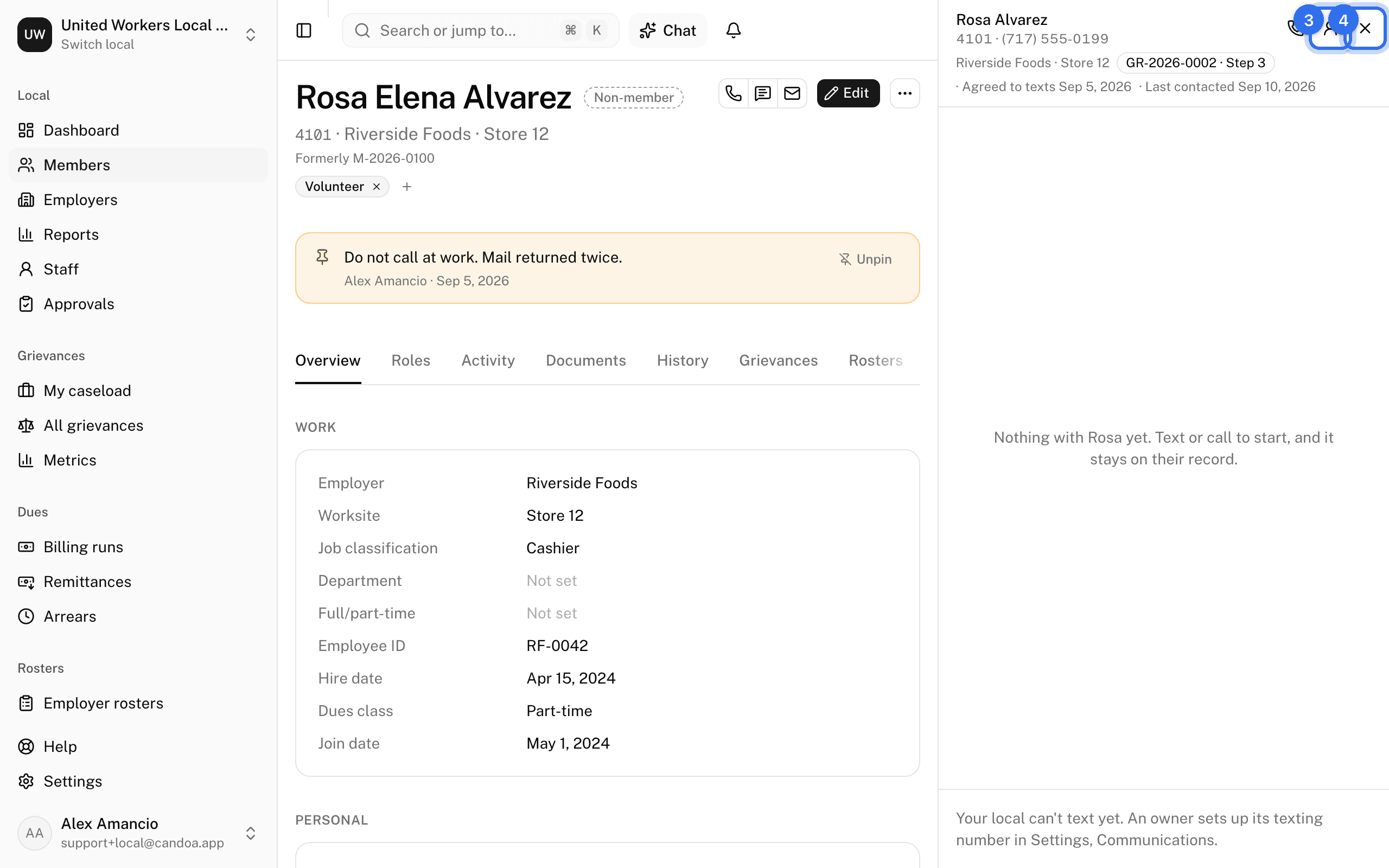
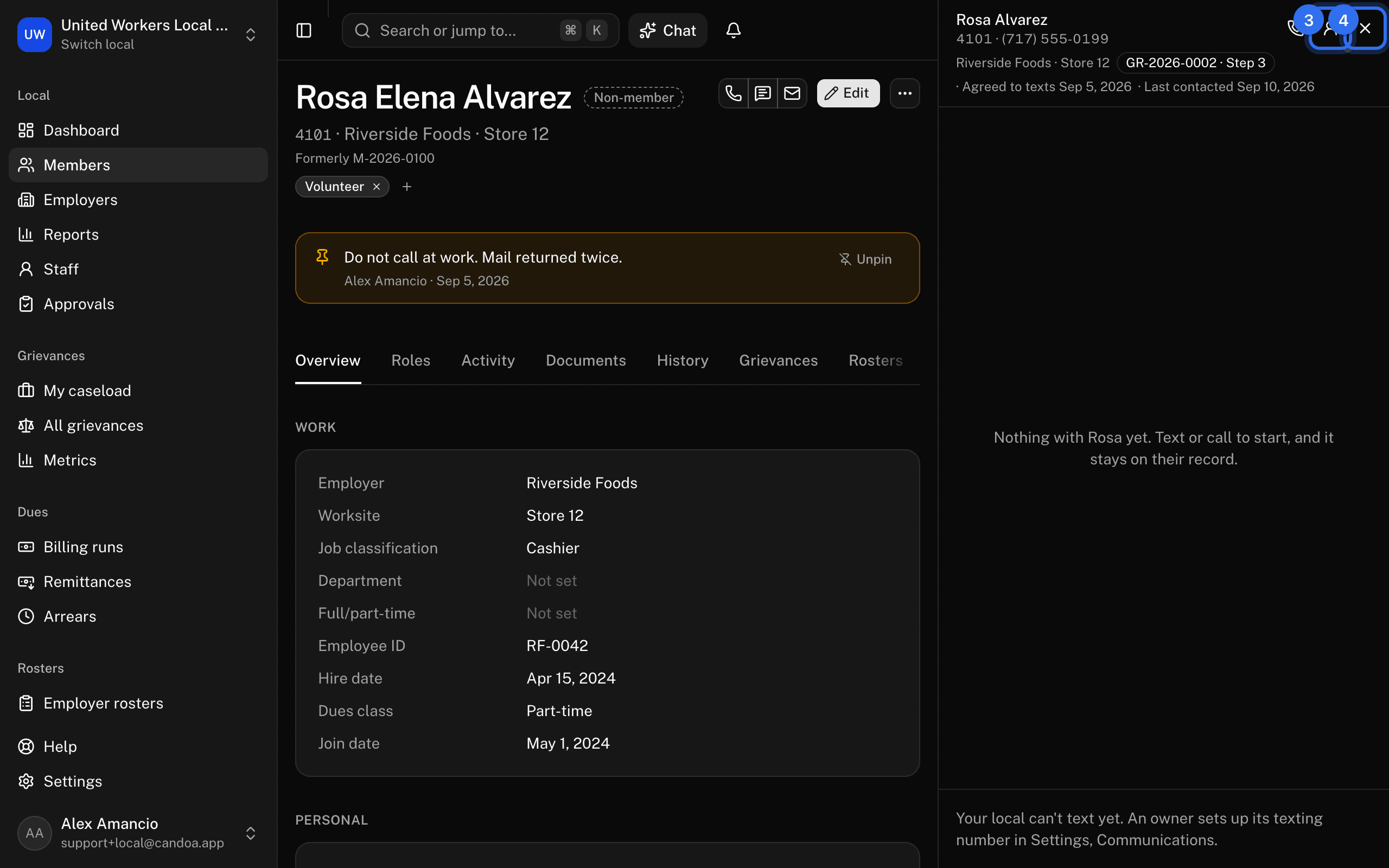
You can also open a member's conversation from their record: press Text at the top of the record. On the members list, open a row's menu and choose Text.
Text a member
- Open the member's conversation.
- Type in the reply box at the bottom. Under the box you see how many characters you've typed and how many segments the text will go out in; a long text goes out in parts, and each part counts toward your local's texts for the month.
- Press Enter, or the send button. Press Shift+Enter for a new line.
The text shows in the conversation right away. Under it you see who sent it, the time, and whether it's Sending, Sent, Delivered, or Not sent. When your local signs its texts, each one starts with your first name and the local's name, so the member knows who is writing.
Eli can help with a reply. Press Eli under the reply box and choose Write it out, Friendlier, More formal, Shorter, or Fix spelling, then Use this or Keep mine. When the member's last text asks something, clicking into the empty reply box may show Eli suggests a reply.
What stops a text from going
When a member can't be texted, the reply box is replaced by the reason:
- Your local can't text yet. An owner sets up the local's texting number in Settings, Communications, and carriers have to approve it before it can send.
- No mobile number on file. Add their mobile number to their record.
- Their mobile is outside the United States and Canada. The local's toll-free number reaches North American phones only. Call or email them instead; their number stays on the record for calling.
- Has not agreed to texts. A member is texted only when their record says they agreed, or after they've texted the local themselves. Call them, or email them from their record.
- Replied STOP. See below.
- Your local has used this month's texts. Texting starts again when an owner buys more in Settings, Communications, or when the next month begins.
A number that isn't on any member's record can be texted back once it has texted the local.
Email a member
- Open the member's record and press Email at the top.
- Fill in Subject and Message, then press Send.
The email goes from the local and shows in the member's conversation. When the member replies to it, their reply comes back into the Inbox as unread, in the same conversation.
Call a member
There are two ways a call happens, and which one you get depends on whether an owner has turned on Calls come from the local's number in Settings, Communications.
From the local's number. Candoa rings your own work phone first, and when you pick up it connects the member, who sees the local's number rather than your mobile.
- Press Call at the top of the member's record, the phone button at the top of their conversation, or Call in a row's menu on the members list.
- Your work phone rings. The conversation says Your phone is ringing, then Calling {name} now…, then You're on the call, with Hang up beside it.
- Answer, and you hear the member's name before they are dialled. If your voicemail picks up instead of you, the member is never called.
- When the call ends, How did it go? shows what happened — Talked and how long it lasted — with a Note to fill in. Press Something else if it was really a voicemail or a wrong number.
- Press Save to record.
Your work phone comes from your own Account page. Without one there, Call opens the member's number on whatever device you are using instead.
From your own phone. Where the local has not turned calling on, pressing Call hands the member's number to your device, and Candoa only keeps the note.
- Press Call. Your device offers to call the member's number, and their conversation opens with How did it go? at the bottom.
- Make the call.
- Under How did it go?, choose Talked, Left a voicemail, No answer, or Wrong number, and add a Note.
- Press Save to record.
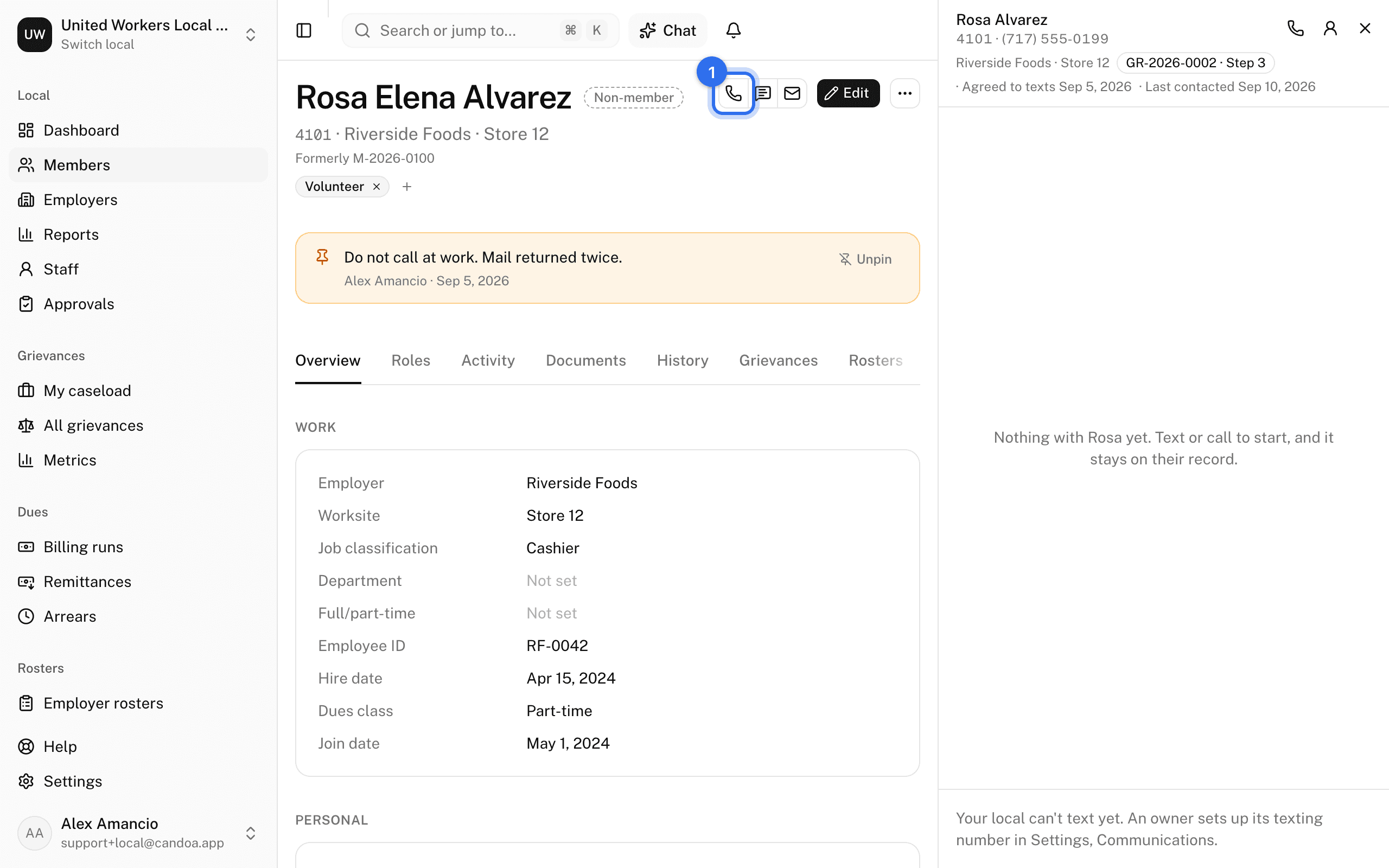
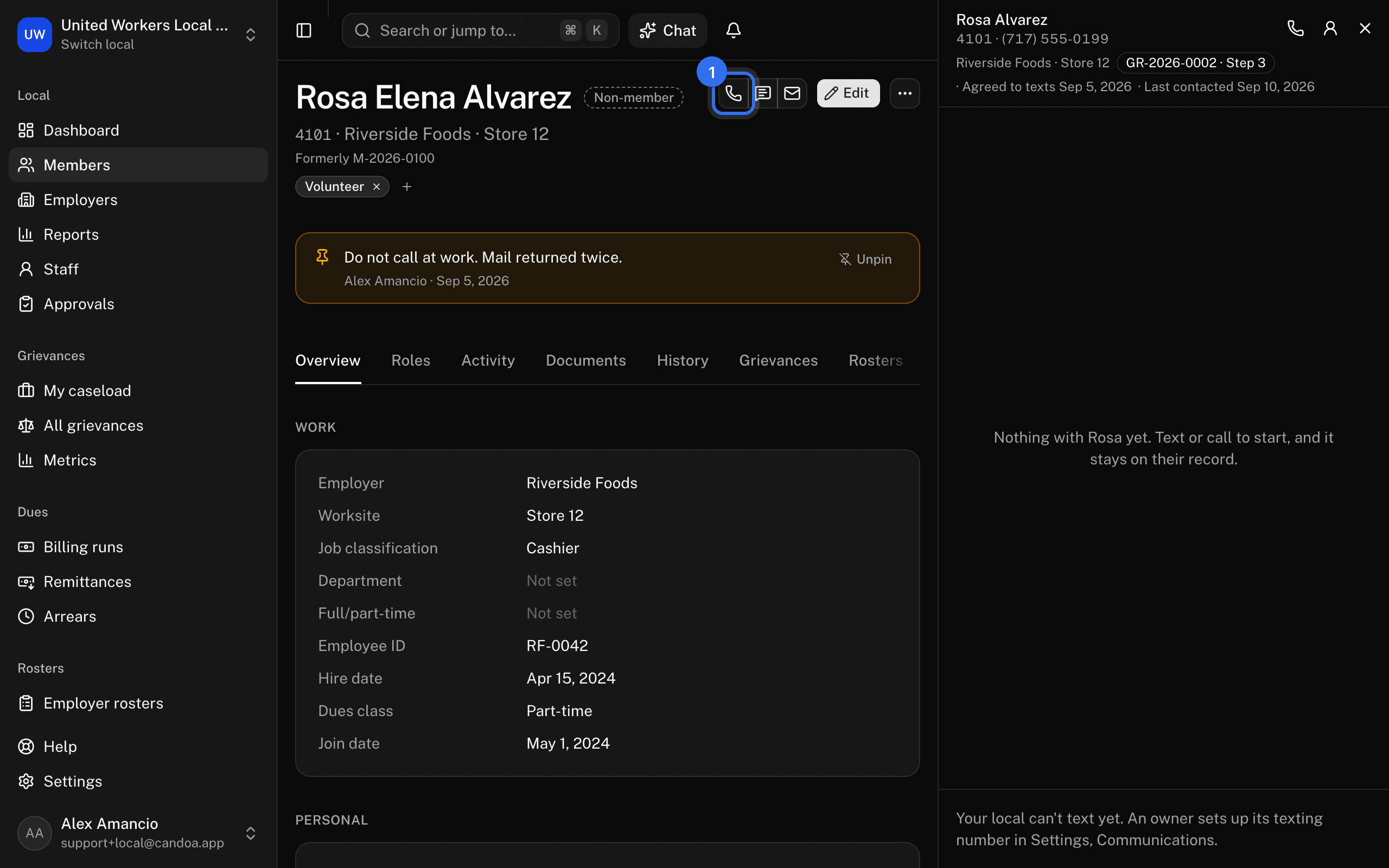
The call shows in the conversation with its note, and on the member's Activity tab as a call, which moves their "last contacted" date. Until you save it, How did it go? waits in that conversation, and other conversations show Go back to return to it. Press Not now if you didn't make the call after all, or have nothing to note.
Link a number to a member
When a text comes from a number that isn't on any member's record, you can put it where it belongs.
- Open the conversation from the Inbox.
- Press Link to a member under the number.
- Pick the member. Members whose record already has this number are listed first, under This number is on their record.
Everything from that number so far moves into the member's conversation, which opens in the panel. To have new texts from the number land on the member by themselves, add the number to their record as their mobile number.
Only staff who see every member can link a number.
What happens when a member replies STOP
Carriers require that a member who texts STOP (or STOPALL, UNSUBSCRIBE, CANCEL, END, or QUIT) gets no more texts from the local. When that text comes in:
- The conversation shows the member's text and a note that they replied STOP.
- Candoa won't text that number again, and the reply box says why.
- The member's record no longer says they agree to texts. The change shows in their history.
If the member later texts START (or UNSTOP), texts can go to the number again, and the conversation says so. Their record still says they haven't agreed to texts until someone on staff ticks it again, with the member's say-so.
Who can do what
Anyone whose permission can read Communications can open the Inbox and read conversations, and opening one marks it read. Texting, emailing, noting a call, and linking a number need the right to send messages; without it, the panel says you can read the conversation, and the Call and Email buttons don't show. See Permissions.
These pages are the help for Candoa, the software a local runs its members, employers, and grievances on.
Set up your localUpdated 2026-09-19