A member's dues
Read where a member stands, take a payment and print the receipt, credit or write off, put a wrong line right, and change how their dues reach the local.
What a member's dues account is
Every member has one running account with the local. A bill is what they were expected to pay for one period: their dues, an assessment, an initiation or reinstatement fee. A charge puts a bill onto the account; a payment takes money off it, whether the member paid at the counter or the employer sent it in the check-off. The account's balance is what is left: a positive figure is what they owe, a negative one is money held for them that pays their next bill.
Nothing on the account is ever edited or deleted. A mistake is put right by a new line that undoes the old one, so the account can always be read back years later exactly as it happened.
Paid through is the last day of the newest dues period paid in full with nothing unpaid before it. A member is in arrears from the day a dues bill passes its due date, and delinquent once they have been in arrears for as many months as your local's rules say. Both dates are worked out by a check that runs every night; see Arrears and suspension letters.
Open a member's dues
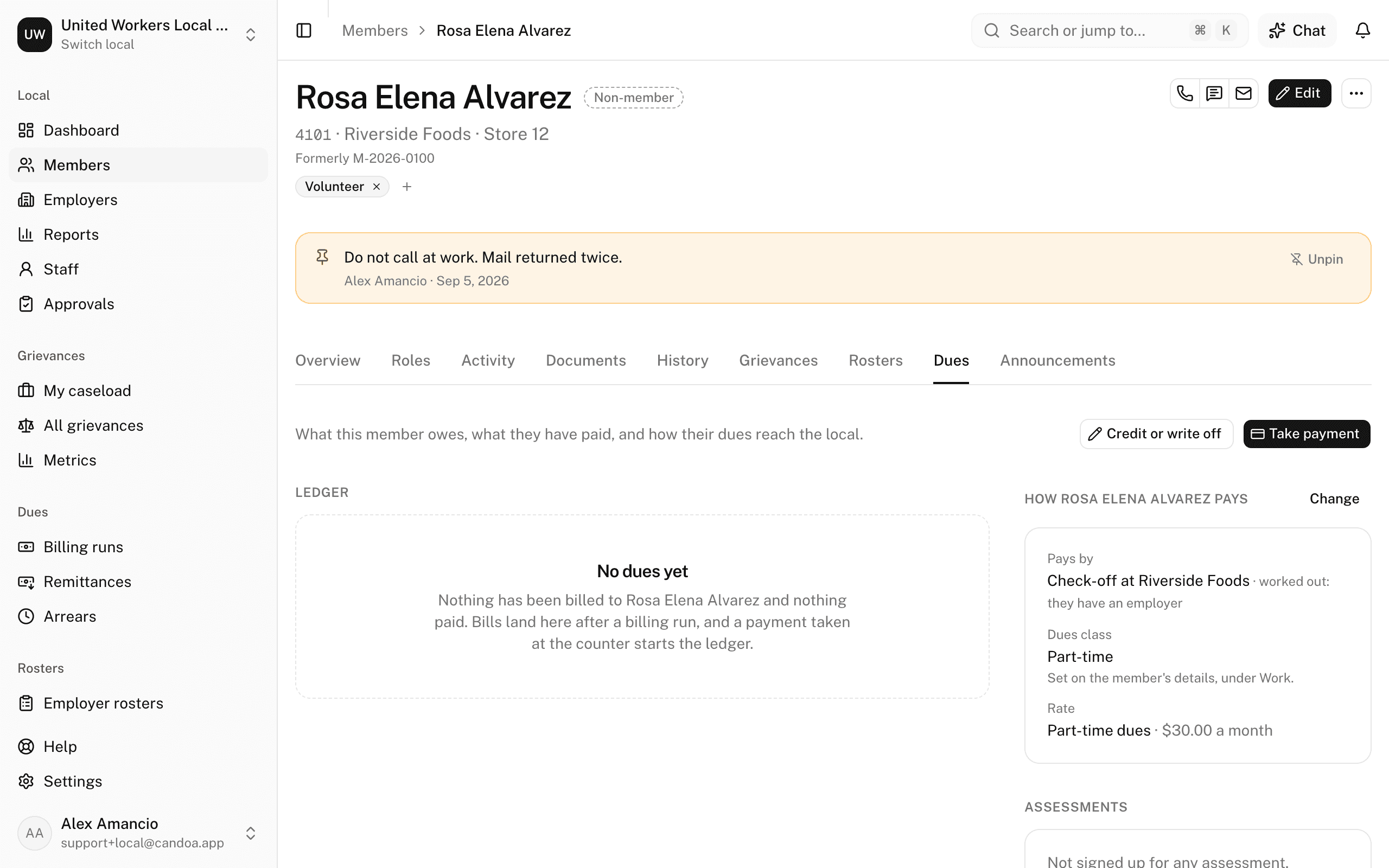
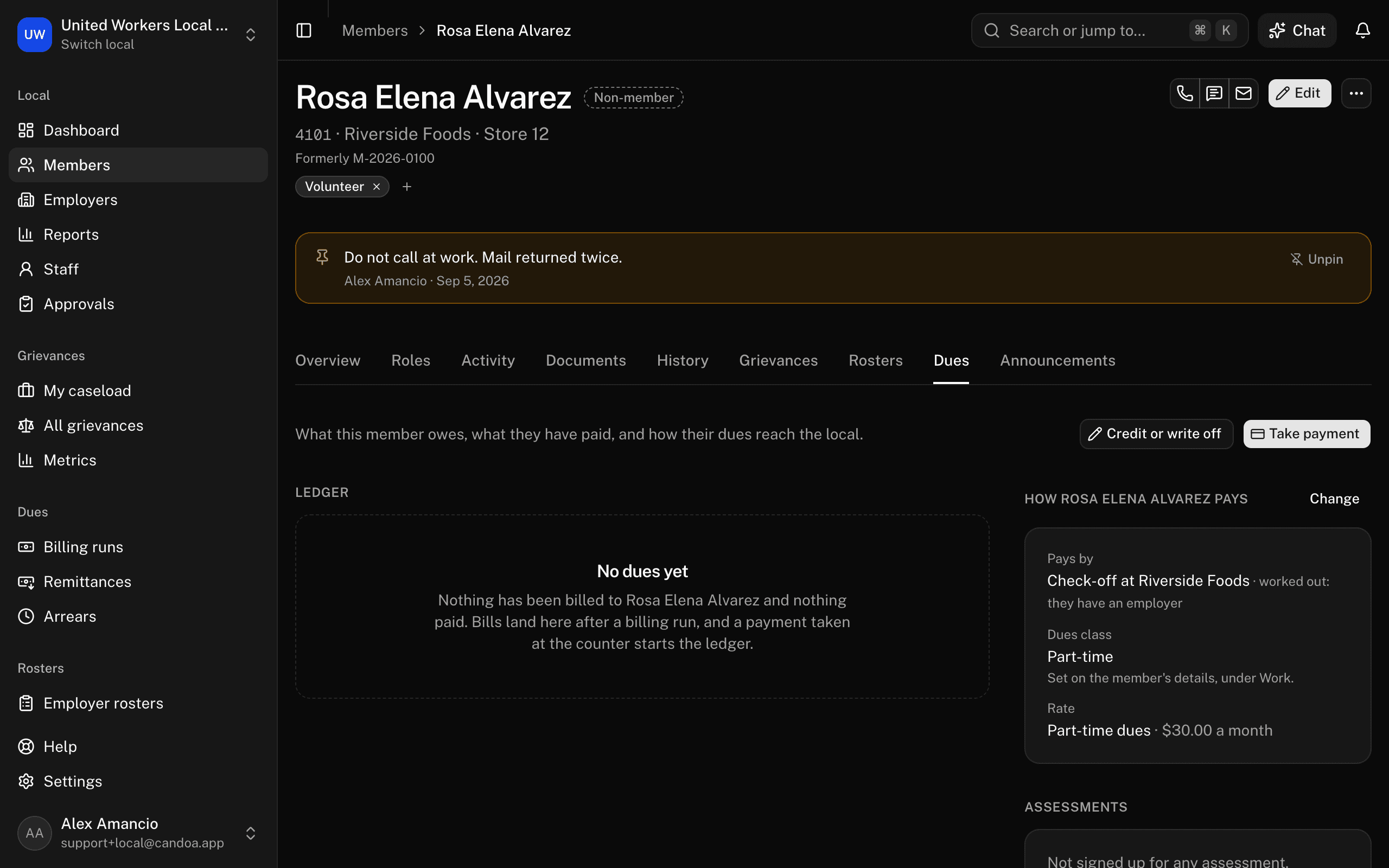
Open the member's record and click the Dues tab. The tab is there when your local has the Dues add-on. Everyone who can see dues can read it; taking a payment and correcting the account need more, see below.
Across the top: Owes (or Credit held), with how much of it is past due; Paid through; Last payment; and In arrears since, which also says the date they would turn delinquent if nothing is paid.
Take a payment
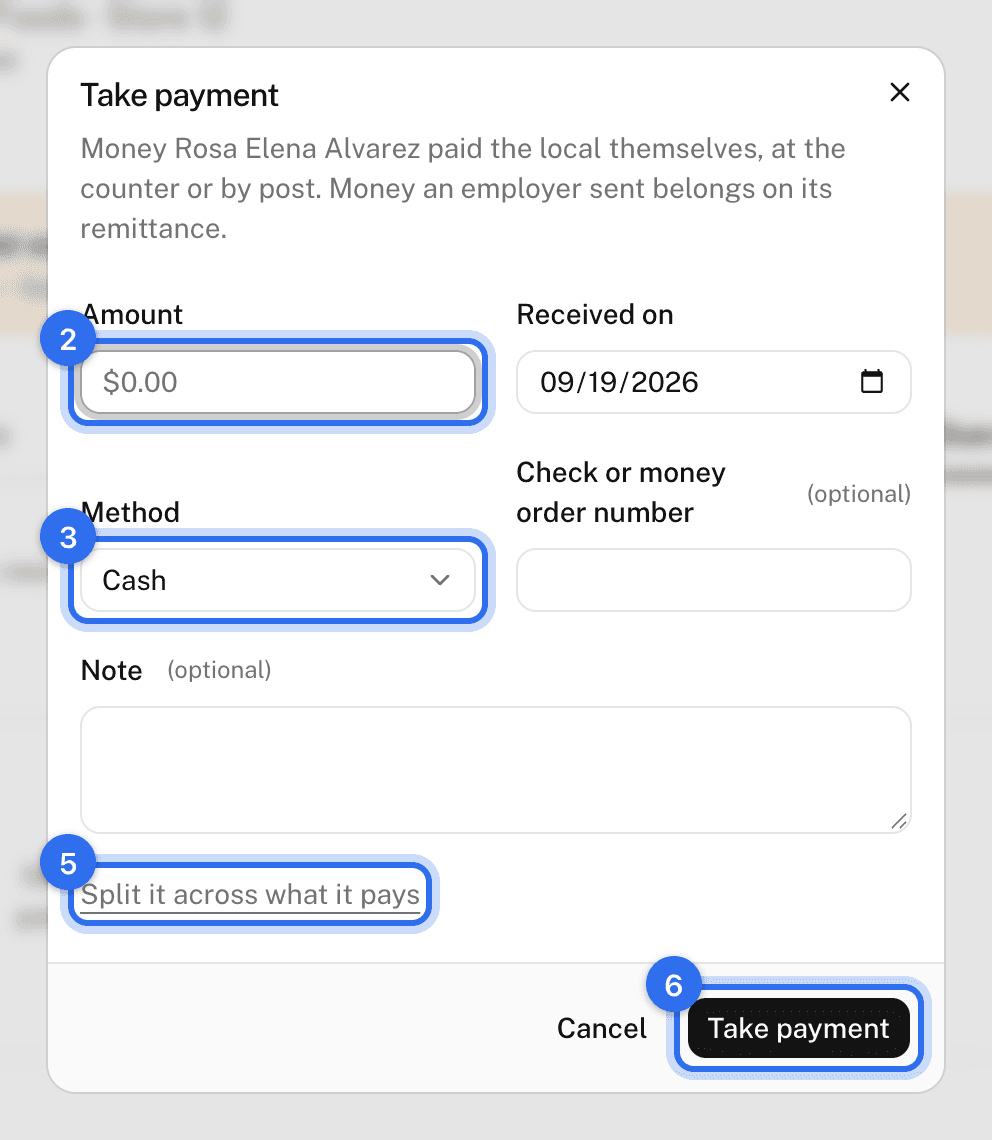
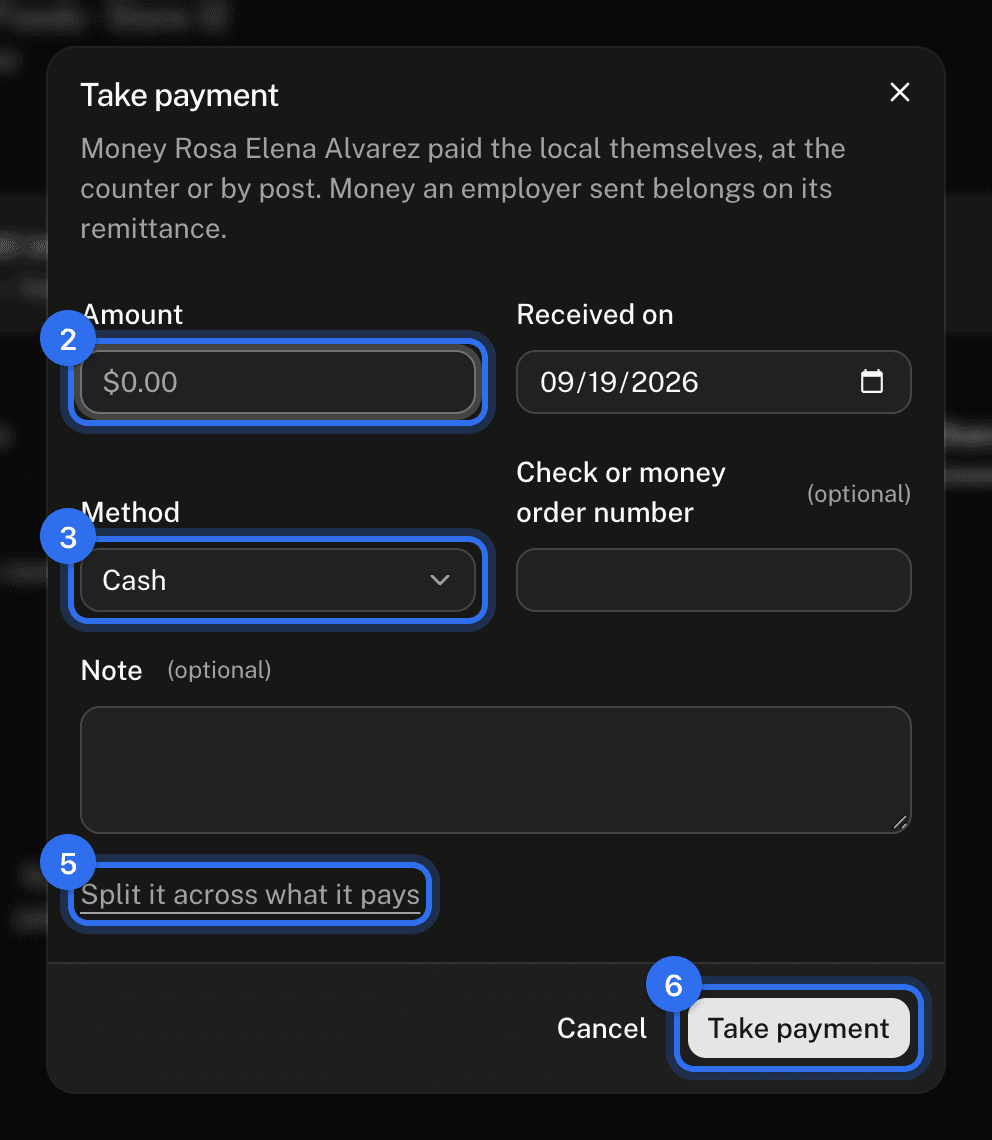
For money the member handed over themselves: cash or a check at the counter, or a check in the post. Money the employer sent belongs on its remittance, not here.
- Press Take payment.
- Type the Amount and set Received on (today unless you say otherwise; a date in the future is refused).
- Pick the Method and, for a check or money order, type its number under Check or money order number.
- Add a Note if the payment needs one.
- To say what the money is for, press Split it and type an amount beside each thing. Leave it alone and the payment pays the oldest bills first: dues, then fees, then assessments. A split can leave part of the payment to that usual order, but it can never come to more than the payment.
- Press Take payment. Candoa then offers Print the receipt, which opens the receipt in a new tab.
Needs the right to post dues: owners, admins, and office staff have it.
You can also tell Eli: "Record $40 cash from Rosa Alvarez." The card shows the amount, the date, how it was paid, and what she owes before and after, and says when the payment is more than she owes; Confirm records it the same way.
Print a receipt again
Open the payment's line in the Ledger, press the ⋯ at the end of the row, and choose Open the receipt. The receipt names your local, the member, what was paid and what it paid, the method and reference, and who recorded it. A payment that was voided keeps its receipt, with Voided across the top and the reason under it.
Read the open bills
Open bills lists every bill with money still owing, in the order the next payment will pay them. Each line says what the bill is, the period it covers, and when it fell due; one past its due date shows the due date in red with how many days late it is. The foot of the list totals them.
Read the ledger
Ledger is every line of the account, newest first, with the balance after each one. A line says what it was:
- Charge and the bill it raised.
- Payment and where it came from: Paid at the local with the method and any check number, or Check-off from the employer, which links to the remittance it arrived on.
- Credit and the reason it was posted.
- Reversal and the line it undid.
Under a line you may see the reason somebody typed, the word reversed when a later line undid it, or how much of a payment is still held as credit because it was more than the bills owing.
Page at the foot moves through older lines.
Credit or write off what a member owes
For dues forgiven while a member is on strike or laid off, or an amount the local has decided not to chase.
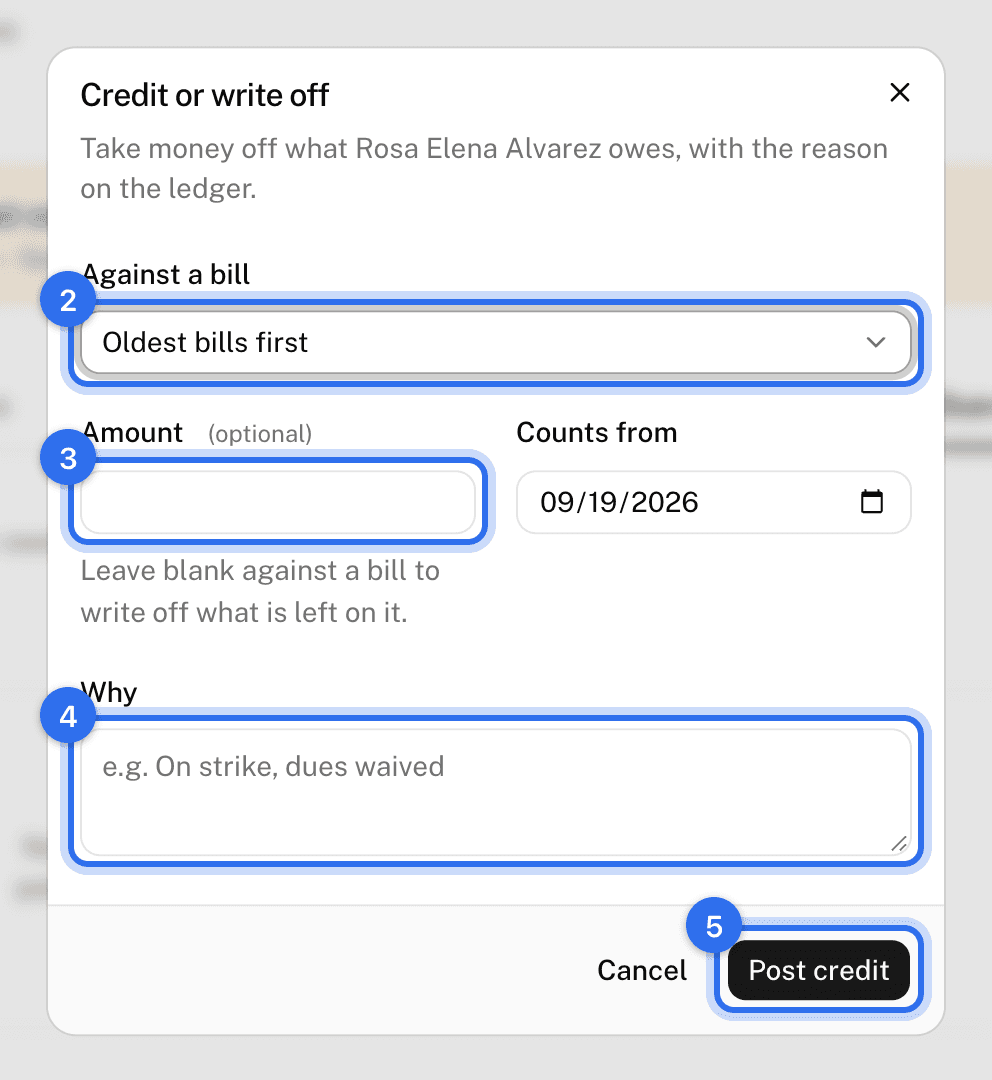
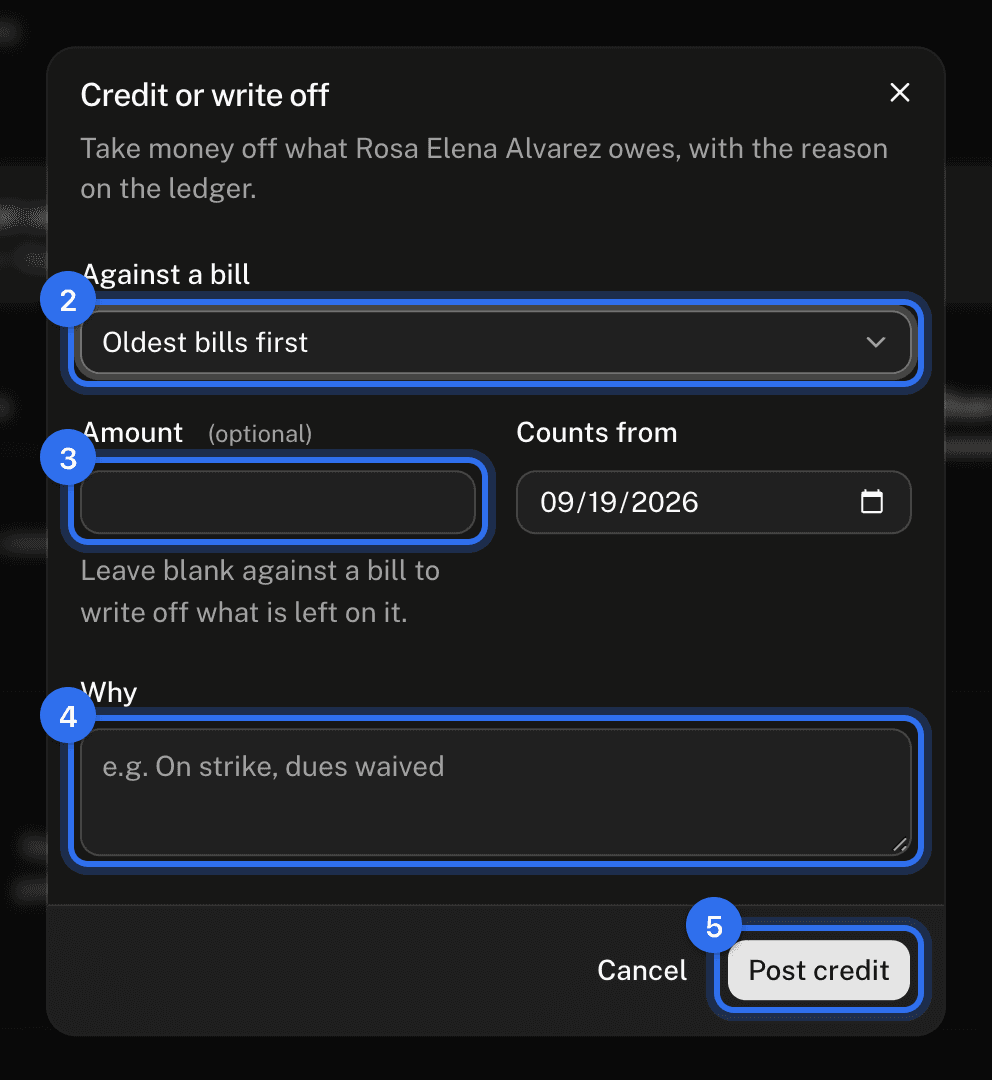
- Press Credit or write off.
- Choose Against a bill to aim it at one bill, or leave Oldest bills first to let it pay them in order.
- Type the Amount. Aimed at a bill, leaving the amount blank writes off exactly what is left on that bill.
- Set Counts from if the credit belongs to an earlier day, and type Why. The reason shows on the ledger.
- Press Post credit.
Needs the right to manage dues: owners and admins.
Put a wrong line right
Open the line's ⋯ menu in the ledger. What it offers depends on where the line came from:
- Reverse this line for a charge or credit raised here. Type Why and, if it belongs to an earlier day, Counts from.
- Void this payment for a payment taken at the counter. Type Why: a bounced check, a receipt entered twice. The bills it paid open again and its receipt says it was voided.
- Void the billing run to undo this for a charge a run raised. The link opens the run; voiding the run undoes it for everybody it billed.
- Void the remittance to undo this for a payment that came on an employer's list. The link opens the remittance.
A line that has already been reversed offers nothing, and a reversal cannot itself be reversed. Both need the right to manage dues.
Change how a member's dues reach the local
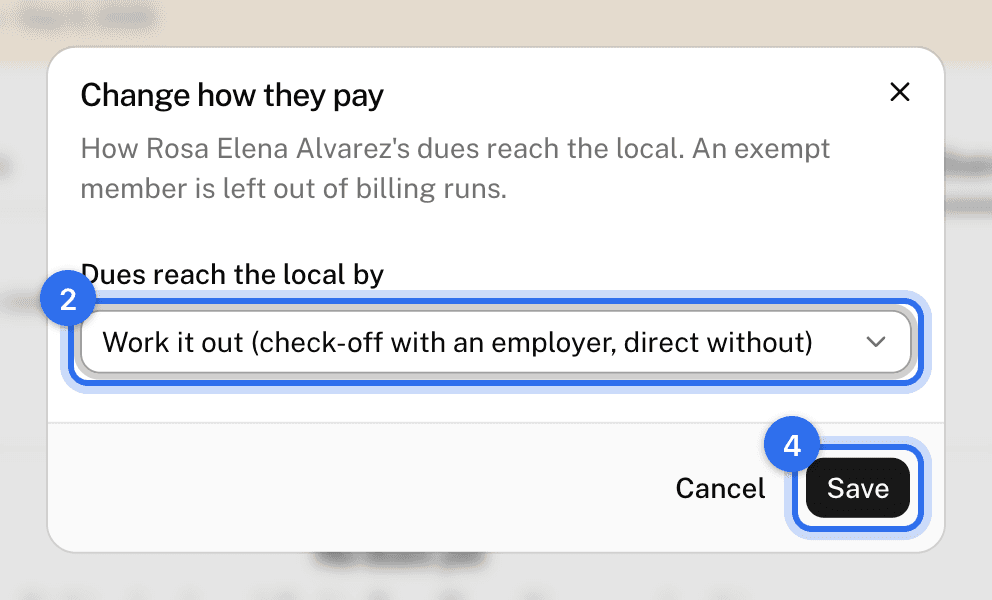
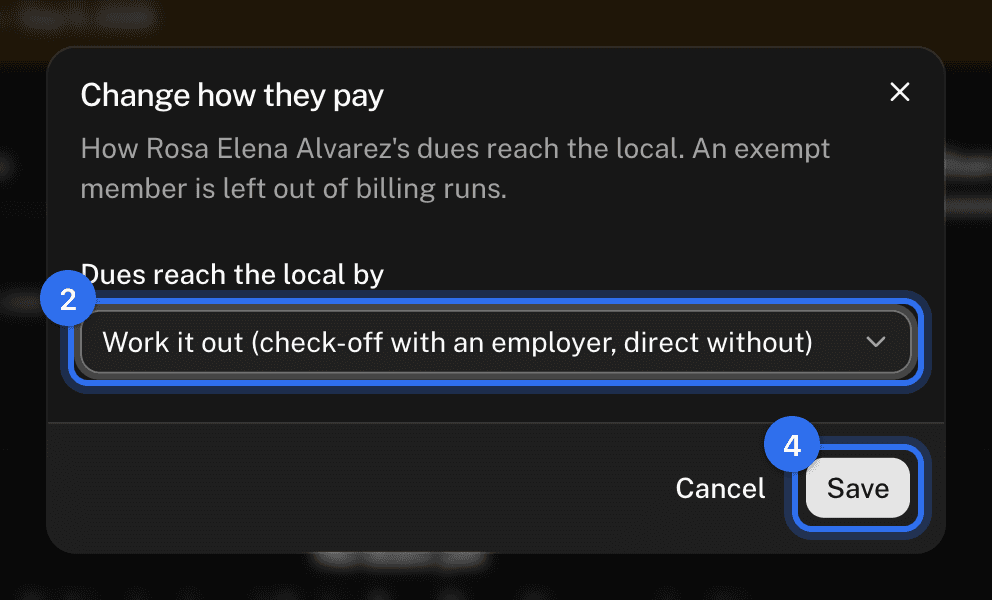
- Press Change beside How … pays.
- Choose Check-off (the employer takes it from their pay and sends it in), Direct (the member pays the local), Exempt (they owe nothing at all, for an honorary or hardship member), or Work it out, which reads check-off while they have an employer and direct when they do not.
- An exempt member needs a reason in your local's own words; it shows on this tab.
- Press Save.
An exempt member is left out of billing runs. Needs the right to manage dues.
Read how they are billed
Beside the ledger, How … pays shows how their dues reach the local and why that is what it is: chosen by the office, or worked out from whether they have an employer. Under it:
- Dues class, the category they are billed under. It is part of the member's details: press Edit on the record and change it under Work.
- Rate, the one that applies to them today, with what it charges. It is chosen the way a billing run chooses it: among the rates in effect, the one naming the most that matches this member. Rates are set under Settings › Dues.
- Initiation fee, when the rate carries one.
Read the assessments they pay
Assessments lists the assessments this member is signed up for: what each one charges and how often, whether everyone pays it or they signed up, and since when. A sign-up that has ended says when it ended. An amount the member chose for themselves shows beside the assessment's own.
These pages are the help for Candoa, the software a local runs its members, employers, and grievances on.
Set up your localUpdated 2026-09-15