Switch between locals
Working in more than one local with one account, and how to move between them.
One account can belong to several locals. Each local is a separate workspace with its own members, staff, permissions, and settings; nothing crosses over. Your role, your access limits, your profile, and the notices you've chosen can all differ from one local to the next.
Switch to another local
- Click your local's name and logo at the very top of the sidebar.
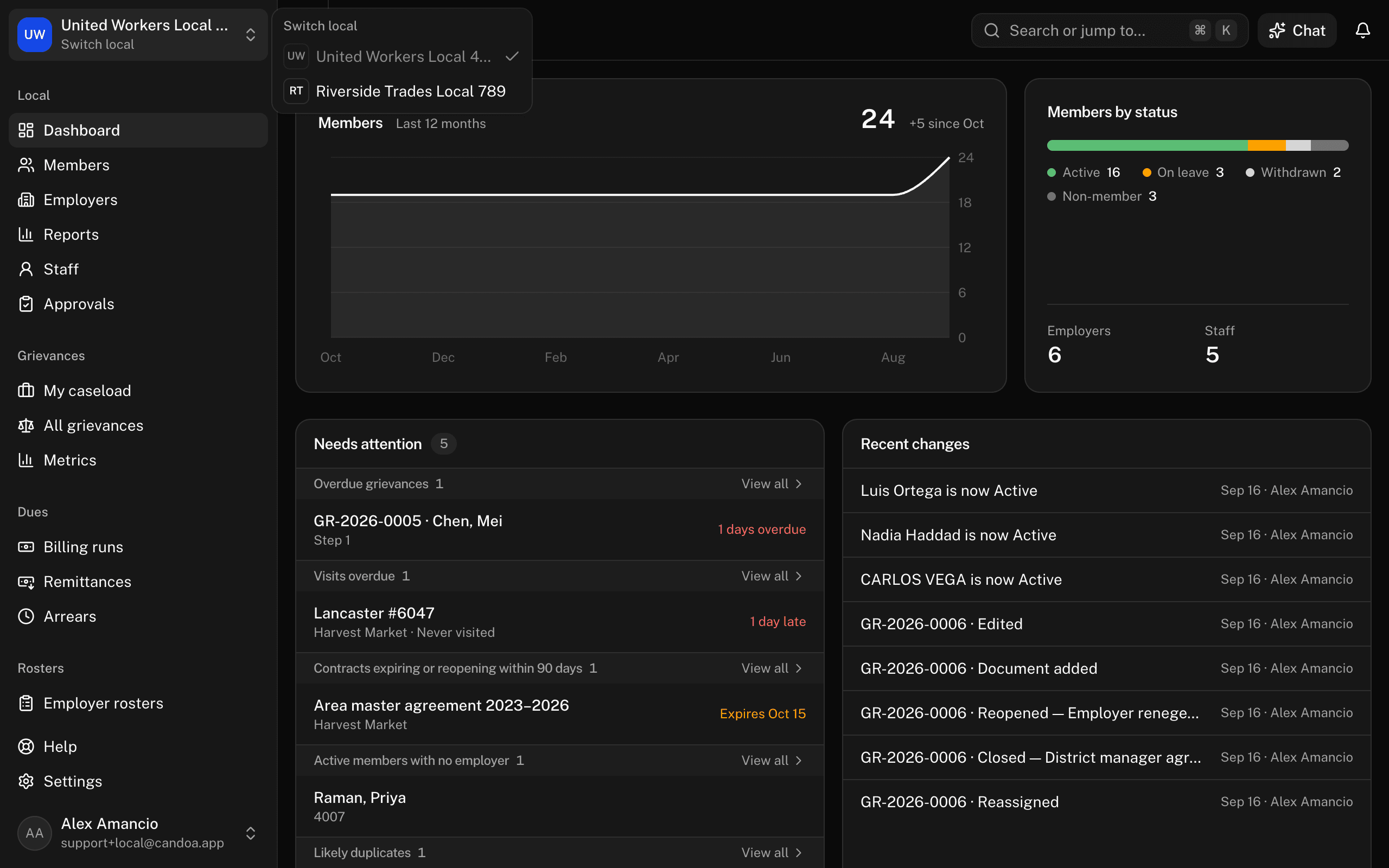
- A menu opens listing every local you belong to, with a check beside the one you're in.
- Click the local you want. Its dashboard opens.
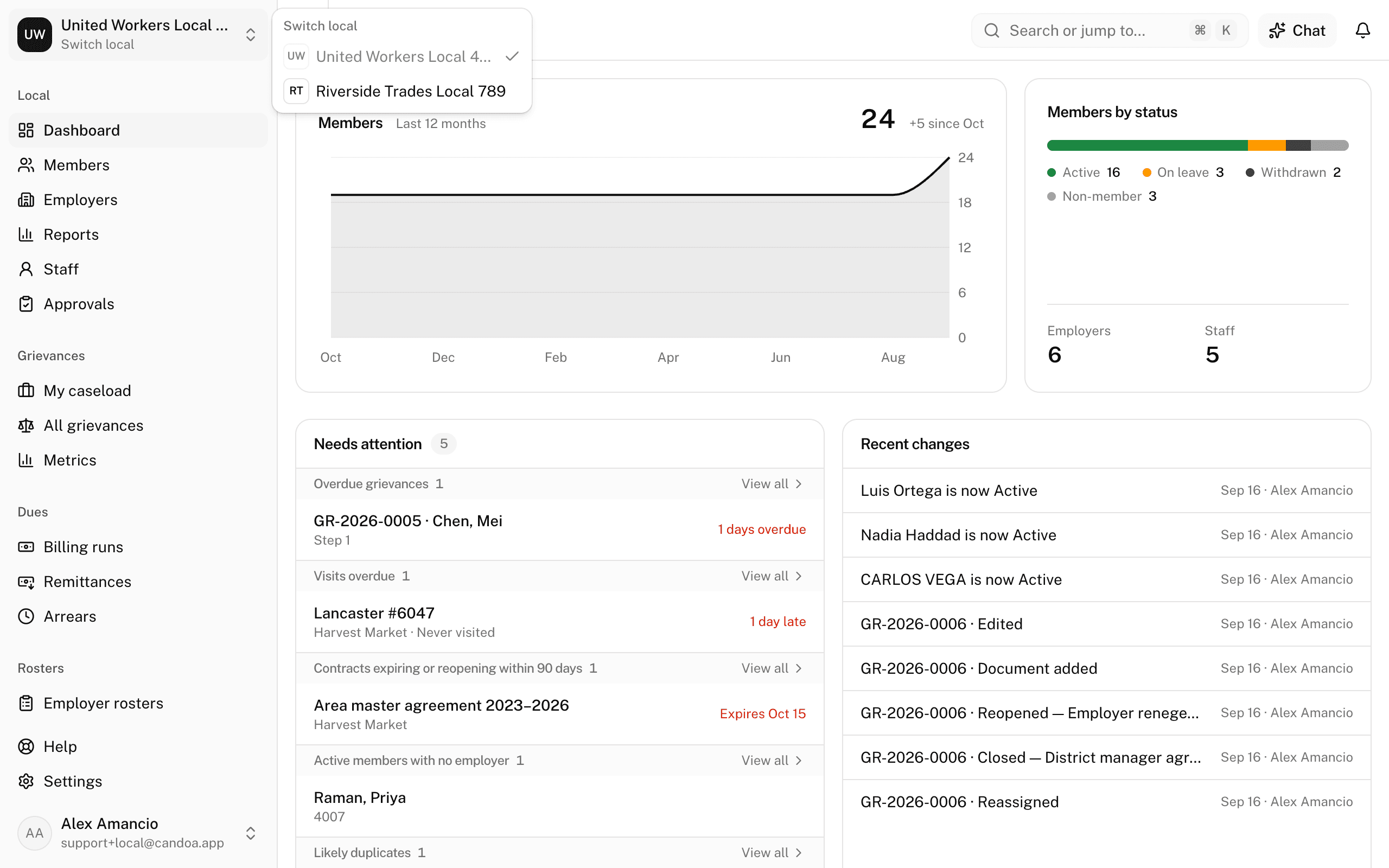
If you belong to only one local, the name at the top of the sidebar is plain text and nothing opens. There's nothing to switch.
Come back to the same local next time
Nothing to do. Candoa remembers the local you used last and opens it the next time you sign in, on any device.
Join another local
You can't add yourself to a local. Someone who manages staff there invites your email; see Staff. Accept the invitation and the local appears in your switch menu.
Create another local
- Sign out, or open the sign-up page in a fresh tab.
- Follow Set up a new local.
These pages are the help for Candoa, the software a local runs its members, employers, and grievances on.
Set up your localUpdated 2026-09-19