Procedures
Set up the steps a case moves through, the days allowed at each, who acts, and the fields a step collects; change a procedure that's in use.
What a procedure is
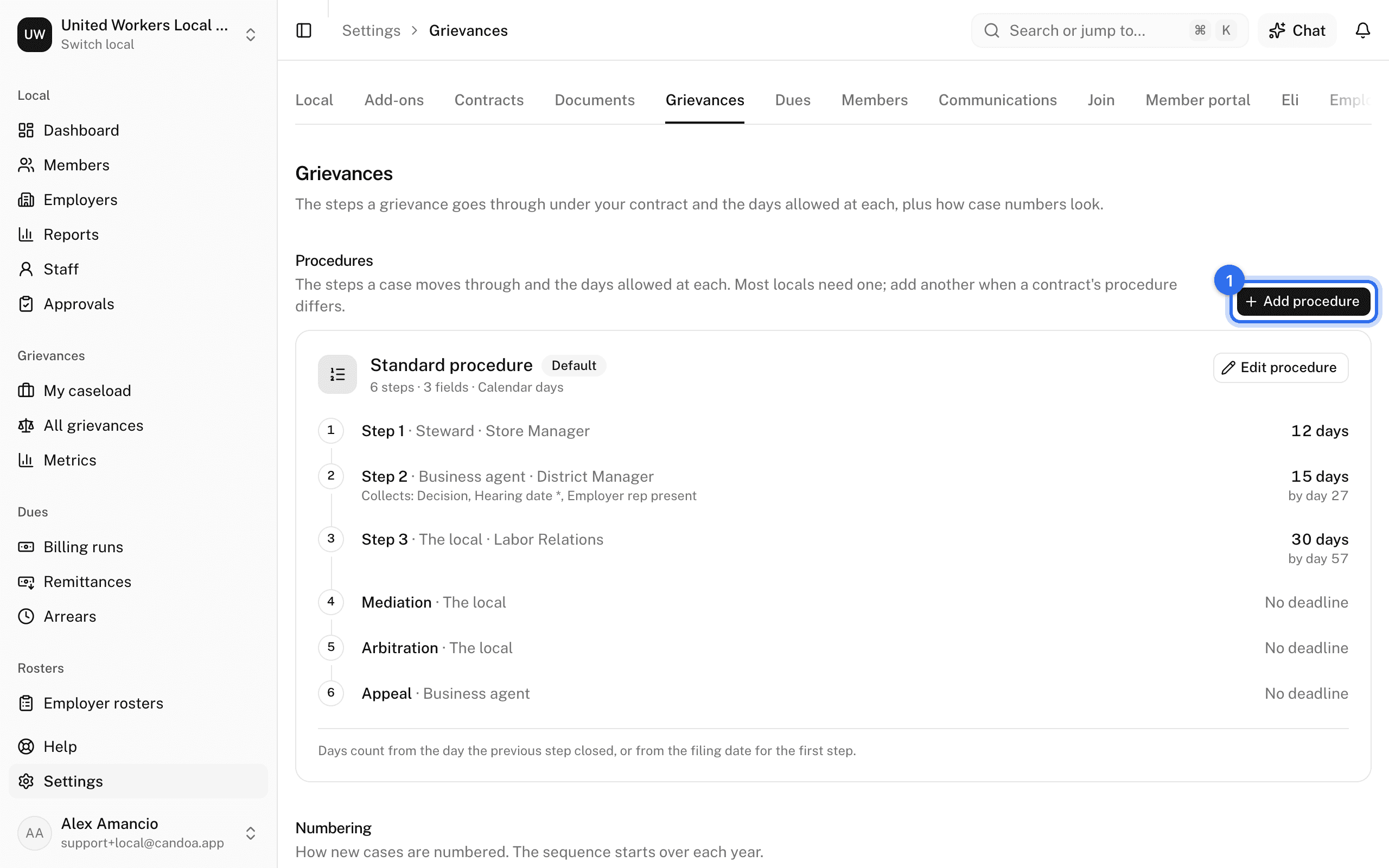
A procedure is the ordered list of steps a case moves through, with the days allowed at each and who acts. It comes from the contract. Most locals need one; add another when a contract's procedure differs, and pick the procedure per case when filing.
A local gets a standard procedure automatically the first time it opens grievance settings or files a case:
| Step | Days | Acts for the union | Answers for the employer |
|---|---|---|---|
| Step 1 | 10 | Steward | Store Manager |
| Step 2 | 15 | Business agent | District Manager |
| Step 3 | 30 | The local | Labor Relations |
| Mediation | none | ||
| Arbitration | none |
A step's due date is the day the previous step closed, or the filing date for the first step, plus the days allowed. Calendar days counts every day; Business days skips weekends, which is what contracts mean by "working days". A step with no days has no deadline. Changing a step's days affects cases that reach it afterwards; existing due dates aren't recomputed.
Open the procedures
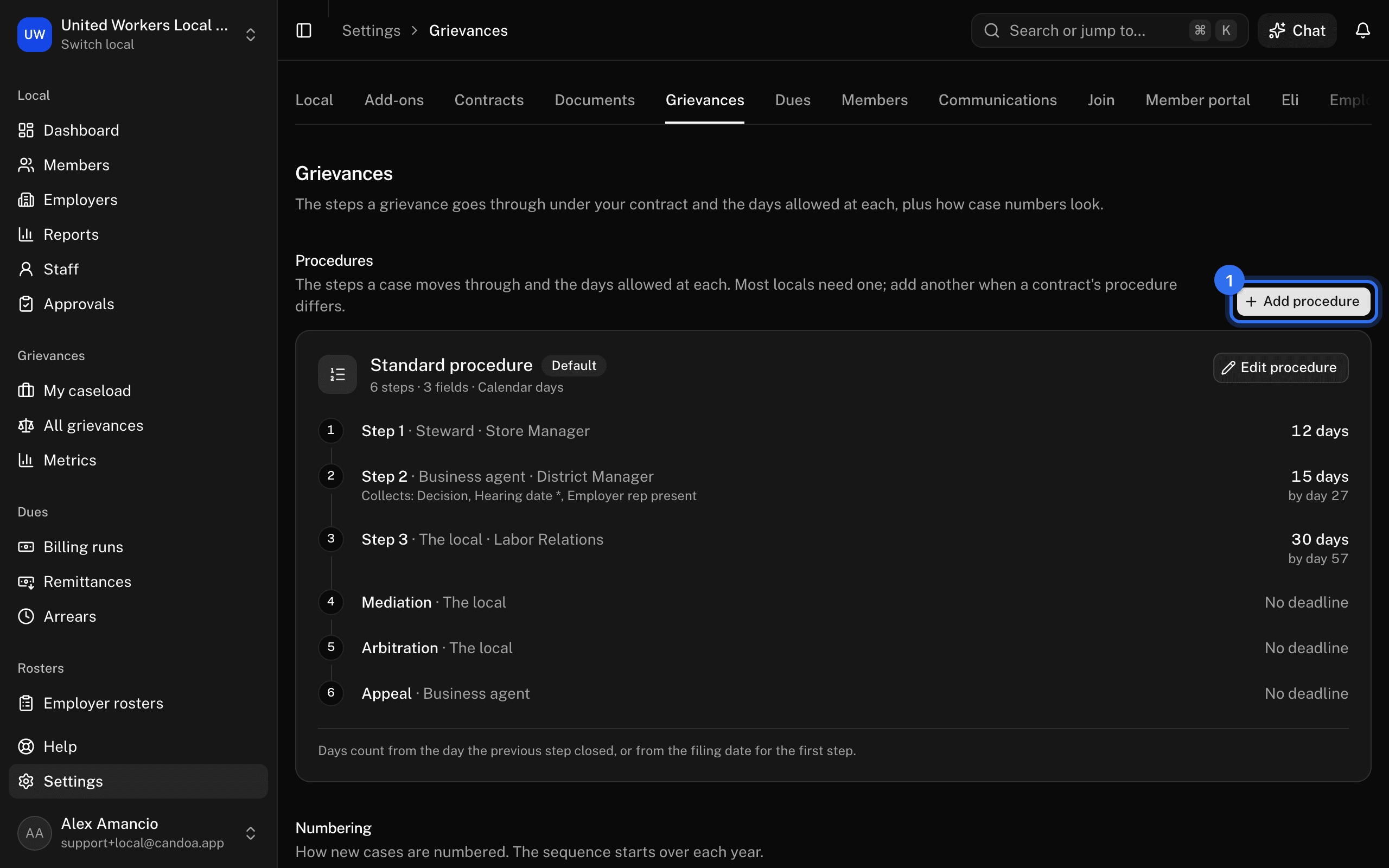
Open Settings › Grievances. Owners and admins, when the add-on is on. Each procedure is a card with its steps.
Add or edit a procedure
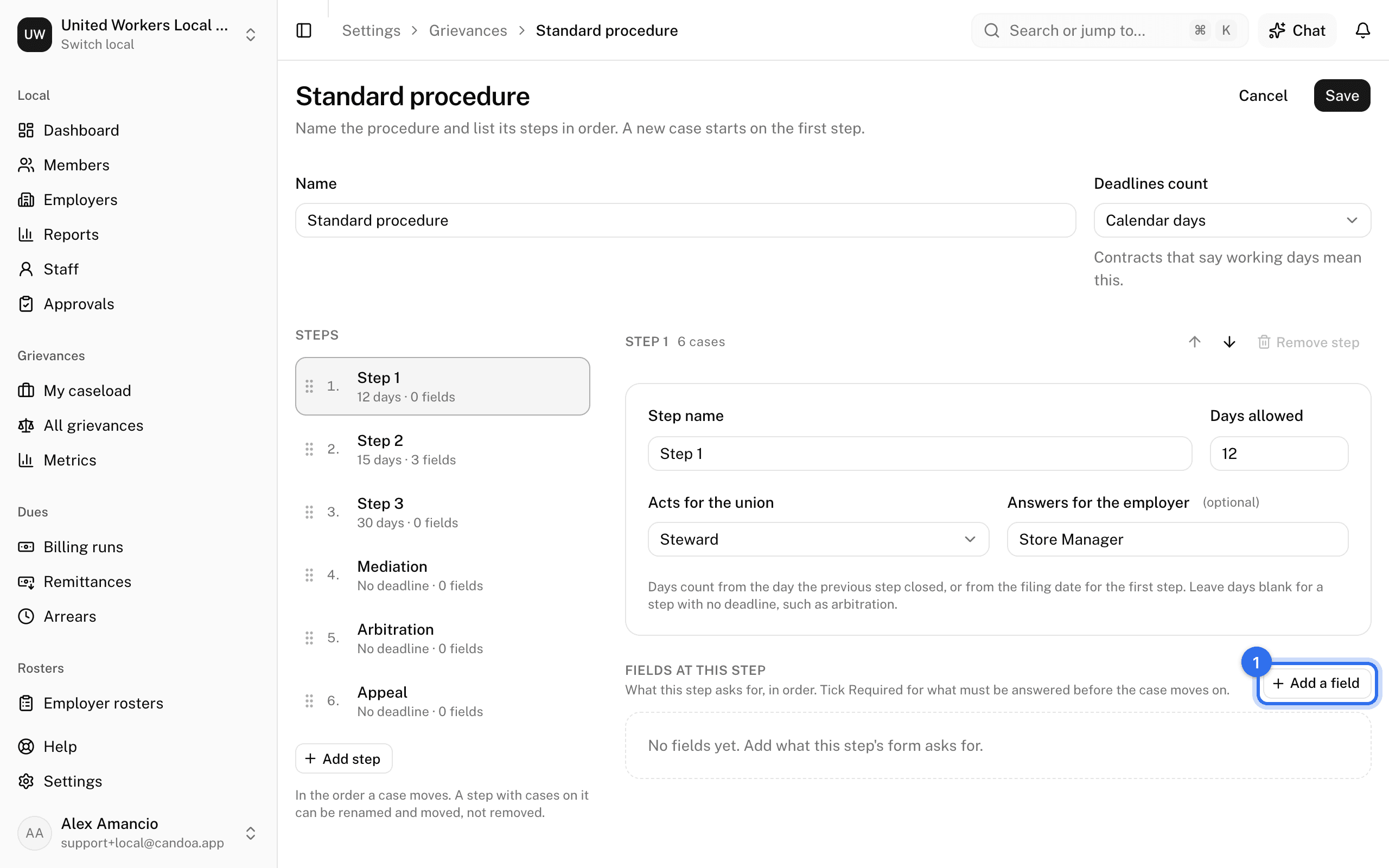
- Press Add procedure, or Edit procedure on a card.
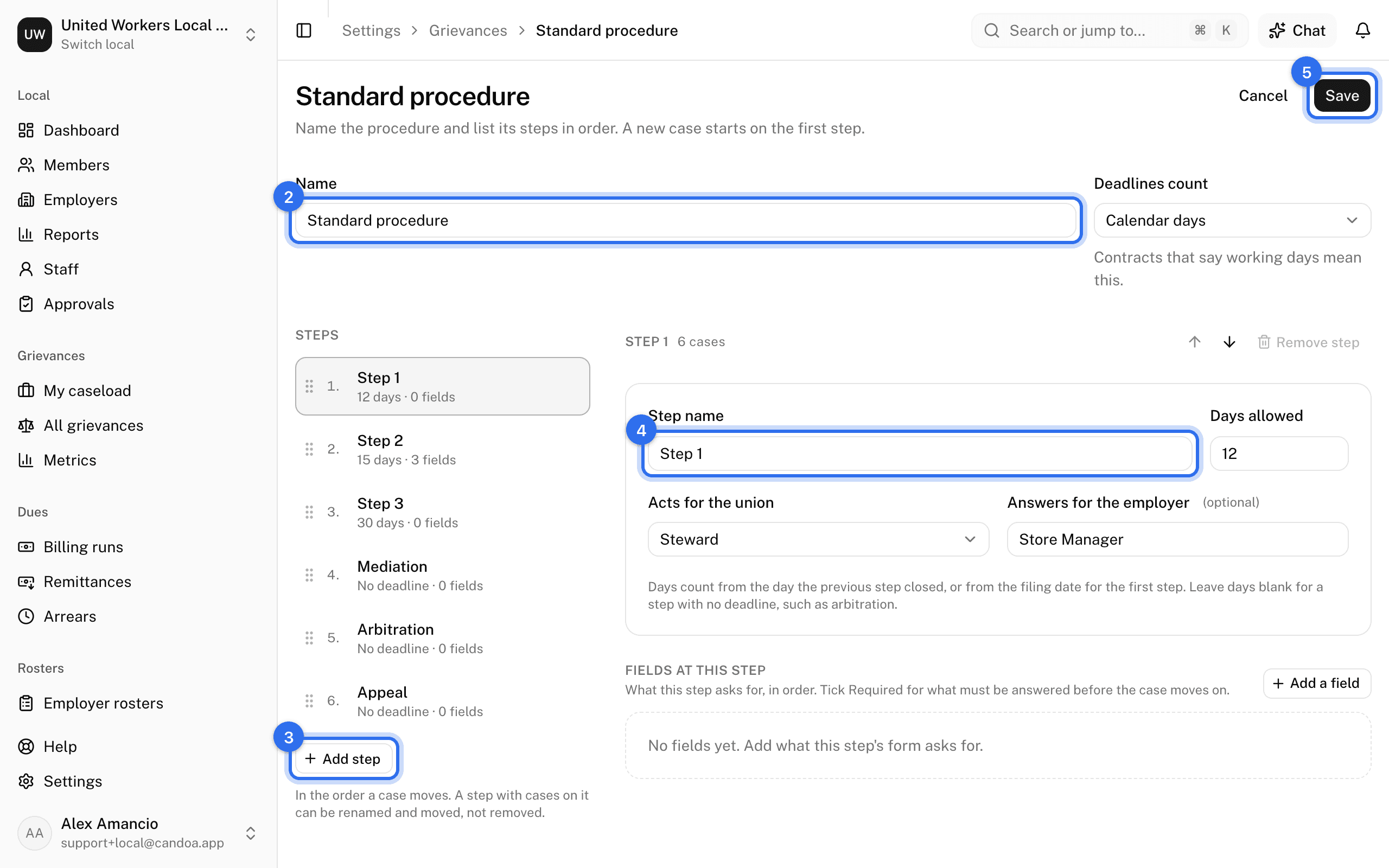
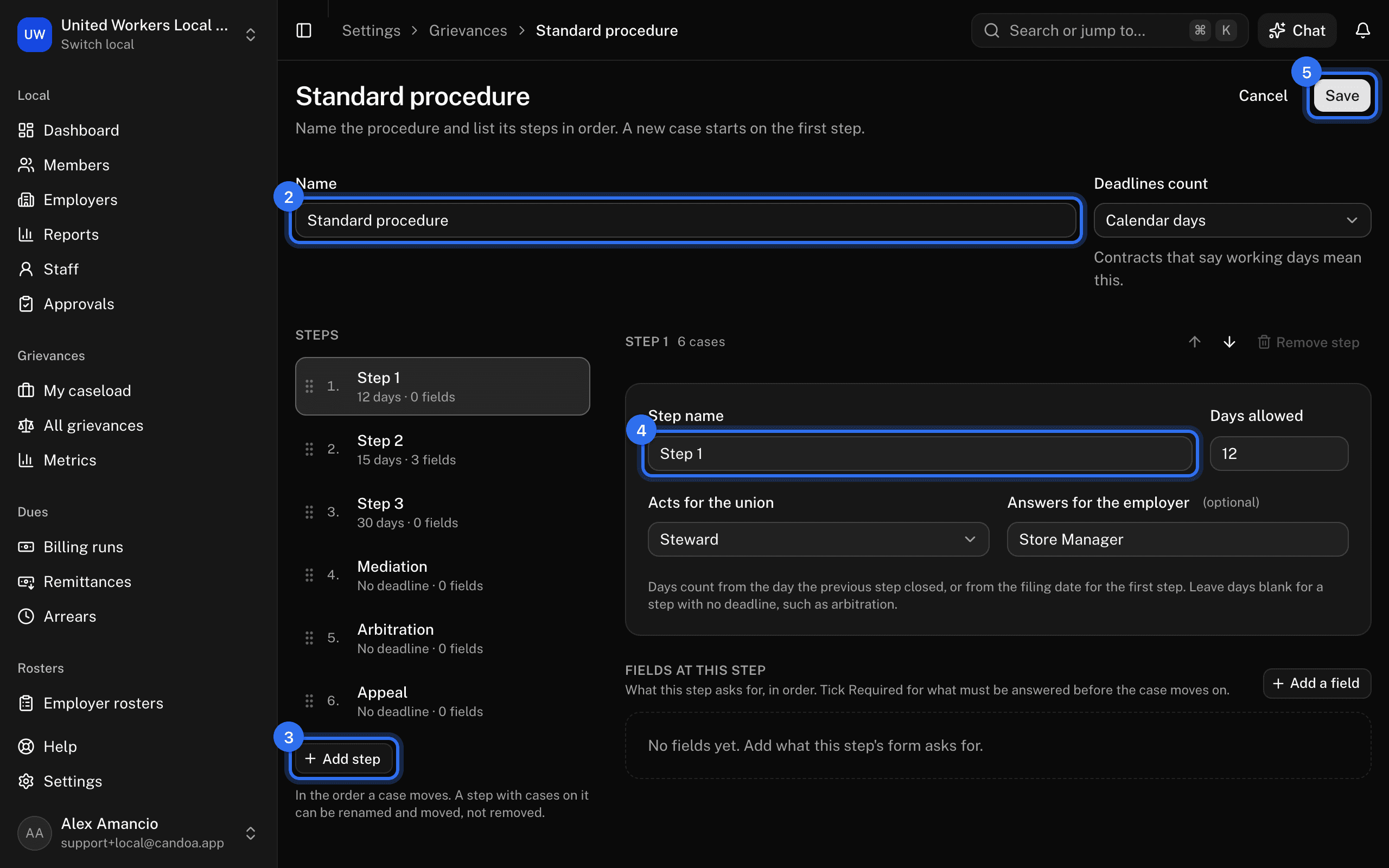
- Set the Name and Deadlines count: Calendar days or Business days.
- In the Steps rail on the left, click a step to edit it, drag to reorder, or press Add step (up to 20).
- For each step set the Step name, Days allowed (blank for no deadline), Acts for the union (Steward, Business agent, The local, Other), and Answers for the employer, free text such as "Store Manager".
- Press Save, or Cmd+S.
Leaving with unsaved edits asks whether to discard them.
Make a step collect information
- In the step, under Fields at this step, press Add a field.
- Pick an existing field or press New field, then set its Label and Kind: Date, Text, Long text, Number, Yes/No, Choice with its options, or Member.
- Tick Required if the case can't move on without it.
- Press Done, then Save.
A field can be reused on several steps.
Change a procedure that has cases on it
A step that any case has ever sat on can be renamed and moved, not removed. A field that has answers on a case can be renamed and moved, not deleted. This keeps every case's history intact.
Stop using a procedure
Make it inactive in the editor. It stops being offered for new cases while existing cases keep it. The default for new cases is set on the same settings page; see Grievance settings.
These pages are the help for Candoa, the software a local runs its members, employers, and grievances on.
Set up your localUpdated 2026-09-17