Remittances
Take in an employer's check-off check and list, match its lines to members, work through the checks, and post the money to members' accounts.
What a remittance is
A remittance is one check-off payment from one employer: the check (or transfer) they sent, and the list that came with it saying what was deducted from whom. Candoa reads the list, matches each line to a member, and — when you post it — puts each line's money on that member's account.
A remittance is In review while you work it, Posted once the money is on members' accounts, and Void if it was sent or entered in error.
Open Remittances under Dues in the sidebar. Anyone with dues access can read them. Adding, reviewing and posting need the right to work dues; voiding a remittance that is already posted needs the right to manage dues.
Find a remittance
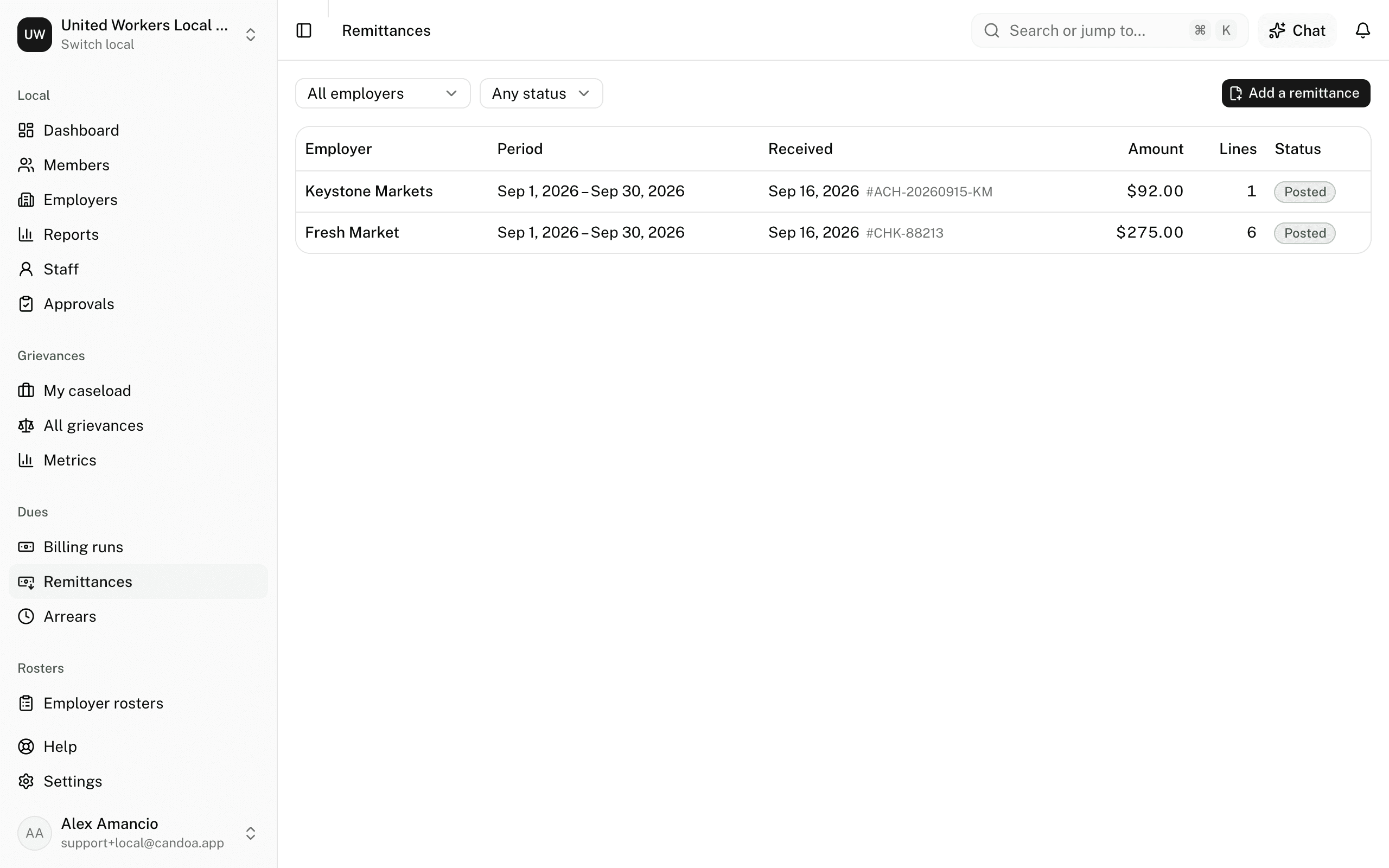
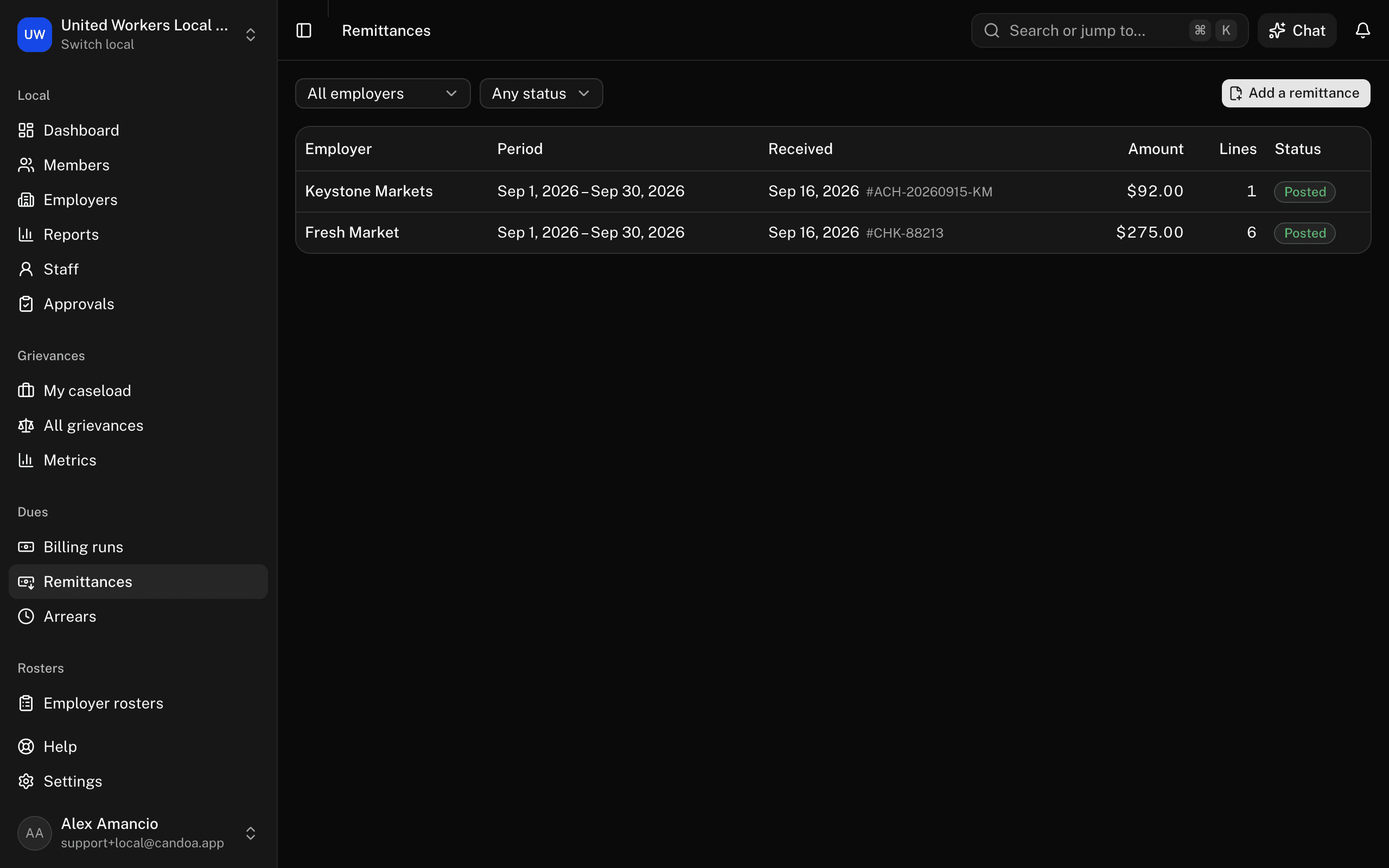
The list shows every remittance, newest received first: the employer, the period it covers, when it came in, the amount, how many lines it has, and where it stands. Narrow it with the Employer and Status boxes at the top, and Clear to see everything again. Click a row to open it.
Add a remittance
- Press Add a remittance on the remittances list.
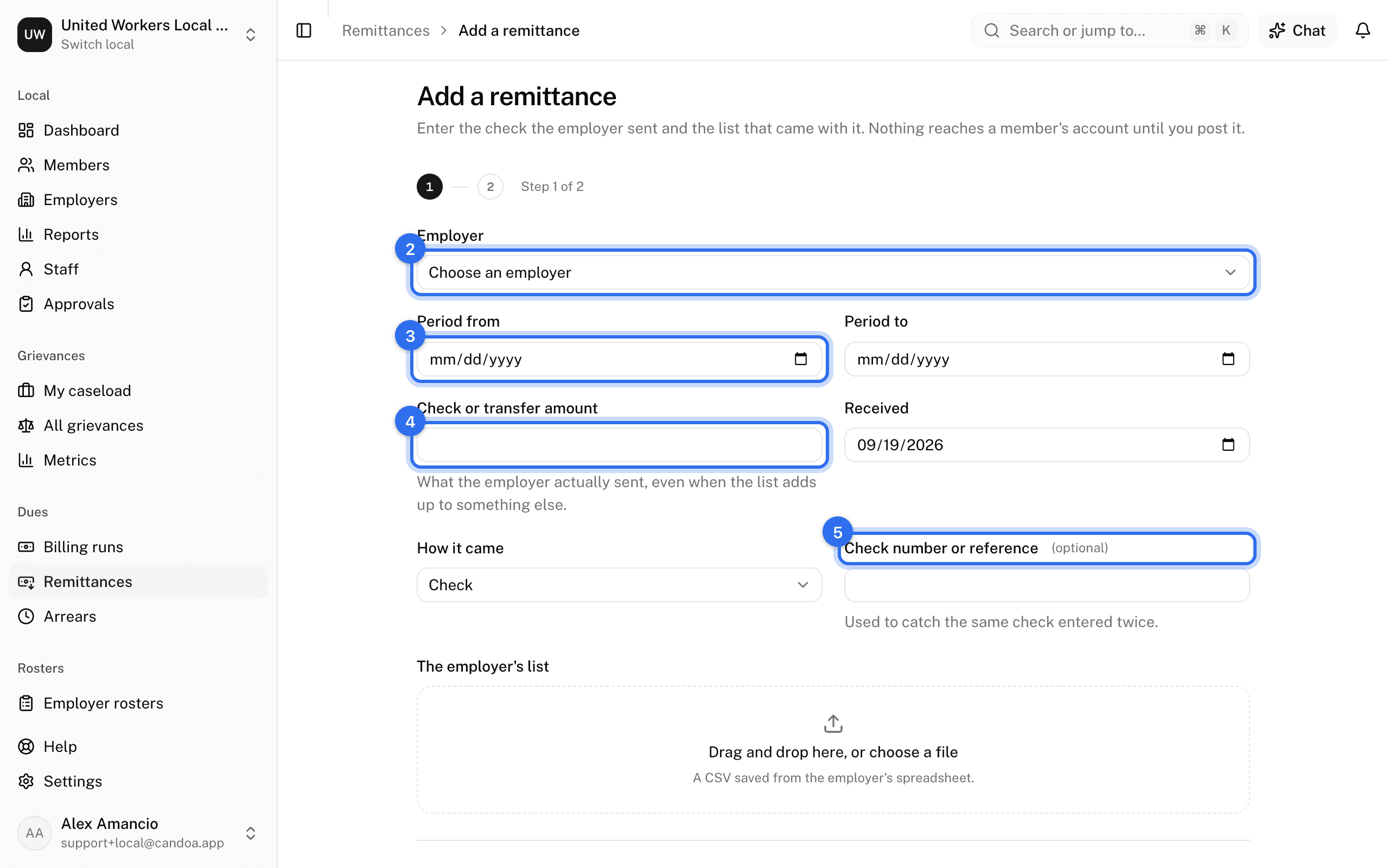
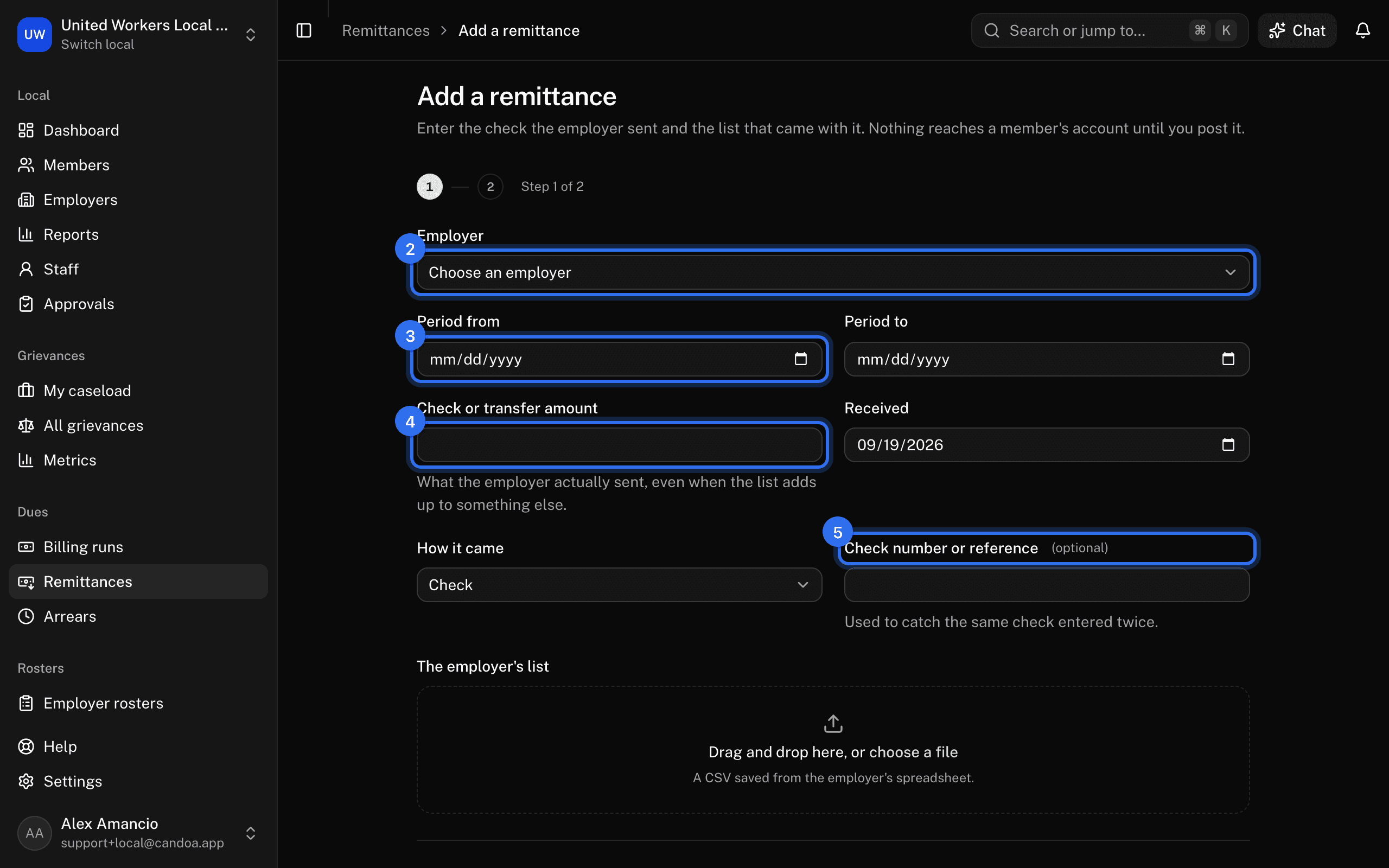
- Choose the Employer. Do this first: the file is filed under that employer.
- Fill in Period from and Period to — the weeks or month the deductions cover.
- Enter the Check or transfer amount. This is what the employer actually sent, even when their list adds up to something else; the difference is one of the checks later.
- Set Received, choose How it came, and enter the Check number or reference. The reference is how a check entered twice is caught.
- Drop the employer's list in under The employer's list, or browse for it. It must be a CSV saved from their spreadsheet.
- Press Read the file.
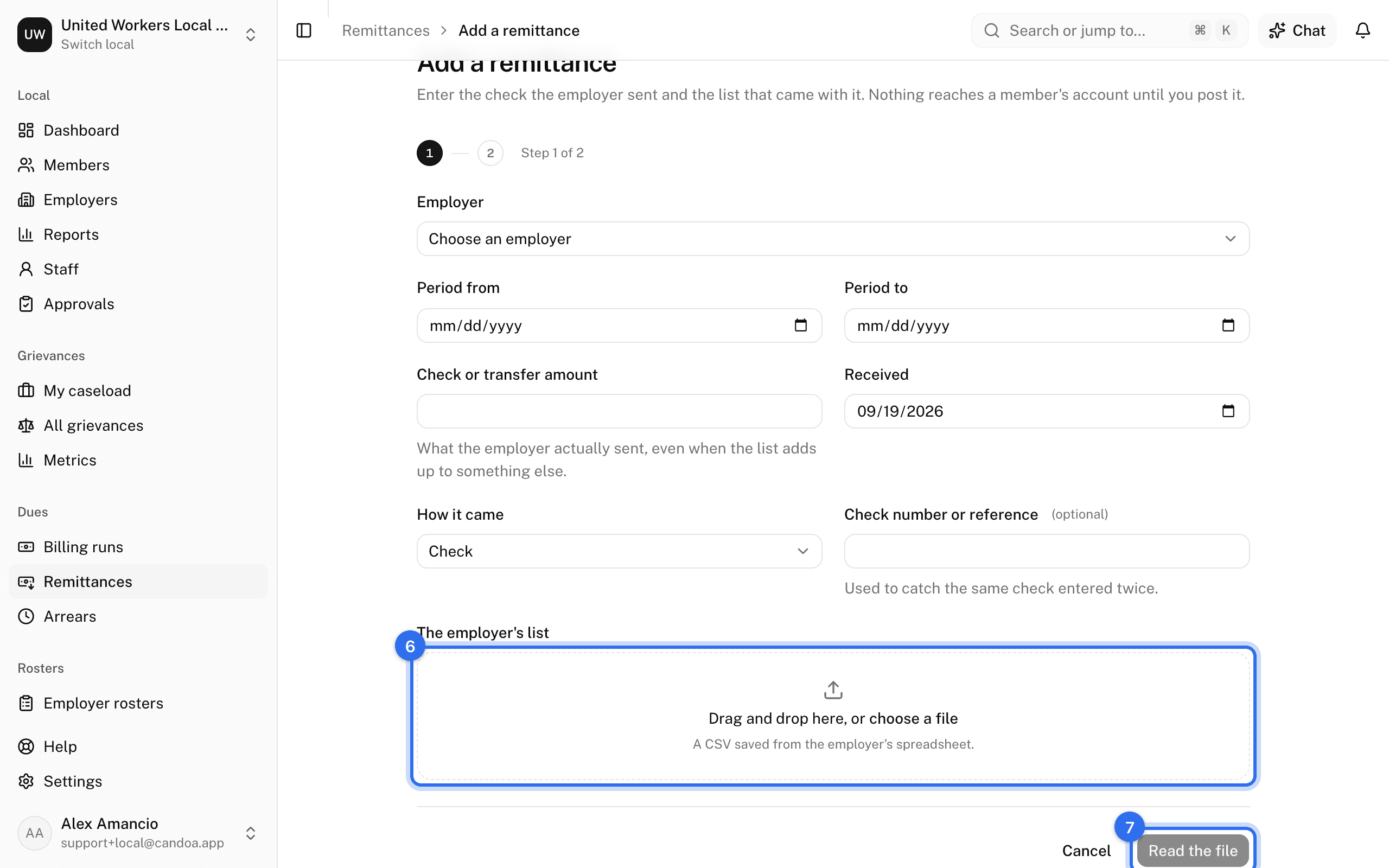
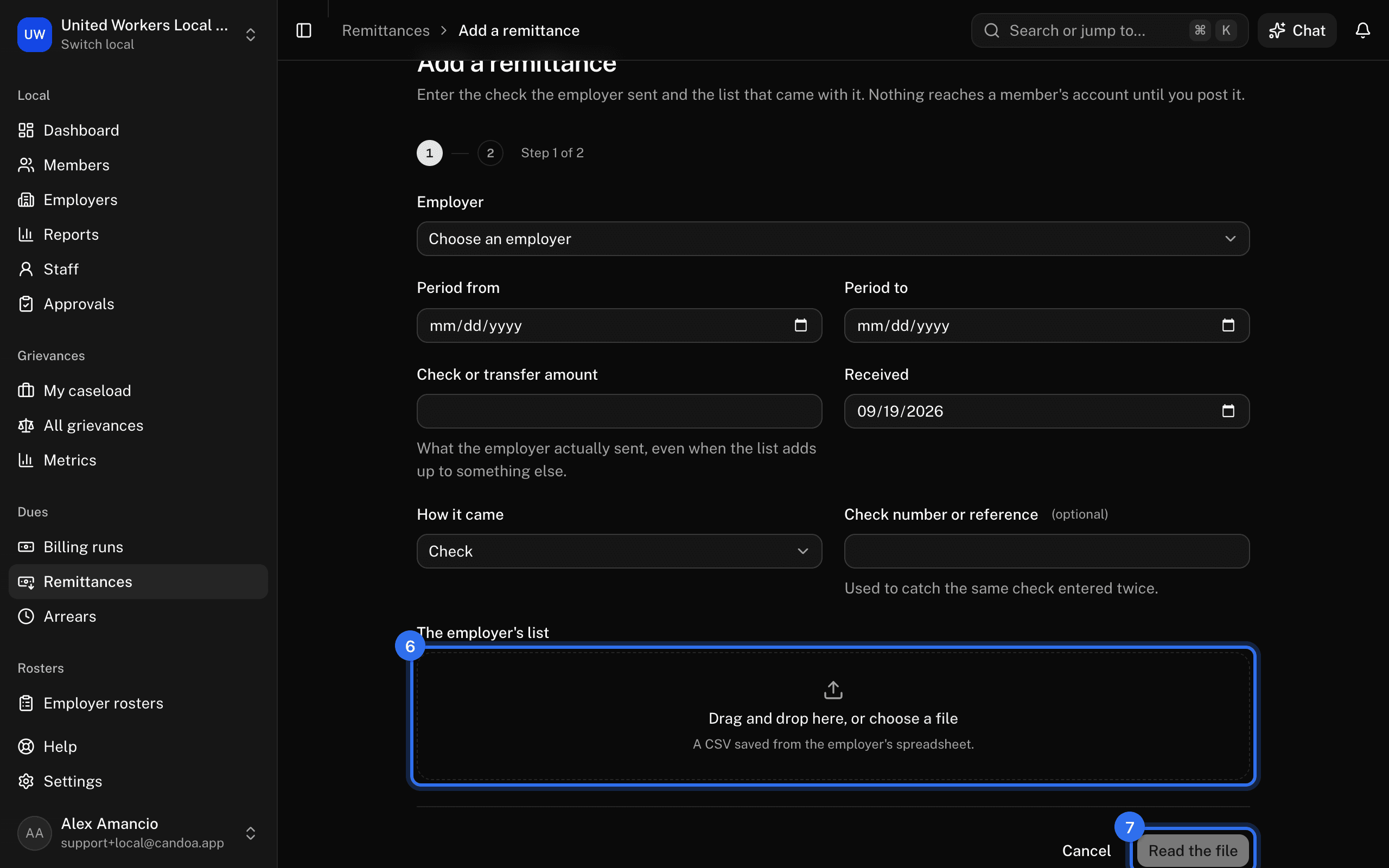
If Candoa can read the columns, the remittance opens for review. If it can't, you are asked to match the columns first.
Social Security numbers are never taken in. If the employer's file has such a column, it is named on the Check the columns step but can never be chosen, and its contents are not stored anywhere.
You can also drop the employer's file into Eli and say which employer and pay period it's for; Eli opens this form with the file, the employer, and the period filled in, and you add the check.
Check the columns
This step lists every heading in the employer's file, its value in the file's first row, and a box for what it holds. The mapping this employer's last file used is filled in already where the headings still fit, including columns you skipped, and Eli doesn't ask about those again. Common payroll headings ("Emp #", "Dues Amt", "Gross Wages") are recognized on their own.
Two things must be matched before the file can be read:
- Something with the money: Amount deducted, or the parts it breaks into — Dues, Initiation fee, Reinstatement fee, or an assessment of yours.
- Something that names the person: Employee ID, Member number, Last name, or Full name.
Anything else is optional. Date of birth makes matching surer; Hours worked and Gross wages let Candoa hold each line against an hourly or percentage rate. Choose Skip this column for anything you don't want.
The list shows each column's value in the file's first row, so the samples read as one person. The columns show once Eli has read the file, so nothing moves after they appear. Eli says how many rows it read, and the columns sit in three tabs, each with its count: Needs you, Ready, and Not imported. The step opens on Needs you whenever anything does. Eli matches the columns the headings didn't name. A column Eli isn't sure of is under Needs you, in amber, with its reason under its guess: press That's right to keep the guess, or pick something else in the column's box. Ready holds the columns that are placed, each with a check mark, and Not imported holds the rest, a Social Security number column always last. Eli is sent only the headings and the shape of each column's values (a date as 99/99/9999, a name as Aa+), never the values themselves.
Rows that can't be read are listed before anything is saved, with the row number as it appears in the spreadsheet and why: a totals row at the foot, a missing amount, a breakdown that doesn't add up, or a cell that isn't a number. Those rows are left out; the rest still come in.
To match the columns again on a remittance already in review, press Match columns on the remittance. Reading the file again replaces every line, so anything you already confirmed, matched or set aside is lost.
Work through the lines
The remittance opens with four figures across the top: the Check as the employer sent it, On the list as the file adds up, the Difference between them, and what Goes to members once every line is settled.
Under them the lines sit in four tabs:
- Needs a person — lines matched by name alone, and lines matched to nobody.
- Matched — lines tied to a member, ready to post.
- Ignored — lines you set aside on purpose.
- All — every line in file order.
Each line shows the row number, what the employer sent (name and employee ID), the amount, the member it is tied to, and how it was matched: Employee ID, Member number, Name and birth date, Name only, or By hand. A match on the employee ID or the member number is taken as right. A match on the name alone is not — that one waits for you.
- Confirm accepts a name-only match.
- Choose member opens a search; the people Candoa found for that line come first, then everyone on the roster you can open.
- Unmatch takes the member off a line again.
- Set this line aside (the ×) keeps the line on the remittance but puts its money on nobody's account — someone who isn't yours, or a refund the office handles by hand. Say why; the note stays on the line.
- Restore brings a line you set aside back to be matched.
Money on lines nobody is matched to, and on lines set aside, is not posted. It stays unapplied, and the screen says how much.
The checks
Down the right-hand side, Checks is what to look at before you post:
- The check is short / over — the check and the list don't agree. Ask the employer which is right before posting.
- This file was sent before — the very same file is already on another live remittance from this employer. Usually it was sent twice.
- Reference was used before — another live remittance from this employer carries the same check number.
- Lines differ from the rate — what was deducted isn't what the member's rate says, whether flat, hourly, or a share of wages.
- Possible new members — lines that match nobody at all in the local. Often people who joined at the shop and aren't on your roster yet.
- Members not on this list — active members whose current job is at this employer, with nothing deducted for them this time. The employer may have stopped deducting.
- Members on more than one line — one member appears twice. Posting pays both, so make sure it isn't the same money twice.
- Rows that couldn't be read — how many rows of the file were left out, listed under the lines with why.
Post a remittance
- Settle every line under Needs a person: confirm it, choose the member, or set it aside. Posting waits for the name-only ones.
- Press Post remittance and confirm.
Each matched line is paid onto that member's account, counting from the day the check came in, oldest bills first; anything over stays as credit. Members billed from the hours or wages the employer reports have their bill raised here, since no billing run can work it out ahead of the file. It all happens together: either the whole remittance posts or none of it does.
After posting you are told how many lines went on, how many bills were raised, and how much was left unapplied.
Post a line matched later
A posted remittance is otherwise read-only, but a line left unmatched or set aside can still be settled: open the remittance, find the line, and press Post to a member. That line alone is posted onto the member's account, as posting would have done. This is for the person who joined since, or the name nobody recognized at the time.
Void a remittance
Press Void on the remittance and say why. One still in review simply stops counting. A posted one has every line's payment taken back off the member, and any bill the remittance itself raised is voided; the reason goes on each reversal. The lines and the file stay for the record.
Voiding a remittance that has been posted needs the right to manage dues — an owner or an admin. Anyone who works dues can void one still in review.
These pages are the help for Candoa, the software a local runs its members, employers, and grievances on.
Set up your localUpdated 2026-09-15