A grievance record
Move a case forward, send it back, extend a deadline, reassign it, add a hearing, a document, or a note, close or reopen it, delete it, and print the form.
Read a case
Open a case from a case list. The header shows the case number, status, type, and a Class grievance badge when there are several grievants, then the grievants, employer, worksite, and filing date.
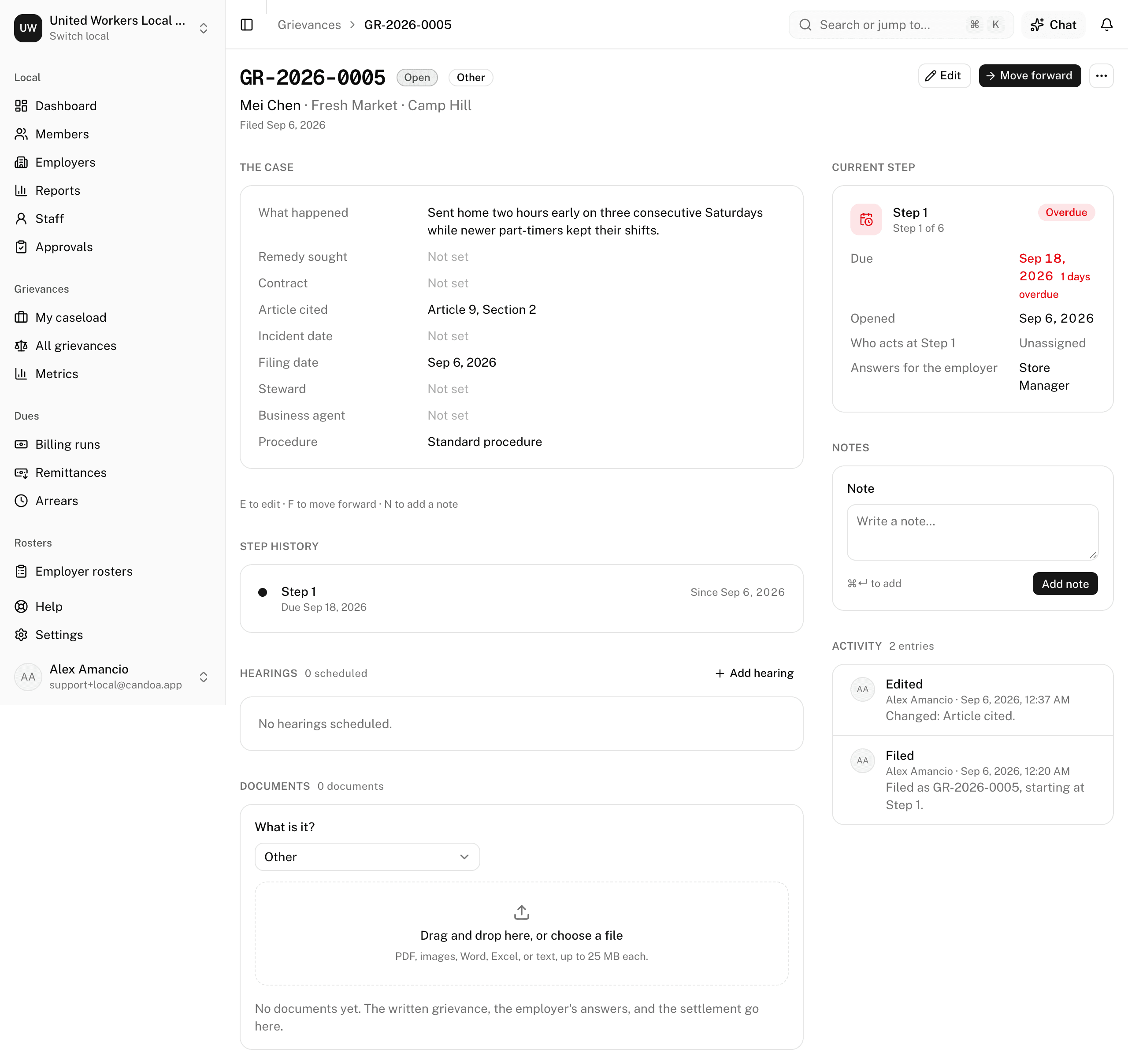
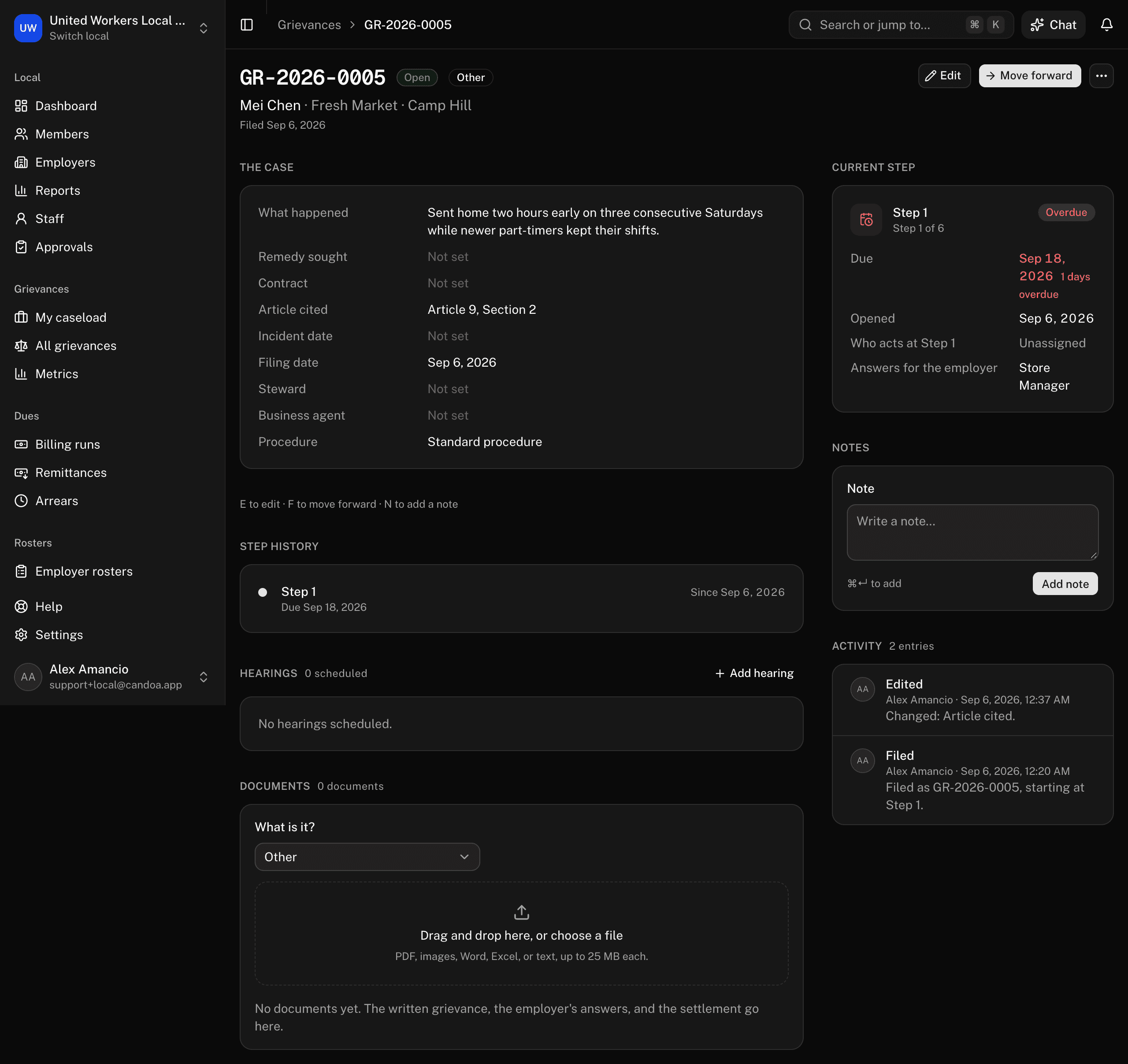
- The case lists what happened, the remedy sought, the contract and article, the dates, the steward, the business agent, and the procedure.
- Current step shows which step the case is at, out of how many, when it was opened, who acts at it, and the Due date: days left, Due today, or days overdue with an Overdue badge. A step is overdue from the day after its due date.
- Step history shows every visit to every step with dates, deadlines, extensions, answers, and the employer's answer.
- Activity is the full log, newest first.
Who can edit: owners, admins, and agents edit any case; on top of that, the person acting at the current step, the case's business agent, and (when neither is set) whoever filed it.
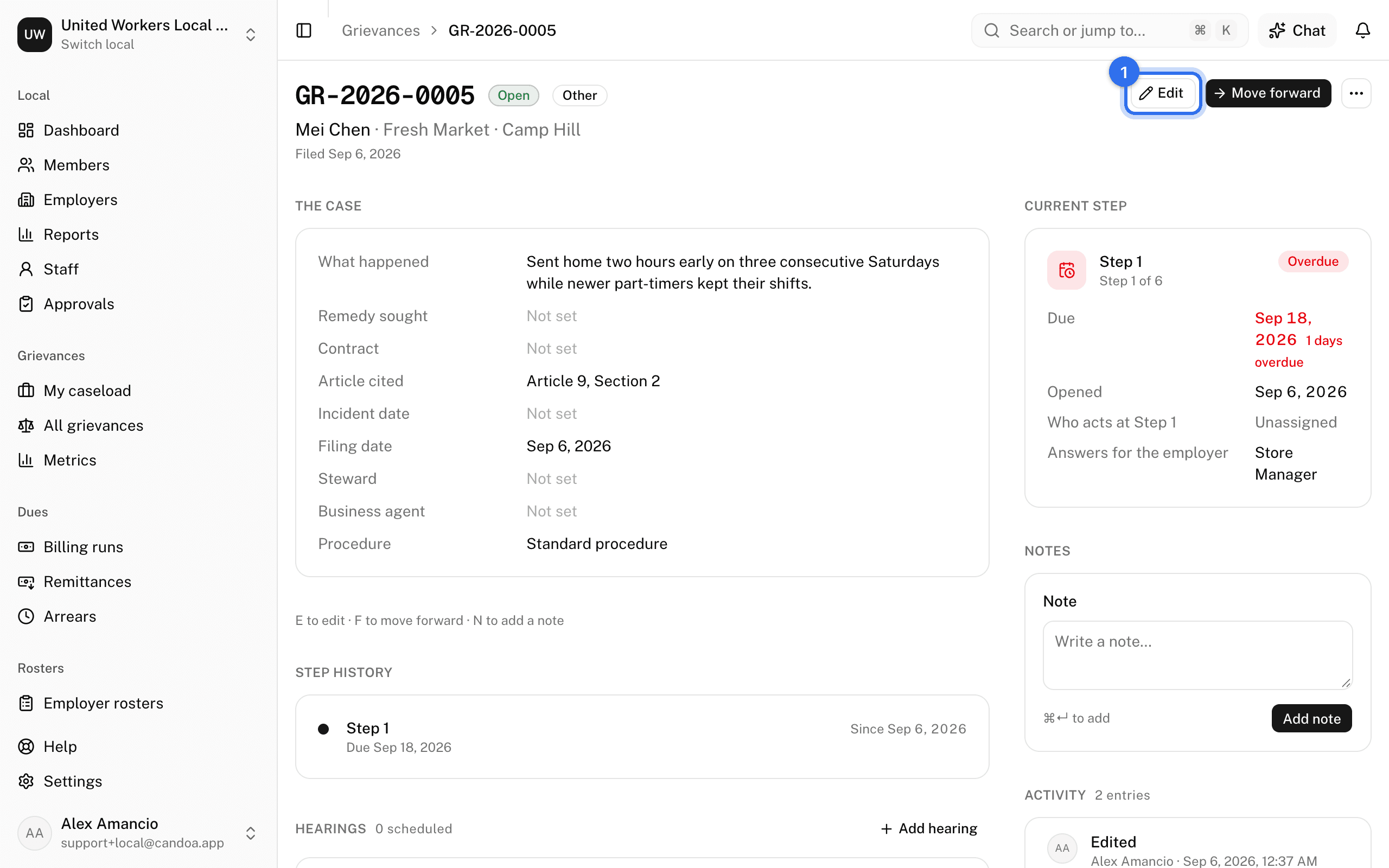
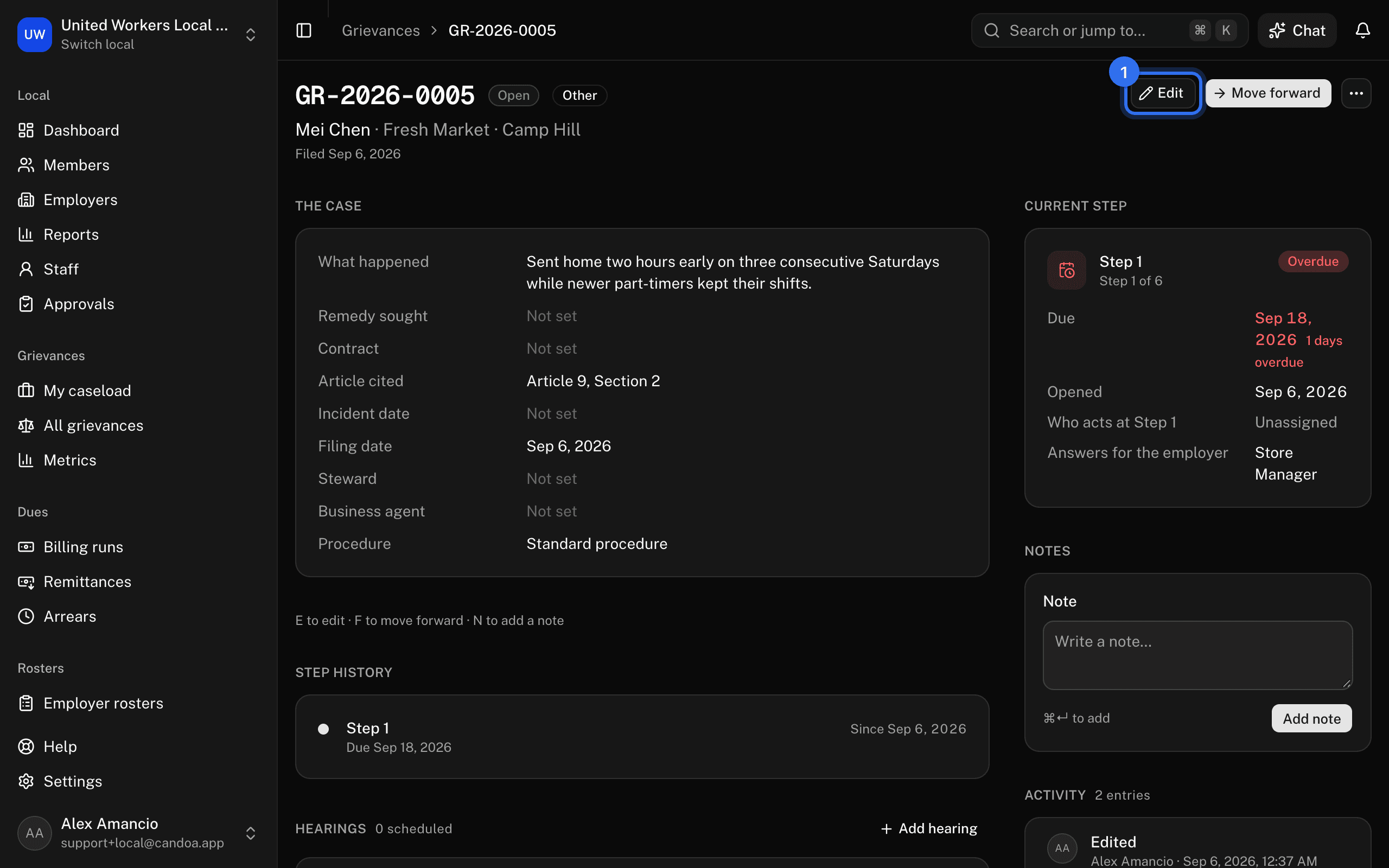
Edit the case details
- Press Edit at the top right, or press E.
- Change the type, contract, article, description, remedy, dates, steward, business agent, employer, worksite, or grievants.
- Press Save.
A closed case has to be reopened first. If two people edit at once, the second save is refused with "Someone else saved this case first. Reload and try again."
Fill in the step's fields
If the procedure gives the current step fields to collect, such as a hearing date, they're in the Current step card. Fill them in and press Save answers. Required ones must be answered before the case can move on.
Move the case to the next step
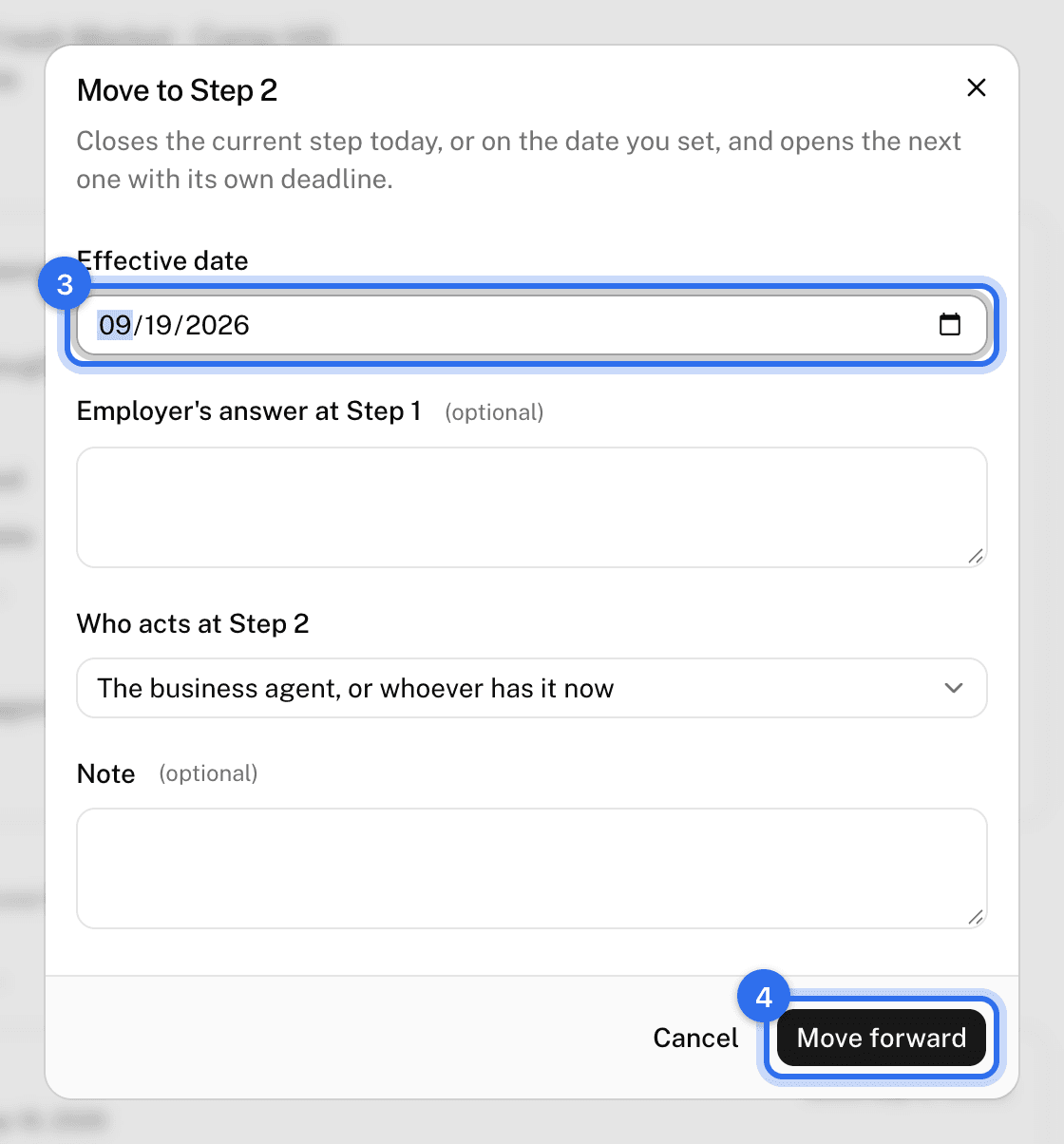
- Press Move forward at the top right, or press F.
- Answer any required step fields.
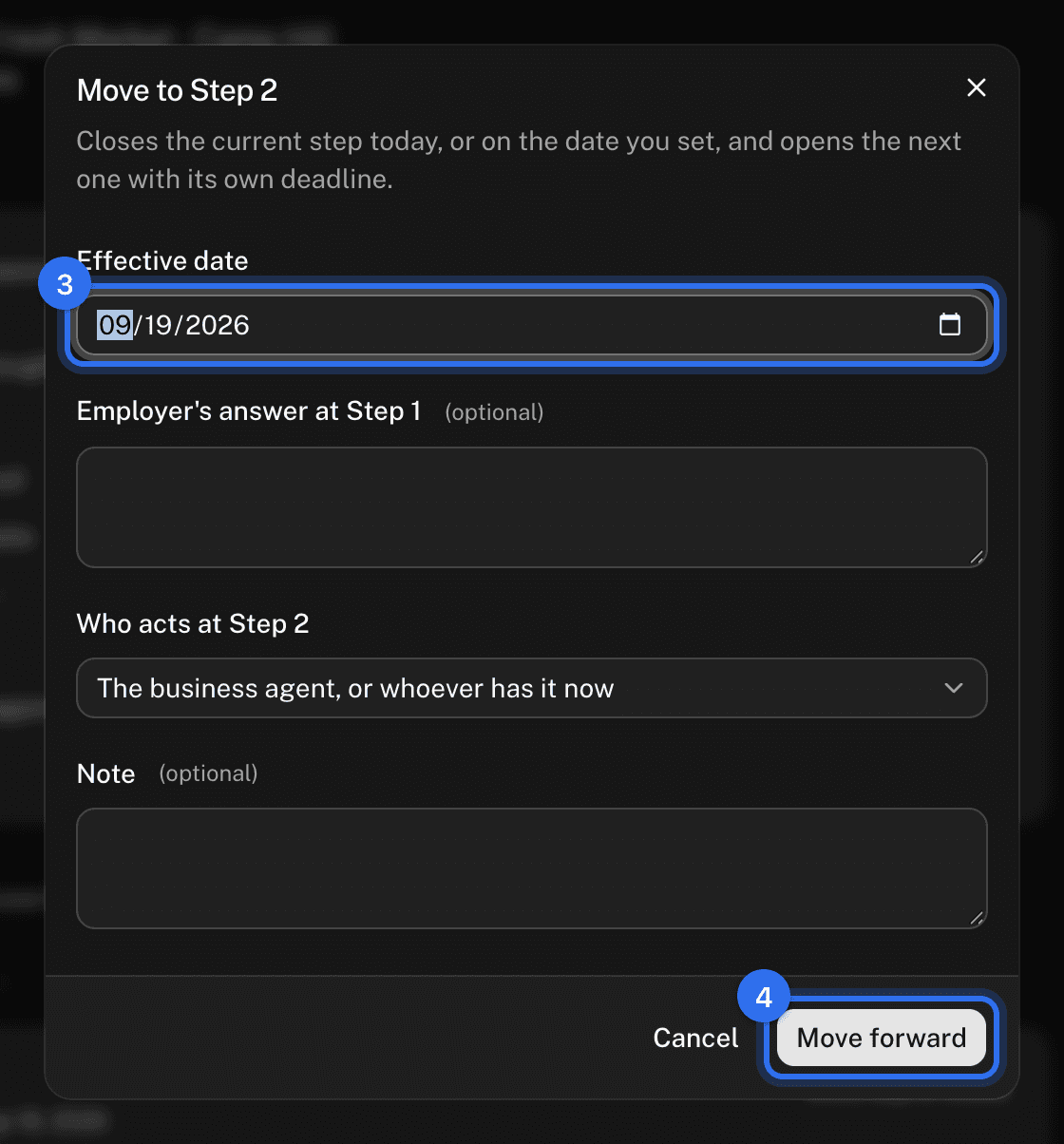
- Set the Effective date (defaults to today), record the Employer's answer at this step, and choose Who acts at the next step. Left blank, it's the business agent or whoever has it now.
- Press Move forward.
The current step closes and the next opens with its own deadline.
Send the case back a step
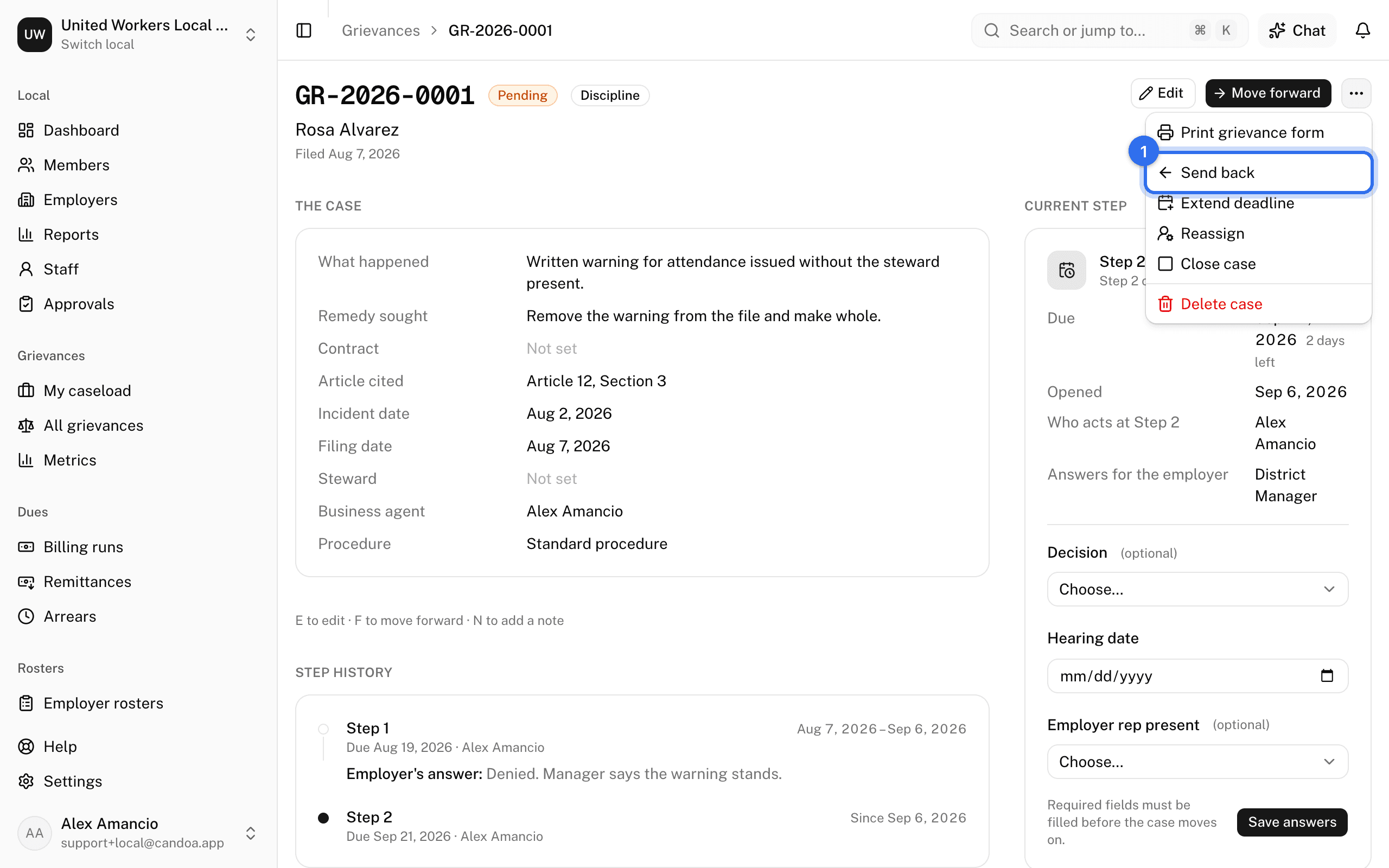
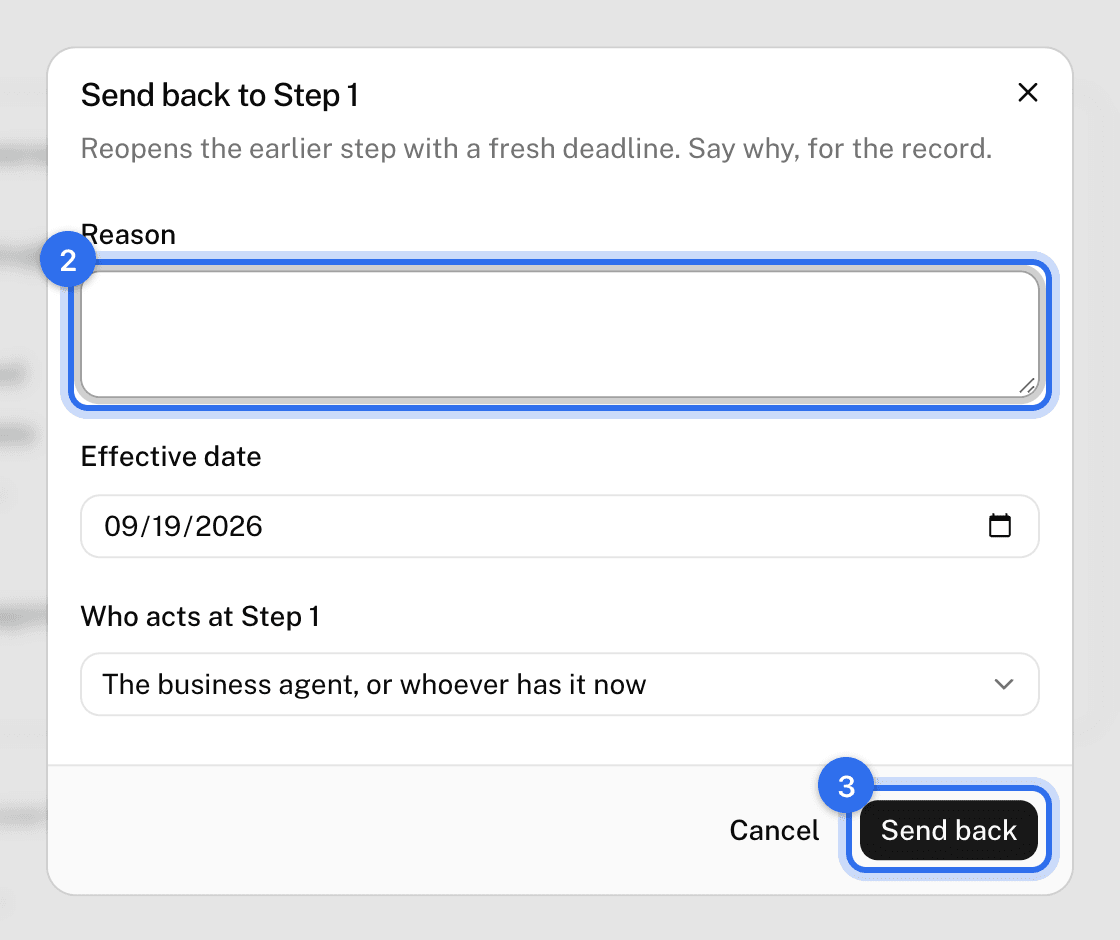
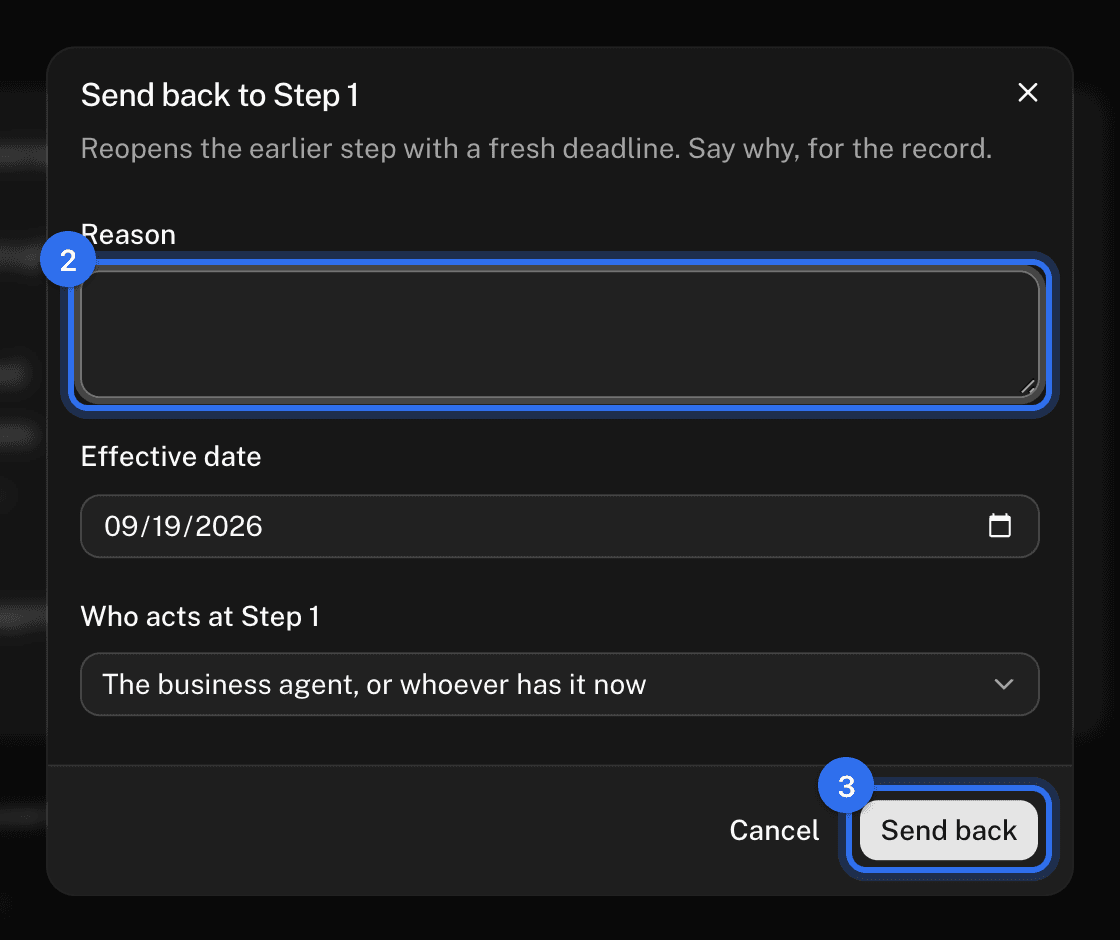
- Open the ⋯ menu and choose Send back.
- Write the Reason; it's required and kept for the record.
- Press Send back. The earlier step reopens with a fresh deadline.
Extend a deadline
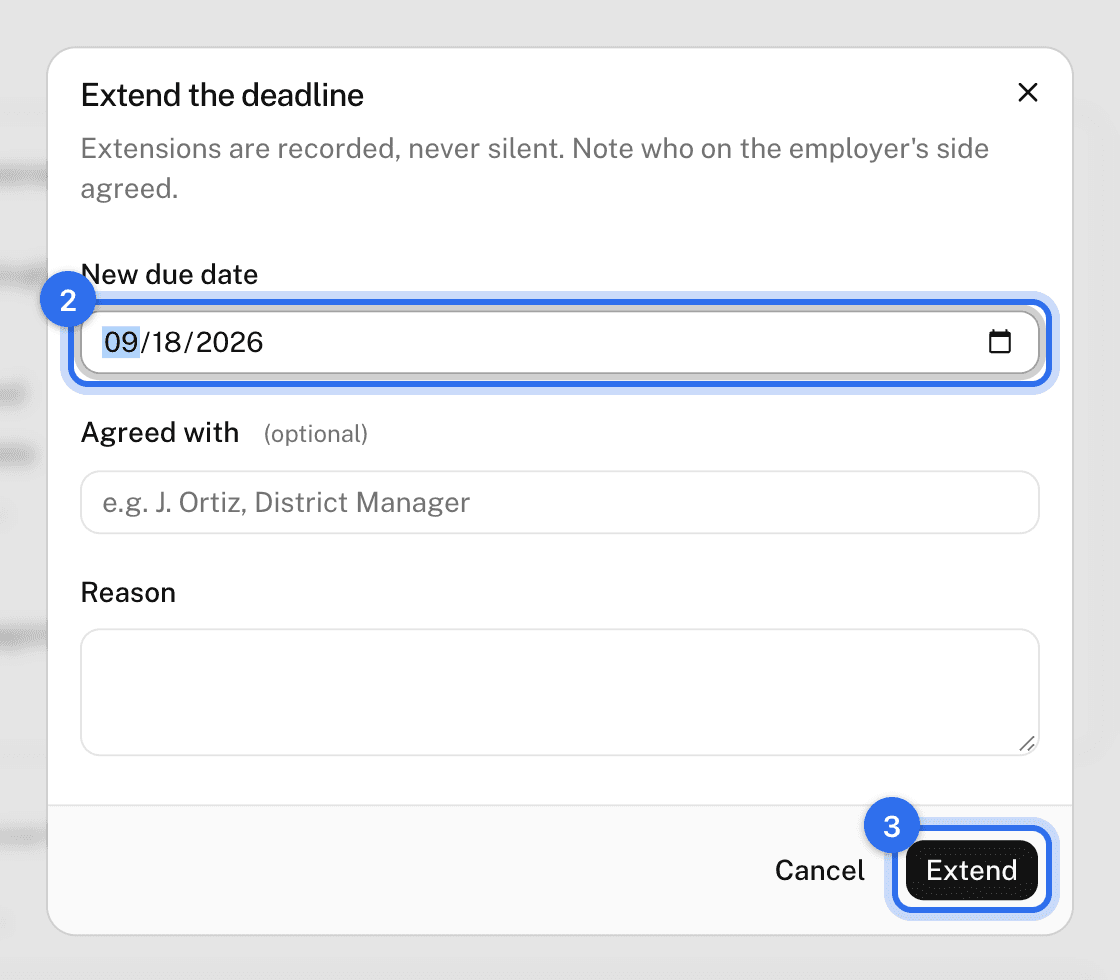
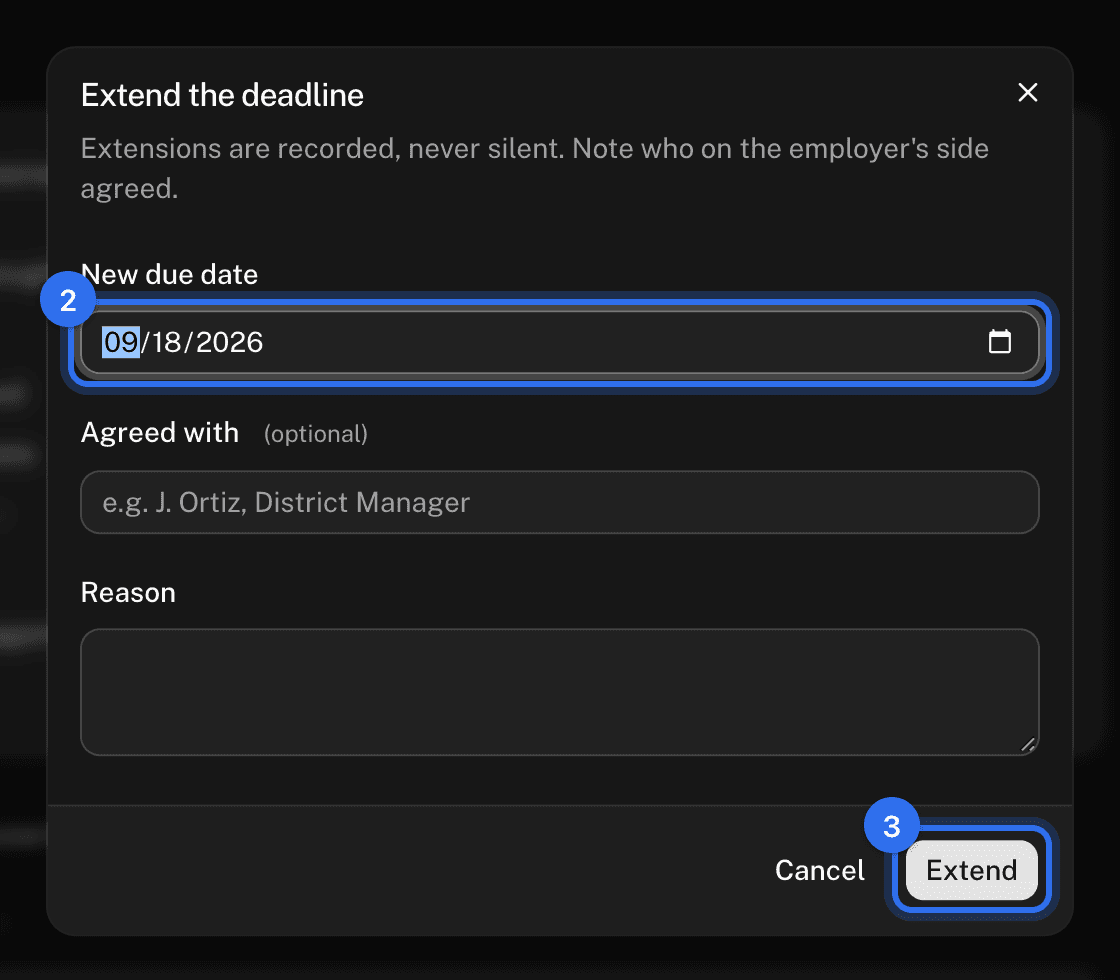
- Open the ⋯ menu and choose Extend deadline.
- Set the New due date, write who on the employer's side Agreed with it, and the Reason.
- Press Extend.
Extensions are never silent; each one is listed in the step's history.
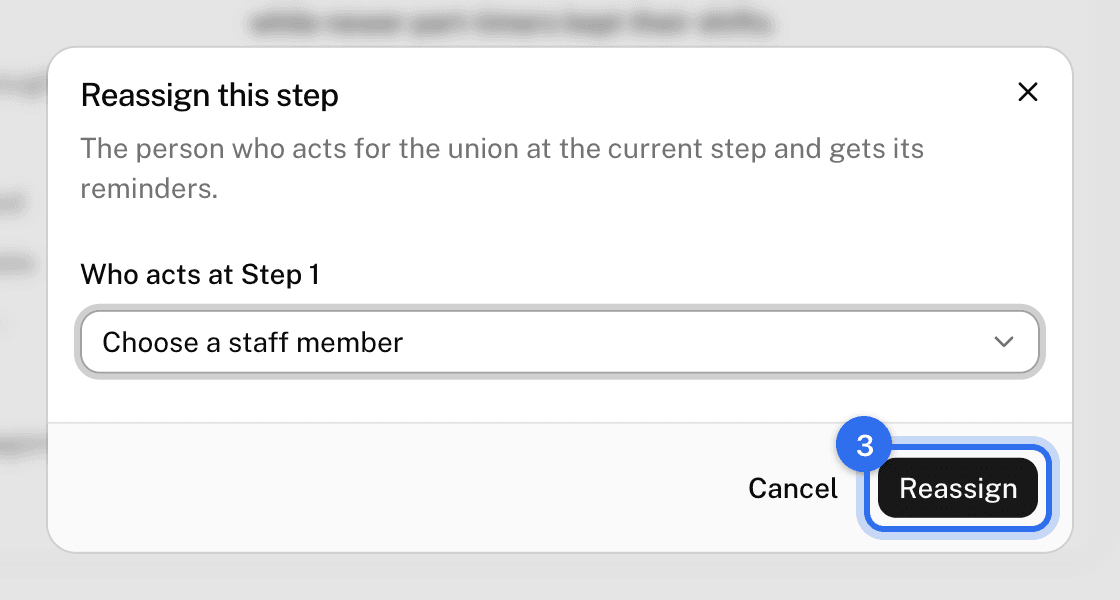
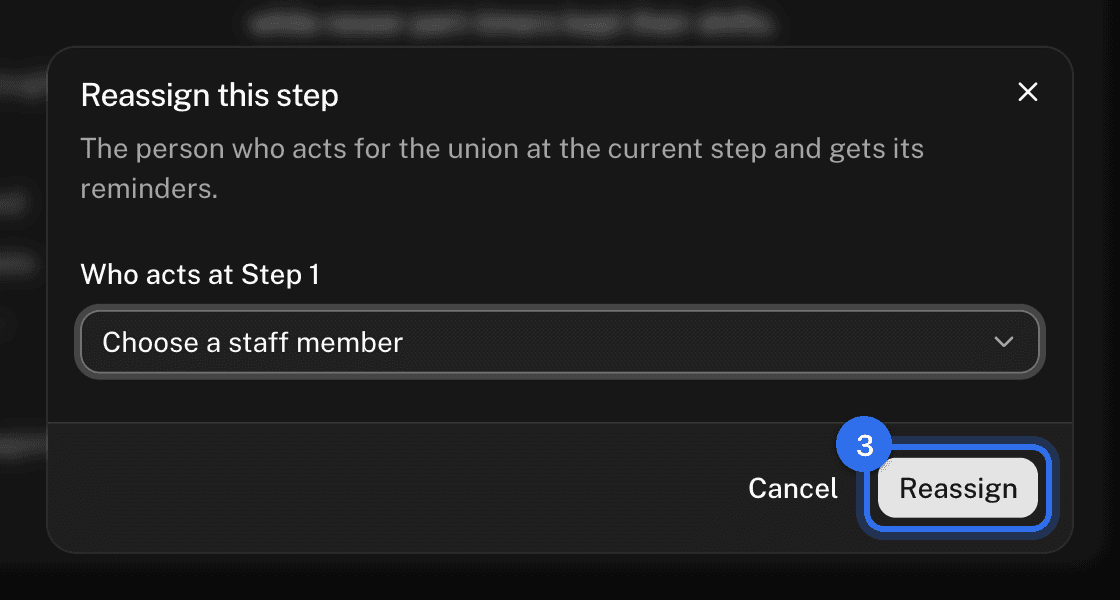
Reassign the current step
- Open the ⋯ menu and choose Reassign.
- Pick the staff member who now acts for the union at this step and gets its reminders.
- Press Reassign.
Add a hearing
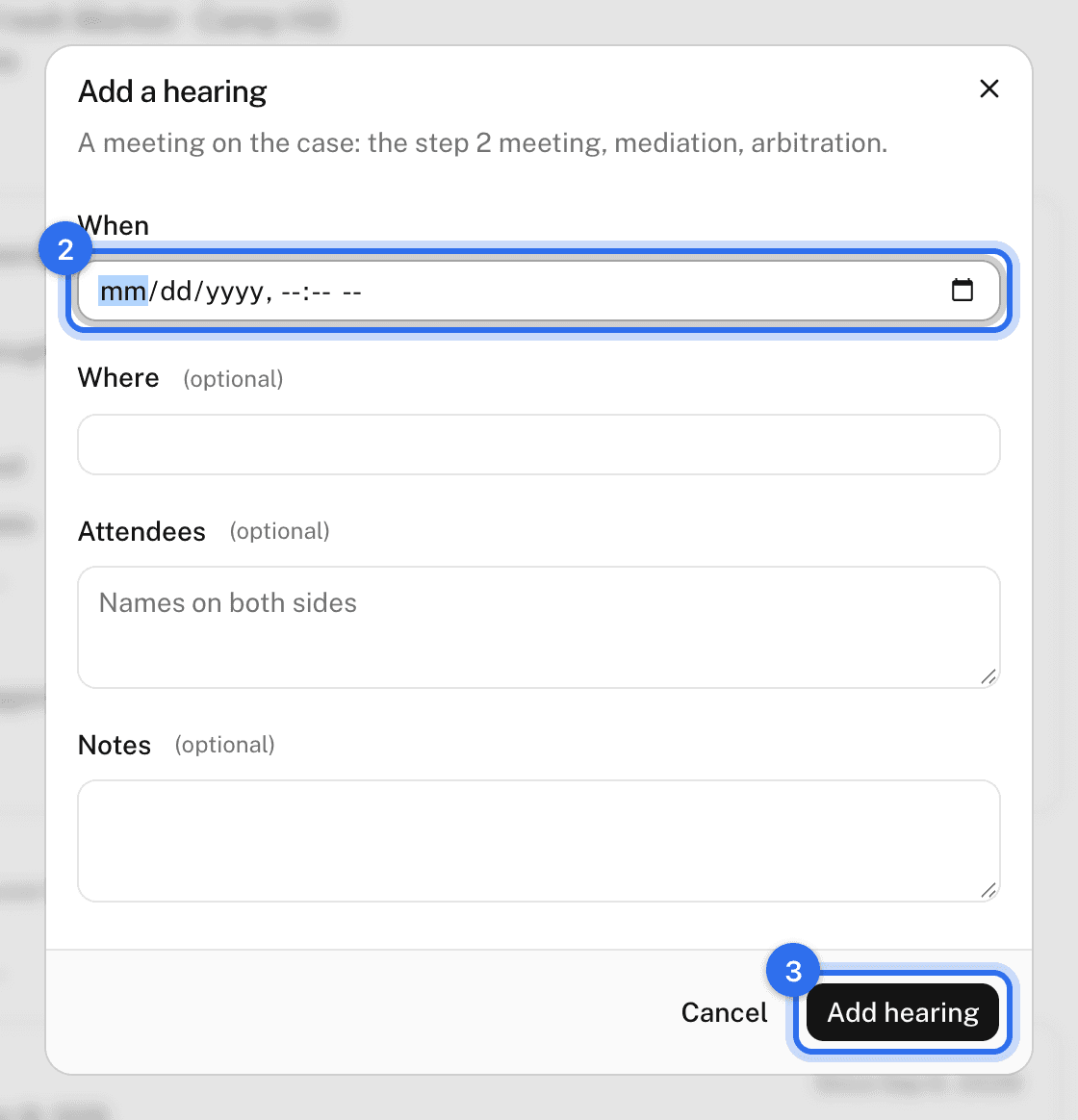
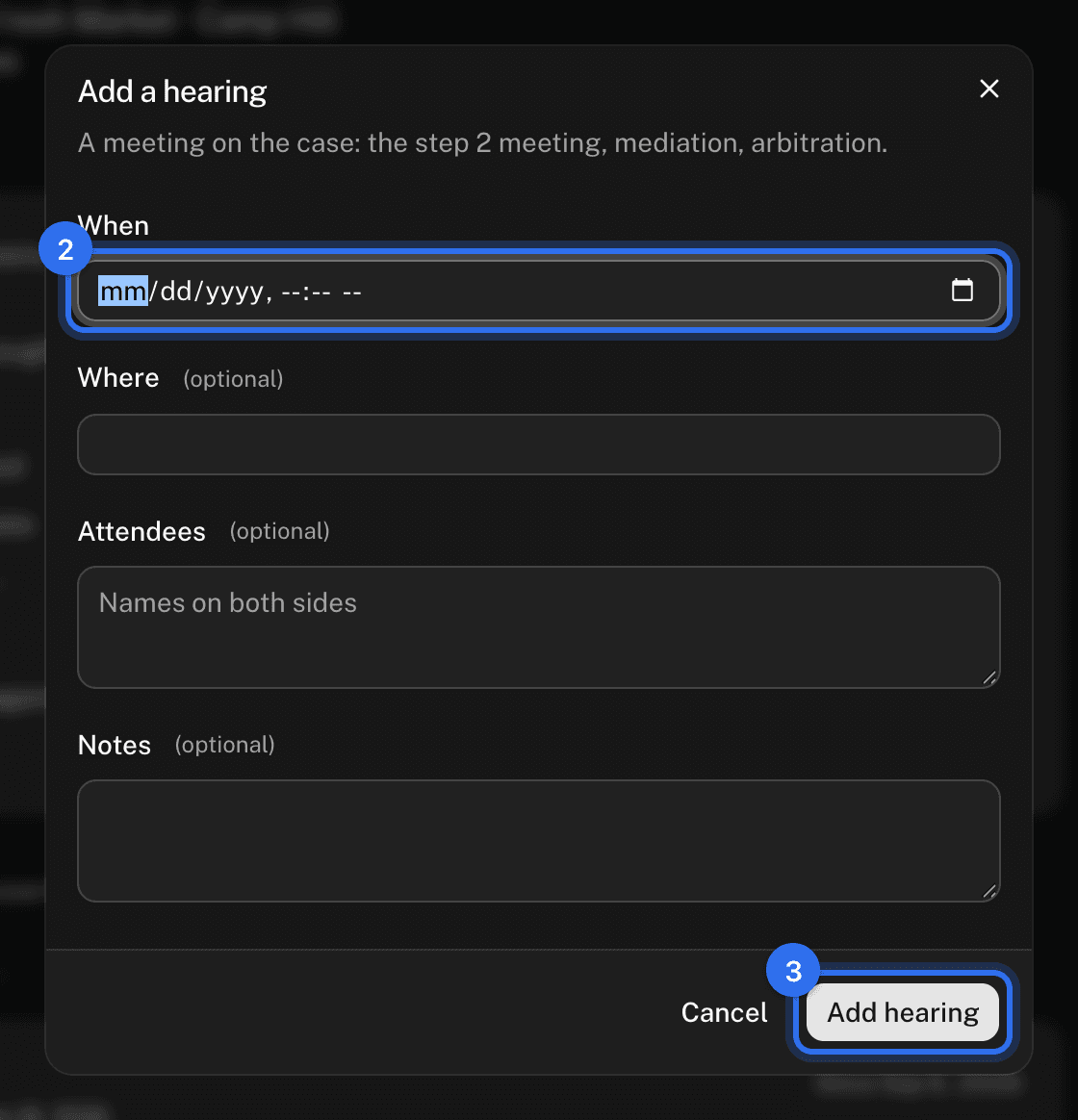
- In the Hearings section press Add hearing.
- Set When, Where, the Attendees, and notes.
- Press Add hearing.
Add a document
- In the Documents section, pick what the document is: Grievance, Employer response, Settlement, or Other.
- Drop the file in. PDF, images, Word, Excel, or text, up to 25 MB.
Each document's menu offers Open, Download, and Delete document.
Ask Eli
On an open case, the small things can be done from Eli with a Confirm card: add a note, add a hearing, extend the current step's deadline with the reason, reassign the step, or attach a letter or photo you dropped into the chat. Eli can also find cases (by member, employer, status, or overdue) and read one. Moving a case to the next step, sending it back, closing, or reopening it needs the step's answers, so Eli links the case and names the button instead.
Add a note
Press N, write the note in the Notes section, and press Add note or Cmd+Enter. Everyone with the add-on can add notes.
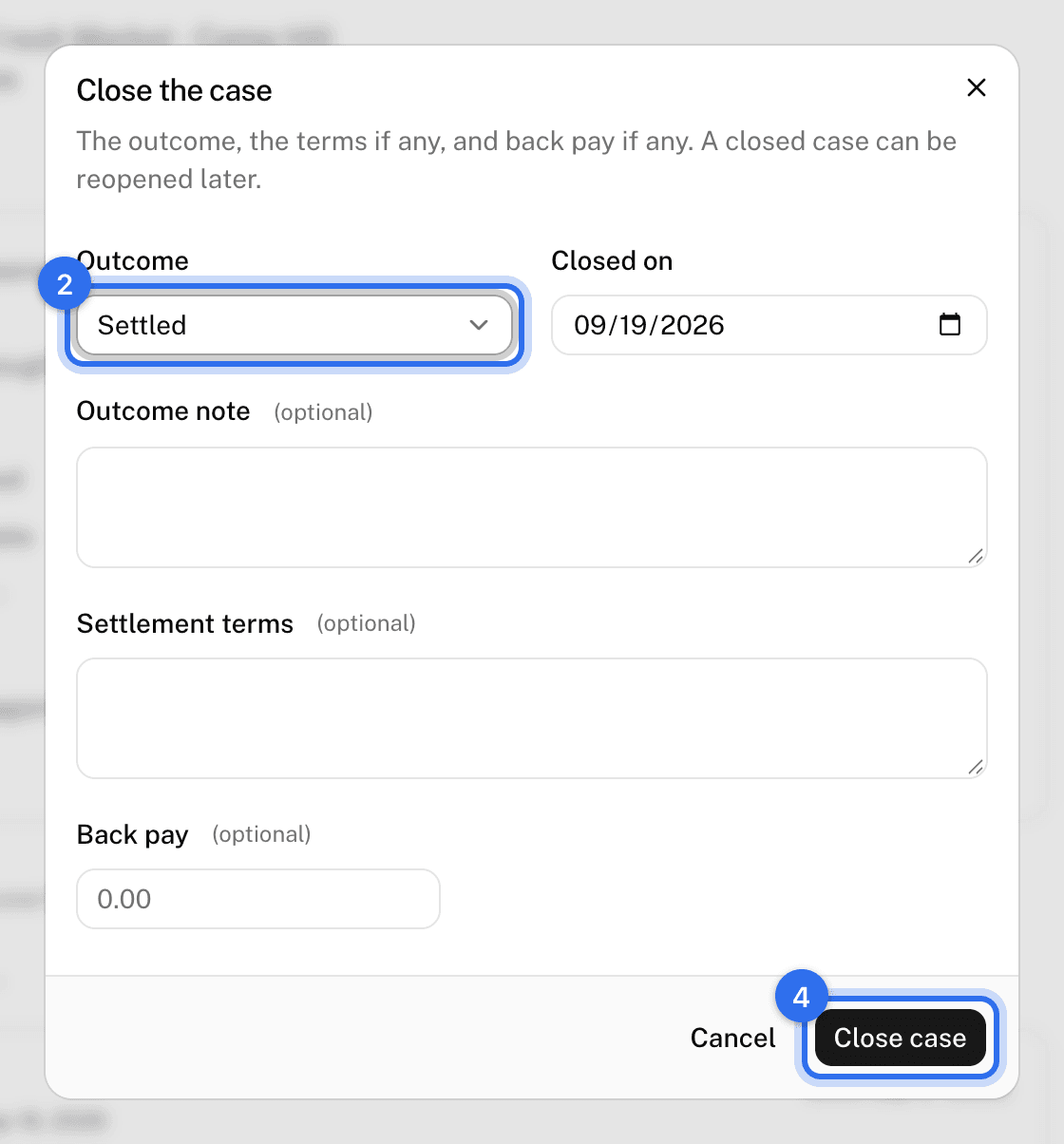
Close the case
- Press Close case in the ⋯ menu.
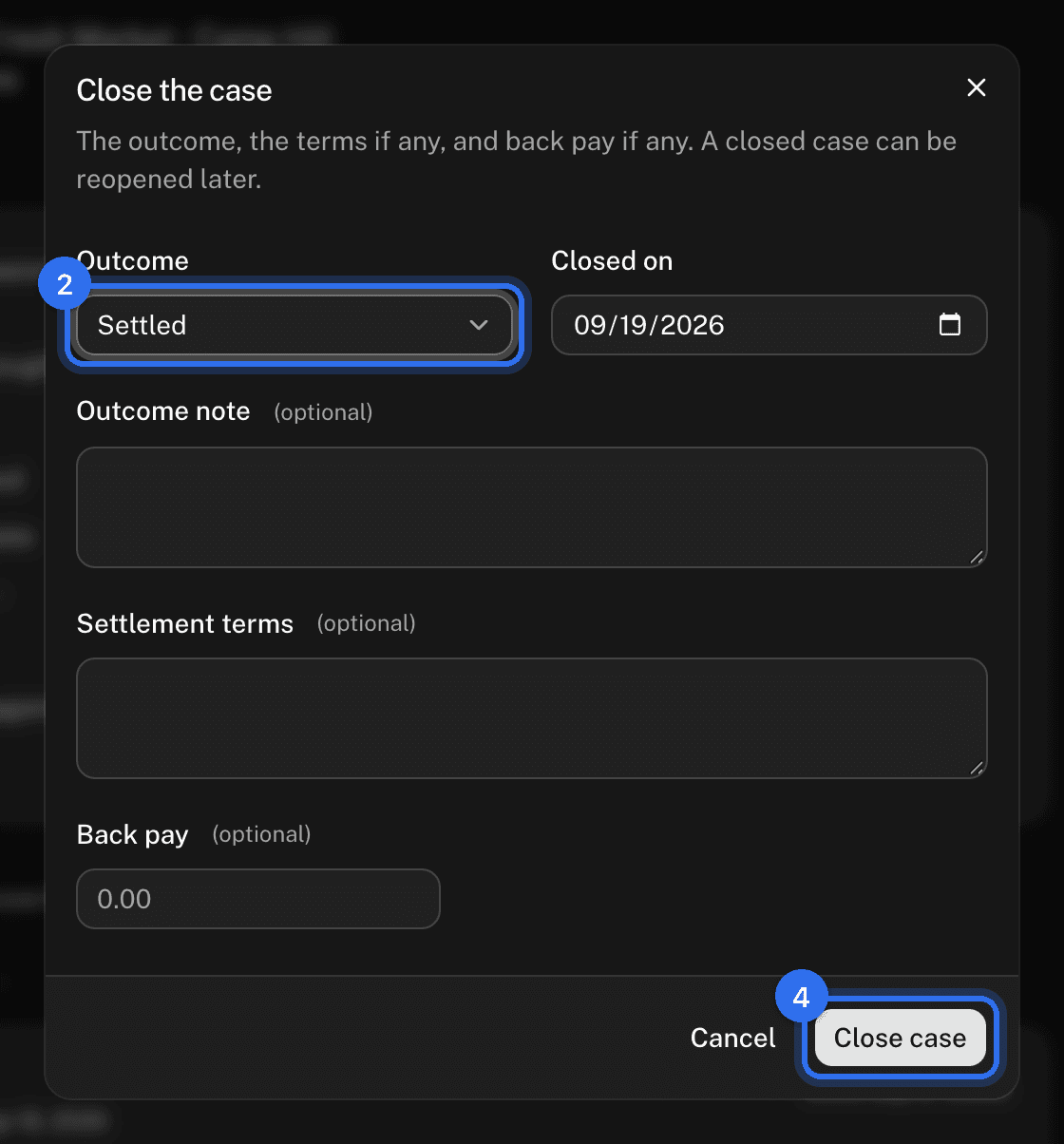
- Pick the Outcome: Settled, Won, Lost, Withdrawn, or Closed.
- Set the date and add an outcome note, Settlement terms, and Back pay if any.
- Press Close case.
Reopen a closed case
- Press Reopen at the top right.
- Write the Reason and choose who acts.
- Press Reopen. The case returns to the step it was closed from, with a fresh deadline from today.
Delete a case
Open the ⋯ menu and choose Delete case, add a reason if you like, and confirm. The case leaves every list. Nothing is lost; an admin can ask to have it restored. Owners and admins only.
Print the grievance form
- Open the ⋯ menu and choose Print grievance form. A letter-size sheet opens in a new tab.
- Press Print.
The sheet has the local's letterhead, the case number and filing date, the grievants with member numbers, the employer and contract details, the "What happened" and "Remedy sought" boxes, and signature lines for the grievant, the union representative, and the employer's receipt.
Reminders
The person acting at a step gets an email the day after its due date passes, then at most once a week. Owners and admins get an evening digest of everything that moved. Both can be turned off on the Account page.
These pages are the help for Candoa, the software a local runs its members, employers, and grievances on.
Set up your localUpdated 2026-09-15