Dues settings
Set the local's dues rules, the rates members pay, the assessments charged on top, and the dues classes a rate can name.
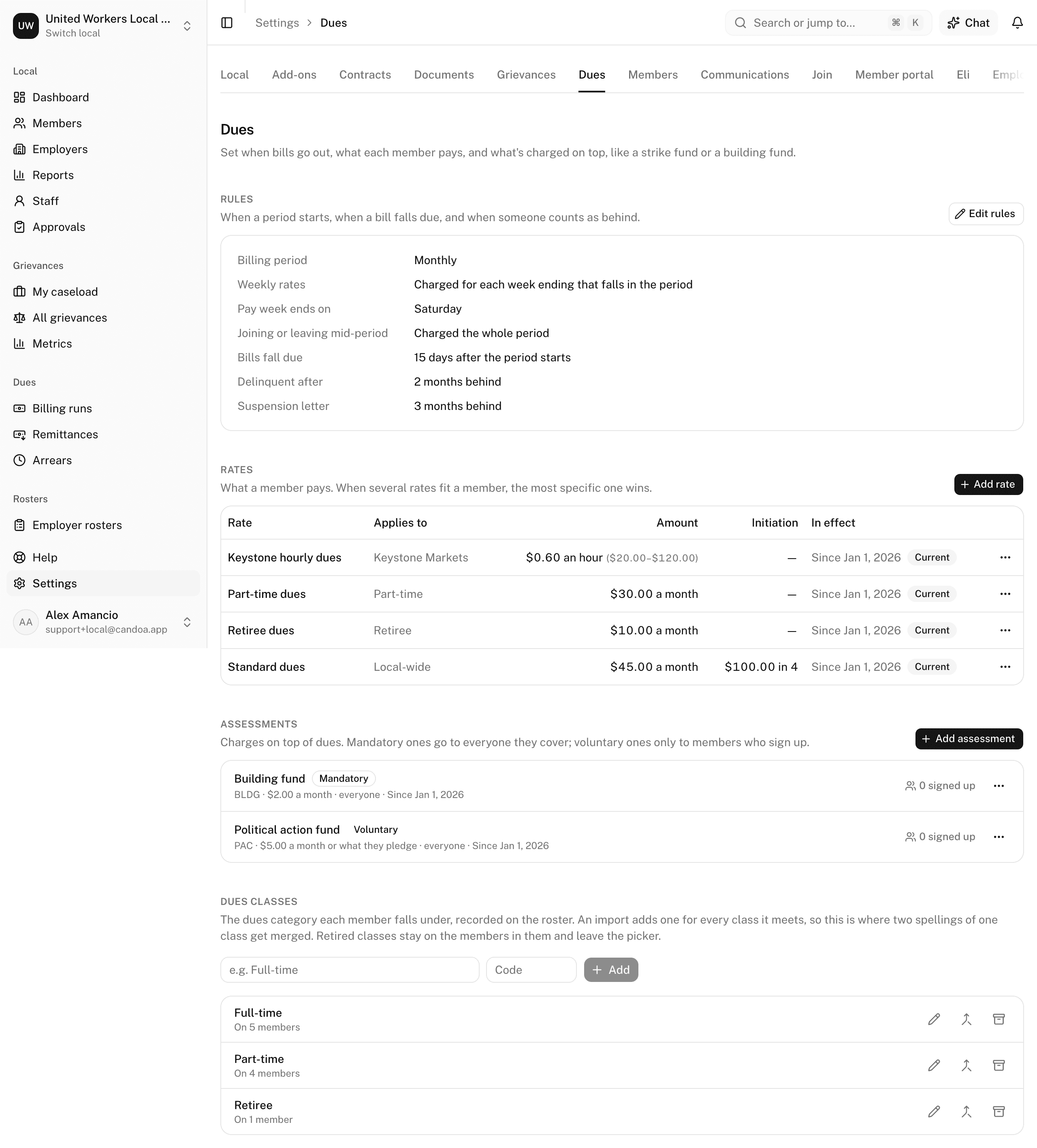
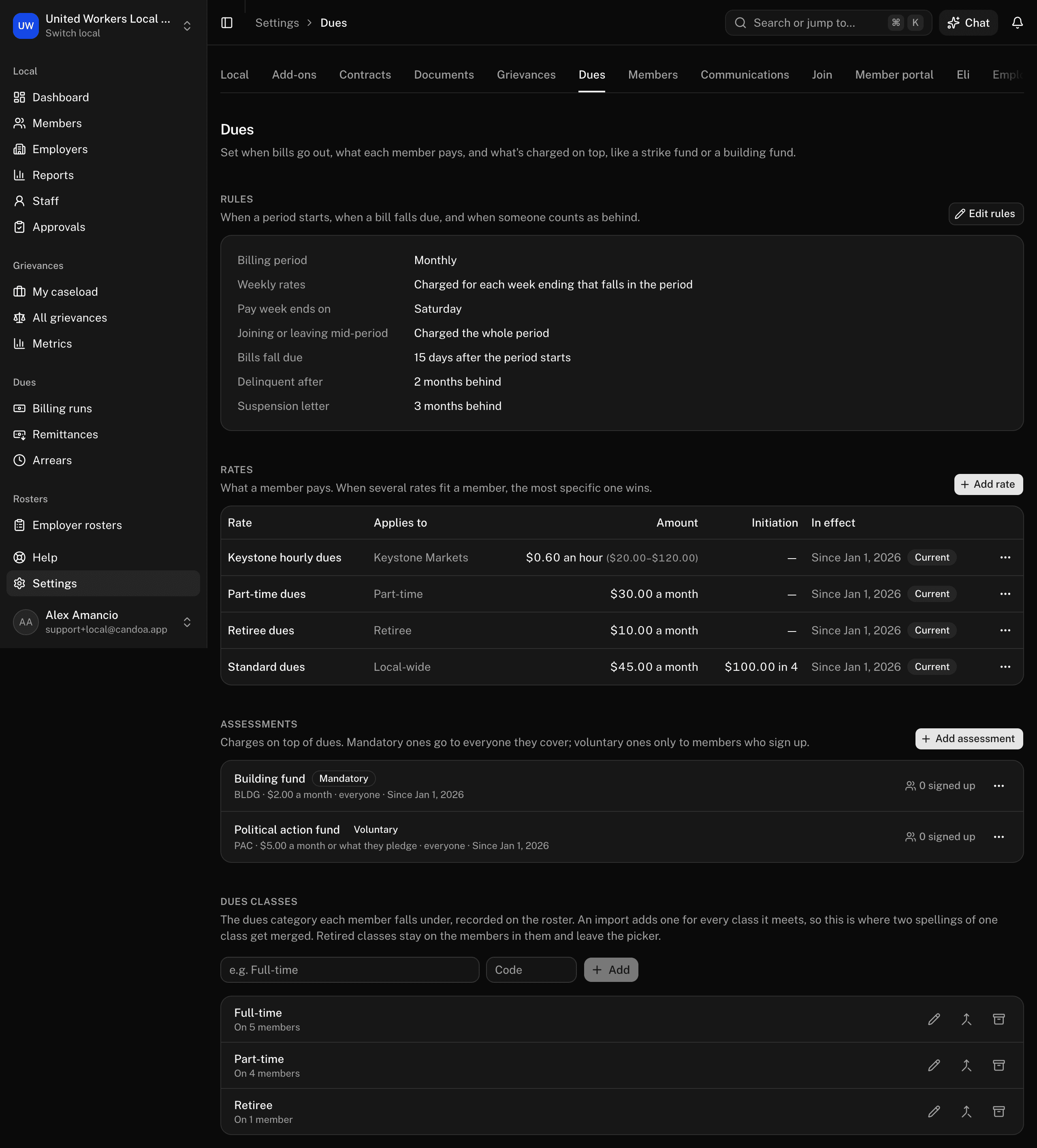
Open Settings › Dues. Owners and admins, when the Dues add-on is on. Everything a bill is worked out from lives here: the Rules, the Rates, the Assessments, and the Dues classes.
What a rate is
A rate says what a member pays and who it applies to. It can name an employer, a contract, a department, a job classification, a dues class, and full- or part-time — or none of those, which makes it the rate everyone pays. A rate that names a contract reaches everyone whose employer signed that contract or is covered by it, so a master agreement's rate is entered once. When several rates fit a member, the one that names the most things that fit them wins; a tie goes to the employer's own rate first, then the contract's, then department, then job classification, then dues class, then full- or part-time.
A rate is worked out in one of three ways:
- A set amount for each period: $45.00 a month.
- An amount per hour worked: $0.55 an hour, taken from the hours the employer reports. You can set a floor and a ceiling on one period's dues.
- A share of wages: 1.5% of the wages the employer reports, also with an optional floor and ceiling.
A rate can also carry an initiation fee, charged when a member joins, and a reinstatement fee, charged when someone comes back. An initiation fee can be spread: set Charged each period and it goes out in installments until the whole fee has been billed.
What an assessment is
An assessment is a charge on top of dues: a strike fund, a building fund, a political fund. A mandatory one is charged to everyone it covers. A voluntary one is charged only to members who sign up. An assessment can be charged once or every period, and it can be limited to one employer, one dues class, or both.
What a dues class is
A dues class is the category a member is billed under — Full-time, Part-time, Retiree, Apprentice. A rate or an assessment can name one, and each member's class sits on their record. See Member settings for how classes are added and merged; the list on this page works the same way.
Change the local's dues rules
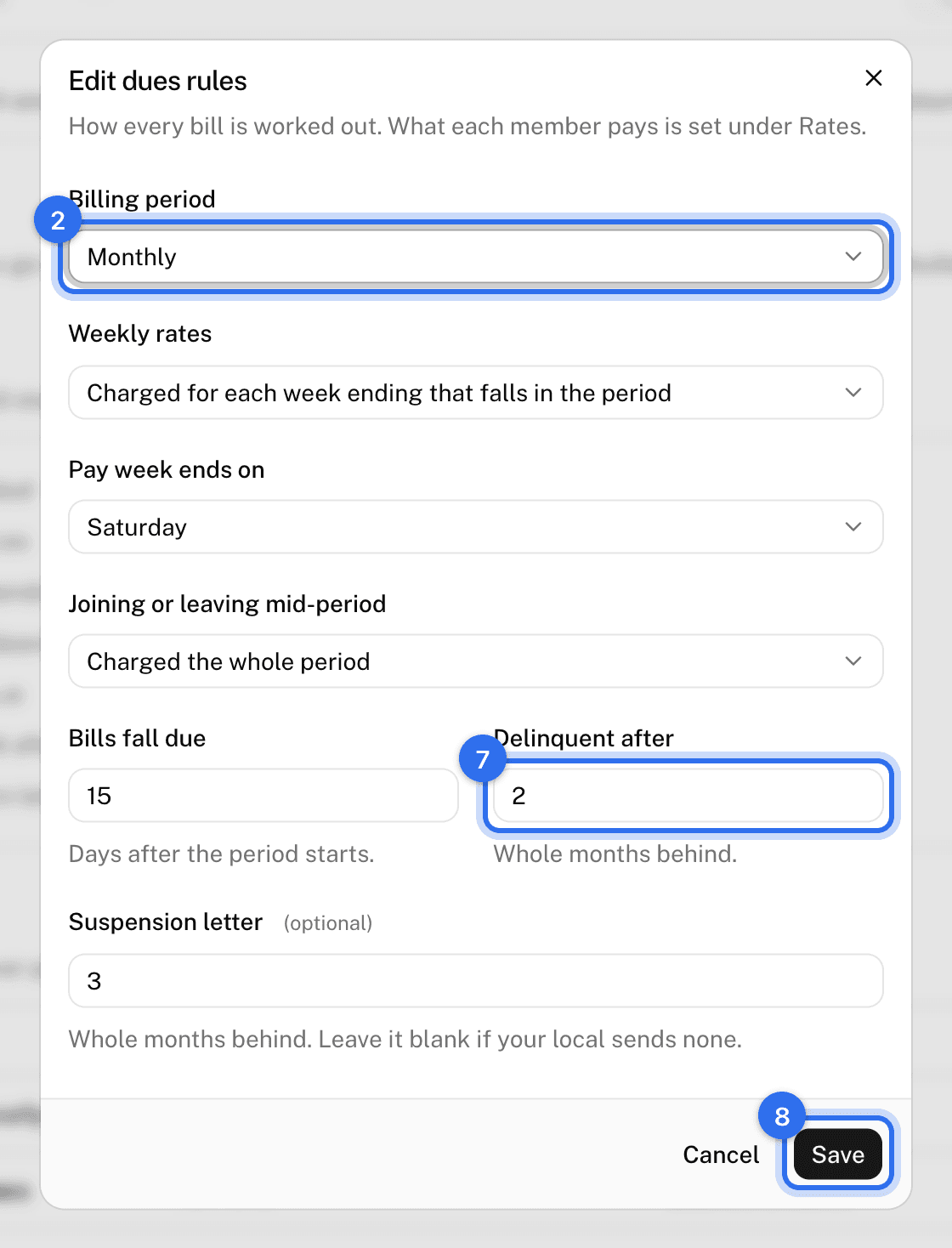
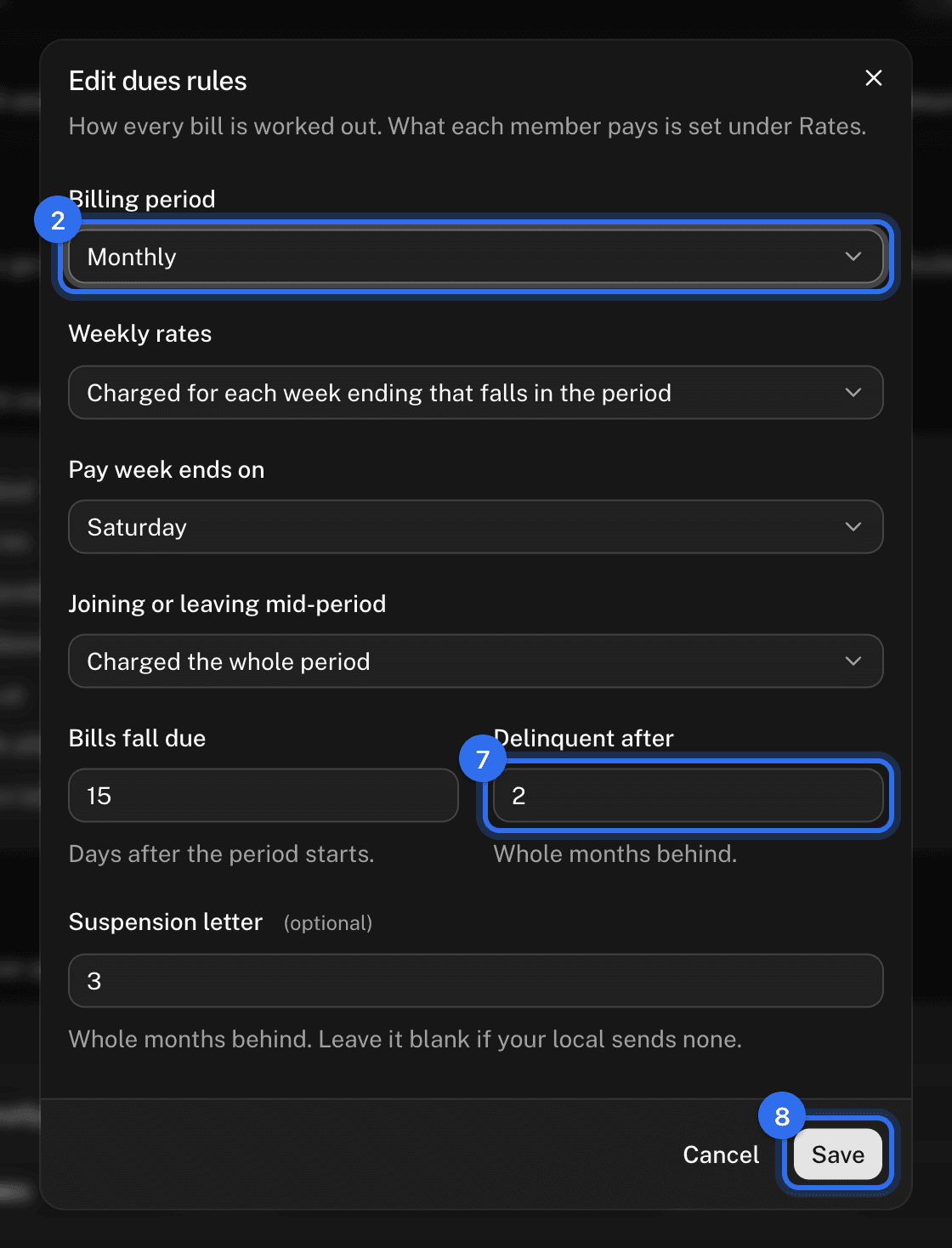
- Under Rules, press Edit rules.
- Set the Billing period — the stretch one bill covers.
- Set Weekly rates: how a weekly rate becomes a bill for a longer period. Charging for each week ending that falls in the period gives four or five weeks a month; the other two always give four a month, or spread 52 weeks evenly over the year.
- Set Pay week ends on — the day your pay week ends. It matters when you bill weekly or count weekly rates by week endings.
- Billing every two weeks also asks for Two-week periods start on. Any day one of your two-week periods began will do; the rest are counted from it.
- Set Joining or leaving mid-period: charge the whole period, charge nothing, or charge for the days the member was in.
- Set Bills fall due, Delinquent after, and, if your local sends one, Suspension letter.
- Press Save.
Once a billing run exists, where a period starts and ends stays as it is, and the form says so if you try. Everything else on it can still change.
Add a rate
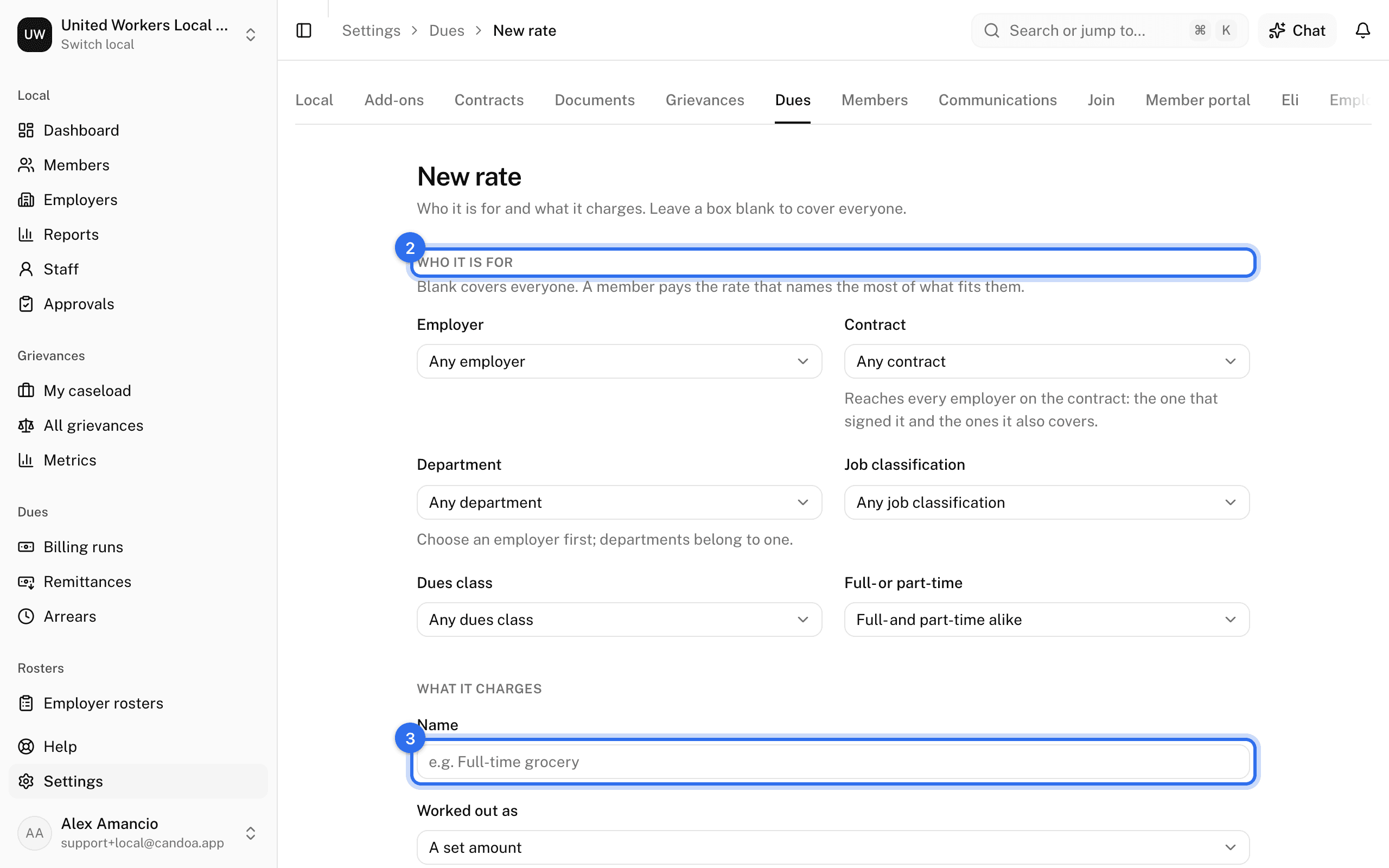
- Under Rates, press Add rate.
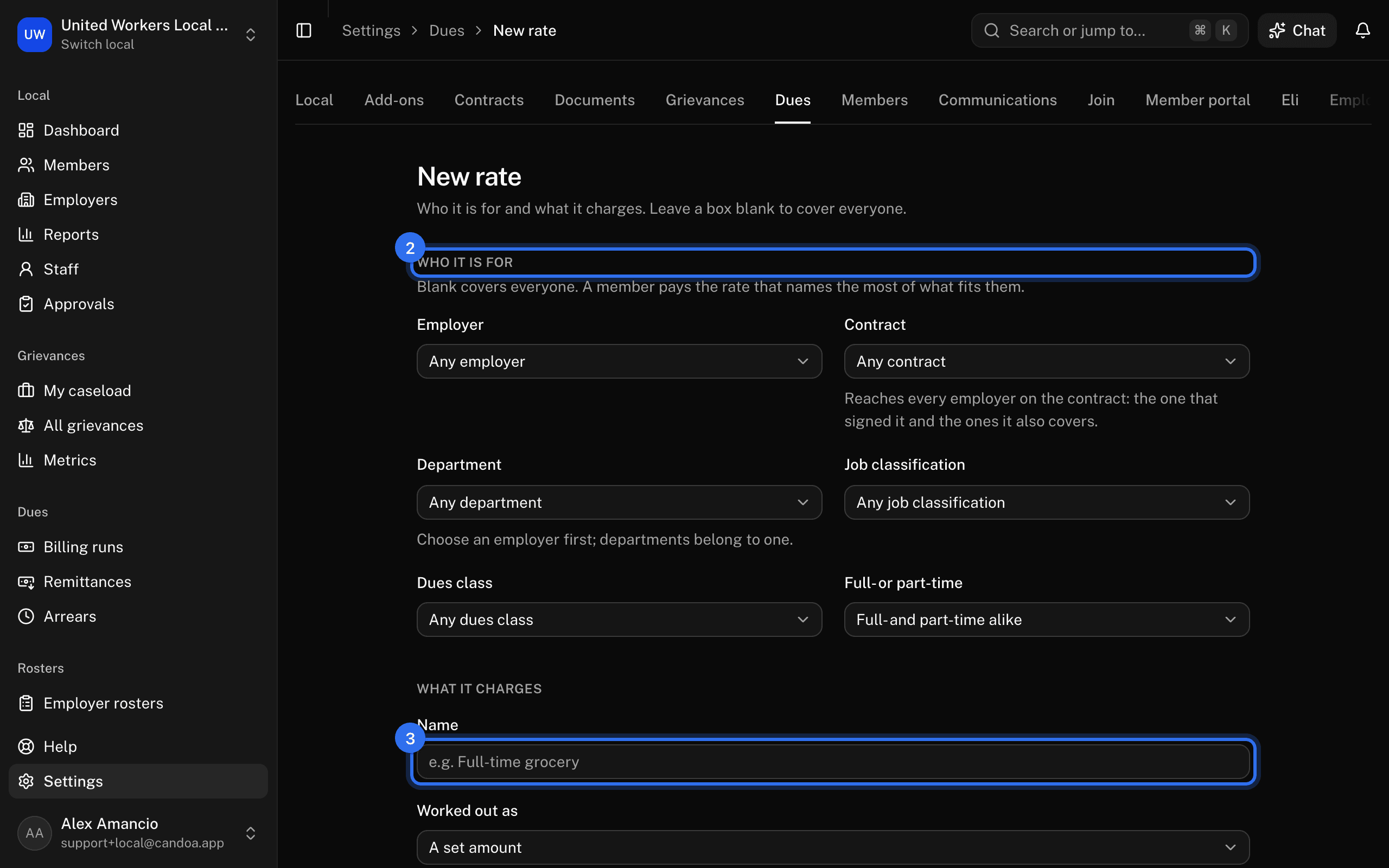
- Under Who it is for, pick any of Employer, Contract, Department, Job classification, Dues class, and Full- or part-time. Leave a box alone to cover everyone. A department belongs to one employer, so pick the employer first.
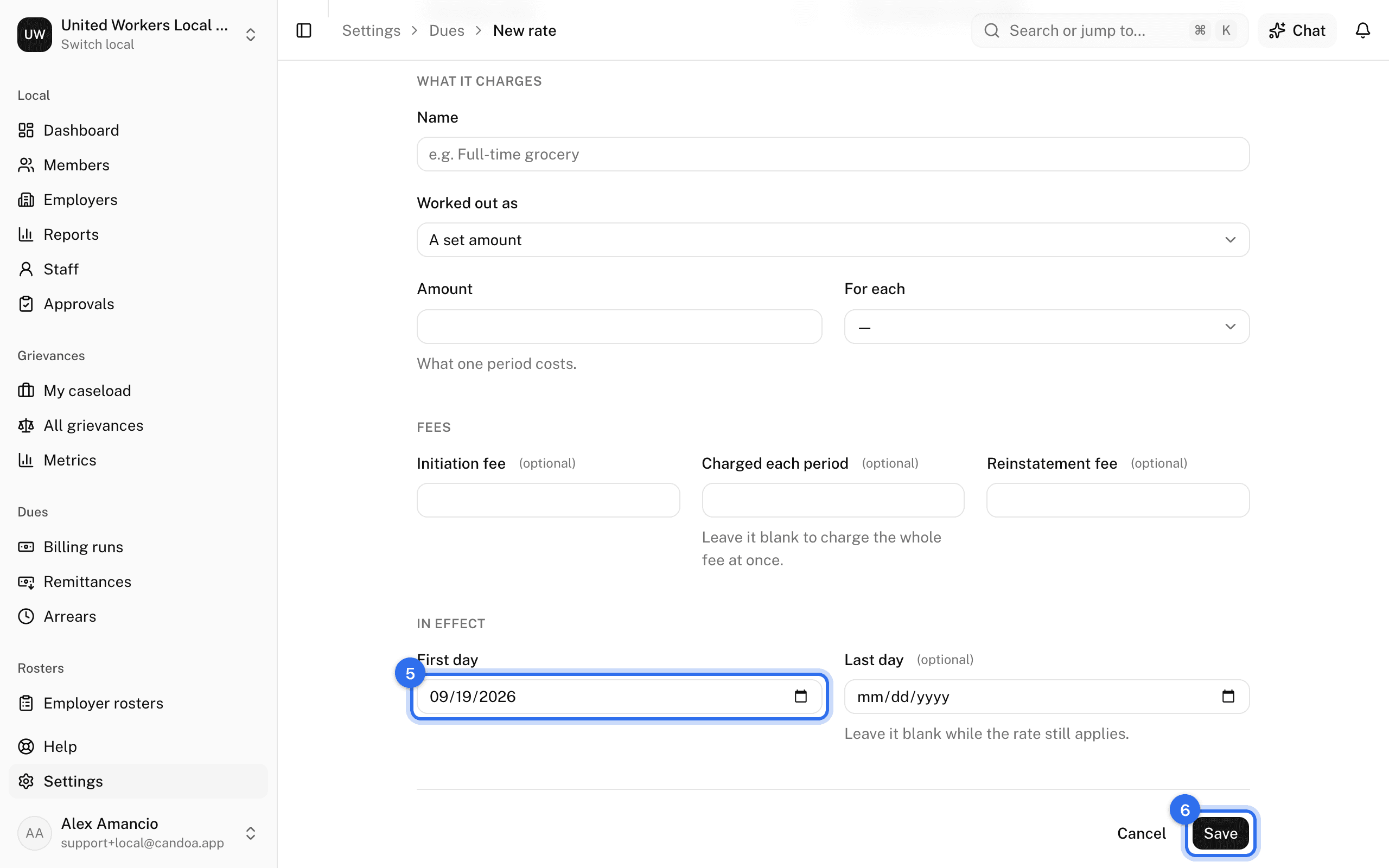
- Under What it charges, give it a Name the office will recognize, such as Full-time grocery, then choose Worked out as and fill in what it asks for.
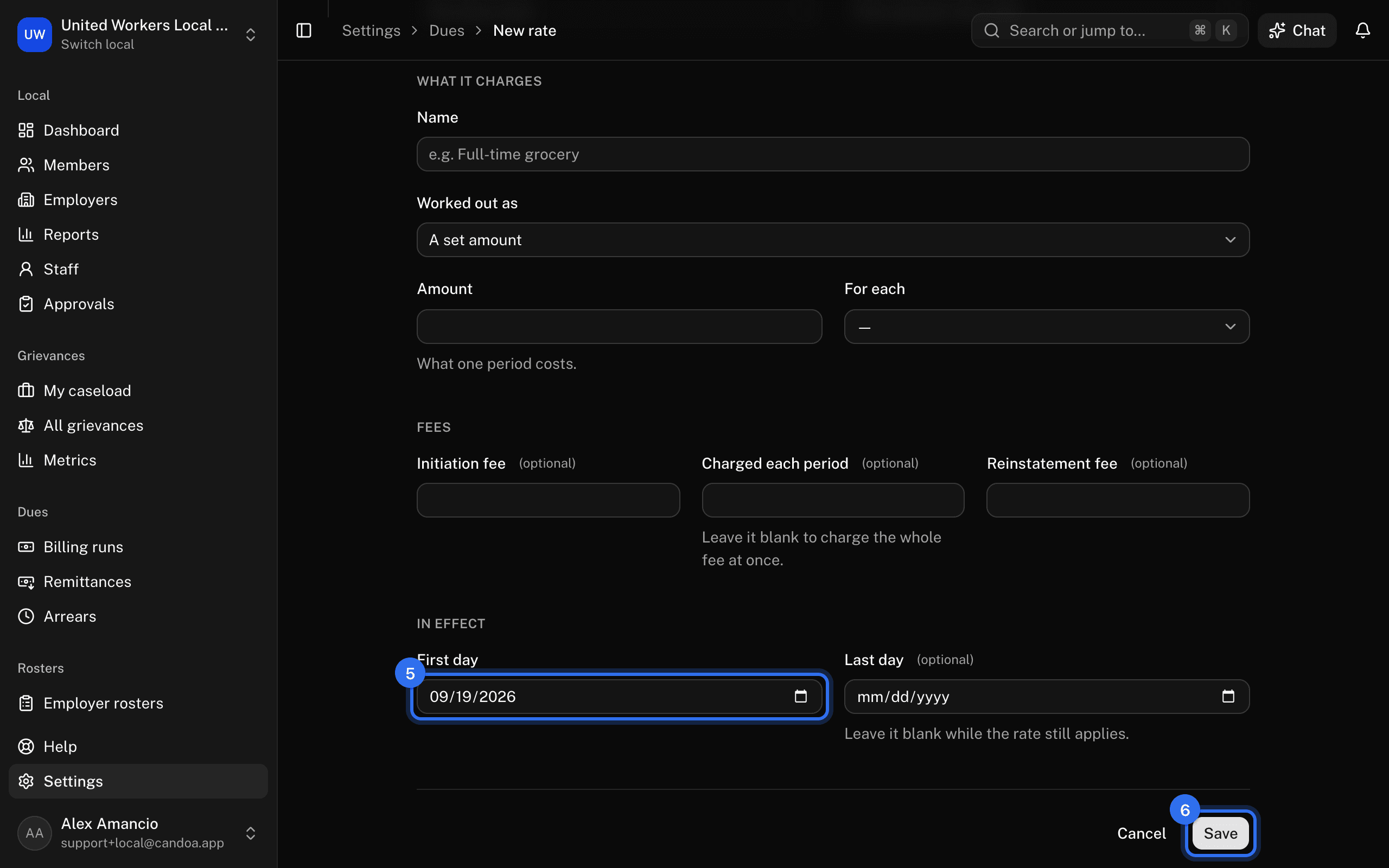
- Under Fees, add an Initiation fee and a Reinstatement fee if the rate carries them.
- Under In effect, set the First day. Leave Last day blank while the rate still applies.
- Press Save.
Two rates for exactly the same people can't be in effect on the same day; the form says so and you either end the first one or start this one later.
Change what a rate charges
A rate a bill has already used is part of the record: the bill says what the member was charged and the rate says why. It is never rewritten.
- On the rate's row, open the ⋯ menu and choose Change from a date.
- Set when the new terms start and fill in what the rate charges from then on.
- Press Change from this date.
The rate as it stands ends the day before and keeps the bills it raised. The new terms take over for the same people. If a bill has already gone out for a period after the day you chose, pick a later day.
A rate no bill has used yet is simpler: Edit on the same menu changes it outright, and Delete removes it.
End a rate
On the rate's row, open the ⋯ menu, choose End, and set the last day it applies. Nobody is billed under it after that day, and the bills it already raised stay.
Add an assessment
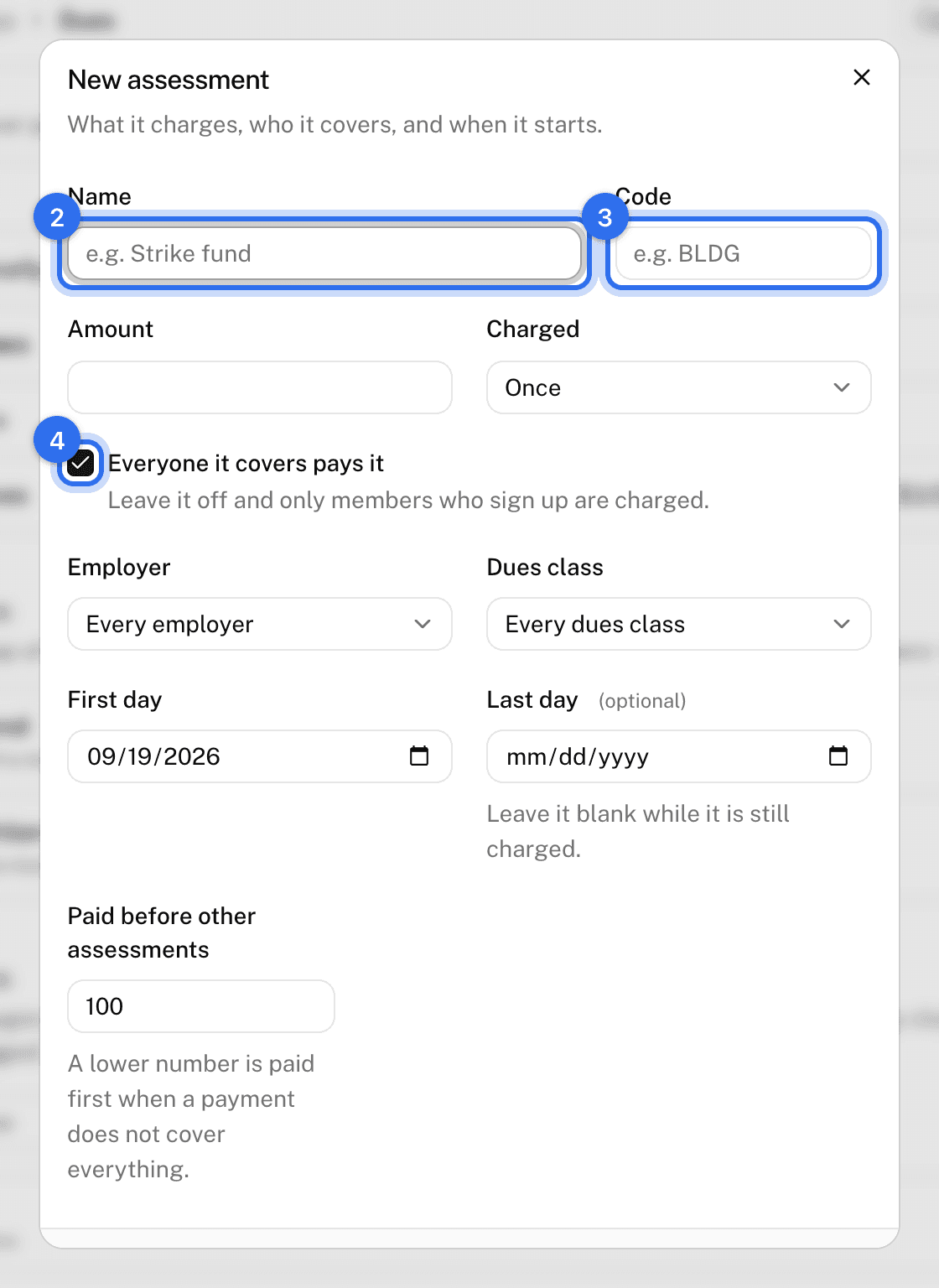
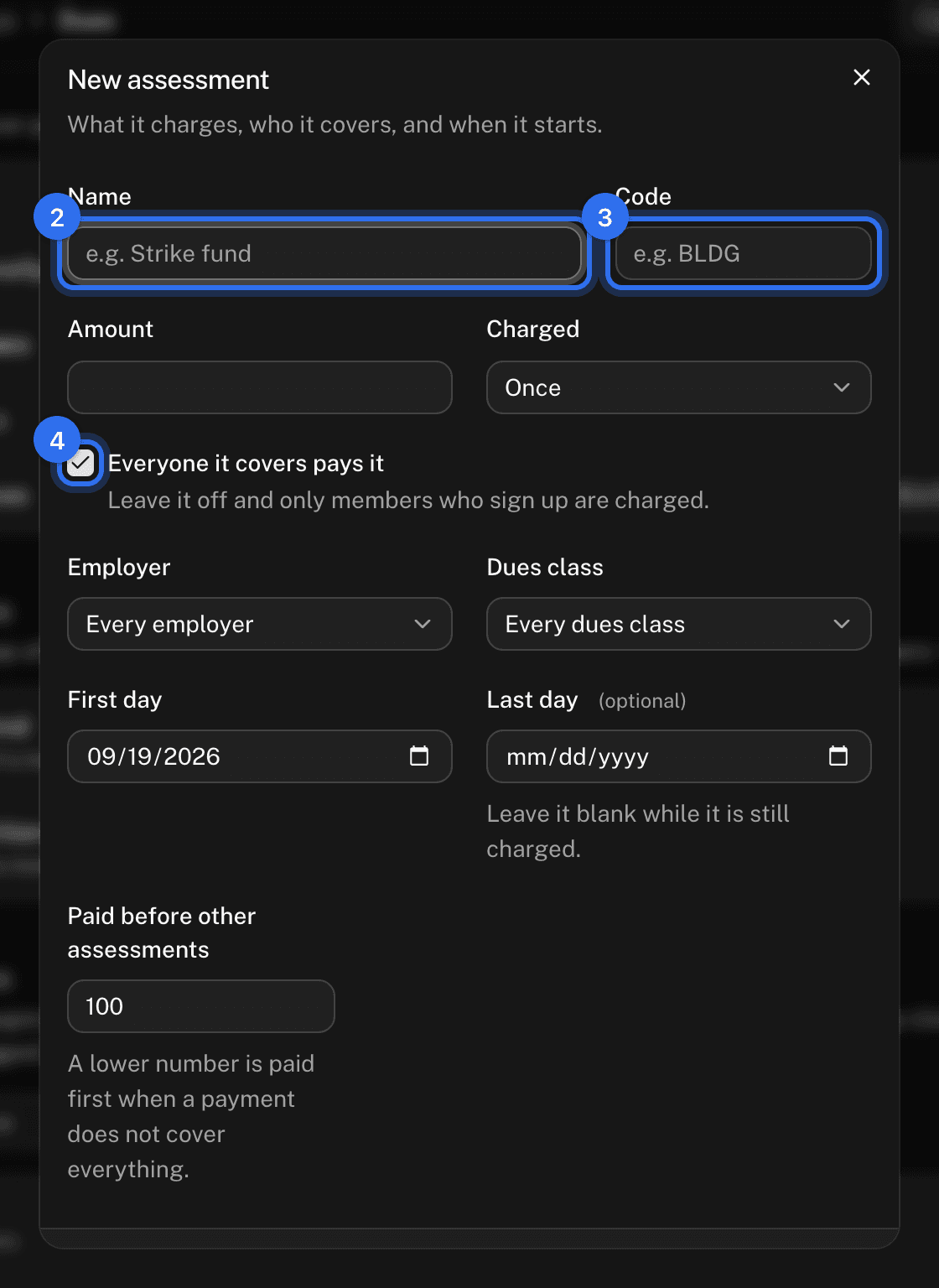
- Under Assessments, press Add assessment.
- Give it a Name and an Amount, and say whether it is Charged once or every period.
- Code is optional: the short name your local and your employers use for it, such as
BLDGorPAC. When an employer's remittance file heads a column with that code, Candoa matches the column to this assessment on its own, and the code is what a parent organization usually asks the line to be reported under. - Leave Everyone it covers pays it ticked for a mandatory assessment. Untick it and only members who sign up are charged.
- Limit it with Employer or Dues class if it isn't for the whole local.
- Set the First day, and a Last day if it stops on a known date.
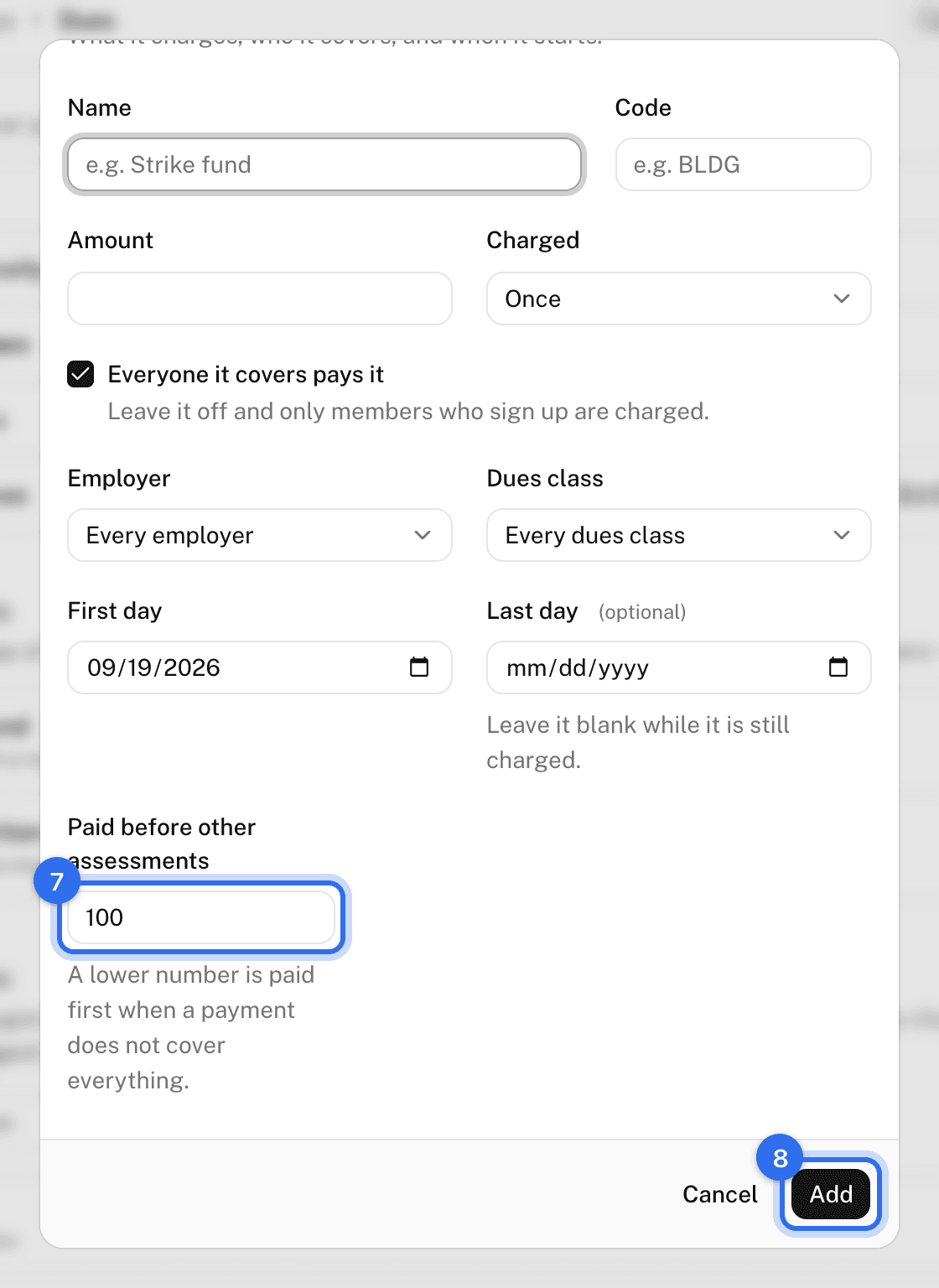
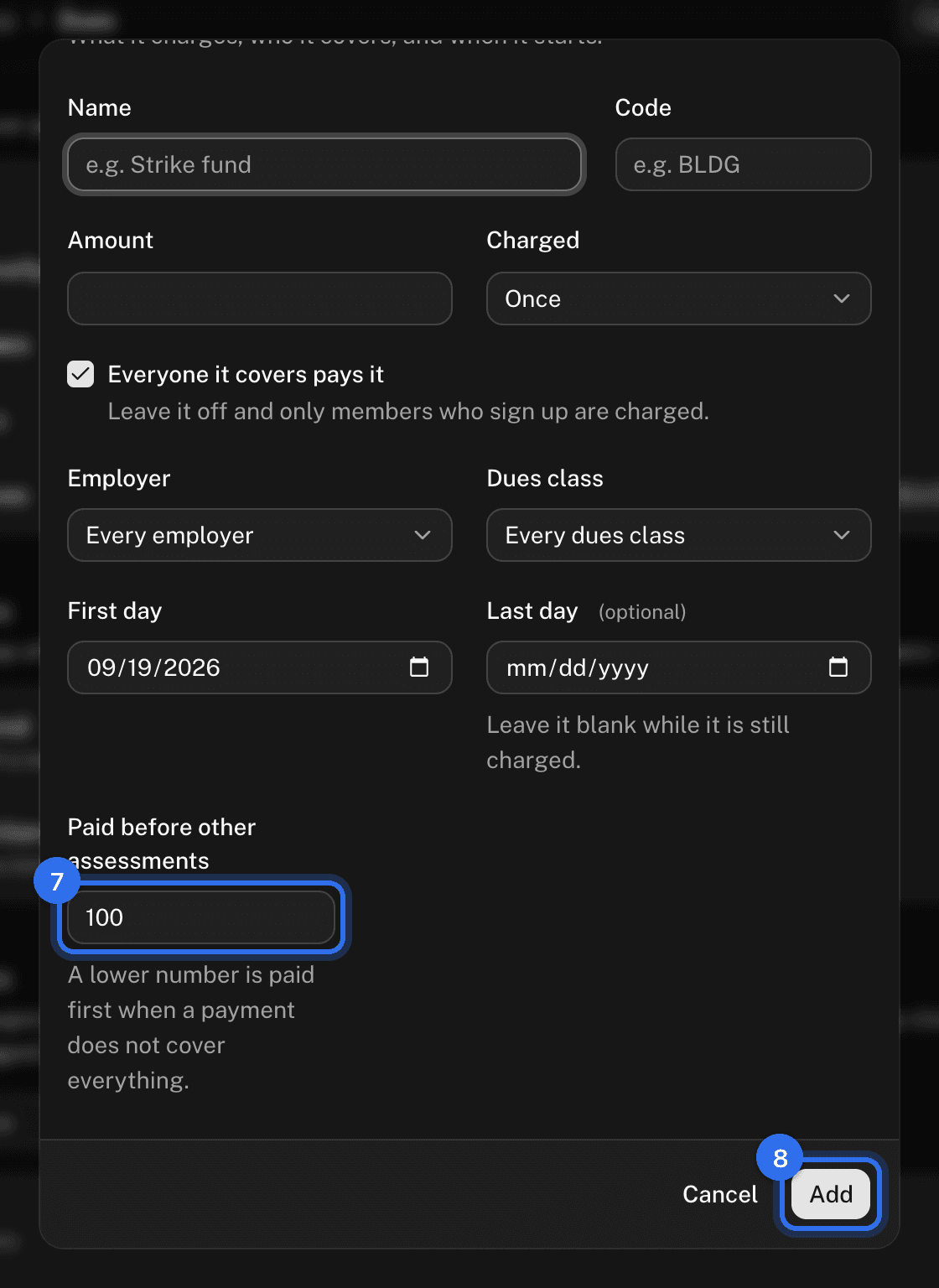
- Paid before other assessments decides what a short payment covers first: a lower number is paid first.
- Press Add.
Once a bill has charged an assessment, what it charges stays as billed. Its name, its code, its order, and its last day can still change; to charge something different, retire it and add another.
Retire an assessment
On its row, open the ⋯ menu and choose Retire. Give a last day if it stopped on one; otherwise it stops at the next billing run. Its bills and its sign-ups stay, and Charge it again brings it back. An assessment no bill has charged can be deleted outright.
Sign a member up for an assessment
Anyone who takes payments can do this; you don't have to be an admin.
- On the assessment's row, press the sign-ups button — it shows how many have signed up.
- Press Add a member.
- Pick the Member, set Signed up to the day they start, and leave Their own amount blank to charge the assessment's amount.
- Press Add.
A member paying a mandatory assessment at an amount of their own — a political fund pledge, say — is signed up here too, and then the amount is required.
End a sign-up
On the sign-ups screen, press End the sign-up beside the member and set the last day. They aren't charged for a period after it, and the sign-up stays on the list so the record shows what they paid and when they stopped.
Add a dues class
Under Dues classes, type the name and press Add. Rename, merge, or retire one from its row. A class a rate or an assessment names can't be removed while it does.
These pages are the help for Candoa, the software a local runs its members, employers, and grievances on.
Set up your localUpdated 2026-09-15