Ask Eli
The assistant in the corner of every screen, what it can answer, what it can see, and how to switch it off.
Eli is the assistant built into Candoa. Ask it how to do something and it answers from these help pages, with a link to the steps. Ask it about your local and it answers from your own records: how many active members you have, who works at an employer, what a member's status is, who is on staff. Every member, employer, or worksite it names is a link to the record.
Eli sees only what you can see. A steward limited to one employer gets answers about that employer; a permission that can't open the roster can't ask about it.
Open Eli
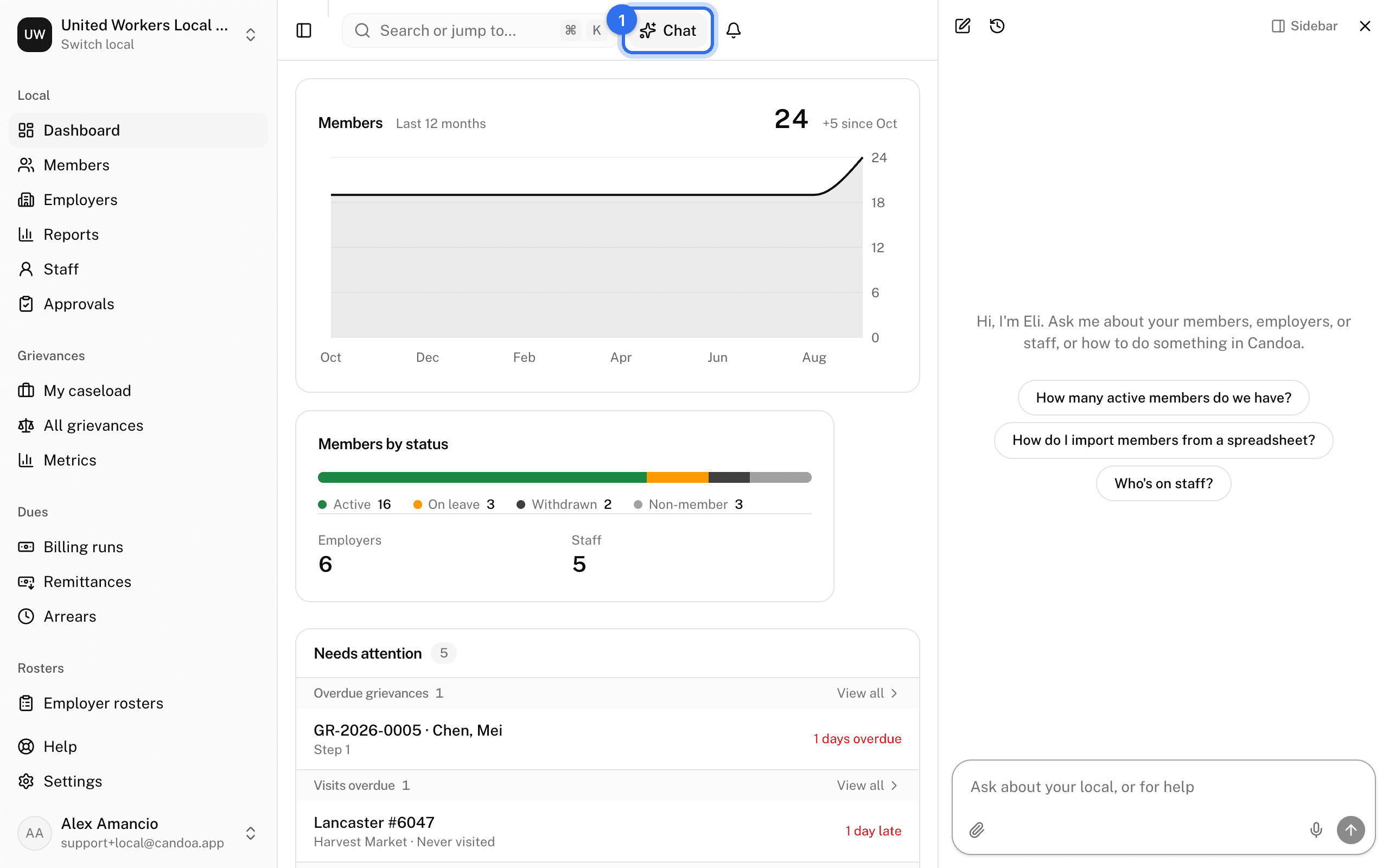
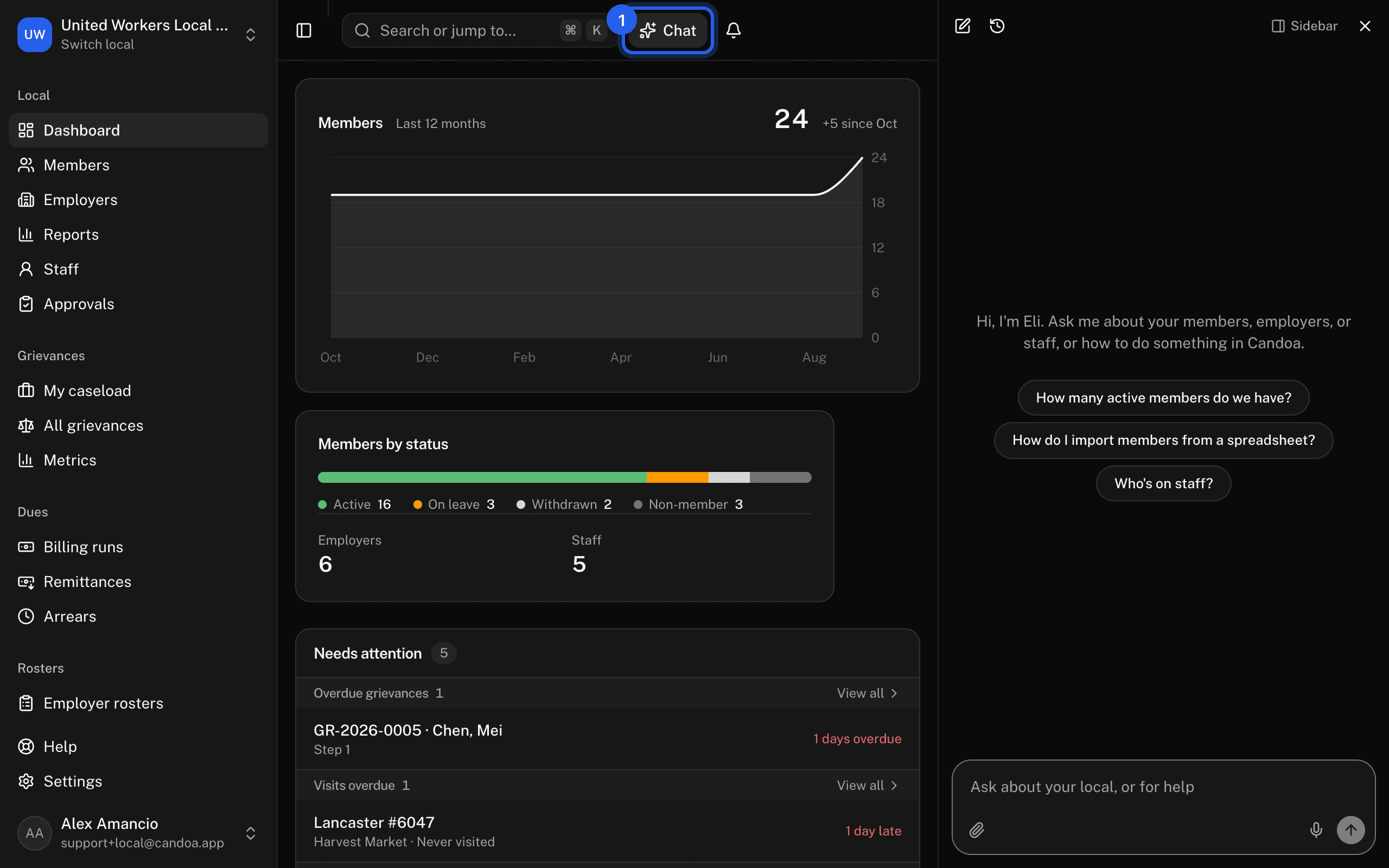
Press Chat at the top of the screen, or press Cmd+J (Ctrl+J elsewhere). The panel opens down the side and stays there while you work; press Cmd+J again, Escape in the panel, or the × to put it away. Candoa remembers whether it was out.
Ask a question
Type in the box and press Enter (Shift+Enter for a new line). While Eli looks something up, a line above the answer says what it's reading: the help, a member's record, the roster. Press the square button to stop a long answer.
What Eli finds is drawn the way the app draws it, not as a paragraph. A member comes back as a card with their status, employer, job, phone, and email, with their name linking to the record. A roster question comes back as the same status bar the dashboard shows. An employer comes back with its worksites and how many members are at each. "Who works at Acme?" comes back as a list of names you can click, with a link to the filtered members list underneath.
Three things Eli does with a "can Candoa do this?":
- If a help page covers it, Eli gives the steps and links the section.
- If it lives in an add-on your local hasn't switched on, Eli says which add-on and links its page under Settings › Add-ons.
- If nothing does it, Eli asks a question or two about what you were after, then drafts a note to us. You see the draft in a card with Send and Not now, and can edit it first. Nothing is sent until you press Send. Send feedback in your menu opens Eli the same way; see Send feedback.
Ask Eli to do something
Eli can make small changes for you, and it always shows you first. Say "add a note to Rosa Alvarez that I called her about the dues question" and Eli finds Rosa, then draws the note form in the chat with her name at the top, the note already written the way you said it, its kind, and a follow-up date if you gave one. Fix anything, fill in what's missing, and press Add note. The same goes for a new member ("add Lena Ortiz at Riverside Foods" opens the quick-add form with those filled in and the rest empty), a status change, a new job, and a manager at an employer: Eli fills in what you told it and you complete the rest, instead of answering one question at a time. A yes-or-no change, such as ending a job or marking a follow-up done, shows a card with Confirm and Cancel. Nothing is written until you press the button. Press Cancel and nothing changes; Eli says so.
When a request could mean more than one thing (two members named Maria Lopez, say), Eli asks before it acts: a card with the question and the choices, each with their employer and status. Pick one, or type something else in the message box, which says Type your answer while Eli is waiting, and Eli carries on from your answer.
What Eli can do for you today, each the same as the dialog on the screen and each behind its own Confirm card:
- Add a note, a call, a visit, an email, or a meeting to a member's record, with a follow-up date.
- Tell you which follow-ups are due, and mark one done.
- Change a member's status as of a date, with a note.
- Change a member's phone, home phone, email, or address; the card shows each field before and after.
- Add a job for a member at an employer, or end one as of its last day.
- Add a new member from a name and, when you have them, their employer, member number, phone, and email. The card lists anyone already on file who looks like the same person, so you can pick them instead.
- Add a manager or HR contact to an employer.
- Change the status of several members at once (up to 25). It runs as one change, and the members list can undo it.
- With the Grievances add-on: find and read cases, draft a filing and open New grievance on it, and, on an open case, add a note or a hearing, extend a deadline, reassign the step, or attach a file from the chat.
- With the Rosters add-on: open New roster on an employer's list you dropped in, with the employer worked out from the file.
- With the Dues add-on: open New remittance on an employer's file with the employer and period filled in, and record a payment a member made to the local.
It can only do what you can do: if your permission can't edit members, Eli won't offer to. Anything Eli does shows on the record's activity as yours, with "via Eli" after your name.
If you keep typing before you press Confirm, that card is left behind and says so; ask again if you still want it. While a question is open, what you type is its answer. Confirming, cancelling, or answering costs only what Eli reads and writes to finish that step, like any other message.
A bigger job, such as filing a grievance or bringing in a spreadsheet, is done on its own page; Eli tells you which page and links it.
Ask for something an add-on does that your local hasn't switched on (a grievance, a dues remittance, a text to members) and Eli shows the add-on's card: what it is, what it costs, and whether the free 14 days are still available. If you manage add-ons, a Start 14 days free (or Add it) card follows, and pressing it does the same as the button under Settings › Add-ons; then say what you wanted again and Eli does it. If you don't, the card names who can switch it on.
Send Eli a spreadsheet
Drop a spreadsheet saved as a CSV into the chat (the paperclip, or drag it onto the box) and say "bring these in", or say nothing at all. Eli reads the column headings, works out which import the file belongs in (a member list, employers and their worksites, employer contacts, or people to invite as staff), and shows a card with the kind, the file's name and row count, and one line on why. Press Open the import and that import opens with the file already loaded, at the column check, so you go straight to checking and applying it as you would after choosing the file yourself.
Eli sees only the headings and how many rows there are, never the rows themselves. If a file could be two kinds, Eli asks which; if it fits none, Eli says what the file looks like and offers to send that to us. Eli only offers the imports your permission can run, and the link it gives you works once, for you, for a day. A PDF or a photo isn't a spreadsheet; save it as a CSV first.
Ask about dues
If your local has the Dues add-on and your permission lets you see dues, Eli answers from the ledger too:
- Where a member stands: their balance, any credit held for them, what is past due, how far they're paid, since when they've been in arrears or delinquent, and whether their employer takes dues from pay or they pay the local themselves.
- What the local is owed right now, how many members are behind, how many of those are delinquent, and the same by employer.
- An employer's remittance: the period, the money, how its lines stand, and what to look at before posting it.
- The latest billing runs: the period, whose they are, and whether each is a draft, posted, or voided.
Eli reads the same figures the dues screens show. It doesn't post, void, or take a payment, and it won't tell you what to do about someone's money.
Ask about employer rosters
If your local has the Rosters add-on, Eli can tell you where an employer's roster stands: the latest rosters, whose each is and the day it was filed, how many new hires, changes, and members not on the list it found, and how many rows are still waiting for a decision. Eli reads the same counts the rosters screens show. Deciding and applying a roster happen on the roster itself.
Ask about the member portal
If your local has the Member portal add-on and your permission lets you see members, Eli can say how the portal is going (how many members have signed in, how many were in it in the last 30 days, how many can't sign in yet for want of an email, and the link to share) and whether one member uses it: if they can sign in, when they last did, how many devices they're on, whether they have a photo or one waiting, and whether an update they sent is waiting in Approvals. Signing a member out is done from their record.
Match the columns of a file
When you bring in a spreadsheet (importing members, adding a dues remittance, or filing an employer's roster), Eli fills the column boxes the file's headings didn't name, such as "Orig Hire Dt" or "Assoc Stat". Eli is told only the headings and the shape of each column's values, never a name, number, or address from the file, and a Social Security number column is never described at all. The step waits for Eli, then sorts every column into Needs you, Ready, and Not imported tabs. A column Eli isn't sure of is under Needs you, in amber, with its reason in your language: press That's right to keep Eli's guess, or pick something else in the column's box. Matching columns doesn't count toward your local's monthly tokens.
Attach a file
Press the paperclip under the box, or drop a file on it, to give Eli something to read: a PDF or an image, up to 10 MB, four at a time. "What does this letter say?", "which article covers overtime?", "type up this paper card". The file stays in your local's private store and travels with the conversation; nobody outside the local can open it. Eli reads it fresh on each question in that conversation, so a long file costs its length again with every question you ask about it.
Speak instead of typing
Press the microphone under the box, beside the send button, and talk; your words land in the box, and you press send as usual. Press it again to stop. The button appears only in browsers that can listen, such as Chrome and Safari, and nothing you say leaves your device except as the text you see.
Choose a layout
The menu at the top of the panel, named for the layout you're in, offers two:
- Sidebar: down the side of the window, next to what you're working on. The page moves over to make room. Drag the panel's edge to make it wider or narrower; Candoa remembers the width.
- Floating: a round button in the bottom corner, like a chat widget. Press it and Eli opens as a card above it; press it again to put Eli away. A wide list stays wide. With Communications on, a member conversation can be open down the side at the same time; the card and button move over to leave it room.
Candoa remembers your choice.
Ask about the screen you're on
Eli knows which screen you have open, so "where does this member work?" on Rosa's record is about Rosa, and "how do I do this?" on Import is about importing.
Come back to a conversation
Press the clock button at the top of the panel for your past conversations, newest first. Pick one to carry on, or hover it and press the bin to delete it. The pencil starts a fresh one. Conversations are yours: nobody else at the local sees them.
How much Eli a month
Eli is measured in tokens, the pieces of text it reads and writes: about three-quarters of a word each. A question costs what Eli reads to answer it (your message, the conversation so far, any file you attached, and what it looks up in your records) plus the answer it writes. A short question in a fresh conversation runs to about 12K; a long conversation, or a question about a long PDF, costs more, because Eli reads all of it again each time. A new conversation is the cheap way to ask about something else.
Every local includes at least 20M tokens a month, about 1,700 questions, and a bigger local includes more: 20M up to 1,000 members, 30M up to 2,000, 40M up to 3,500, and 50M above that. It is sized so a local using Eli as intended never meets it. When a tenth is left, the panel says so under the box. If they run out, Eli says so and nothing else in Candoa changes.
Past what's included, tokens can go on the month's invoice at $2 per million, but only up to the Extra usage limit an owner sets under Settings › Billing, and only once the local pays for Candoa. Every local starts with no limit, which means Eli simply stops at the included amount. Set a limit, say $20 a month, and Eli keeps going until that much extra usage is reached, then stops; a quiet month costs nothing extra. Texts past the included ones share the same limit. See Add-ons and billing.
Let Eli read sensitive data
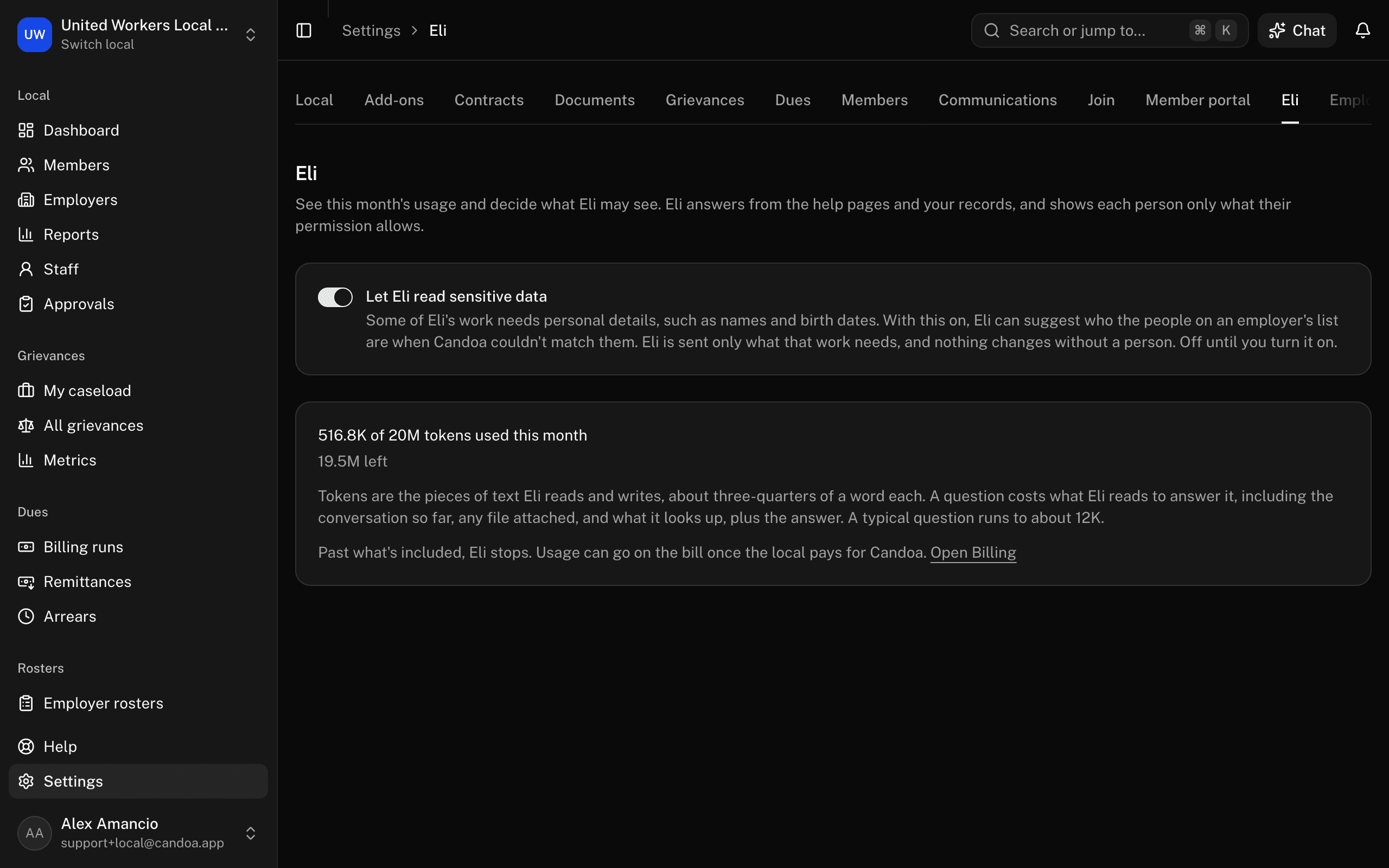
Eli is part of Candoa and is always on. Whether it may read sensitive data, the personal details about the people in your records, is your local's choice. Anyone who manages settings can open Settings › Eli and switch on Let Eli read sensitive data. It's off until someone turns it on.
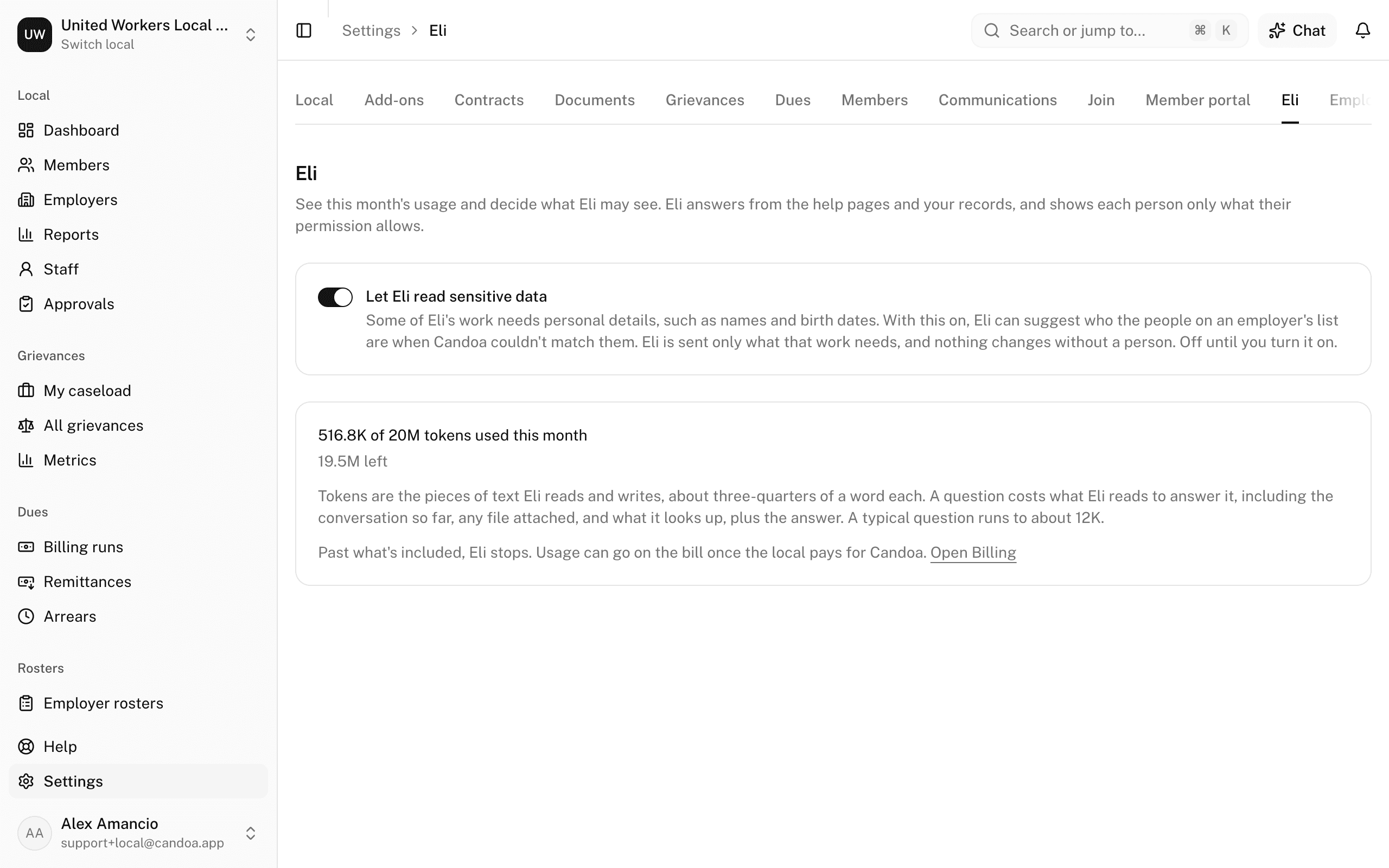
While it's on, when you file an employer's roster, Eli is sent the names and birth dates of the people on the list Candoa couldn't match, and of the members they might be, and suggests who they are with a reason. Nothing else about members is sent, members' record numbers never leave Candoa, and Eli's suggestions change nothing until a person picks one. It doesn't count toward your local's monthly tokens. While it's off, only Candoa's own rules suggest matches.
The same page shows how many tokens the local has used this month.
What Eli won't do
Eli never changes a record, sends mail, or files anything without you pressing a button on a card it shows you first. It doesn't read anything outside your local, and it never sees another local's data.
These pages are the help for Candoa, the software a local runs its members, employers, and grievances on.
Set up your localUpdated 2026-09-19