Import members from a spreadsheet
The four-step CSV import: choose a file, check the columns, preview, and import. Plus how cells are read and where past imports are listed.
Bring in the spreadsheet you use today. Rows whose member number already exists update that member. Blank cells never erase what's already on file.
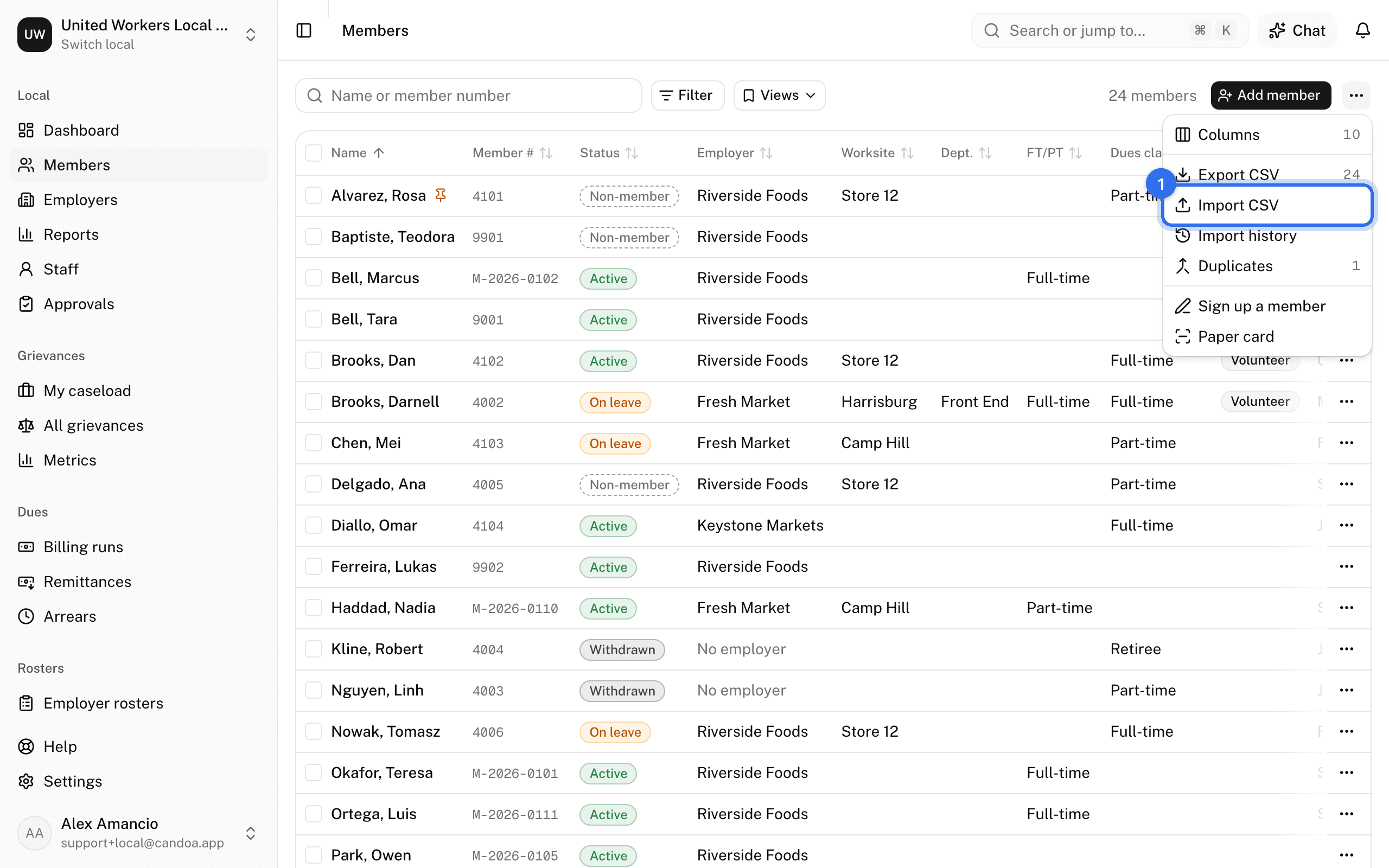
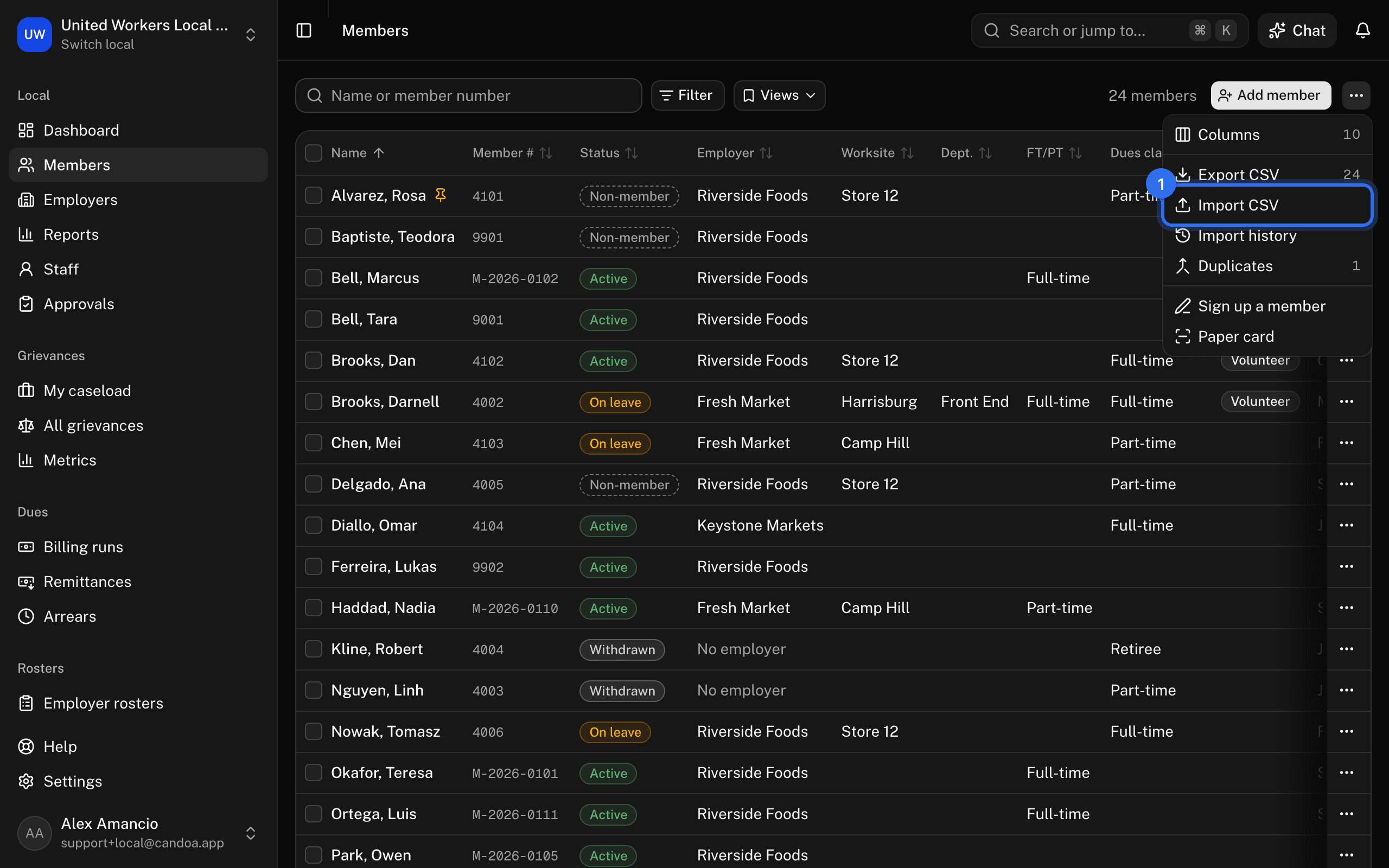
Press Import CSV on the members list, or press i then m anywhere. Staff limited to certain employers can't import; ask an owner or admin.
You can also drop the file into Eli: Eli tells it's a member list from the headings and opens this import for you at step 2, with the file already loaded.
Before you start
Save the spreadsheet as a CSV file. One row per member, with a header row. Column names don't have to match Candoa's; you'll match them in step 2. Any tag you use in the file must already exist under Settings › Tags.
Step 1: Choose a file
Drag the CSV in or browse for it. If Candoa can't read it, export it from your spreadsheet program as CSV again.


Step 2: Check the columns
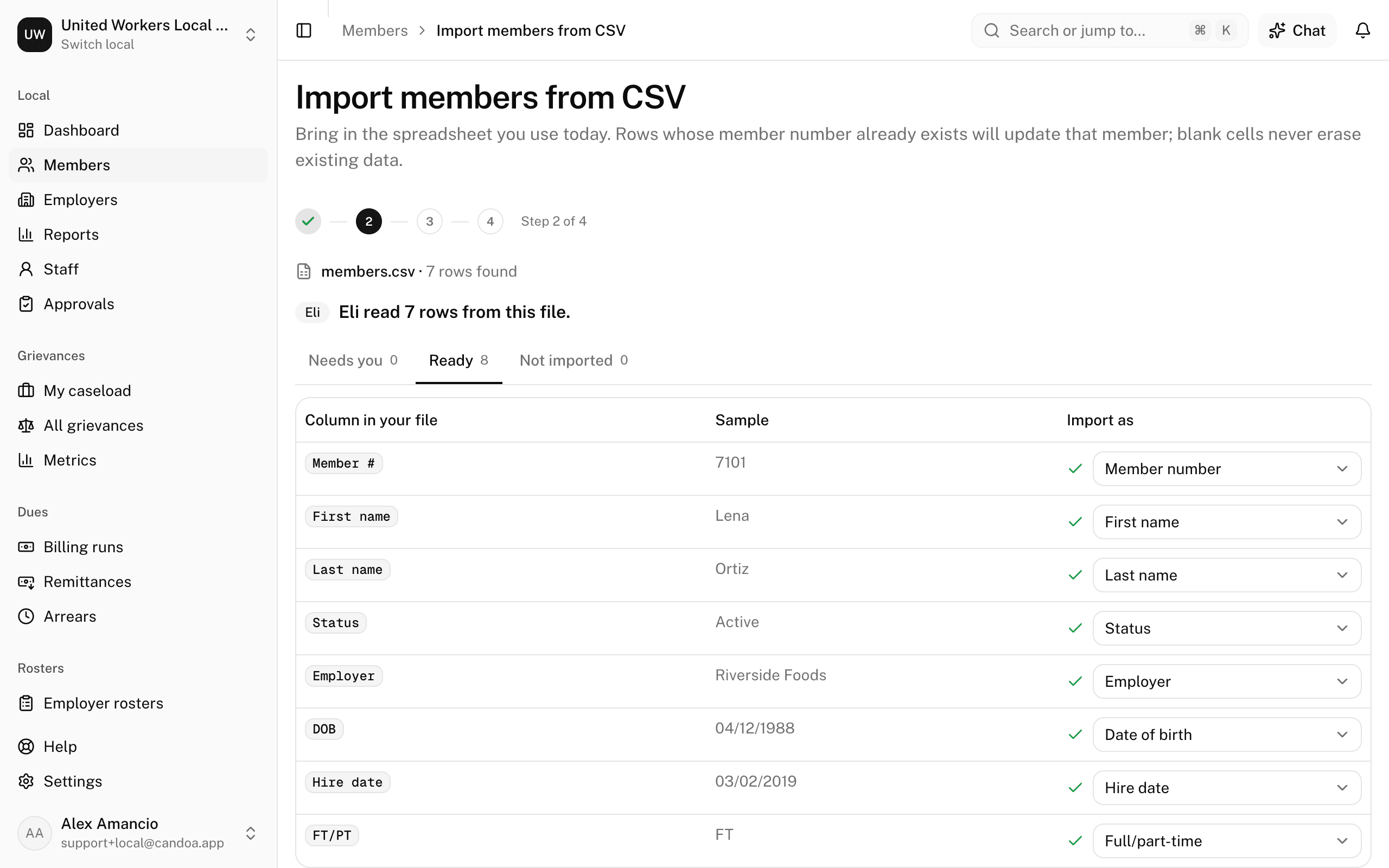
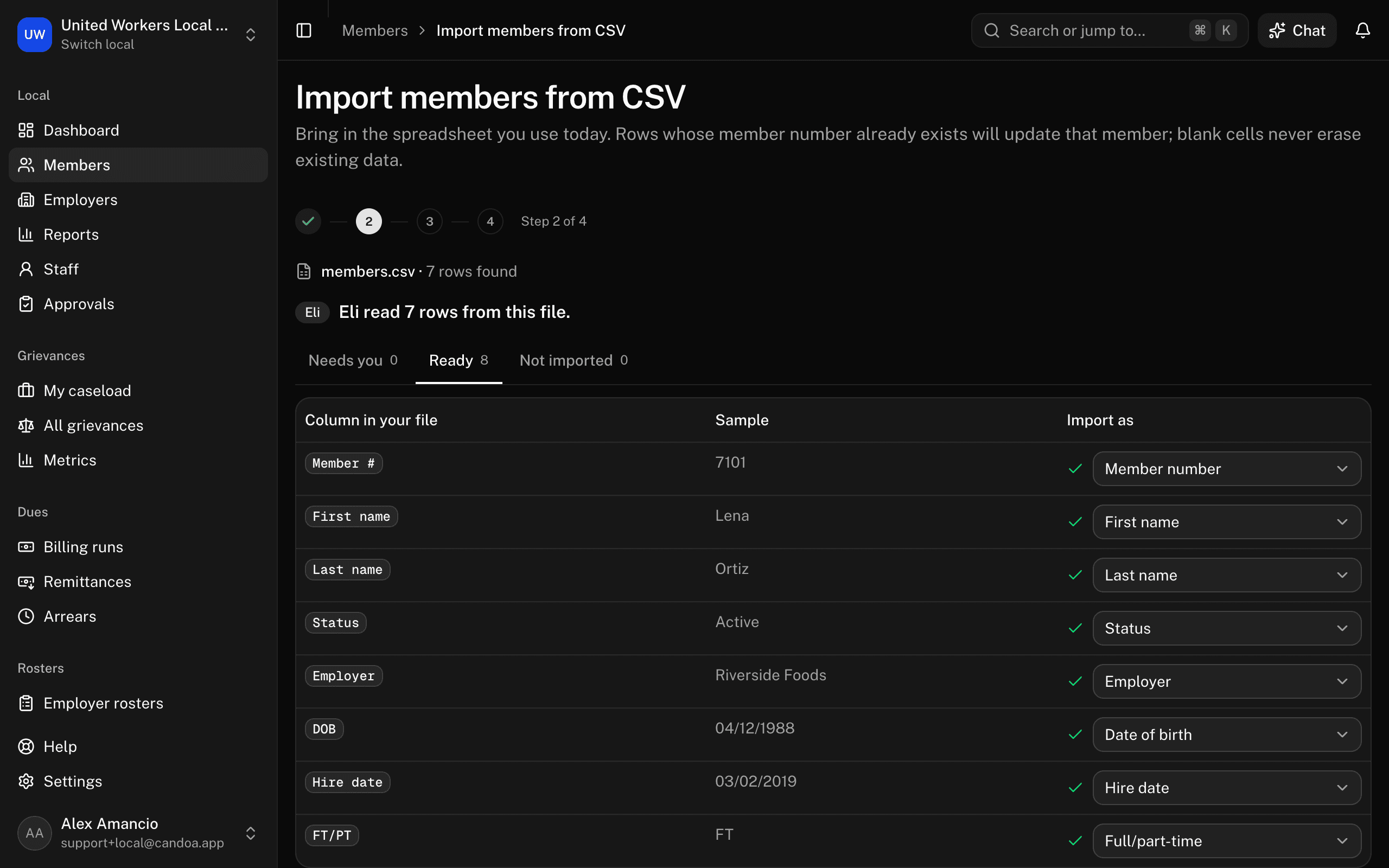
The step is one list of every column in your file: the column, its value in the file's first row, and what it imports as. Candoa fills in what it recognizes from the header: "DOB" becomes Date of birth, "FT/PT" becomes Full/part-time, "Member #" becomes Member number, and so on. The mapping you used last time is remembered, including columns you skipped, and Eli doesn't ask about those again. The columns show once Eli has read the file, so nothing moves after they appear. Eli says how many rows it read, and the columns sit in three tabs, each with its count: Needs you, Ready, and Not imported. The step opens on Needs you whenever anything does. When the file has the same columns as last time, the step says so.
Needs you holds, in amber:
- A field Candoa needs that no column holds yet. Pick the column under Choose a column.
- A column Eli matched but isn't sure of. Eli matches the columns the headings didn't name, and shows its reason under its guess. Press That's right to keep the guess, or pick something else in the column's box.
Ready holds the columns that are placed, each with a check mark, and Not imported holds the rest. A Social Security number column is always last there, and never taken in. Change any column in its box, or choose Skip this column for anything you don't want. Eli is sent only the headings and the shape of each column's values (a date as 99/99/9999, a name as Aa+), never the values themselves.
You can match to any member field, including your local's custom fields under Your fields.
Tick Give rows without a member number the next one if the file has no numbers or some rows lack them. Otherwise, Member number, First name, and Last name must all be matched.
Step 3: Preview
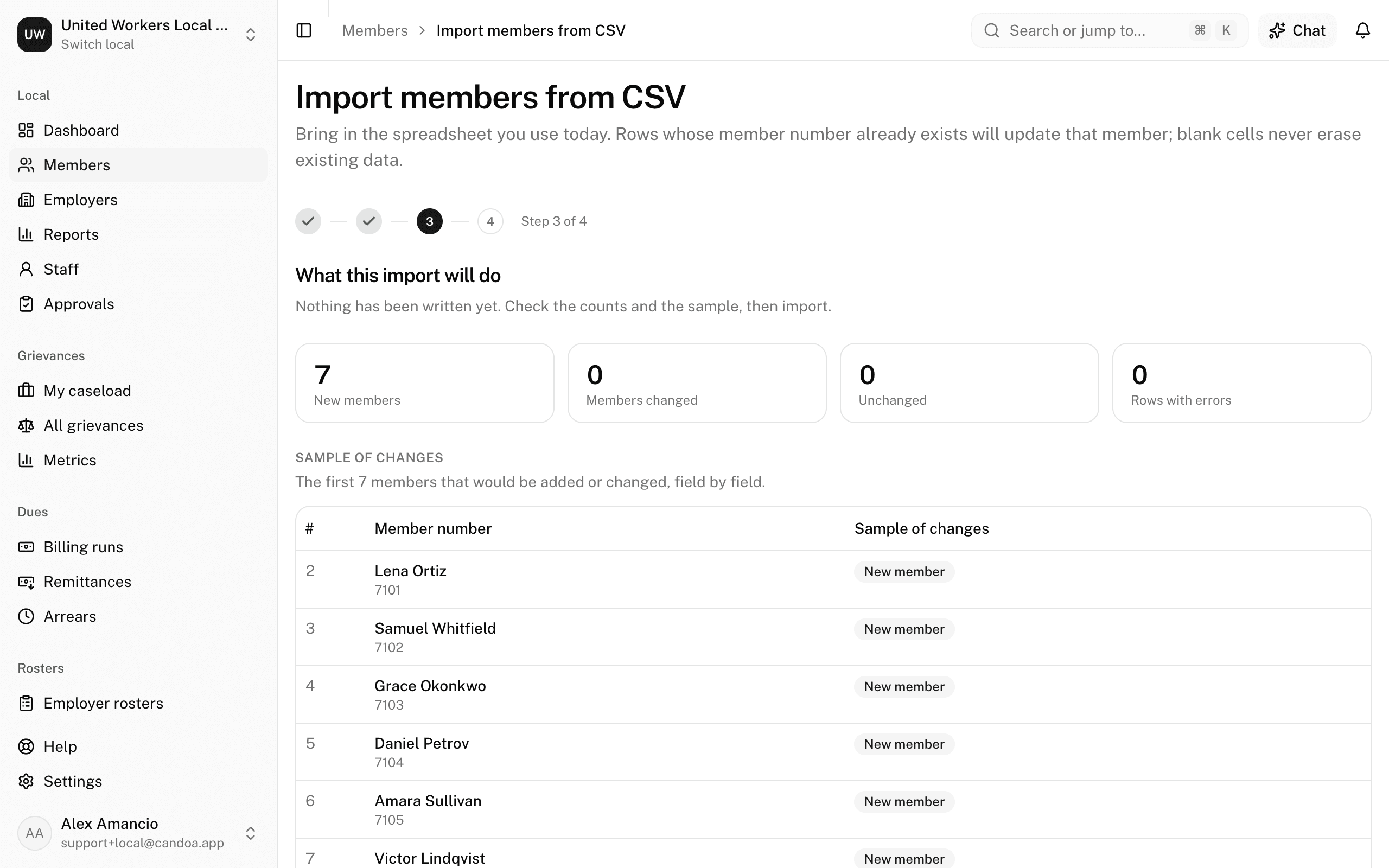
Nothing has been written yet. You'll see how many members would be New, Changed, Unchanged, and how many Rows with errors would be skipped, plus a sample of the changes field by field.
Rows that look like existing members lists rows that resemble someone already on file. They still import; merge them afterwards if they're the same person.
Rows with errors are listed with the row number as it appears in your spreadsheet. Common ones: an unrecognized status, a member number that appears twice in the file, an employee ID that belongs to another member at that employer, or a tag that doesn't exist yet. Fix them in the file and choose it again, or import the good rows now and the rest later.
Press Import N rows.
Step 4: Results
Counts of members added, updated, unchanged, and rows skipped. View this import opens the run record; View members goes to the roster; Check for duplicates (owners and admins) opens the pairs the import may have created, see Duplicates and merging.
An import can't be undone. If one goes wrong, the changes are in each member's history.
How cells are read
- Status accepts the usual words: active, on leave, retired, withdrawn, suspended, non-member, and common variants such as "good standing", "LOA", "inactive", or "agency fee".
- Full/part-time accepts full time, FT, F, part time, PT, P.
- Dates accept ISO and US formats. Two-digit years are read as 20xx.
- Yes/no cells accept yes, y, true, 1, x, and no, n, false, 0.
- Preferred language accepts a code such as "es", the language's own name, or its English name.
- Employers, worksites, and job classifications that don't exist yet are created from the file. Two spellings of one job become two classifications; merge them under Settings › Members afterwards.
- Existing members are matched by member number, including former numbers.
Past imports
Import history lists every spreadsheet import, employer and management imports included (see Import employers from a spreadsheet), and every bulk change: who ran it, when, the file, and how many rows were added, updated, unchanged, or in error. Open it from the ⋯ menu on the members list, or from View this import at the end of an import. Open one to see the column mapping that was used and the first errors. Anyone who can import can open it.
These pages are the help for Candoa, the software a local runs its members, employers, and grievances on.
Set up your localUpdated 2026-09-15