The employers list
Find an employer or worksite, filter the list, and download a CSV.
Every employer the local deals with, with its worksites indented underneath. For what an employer is, see An employer's record.
Open the employers list
Click Employers in the sidebar, or press g then e. Everyone can see it.
Find an employer or a store
- Type in the search box: the employer's name, its "also known as" name, its employer number, or any worksite's name or store number.
- Click the employer's row to open it, or a worksite's row to open the worksite.
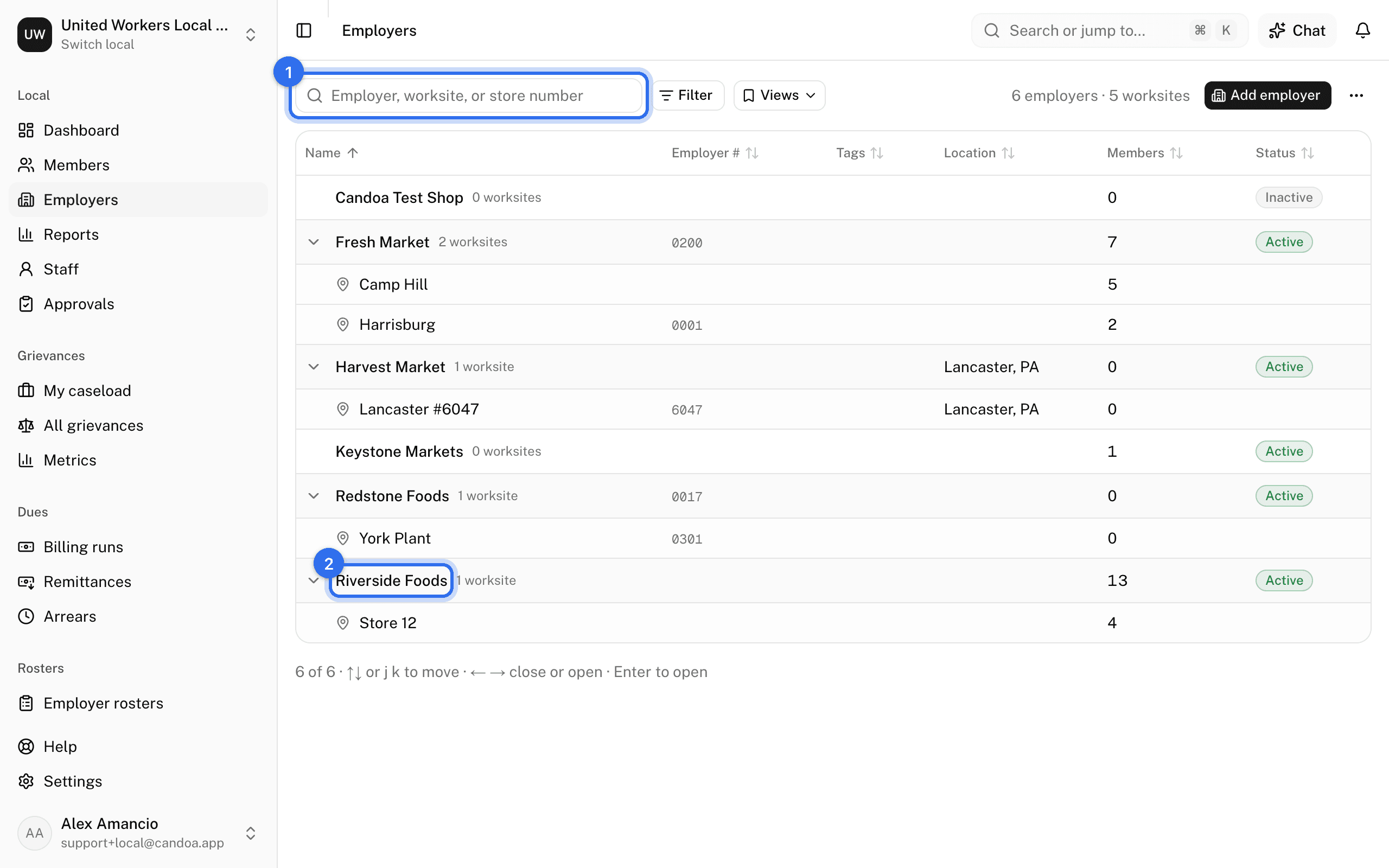
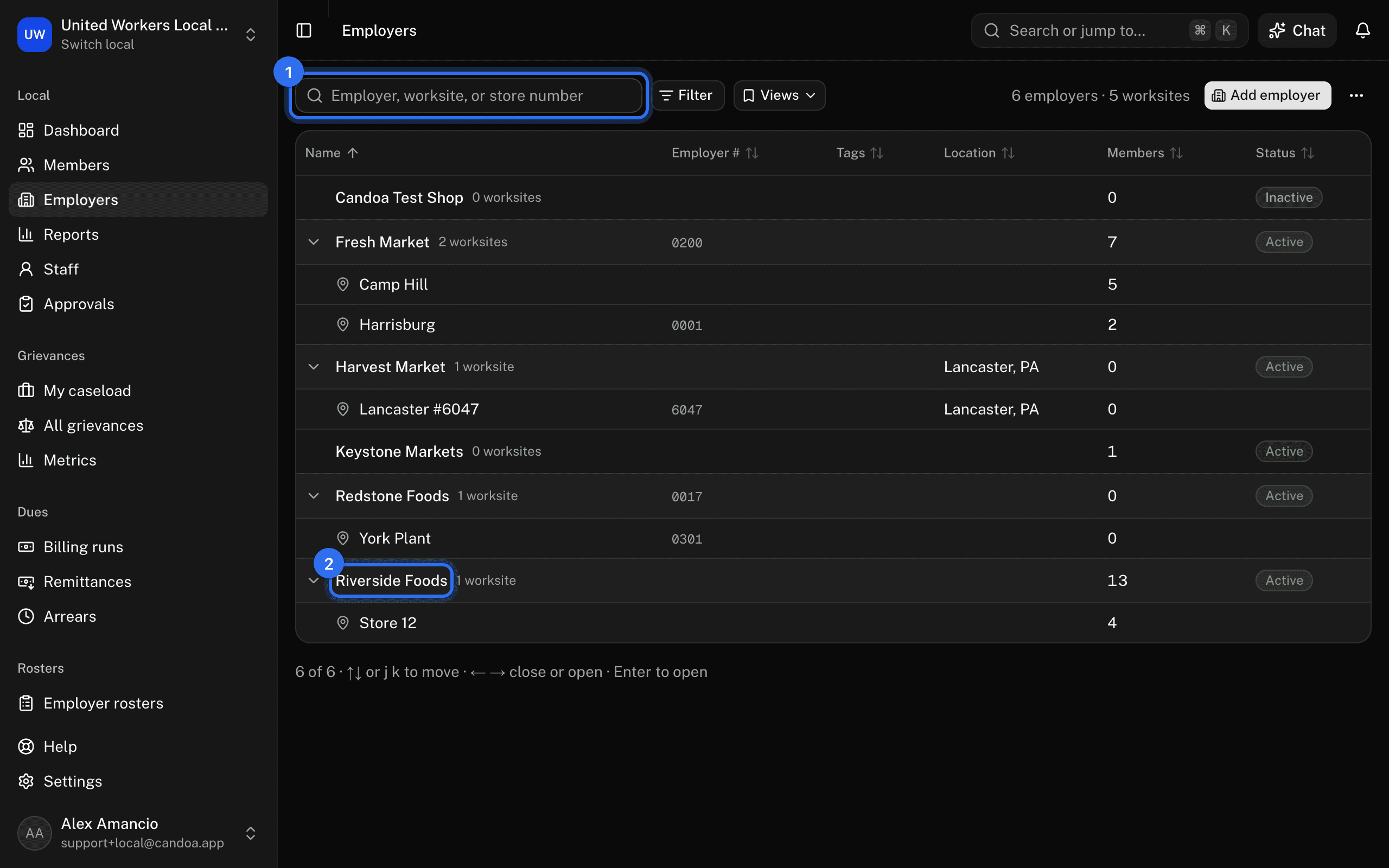
The chevron at the left of an employer opens or closes its worksites; Candoa remembers which you closed. On the keyboard: arrows or j and k move, ← and → close and open worksites, Enter opens.
Filter the list
- Press Filter, then Add a condition.
- Pick Status, Employer number, Industry, Part of, Tags, City, State, number of Worksites, number of Members, Last contacted, Visit overdue, or a custom employer field, then the condition and value. Last contacted with in the last so many days finds the employers somebody reached recently; is empty finds the ones nobody has logged a call, visit, email, or meeting on. Visit overdue is Yes for an employer with an open worksite whose next visit is past due by the cadence set on the employer or the worksite; see An employer's record.
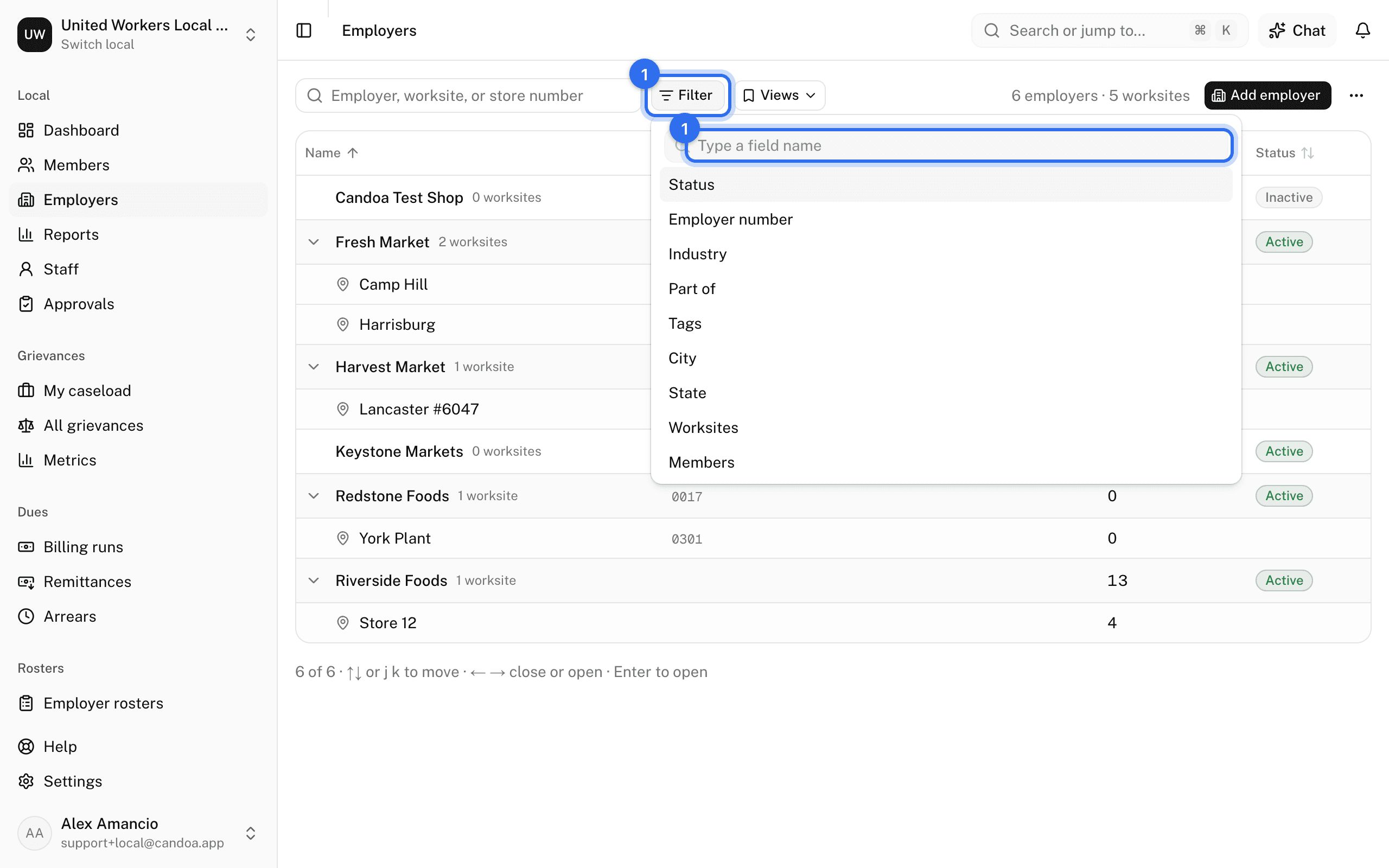
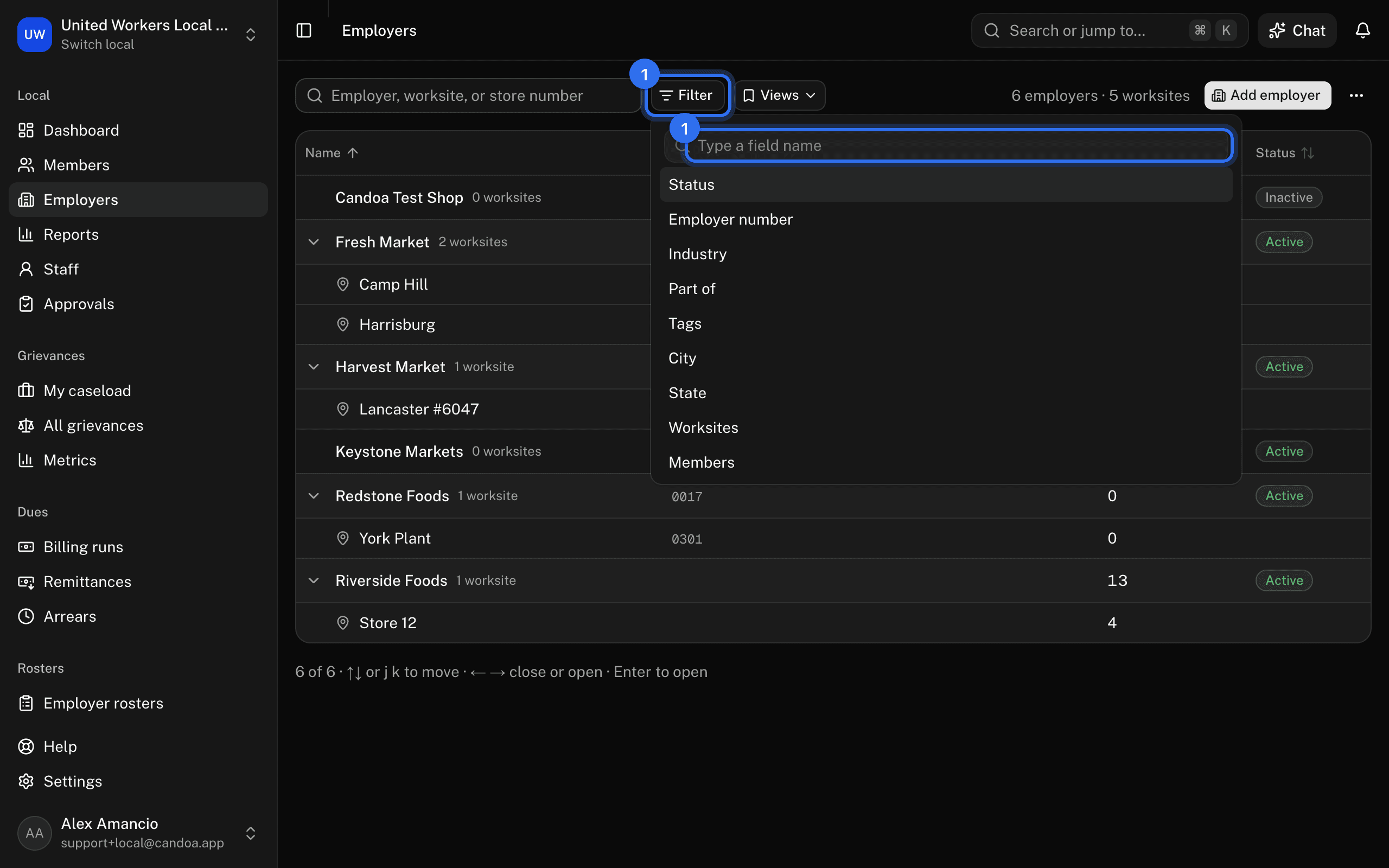
There's no default filter, so inactive employers are listed too; add Status is Active to hide them. Clear removes everything. Views saves the filters, columns, and sort under a name, exactly as on the members list; see The members list.
Choose columns
- Open the ⋯ menu at the end of the toolbar and choose Columns (the number beside it is how many are on). The columns shown are ticked at the top, in the order the table has them.
- Tick a field under More columns to add it at the end: Employer #, Tags, Location, Members, Last contact, Next visit due, or Status. Your local's own fields sit under a heading with the local's name. Next visit due is the soonest due date among the employer's open worksites, in red once it has passed; a worksite row shows its own.
- Drag a ticked field by its handle to change the order, or use the arrows beside it to move it up or down. The table follows as you go.
- Untick a field to drop it. Name always stays, and stays first.
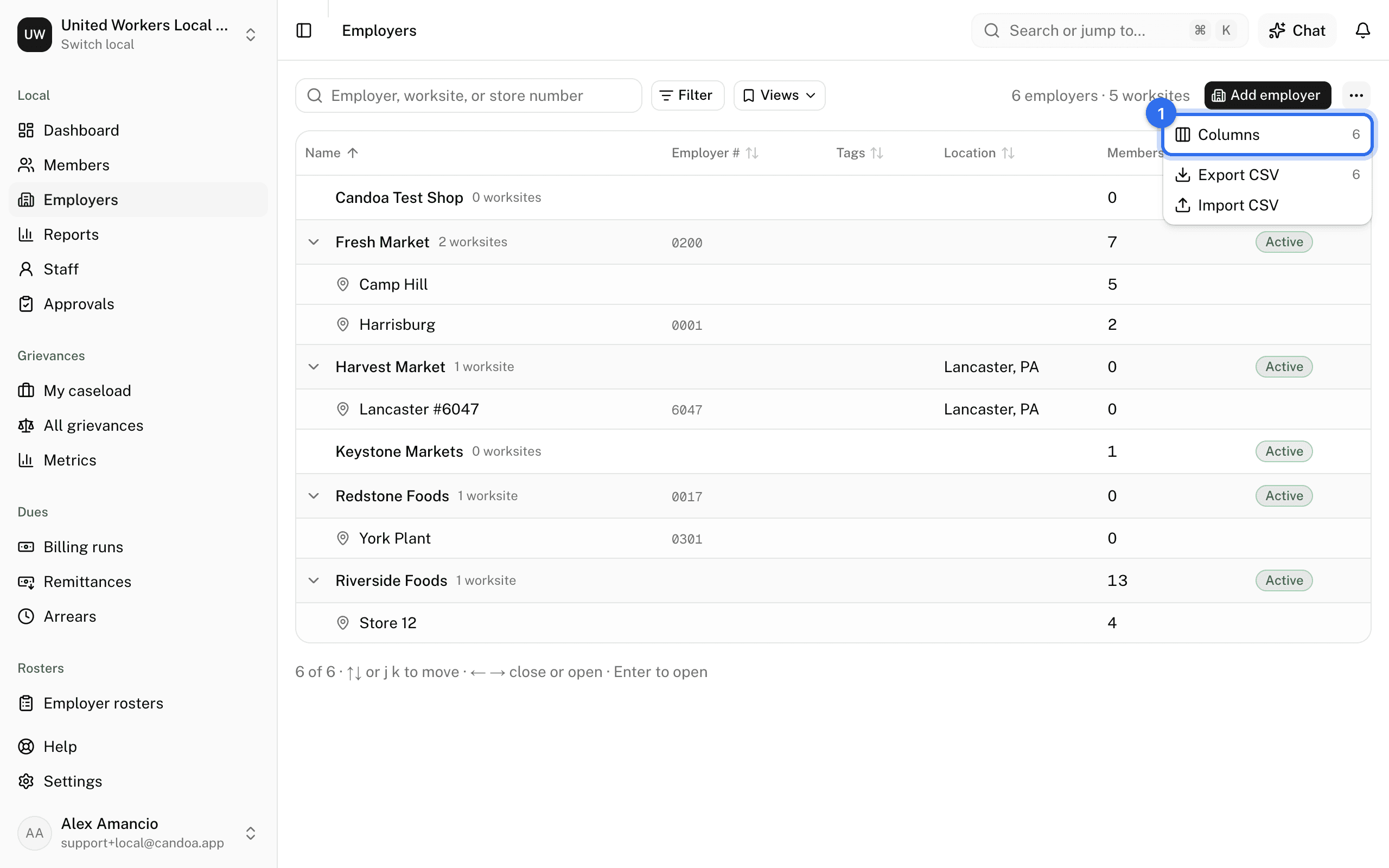
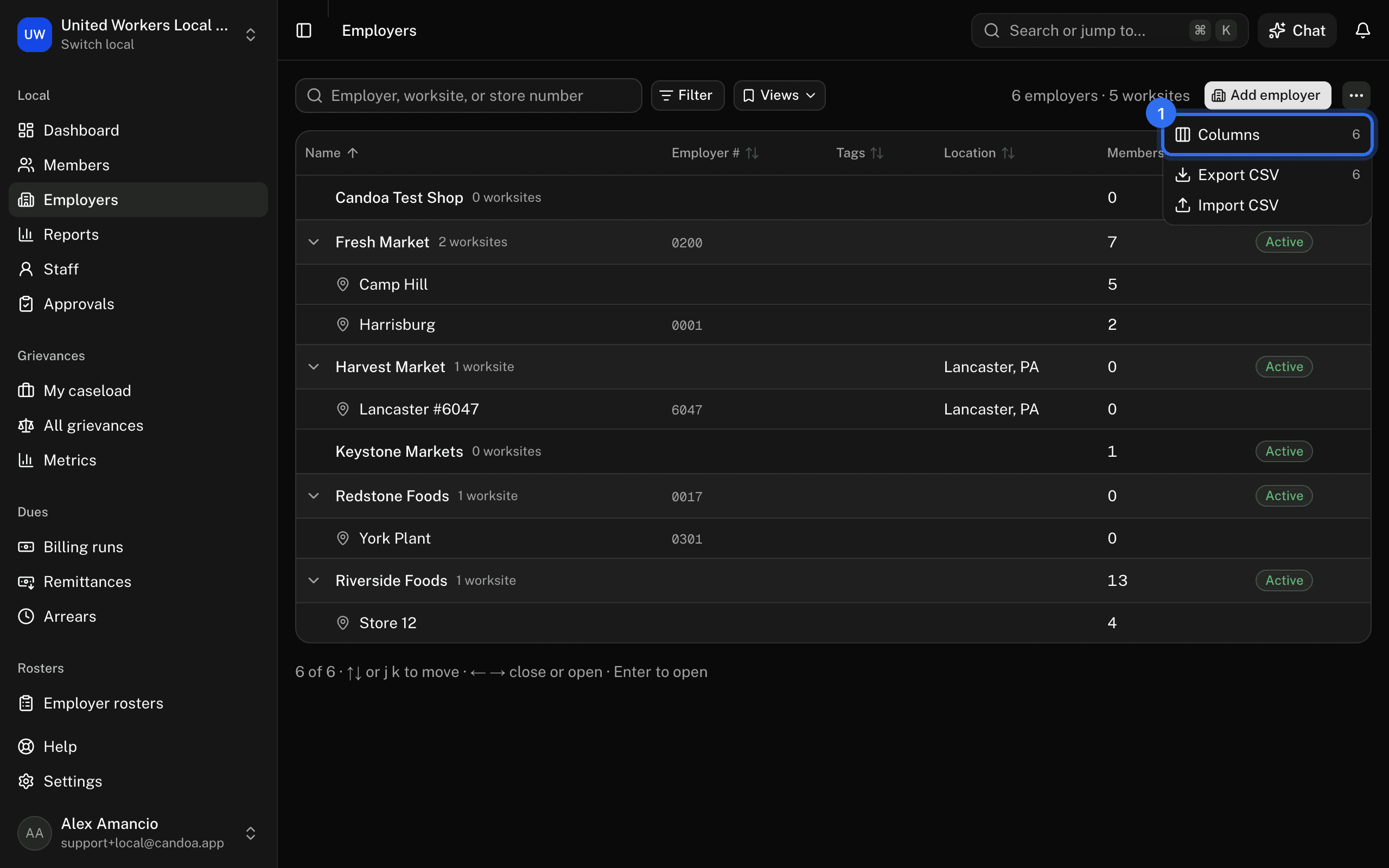
The picker stays open while you work through it. Click a heading to sort; sorted by Last contact ascending, the employers nobody has reached come first, and by Next visit due ascending, the most overdue come first. A worksite row under its employer shows its own last contact. Your columns and their order are remembered on this browser, and a saved view keeps them too.
Download the list as a CSV
Press ⋯ › Export CSV. One row per employer matching the current search and filters, with contact details, address, counts, and the last contacted date. Worksites aren't rows. Anyone who can see employers can download it.
Add an employer
Press Add employer at the top right, or press n then e anywhere. See An employer's record. Importing members also creates employers from their Employer column.
Import employers from a spreadsheet
Press ⋯ › Import CSV, or press i then e anywhere, to bring in employers and their worksites from a CSV, one row per worksite. With no employers yet, Import CSV sits beside Add employer. Staff who can edit employers can import them, unless they're limited to certain employers. See Import employers from a spreadsheet.
These pages are the help for Candoa, the software a local runs its members, employers, and grievances on.
Set up your localUpdated 2026-09-15