Add a member
Quick add one person in a few fields, or use the full form; member numbering; and the duplicate warning.
For one person who isn't on any spreadsheet, such as a new hire you meet on a site visit. To bring in many, use Import members from a spreadsheet. To let people sign themselves up, your local needs the Join add-on; see Signing up members.
Press Add member on the members list, or in the Members panel of an employer's or a worksite's Overview, or press n then m anywhere in the app. Quick add a member opens over the page you're on.
Add a member
- In Quick add a member, fill in First name and Last name. That's enough to add them.
- Add whatever else you have: Employer and Worksite (already chosen when you started from an employer or a worksite), Job classification, Full/part-time, Hire date, Phone, and Email.
- Press Add member. The dialog says who was added, with Open record, and clears for the next person, keeping the employer and worksite you used.
- Press Done when you've added everyone.
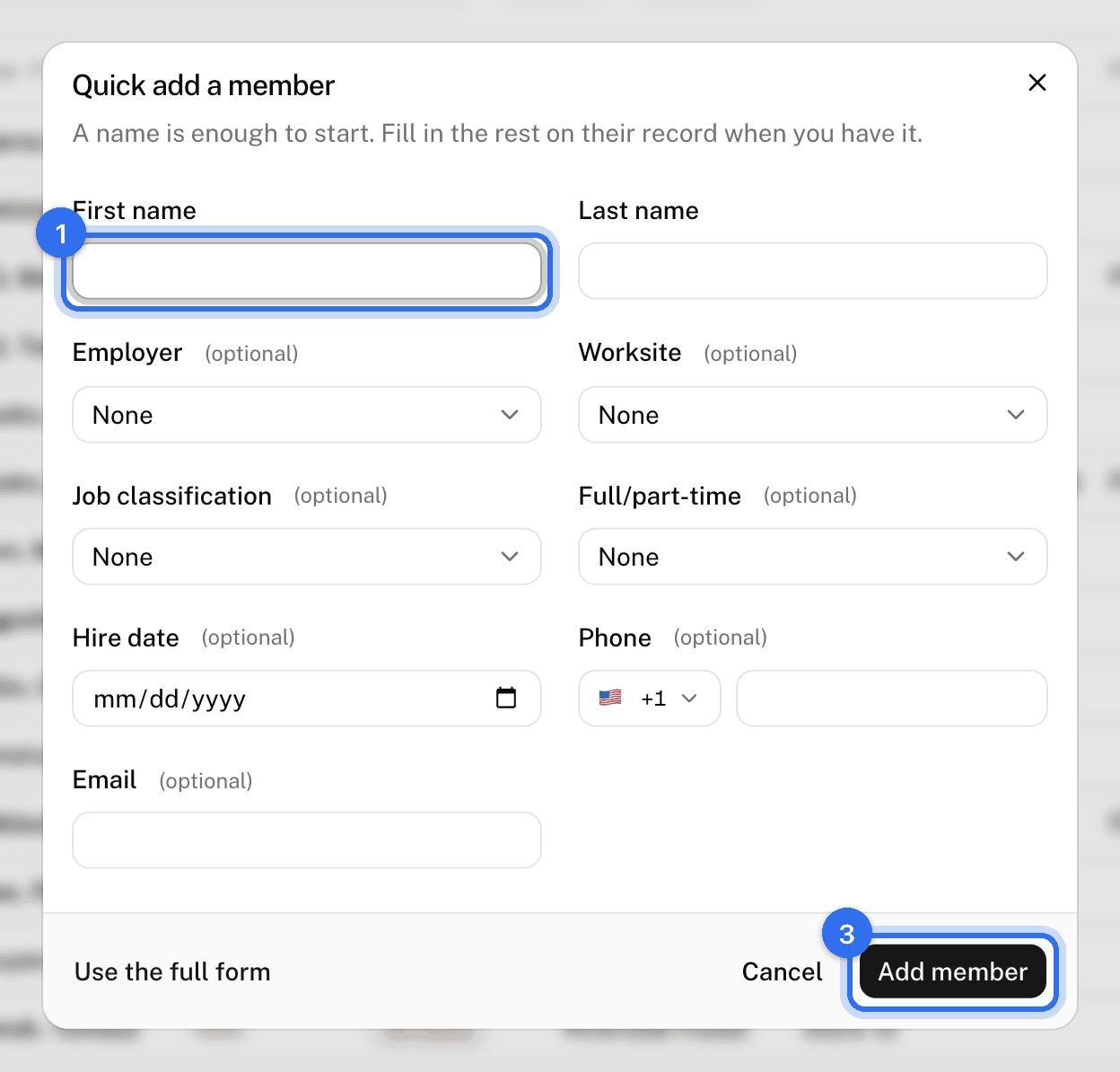
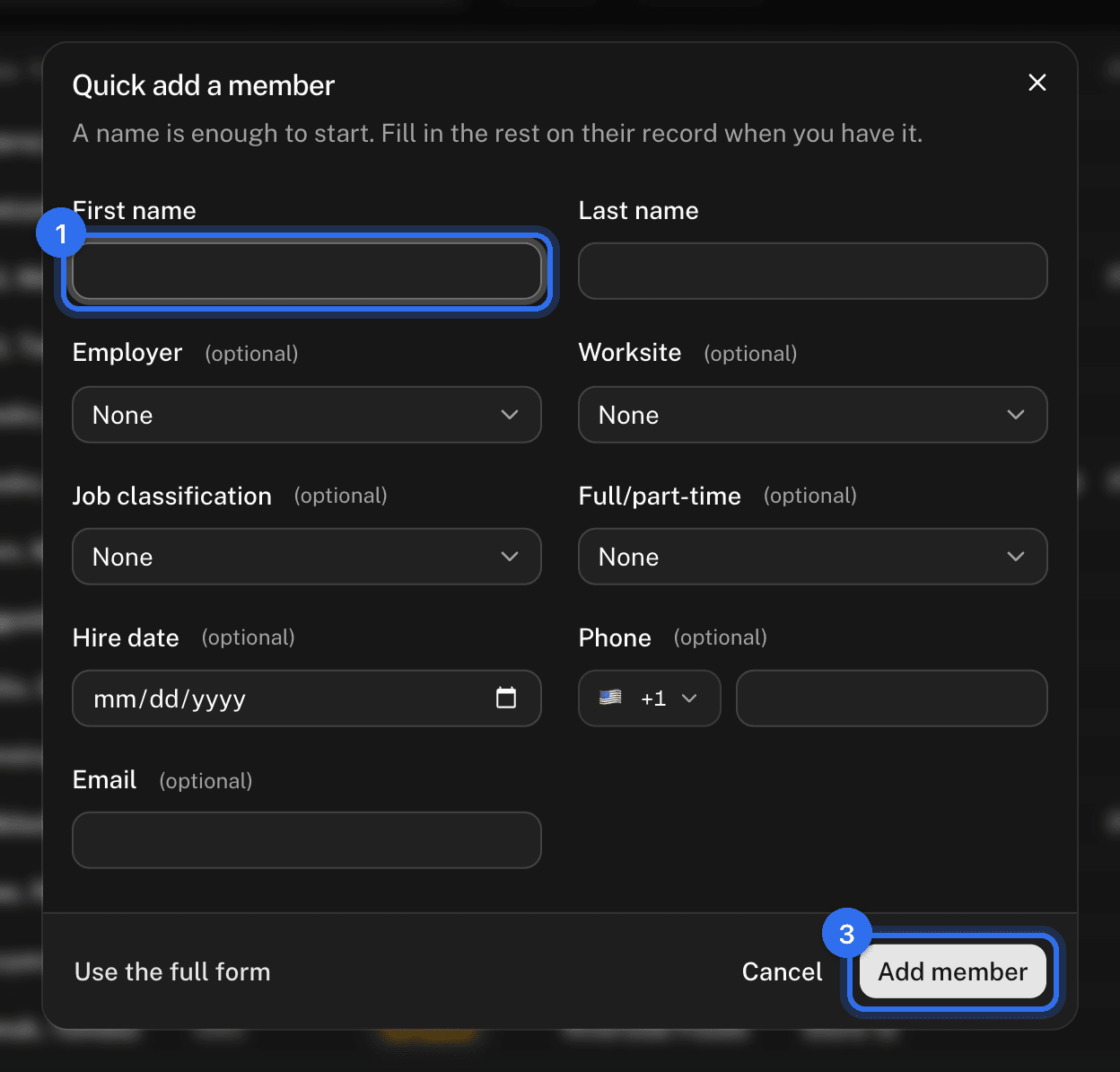
The new member gets the next Member number and the Active status. Your local's own fields aren't asked here, even required ones; fill them in on the record when you have them.
Use the full form
For every field at once, press Use the full form in the quick add.
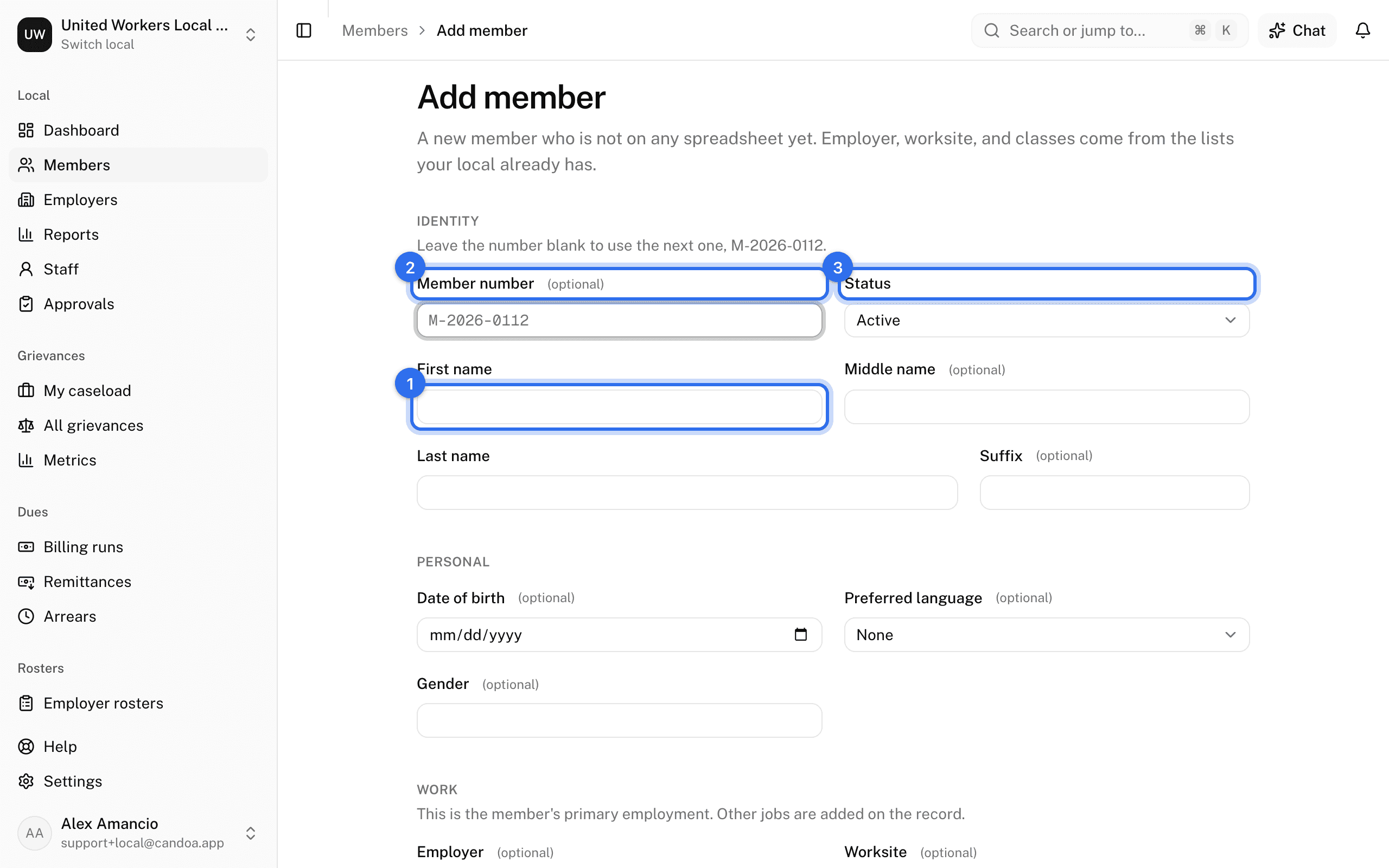
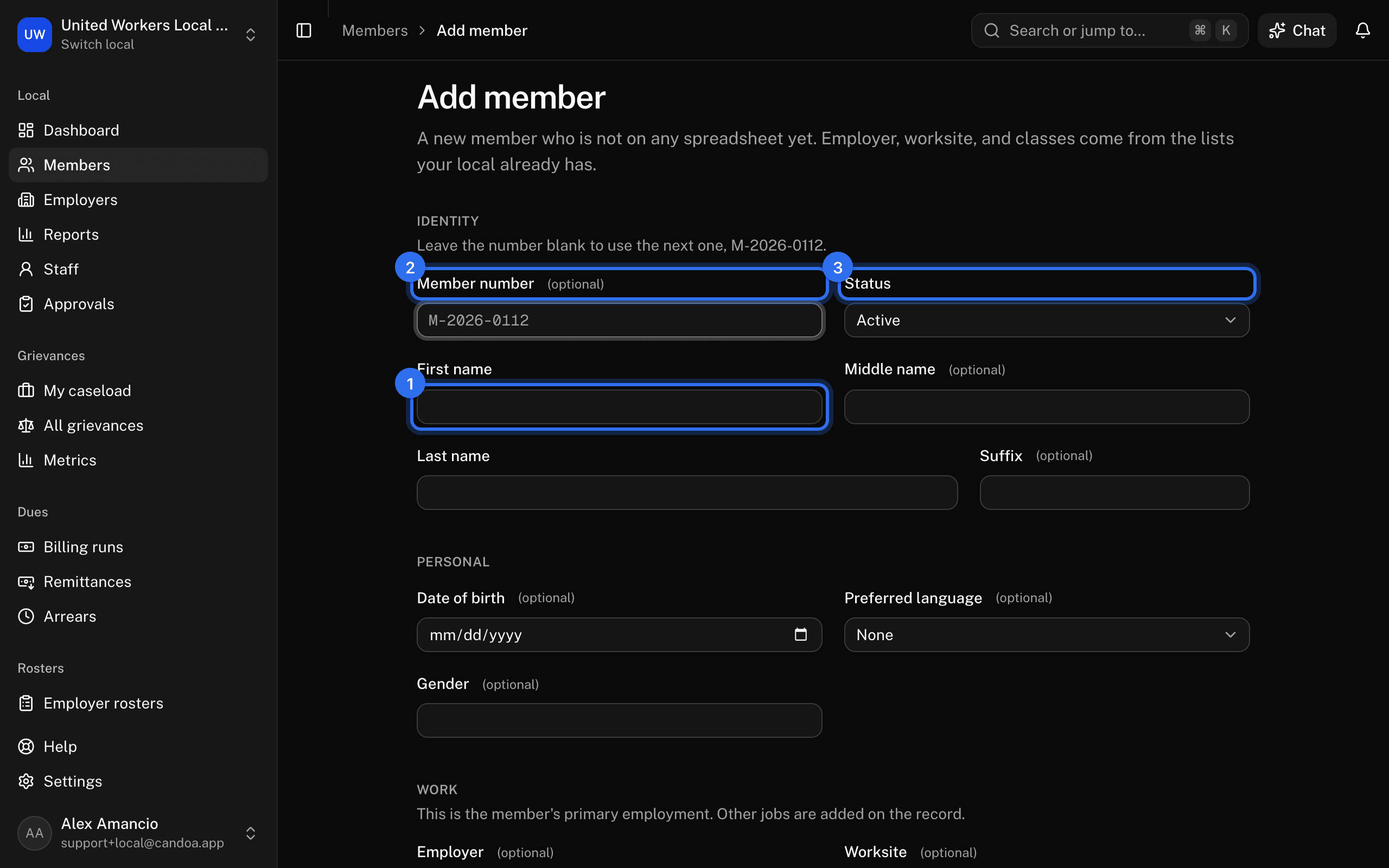
- Fill in First name and Last name. Everything else is optional.
- Leave Member number blank to take the next one; the form shows what it will be. Or type a number, which is kept as long as nobody else has it or had it.
- Set the Status. It defaults to Active.
- Pick the employer, worksite, job classification, department, and so on. These come from lists your local already has.
- Press Add member. The new record opens.
Check the duplicate warning
As you type, Candoa checks for likely matches: the same email or phone, the same last name and date of birth, the same employee ID at an employer, or the same first and last name at the employer you picked. It shows "Looks like an existing member" with links to each one. It's a warning, not a block: check the matches before adding a second record. If you add one anyway and it turns out to be the same person, merge them later; see Duplicates and merging.
Change how members are numbered
The format of new numbers, and whether the sequence restarts each year, is set under Settings › Members. See Member settings.
These pages are the help for Candoa, the software a local runs its members, employers, and grievances on.
Set up your localUpdated 2026-09-15