Sign in
Sign in, confirm your email, get past a lockout, sign in from an invitation, and change the language.
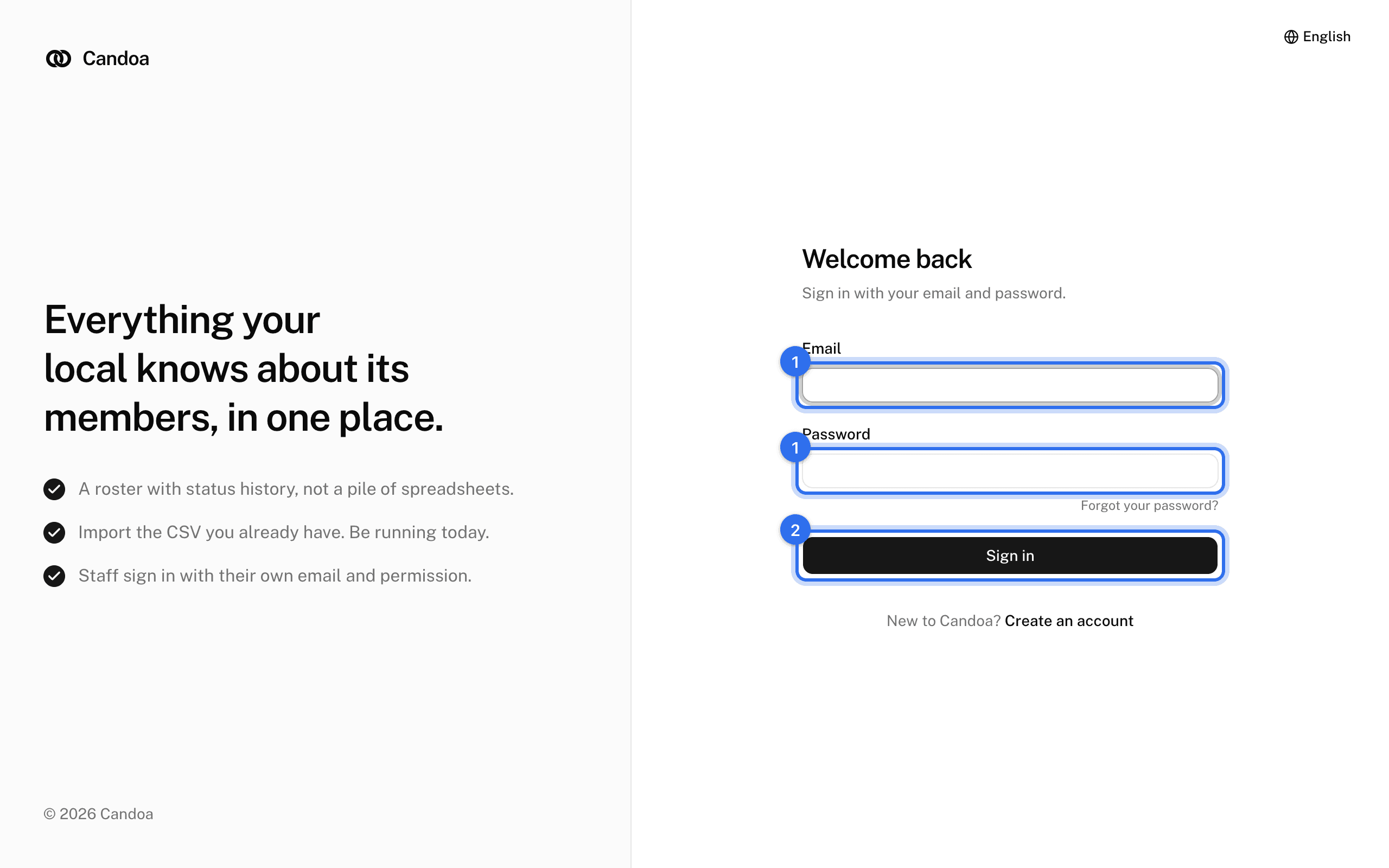
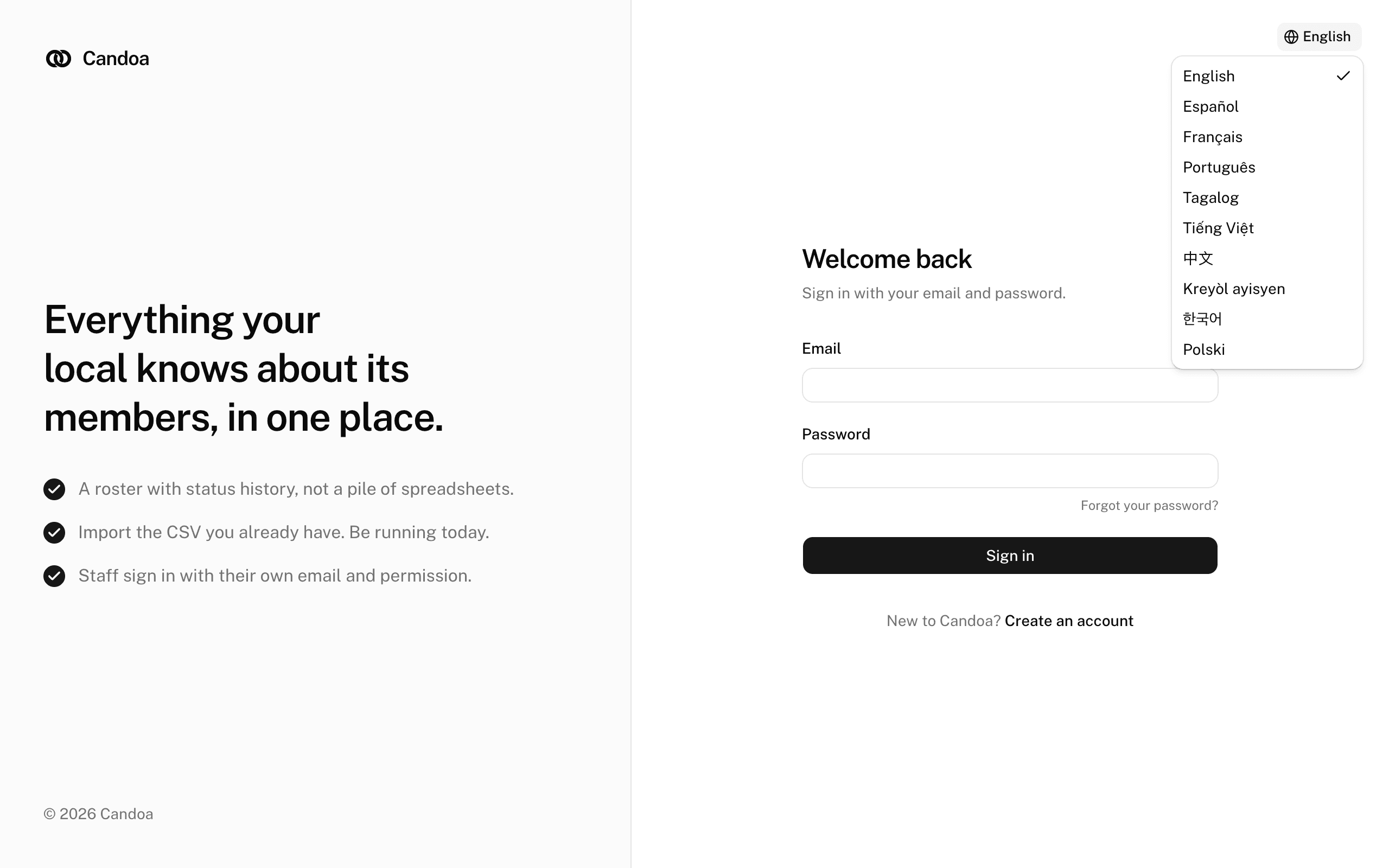
You sign in with your email and password. There is one login for everyone: no local number, no picking a permission. Candoa opens the local you worked in last.
Sign in
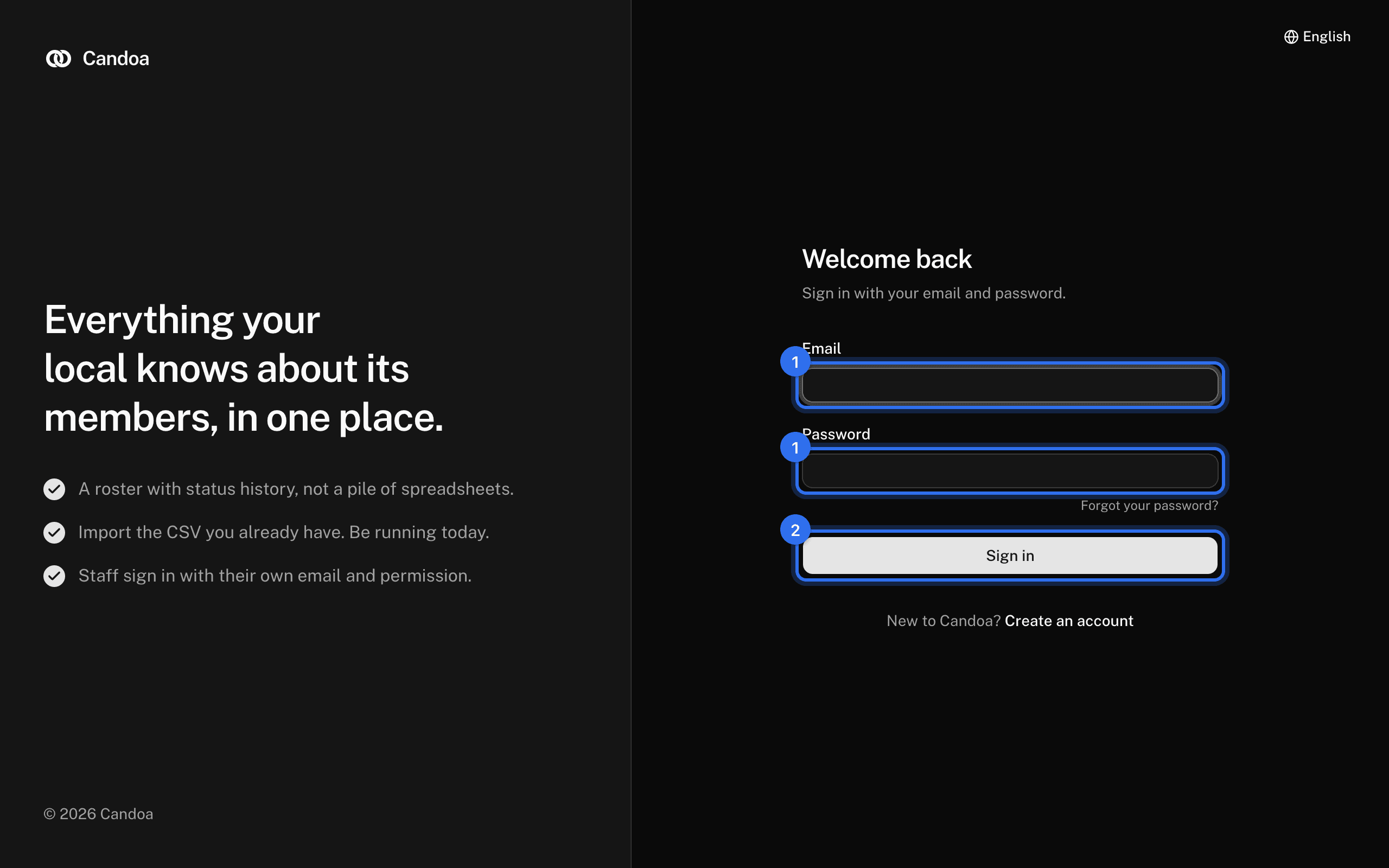
- Open Candoa and enter your Email and Password.
- Press Sign in.
- If your account has two-step sign-in on and this browser isn't trusted, type the six-digit code from your email. See Two-step sign-in.
Confirm your email
A new account can't sign in until its email is confirmed. If you see "Confirm your email before signing in. Check your inbox for the link.":
- Open the email titled "Confirm your Candoa email" and click Confirm email. The link lasts one hour.
- If it has expired, press Send it again on the sign-in screen and use the new link.
Get past a lockout
Five wrong passwords for the same email within ten minutes lock that email, and you see "Too many attempts. Try again in ten minutes." Wait ten minutes and try again; the lock lifts on its own. If you've forgotten the password, use the reset link instead.
Sign in from an invitation
- Click the Accept invitation button in the email.
- The sign-in screen opens with the invited email filled in. Enter your password and press Sign in, or press Create an account if you don't have one.
The invitation is accepted as soon as you're in.
Reset a forgotten password
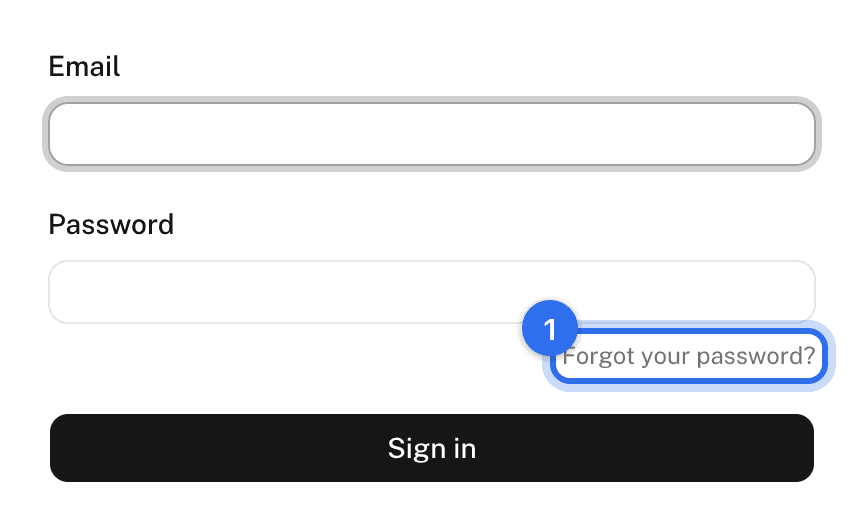
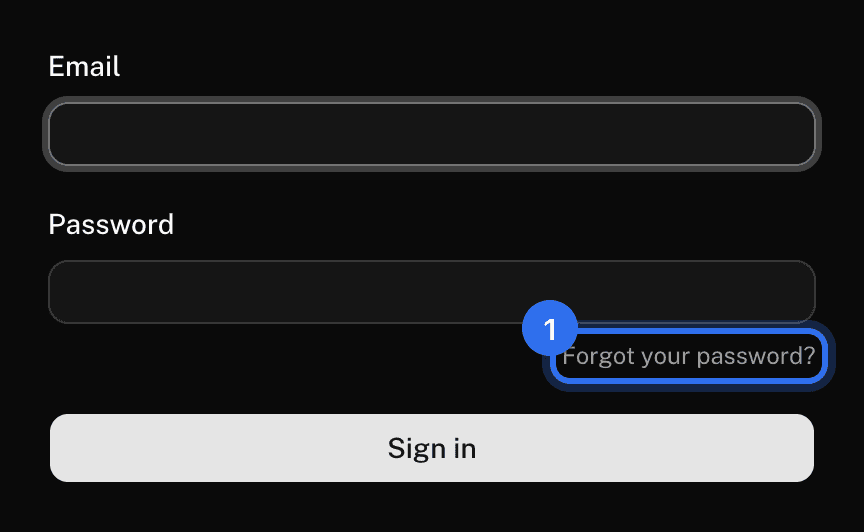
Press Forgot your password? under the password field. See Reset your password.
Change the language on the sign-in screen
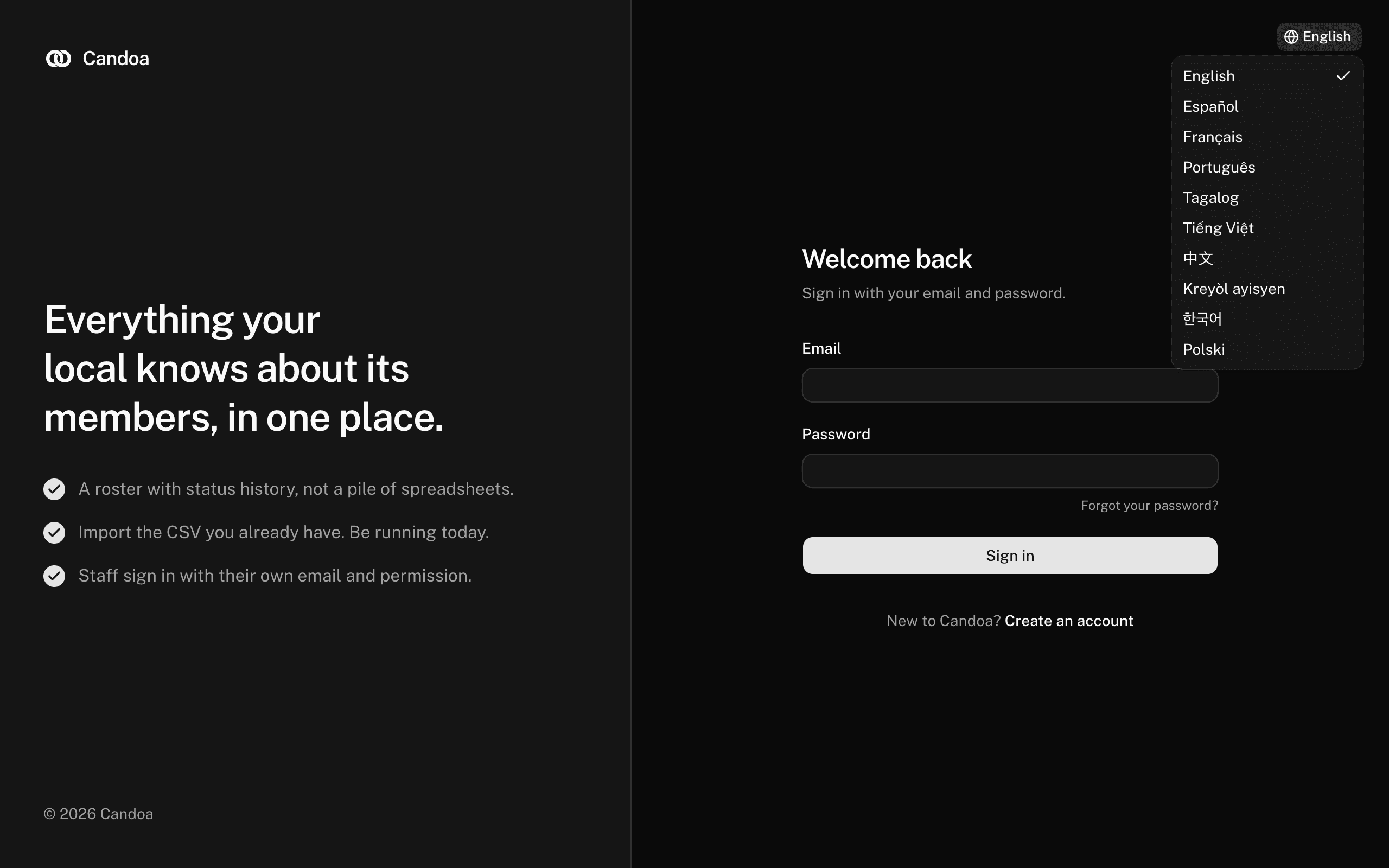
Click the globe at the top right and pick a language. The choice is remembered on this browser. Once signed in, change it from the user menu at the bottom of the sidebar.
These pages are the help for Candoa, the software a local runs its members, employers, and grievances on.
Set up your localUpdated 2026-09-19