Billing runs
Bill a period's dues for an employer or for direct pay, read who was left out, post the run, and void one that was wrong.
What a billing run is
A billing run works out what every member owes for one billing period and writes it down as bills. One run covers one employer's check-off members, or, as Direct pay, the members who pay the local themselves. The period comes from your local's dues rules, so a monthly local's run covers a calendar month and a fortnightly local's covers its two weeks.
A run is drafted first. A draft owes nobody anything: it is the office's chance to read the bills, see who was left out and why, and put things right. Posting the run turns every bill into a charge on the member's account. Voiding a run undoes it: a draft simply goes, and a posted run's charges are reversed, with whatever had paid them left as credit on the member's account.
There can be one live run per employer and period at a time. Void a run and the period is free again.
Find a run
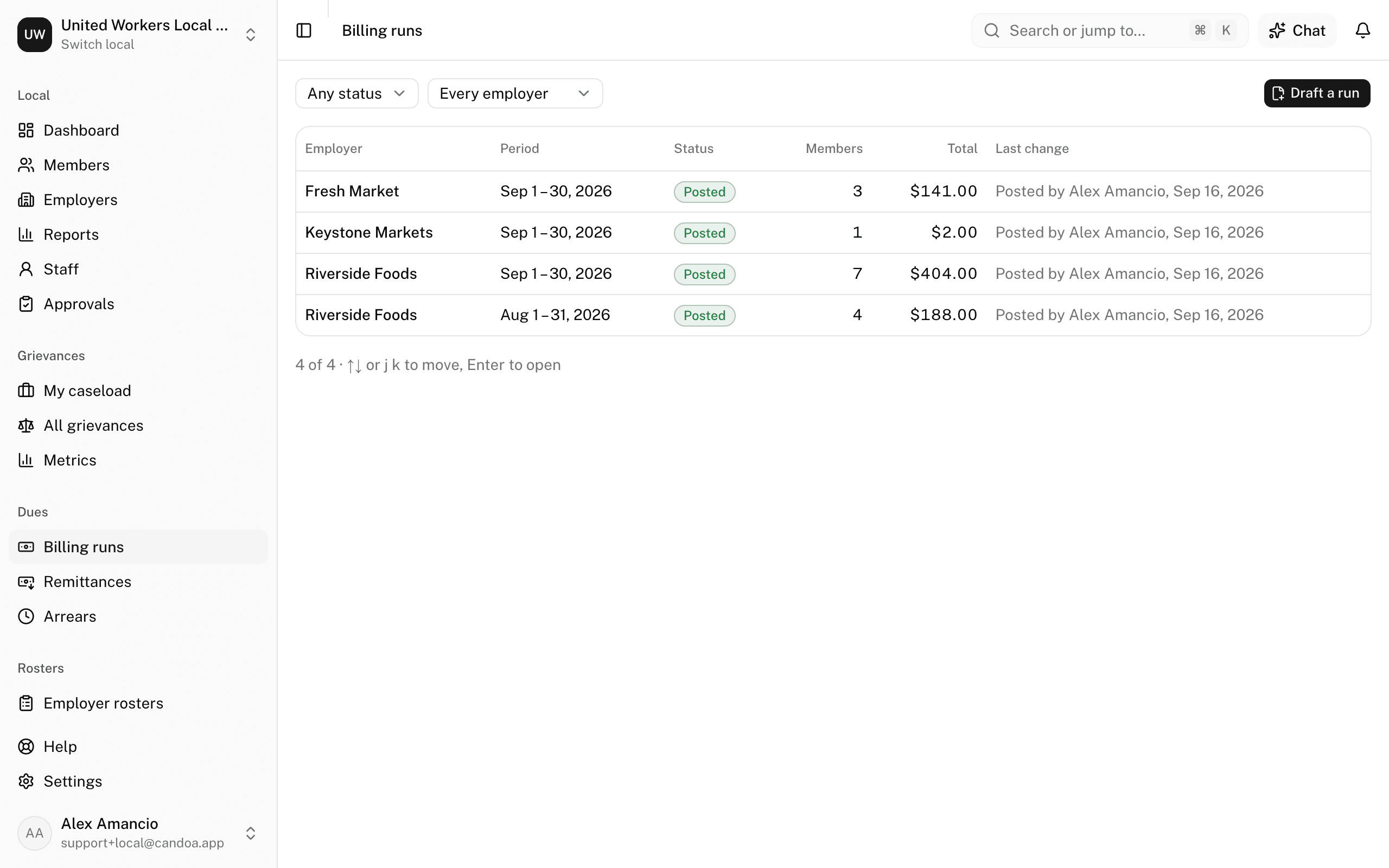
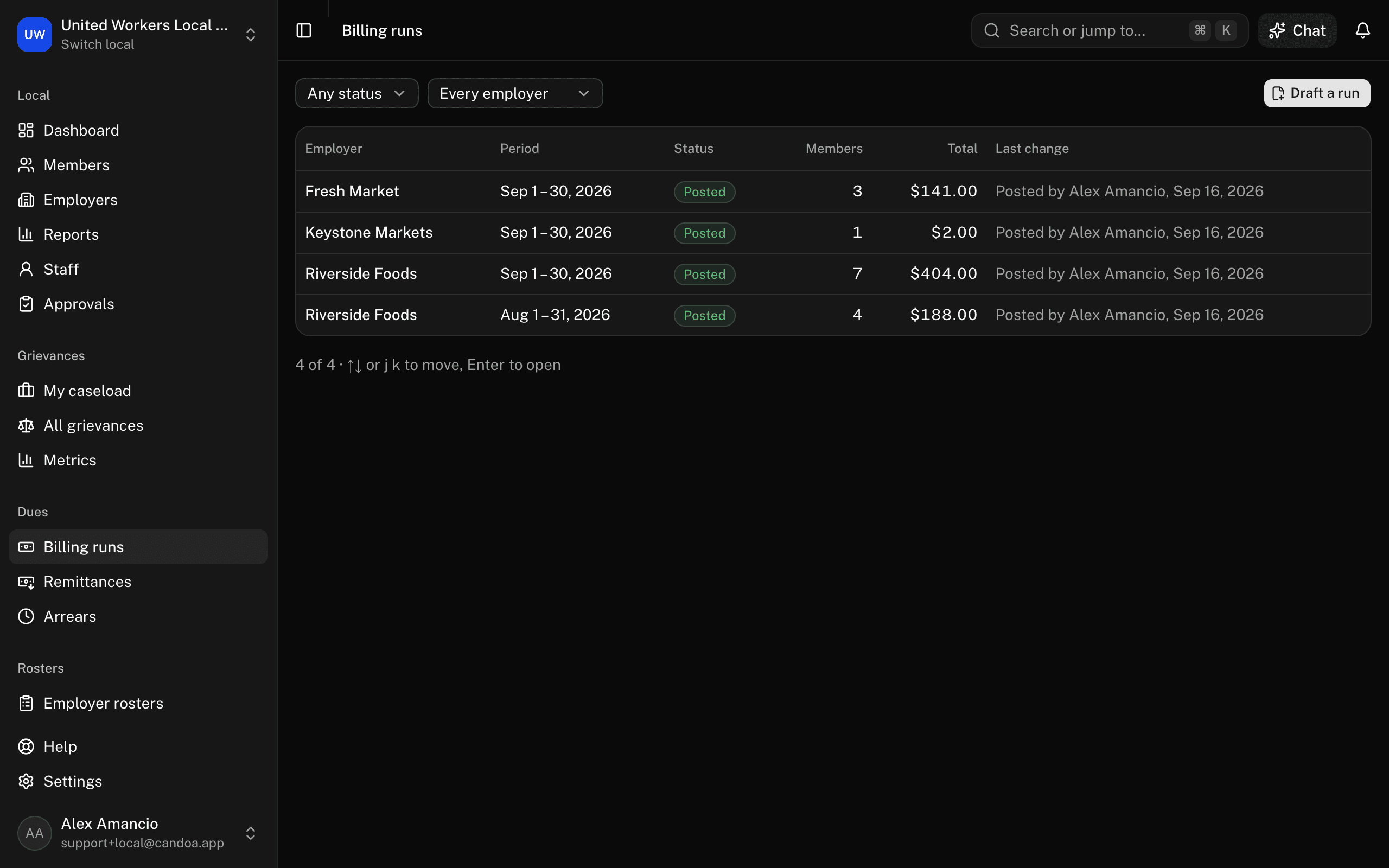
Click Billing runs in the sidebar. Runs are listed newest period first, with the employer (or Direct pay), the period, whether it is a Draft, Posted, or Void, how many members it bills, what it comes to, and who last changed it.
Narrow the list with the Status and Employer boxes at the top left. Click a row to open the run; the arrow keys or j and k move down the list and Enter opens.
If you are limited to certain employers, you see those employers' runs and no others, and never the direct-pay run.
Draft a run
You need the Dues posting permission.
- Click Draft a run at the top right of the Billing runs list, or press Cmd+K and choose it.
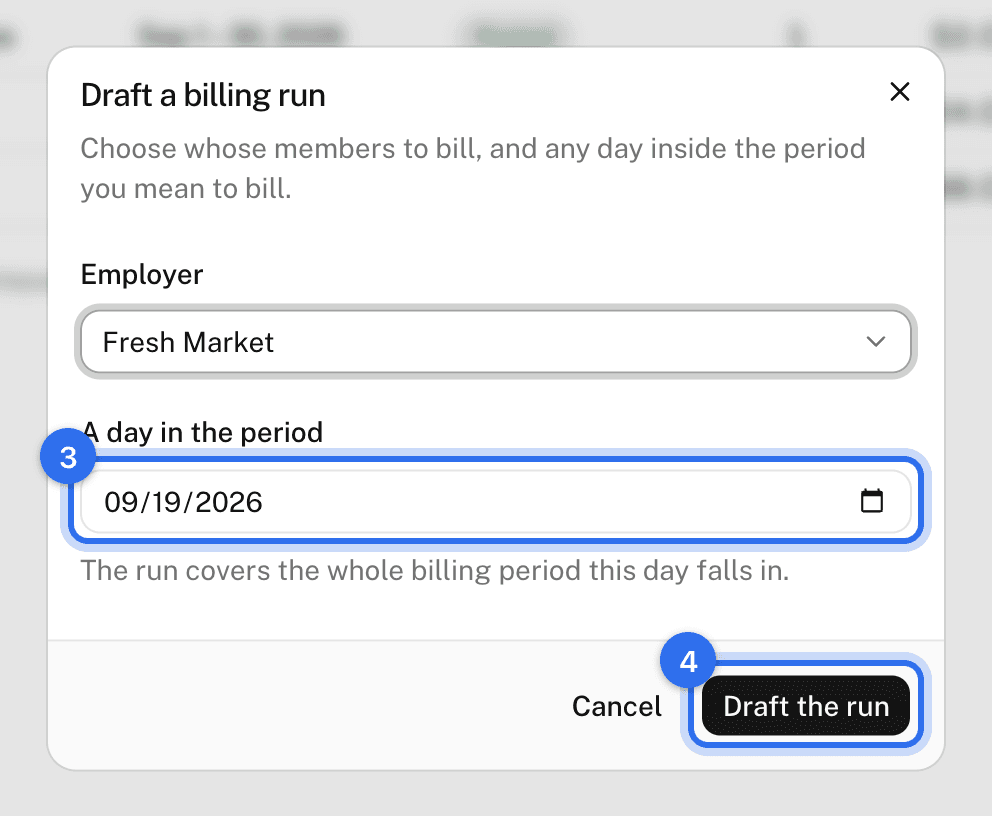
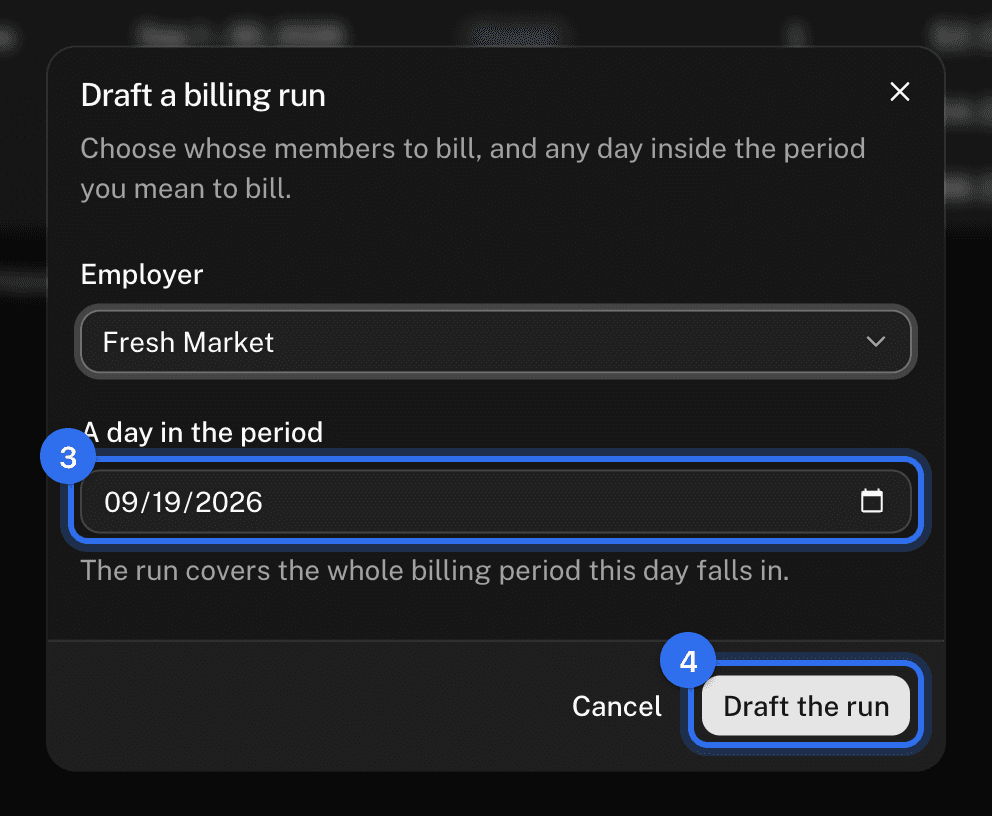
- Under Employer, choose the employer whose members you are billing, or Direct pay for the members who pay the local themselves.
- Under A day in the period, put any day inside the period you mean to bill; the run covers the whole billing period that day falls in.
- Click Draft the run. The run opens with its bills.
Two things stop a draft, and both say so in the box:
- A run for that employer and period is already open. Open that one, or void it first.
- Your local bills every two weeks but has not said which day the first period starts. Set it under Settings › Dues, then draft the run again.
Read who was left out
Open a draft and read Left out of this run down the right-hand side. Each line is a reason, the members it covers, and how many they are:
- No rate fits — nothing in your rates covers them. Add a rate under Settings › Dues and draft the run again.
- Billed from the employer's list — they pay by the hour or a share of wages, so their dues come off the employer's remittance instead. Fees and assessments are still billed here.
- Exempt from dues — they are billed nothing, assessments included.
- Already billed — they already have a bill for this period, raised by hand or by another run.
- Set to check-off, works nowhere — they pay by check-off but have no employer, so no employer's run reaches them. Give them an employment, or set them to pay the local directly.
- Not a member during the period — they joined after the period ended, or left before it began.
- Retired, with no retiree rate — a retired member is billed only by a rate that names their dues class.
Totals above it says how many members the run bills and what it comes to, then dues, assessments, and fees on their own lines. The bills themselves are on the left; search by name or member number to find one person.
Changed a rate, an employment, or how someone pays? Click Redraft. The draft's bills are thrown away and worked out again from today's members, rates, and settings. Bills raised by hand outside the run are left alone.
Post a run
You need the Dues posting permission.
- Open the draft and click Post run.
- The box says how many members will be charged and how much. Click Post run again to go ahead.
- It then says what happened — how many members were billed and how much was charged — and names any bill it could not charge, which happens when someone charged or voided that bill in the meantime.
Once posted, the members owe the money: it shows on each member's account and counts toward arrears. Credit a member already holds is put against their new bill as the run posts.
Void a run
Voiding a draft needs the Dues posting permission. Voiding a run that has already been posted reverses money, so it needs the Dues managing permission as well.
- Open the run and click Void.
- Type why under Reason. The reason goes on every reversal, so the account says why the money moved back.
- Click Void the run.
A draft and its bills simply go. A posted run's charges are all reversed, and anything that had paid those bills becomes credit the member can put against another bill. Either way the period is free for a new run.
These pages are the help for Candoa, the software a local runs its members, employers, and grievances on.
Set up your localUpdated 2026-09-17