Duplicates and merging
Find likely duplicate members and merge two records into one.
Two records for one person happen: an import with a new number, a rejoin under a maiden name. Merging folds one into the other without losing anything. Owners and admins can merge.
Find likely duplicates
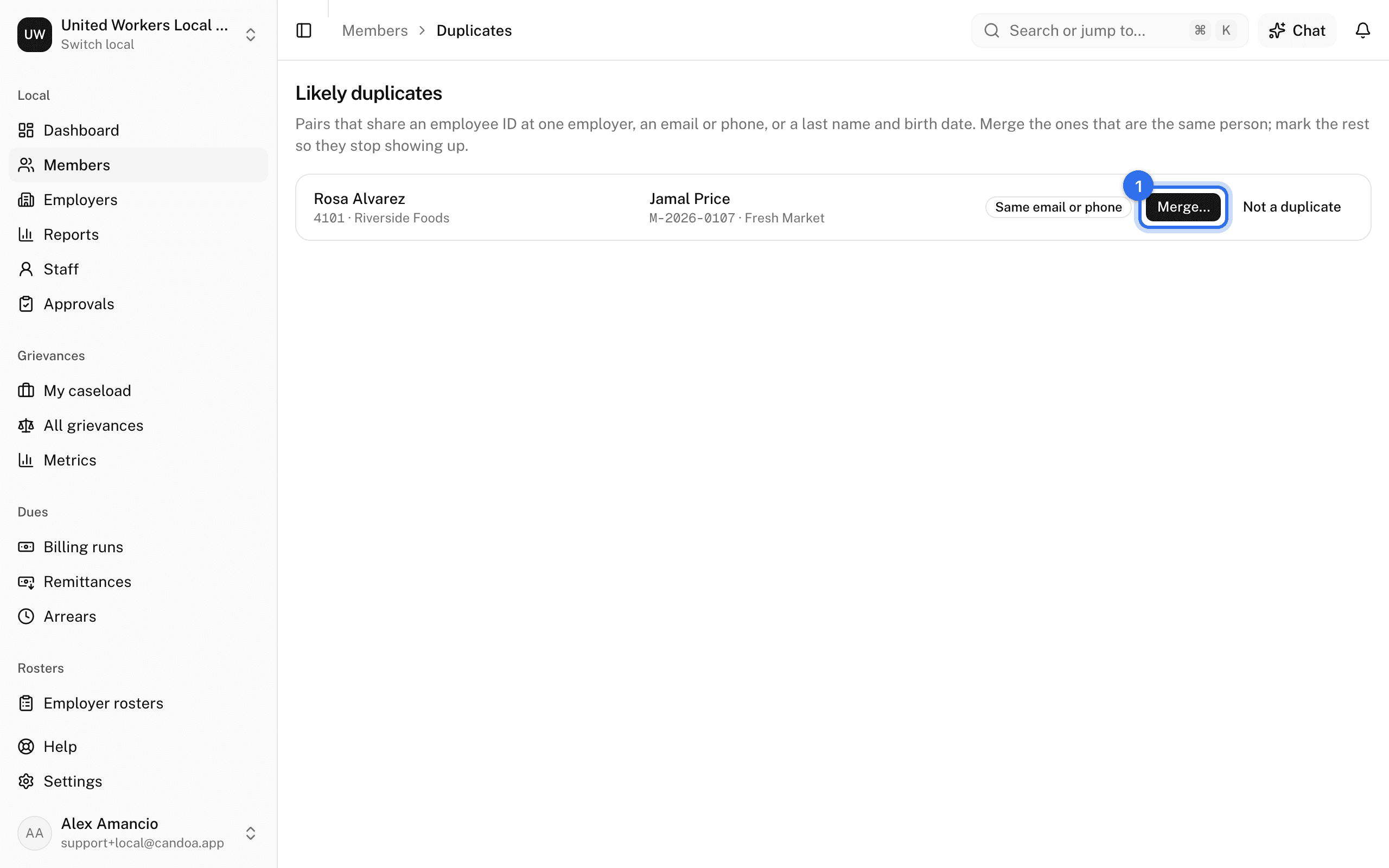
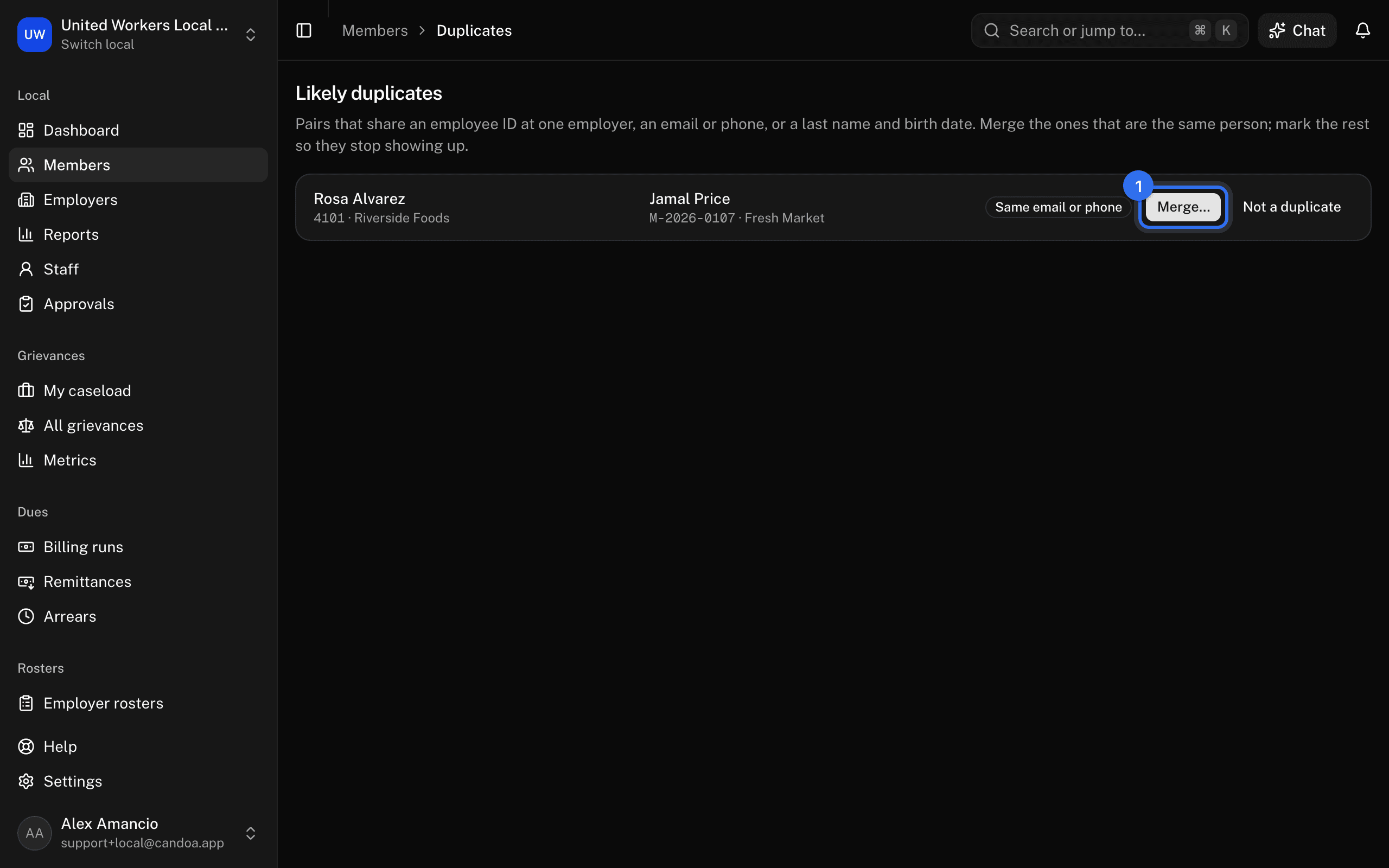
Open the ⋯ menu at the end of the members list and choose Duplicates (the number beside it is how many pairs are waiting); the dashboard's Likely duplicates card and the Check for duplicates button at the end of an import lead to the same place. It lists pairs that share an employee ID at one employer, an email or phone, or a last name and date of birth, and says why each matched. Adding a member also warns when the new details resemble someone on file, and the import preview lists rows that look like existing members.
Merge two records
- On the Duplicates list press Merge… on the pair, or on a member's record open the ⋯ menu, choose Merge with…, and pick the other record.
- Choose which record Survives. The other is absorbed into it.
- Under Where they differ, pick which value to keep for each field. The work fields travel together as one Primary employment choice.
- Press Merge.
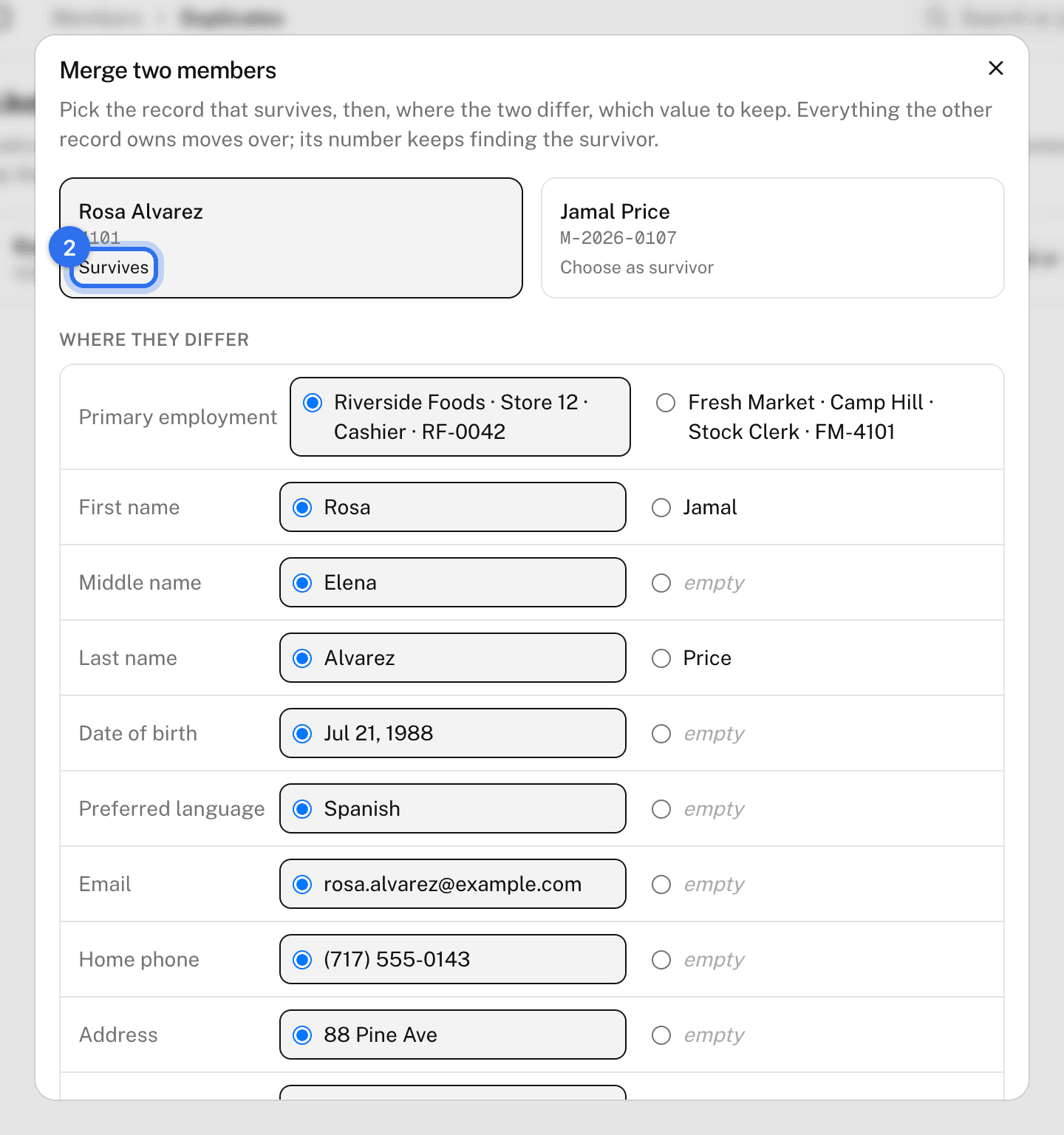
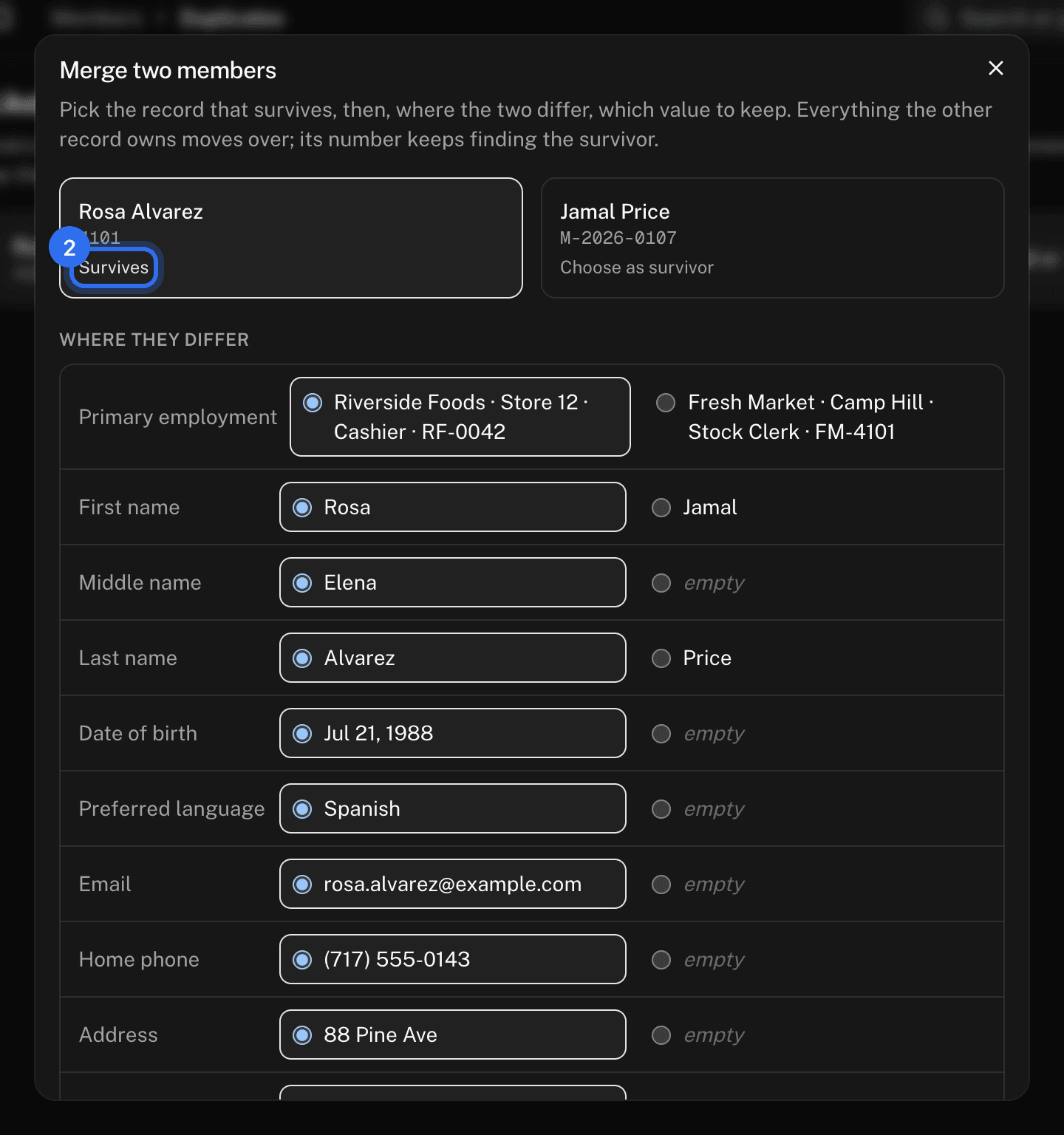
Everything the absorbed record owned moves to the survivor: employments, stewardships, positions, tags, notes, documents, and history. The absorbed member's number keeps finding the survivor, so old paperwork still works. A merge can't be undone.
Mark a pair as not a duplicate
On the Duplicates list press Not a duplicate. The pair stops appearing.
These pages are the help for Candoa, the software a local runs its members, employers, and grievances on.
Set up your localUpdated 2026-09-15