A member's record
Edit a member, change their status, add a job, record a stewardship or position, add tags, notes, and documents, and read their history, tab by tab.
What a member is
A member is a worker who joined the union: they signed a membership application, and usually a dues authorization, and the local represents them. Candoa keeps one record per person for as long as the local exists, because a local's history is its members' history: who was in, when they left, which grievances they filed.
Two distinctions matter every day:
- Member or non-member. Everyone in a bargaining unit is covered by the contract, but not everyone joined. Someone who works under the contract without joining is a non-member. They're on the roster because the contract applies to them, but counts and dues don't treat them as members.
- Status. A member's standing with the local: Active, On leave, Retired, Withdrawn, Suspended, or Non-member. Status changes are events with a date, kept forever, so the local can answer "was this person a member in March" years later.
Members are never deleted. Someone who leaves is set to Withdrawn or Retired and the record stays.
Open a member's record
Click the member's row on the members list, or search their name in the command palette (Cmd+K). Everyone can read a record. Agents and admins edit directly; stewards and treasurers propose changes that an approver accepts, see Approvals.
Which tab has what
The top of the record stays the same wherever you are: the name, the status, the member number with the employer and worksite, any former numbers, the tags, the pinned notes, and the actions at the top right: Call, Text, and Email as three joined icons that name themselves when you point at them (with the Communications add-on), Edit, and the ⋯ menu with File a grievance (with the Grievances add-on), Change status, Send join link (with the Join add-on), and Merge with…. Under that, a row of tabs:
- Overview opens first: the member's details (Work, Personal, Contact, More for your local's own fields), the Employment section with every job, Signed when joining for a member who joined through the Join add-on, Your rep, and the Status history.
- Roles: the Stewards and Positions panels.
- Activity: the note box and the notes, then the timeline of everything that happened to the record.
- Documents: what is attached to the member, under This member's documents. The tab is there only for permissions that can see a member's documents.
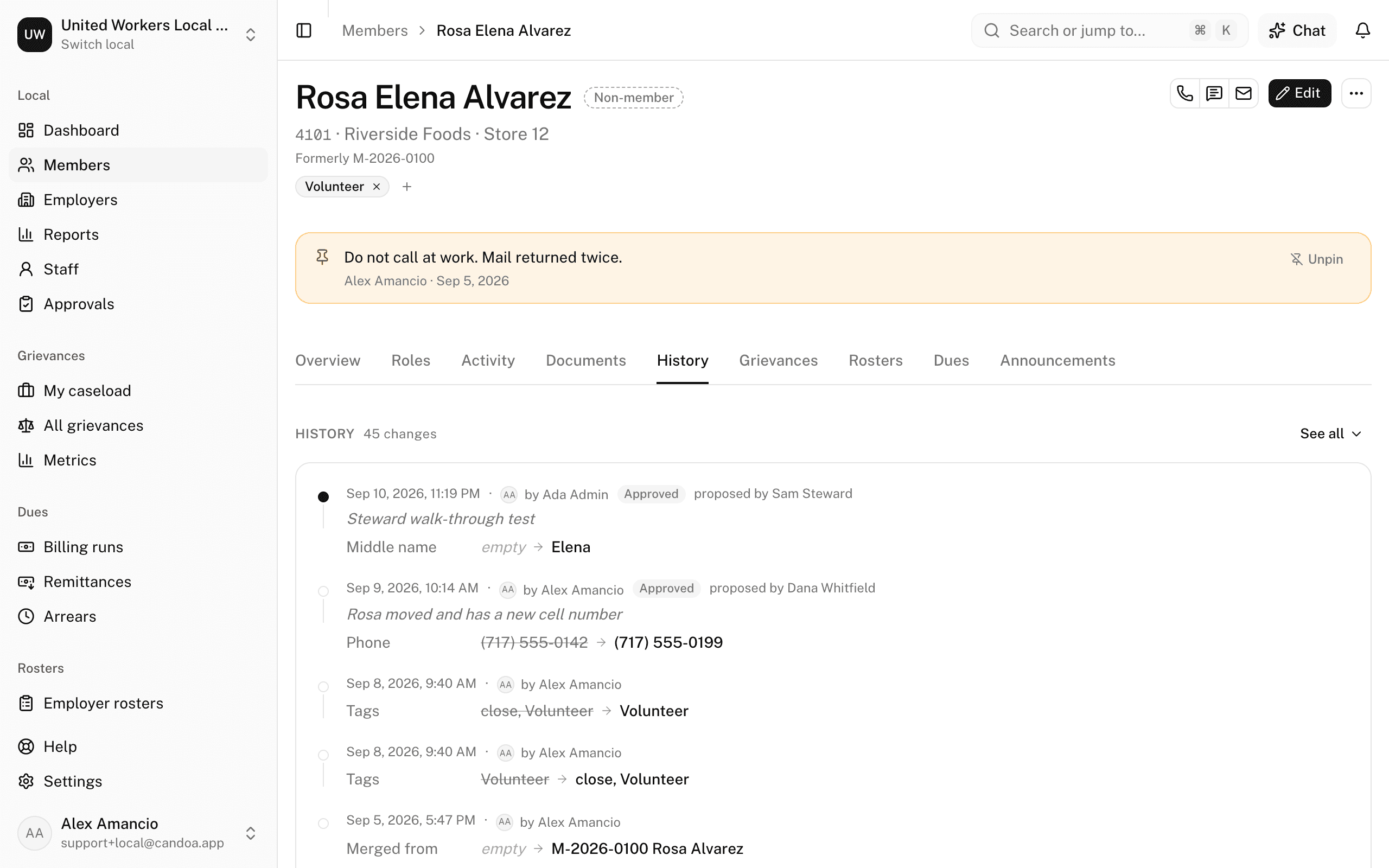
- History: every change to a field, who made it and when.
- Grievances: the member's cases. This tab is there when your local has the Grievances add-on.
- Rosters: the employers' lists that named this member, what each showed, and what was decided. This tab is there when your local has the Rosters add-on; see Employer rosters.
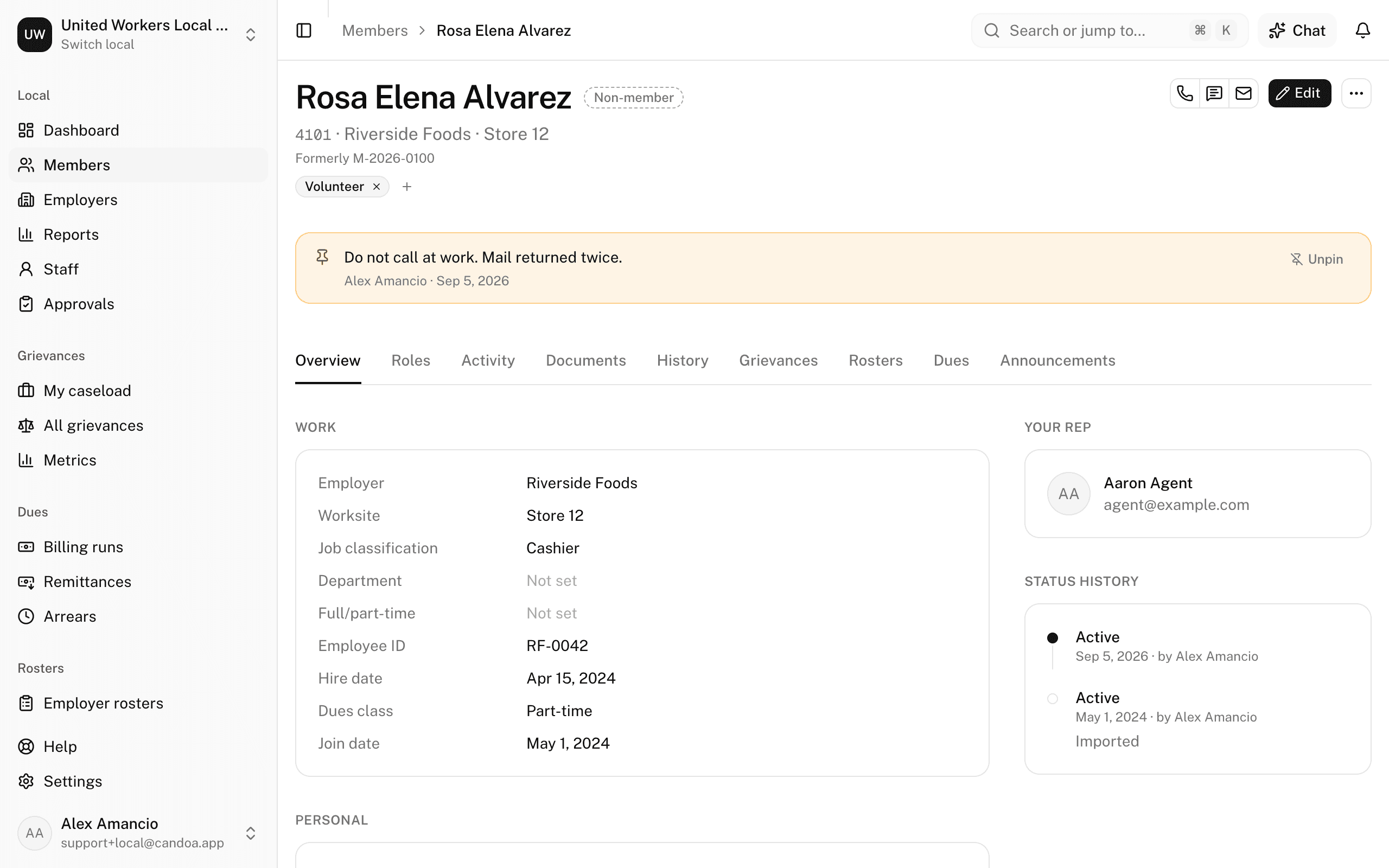
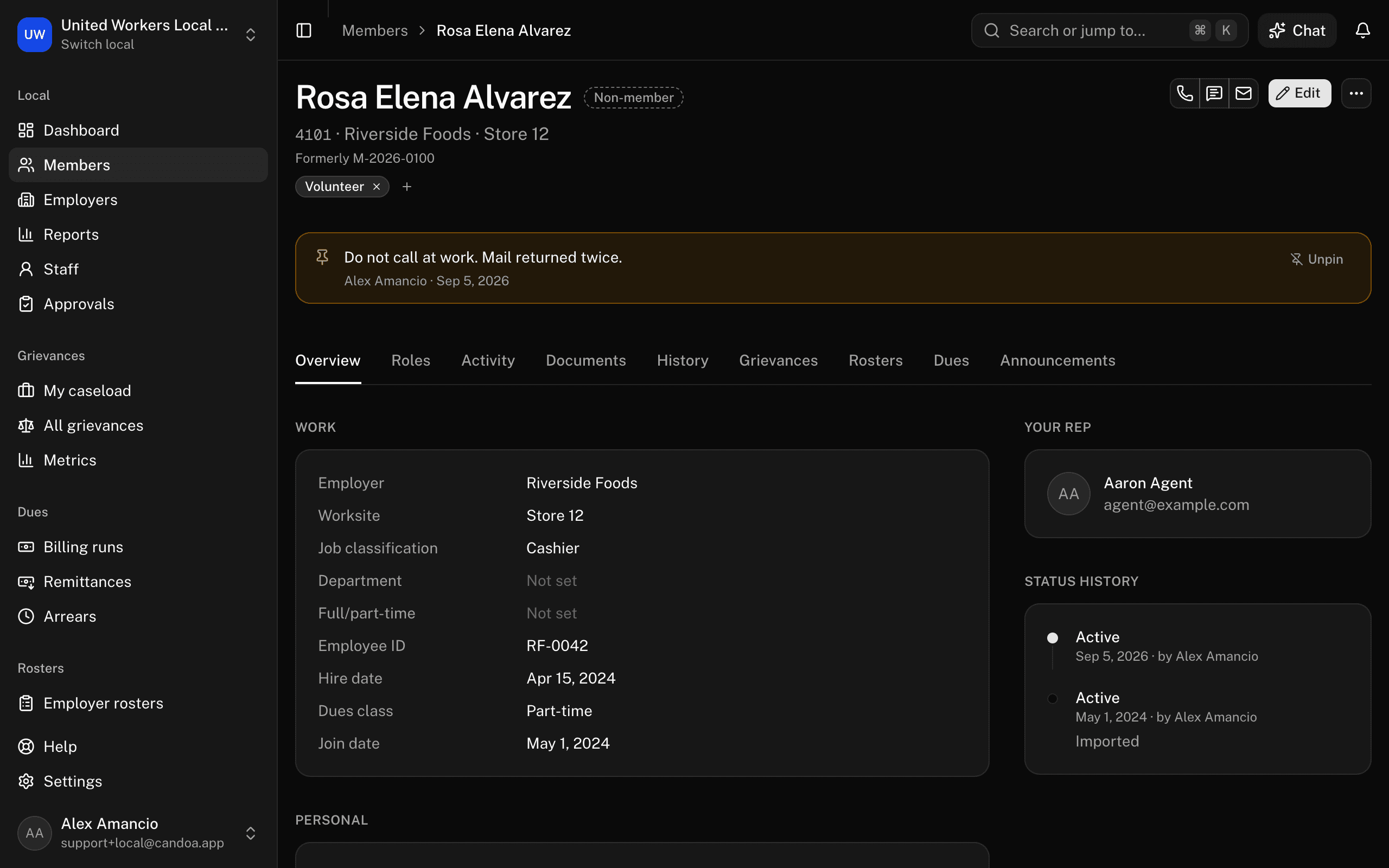
Each tab is its own address, so the back button, a bookmark, or a link from a notification lands on the right one; Cmd-click a tab to open it in a new browser tab. With a tab focused, ← and → move to the next one. The palette lists them too: type Go to Activity.
See what a member signed when they joined
Open the member's Overview. Signed when joining lists each consent from the application that made them a member: the membership application, the dues check-off authorization, the political fund contribution, and whatever else your local asks under Settings › Join. Each line says Signed with the date, or Not signed, and a consent that asks for an amount shows it, for example "$5.00 per pay period". The section shows only while your local has the Join add-on, and only for a member who joined through it; after a rejoin it shows the latest application.
Edit a member's details
- Press Edit at the top right, or press E. The form opens on the Overview tab, from whichever tab you were on.
- Change what you need. First and last name are required; everything else is optional. Sections: Identity, Personal, Work (the primary employment), Contact, Other, More (custom fields).
- Press Save. Stewards and treasurers see Send for approval instead.
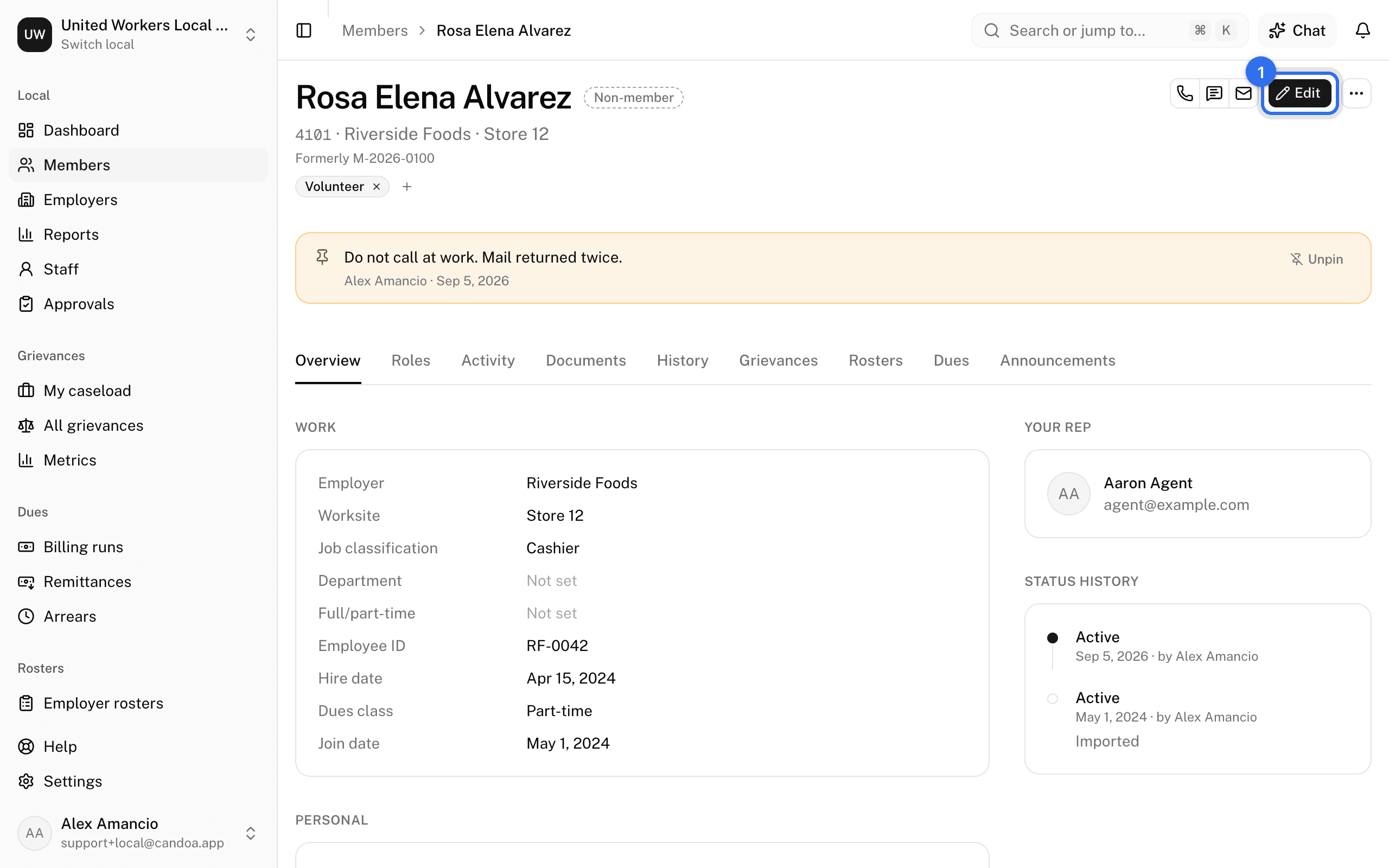
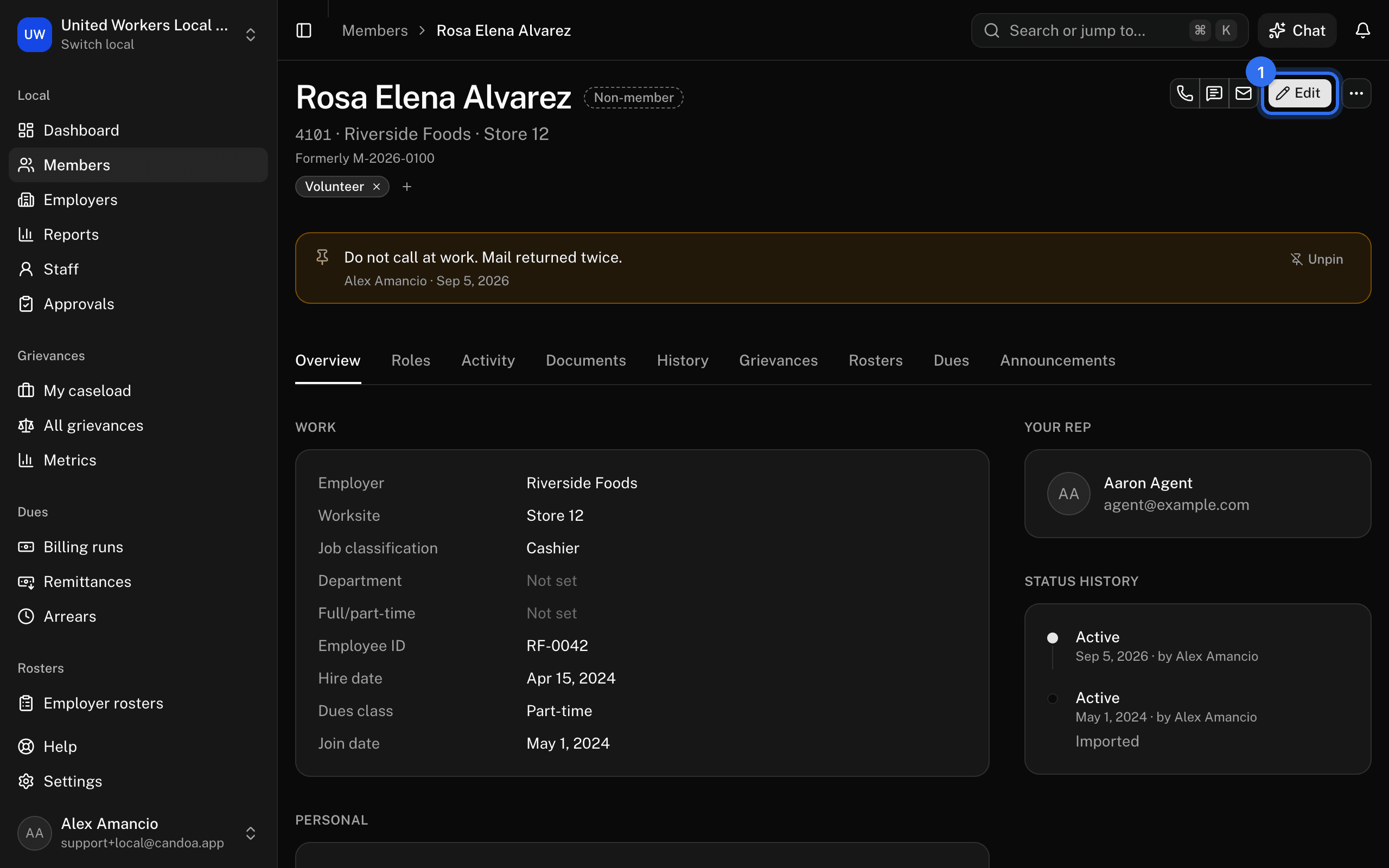
If your local asks for a reason on every edit, a Reason box appears and can't be left blank. A member number that belongs to someone else, now or in the past, is refused as Already in use; so is an employee ID already used at that employer. Status isn't changed here; see the next task.
Change a member's status
- Open the ⋯ menu at the top right and choose Change status, or press S, from any tab.
- Pick the New status.
- Set the Effective date (defaults to today) and add a Note if you like.
- Press Change status.
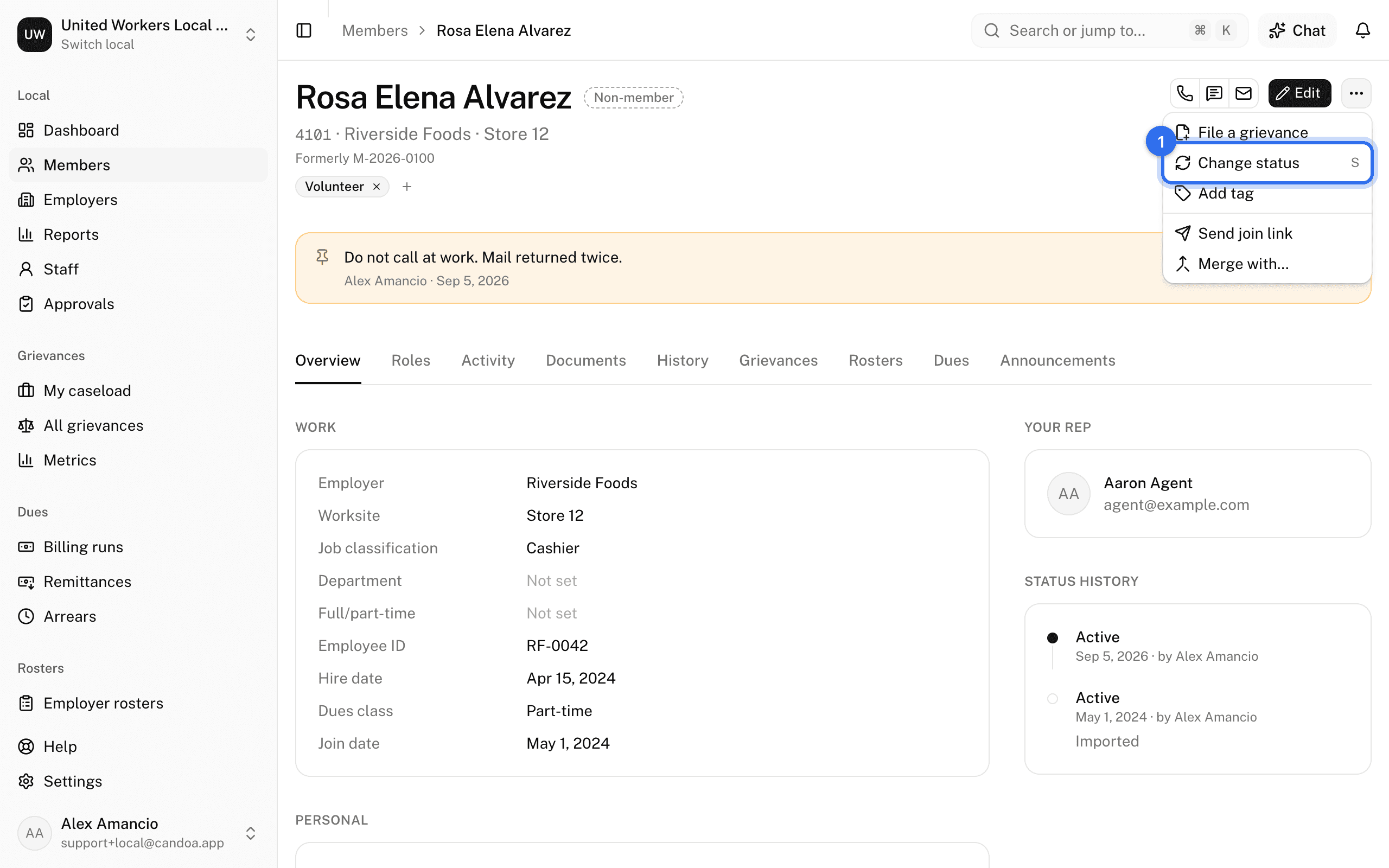
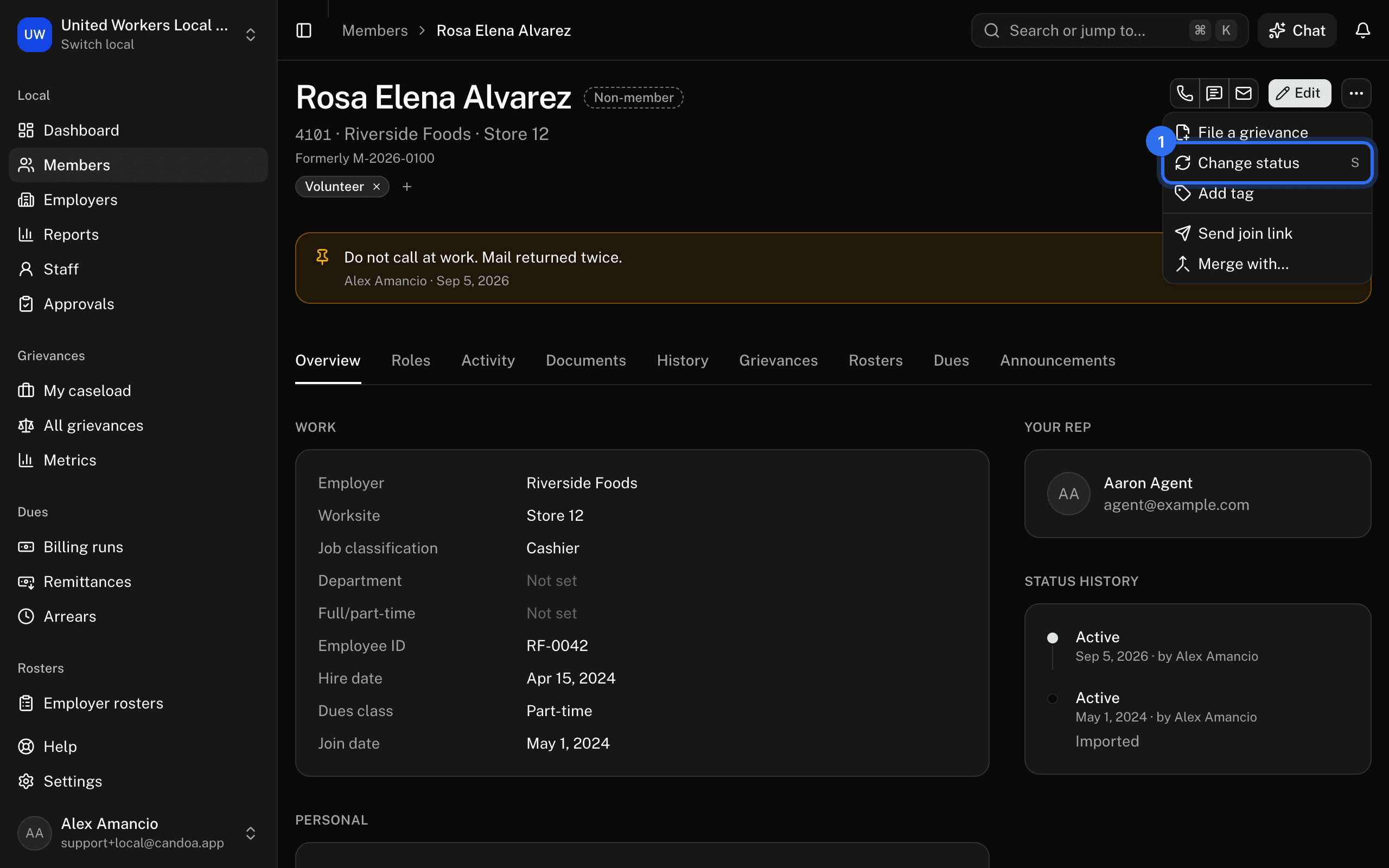
The change joins the Status history panel on the Overview tab with the date and who made it.
Add a tag
- Open the ⋯ menu and choose Add tag. Once the member has a tag, the + beside it in the header adds another.
- Pick a tag. Owners and admins can also type a new name and create it on the spot.
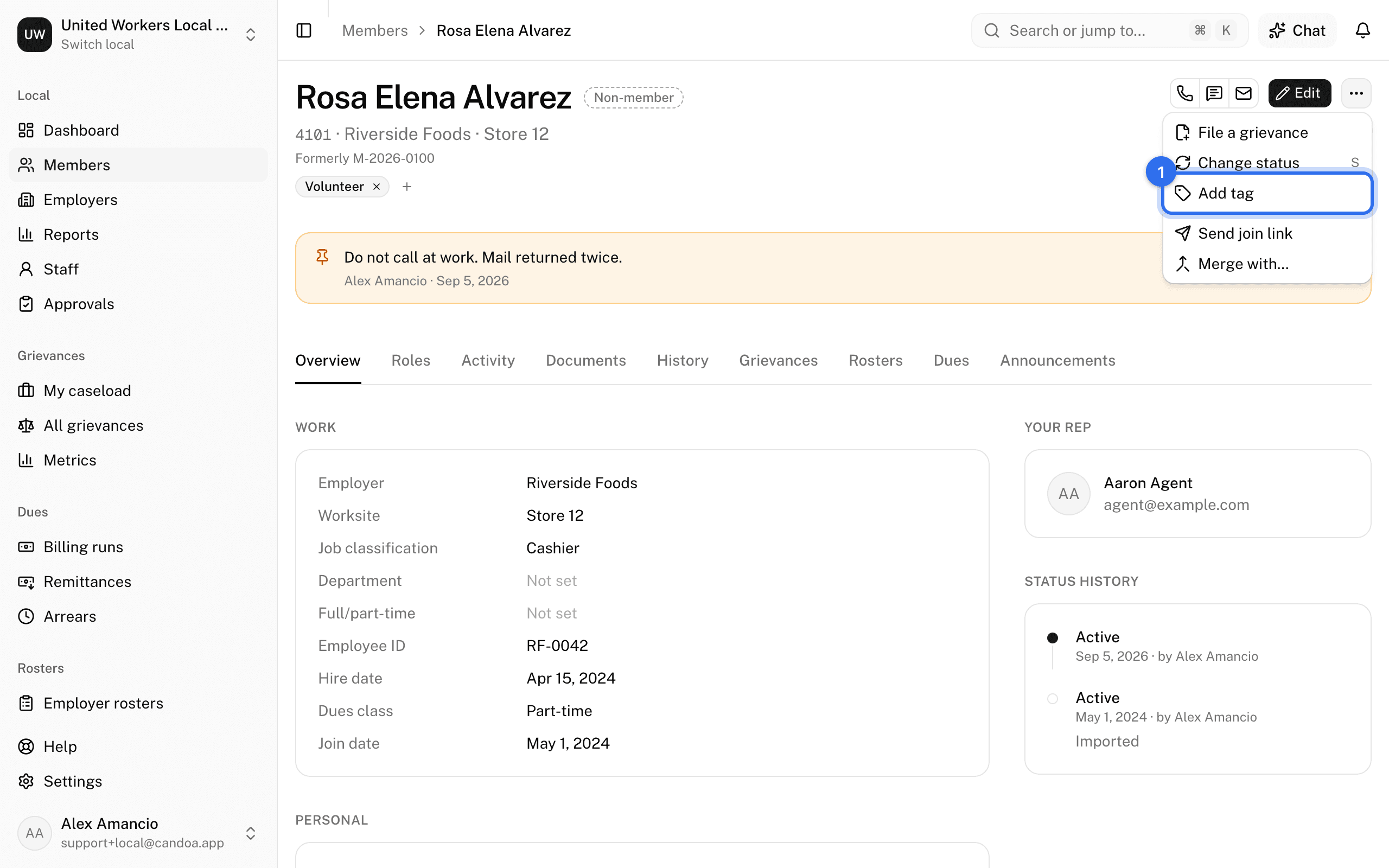
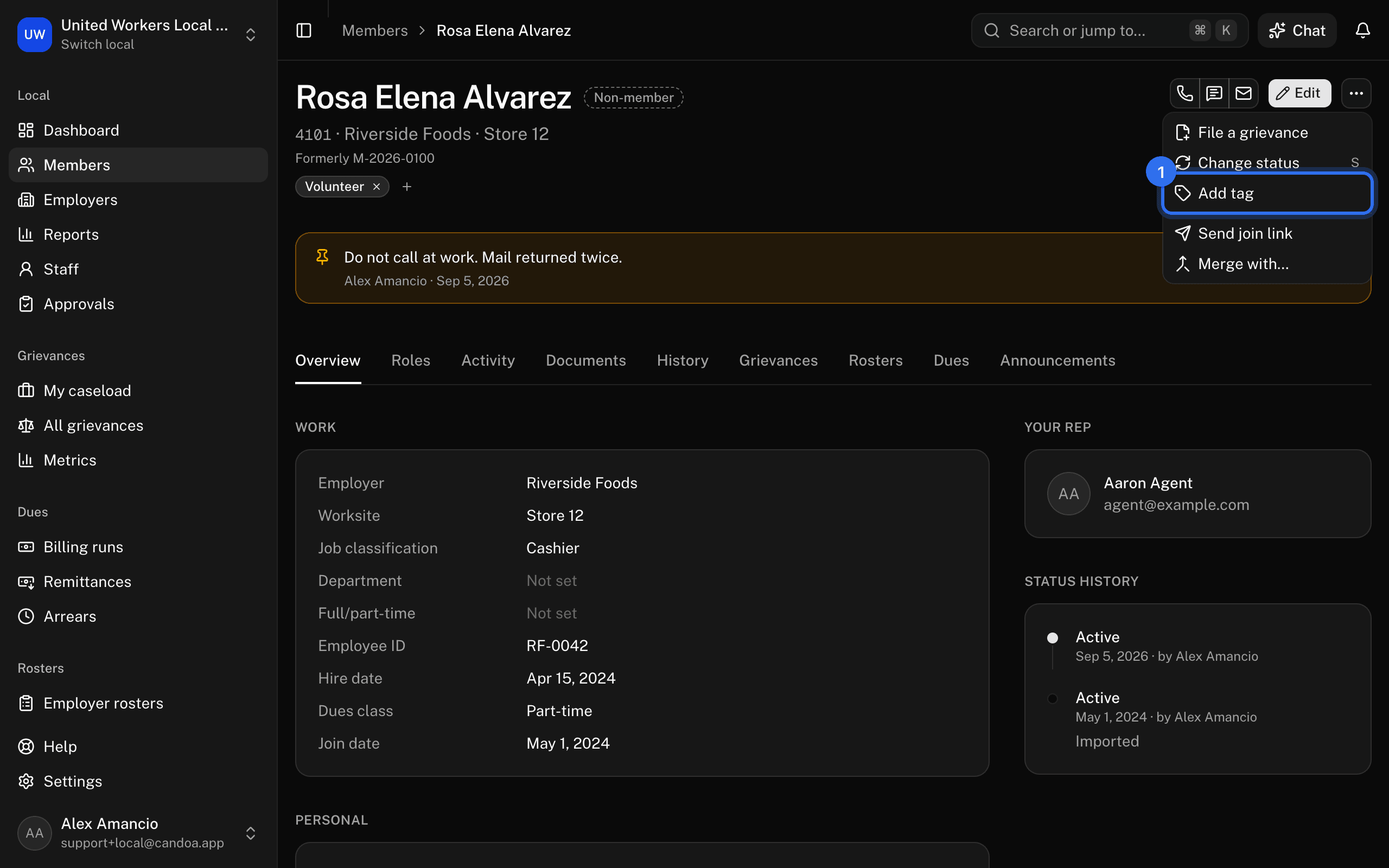
The member's tags sit under their number in the header. To remove one, press the × on it.
Add a job
A member can hold more than one job. One is Primary: the one the roster, filters, and counts use.
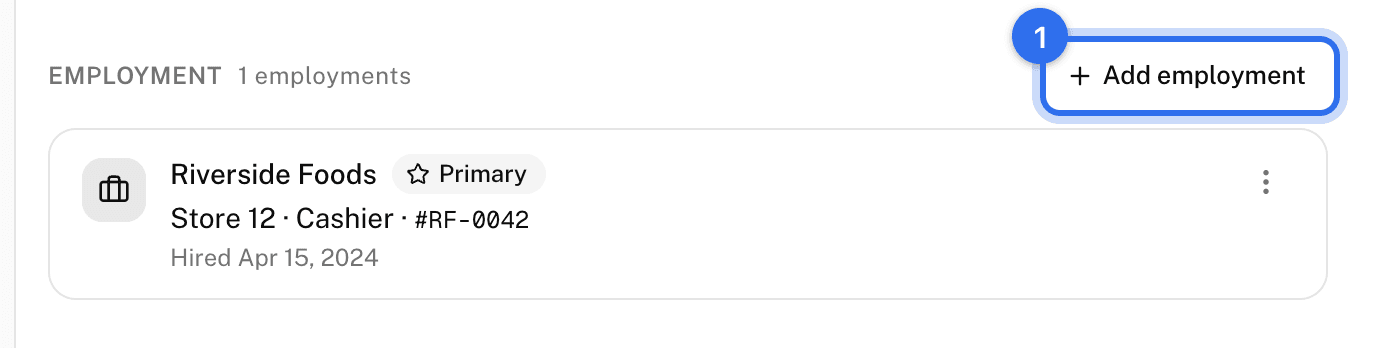
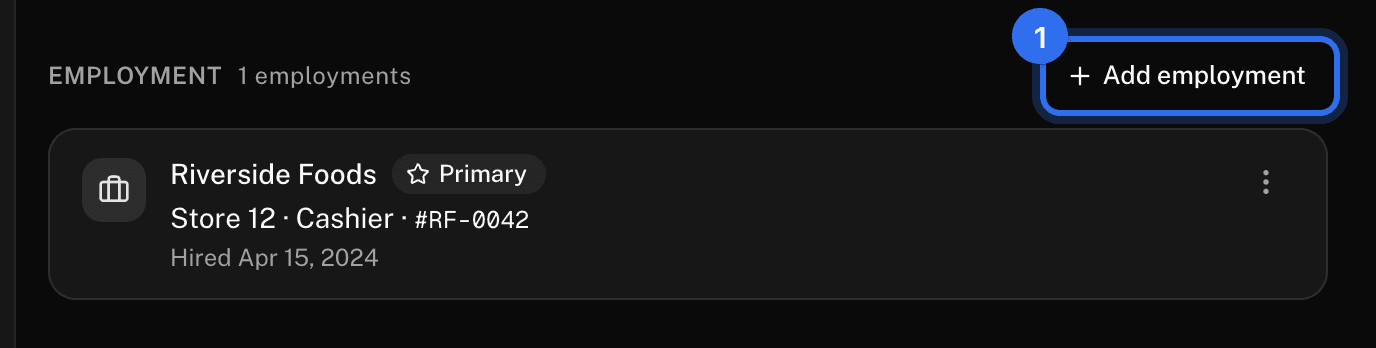
- On the Overview tab, in the Employment section, press Add employment.
- Pick the employer and worksite, then department, classification, full or part time, employee ID, and hire date.
- Press Add.
Change or end a job
- On the Overview tab, in the Employment section, open the ⋯ menu on the job.
- Choose Edit employment to change it, Make primary to make it the main job, or End employment and set the Last day.
Clearing the last day in the edit dialog makes an ended job current again. An ended job can't be primary.
Record that a member is a steward
Stewardships are added on the employer's page, not here. See An employer's record. The Stewards panel on the member's Roles tab shows where they serve and, under past, where they used to.
Record a position the member holds
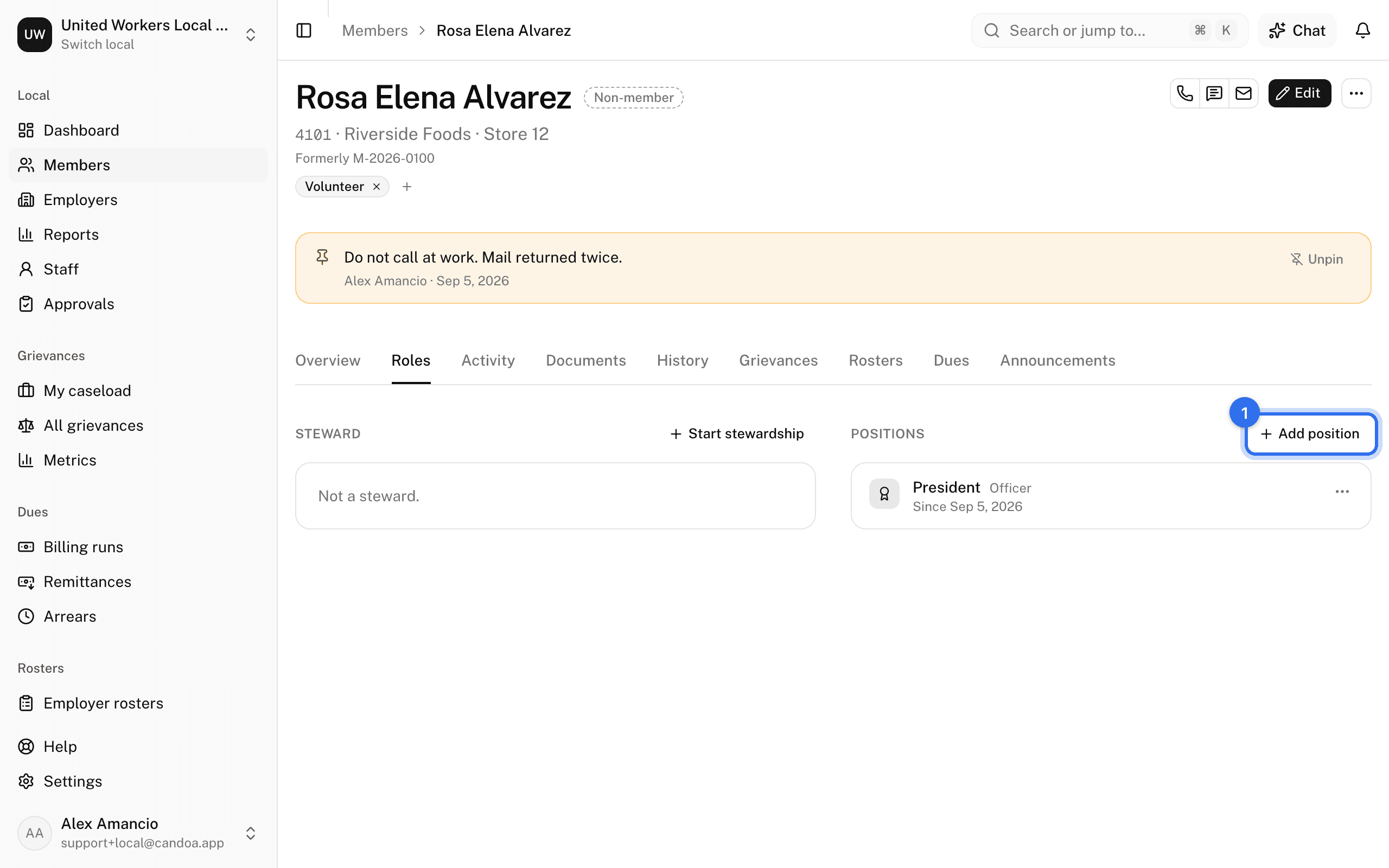
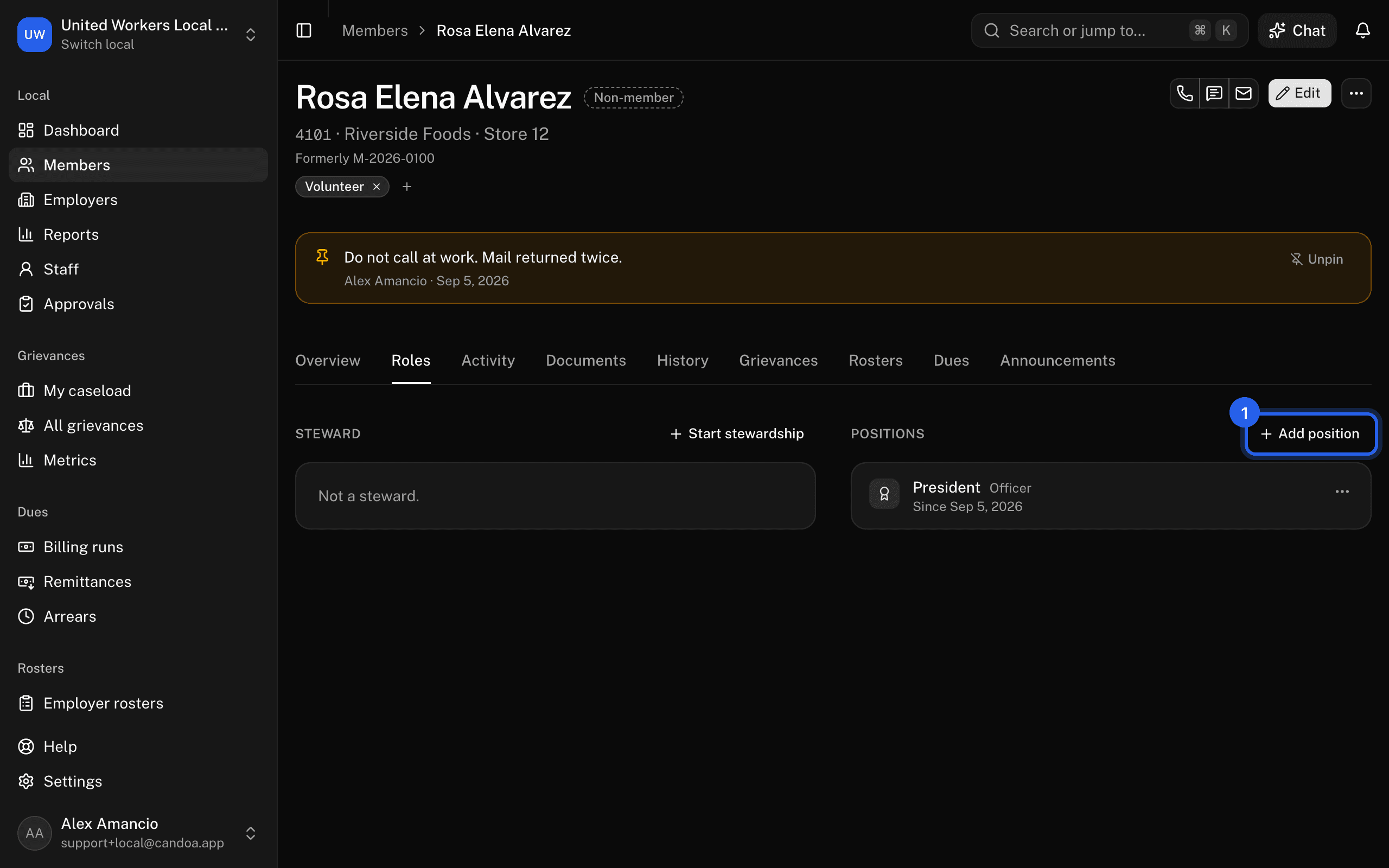
- On the Roles tab, in the Positions panel, press Add position. Owners and admins only.
- Pick the position, set Since, and press Add position.
To end it, open the holder's menu and choose End position. The list of positions comes from Settings › Positions.
Add a note, or log a call, visit, email, or meeting
- Open the Activity tab and press Add note in the Notes section, or press N from any tab: it opens the Activity tab with the note box ready.
- Pick what it is: Note, Call, Visit, Email, or Meeting. A note is anything worth remembering; the other four say you reached the member, and set their Last contacted date.
- Write it. Set a Follow-up date if you want a reminder; Candoa emails you the morning it arrives, and the link in that email opens this tab.
- Press Add note, or Cmd+Enter.
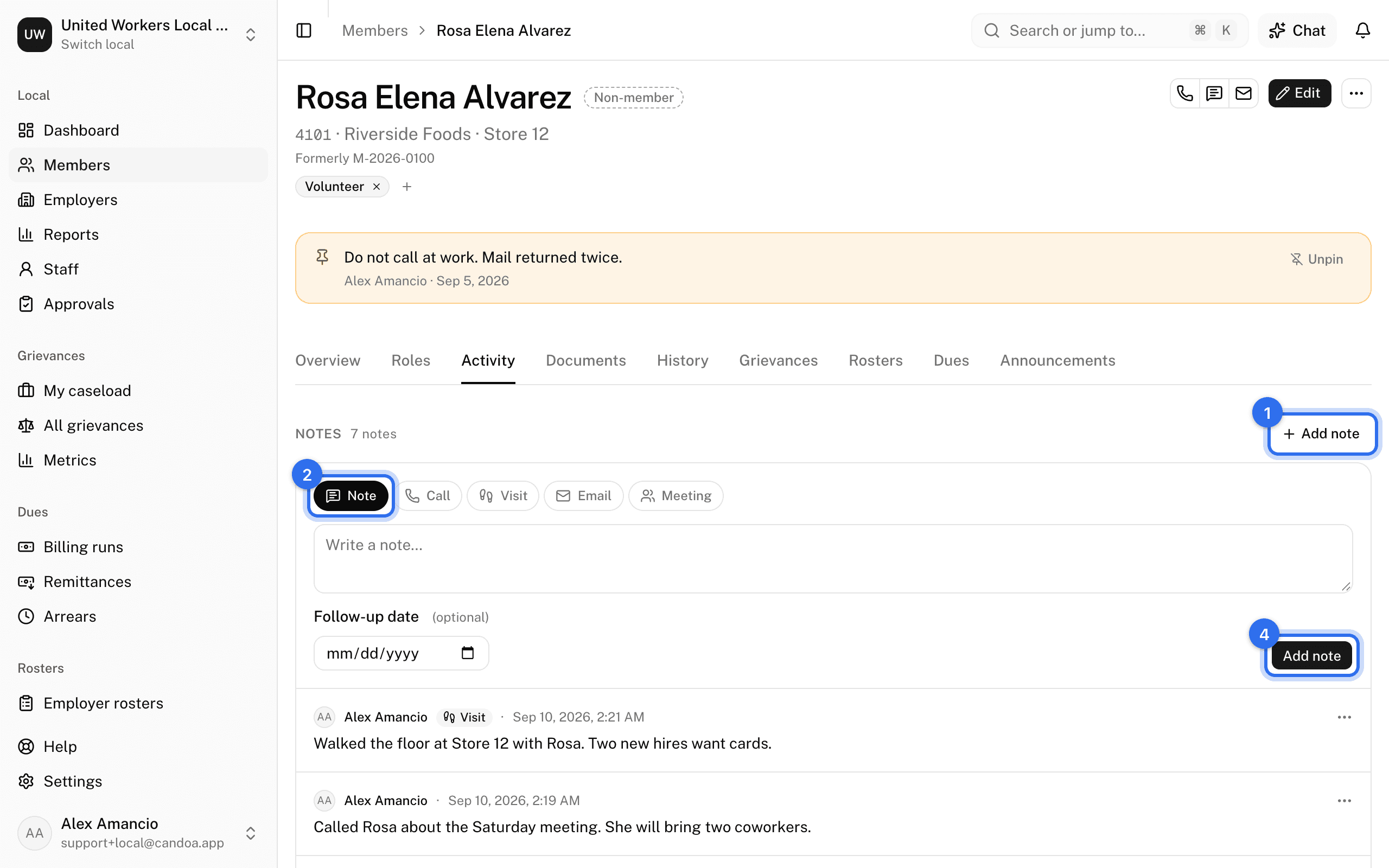
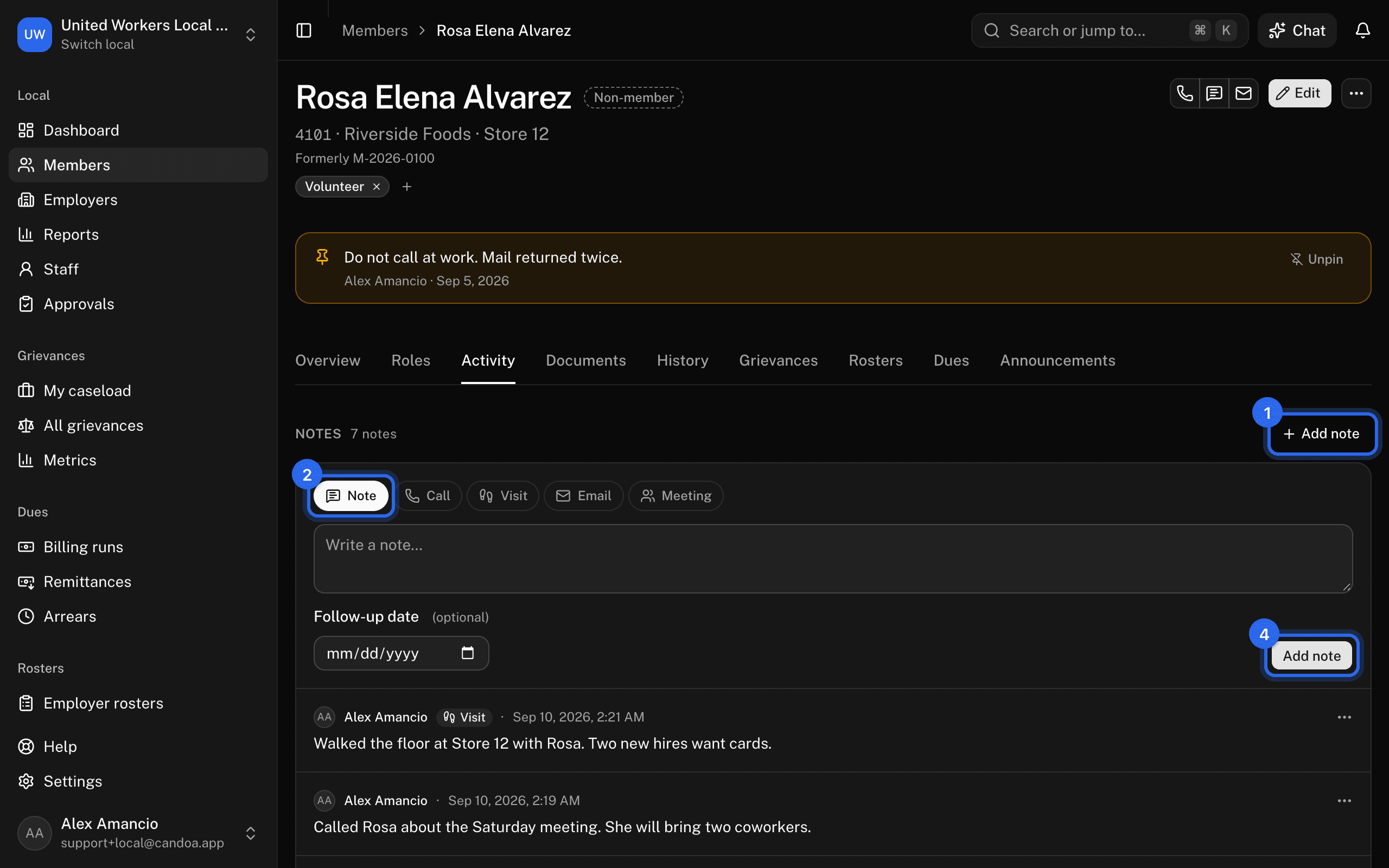
On a note: Pin note lifts it above the tabs, where it shows on every tab, and puts a pin icon on the roster; Mark done clears a follow-up; Edit note and Delete note are in its menu. Owners and admins can edit anyone's note; everyone else only their own. Editing a note can change what it is; deleting a call takes its contact off the record.
Read everything that happened, in order
The Activity section, under the notes on the Activity tab, is one timeline of the record, newest first: notes and contacts, status changes, jobs added and ended, files, tags, proposed changes and their decisions, merges, imports that touched the member, stewardships and positions, and, when the local has those add-ons, join sign-ups and grievances filed and closed. Each line says who did it and when; a line about a store, an import, or a grievance links to it.
- Press Show at the right of the heading to see only Contacts, Notes, Status and membership, Jobs and roles, Changes, documents, and tags, or Grievances.
- Scroll down for older lines; they load as you reach the foot.
Lines are written by what happens; nobody edits them. An add-on's lines disappear while the add-on is off and come back when it is on.
Add a document
- On the Documents tab, type a Label such as "Membership card".
- Drop the files in, or press choose a file. PDF, images, Word, Excel, or text, up to 25 MB each.
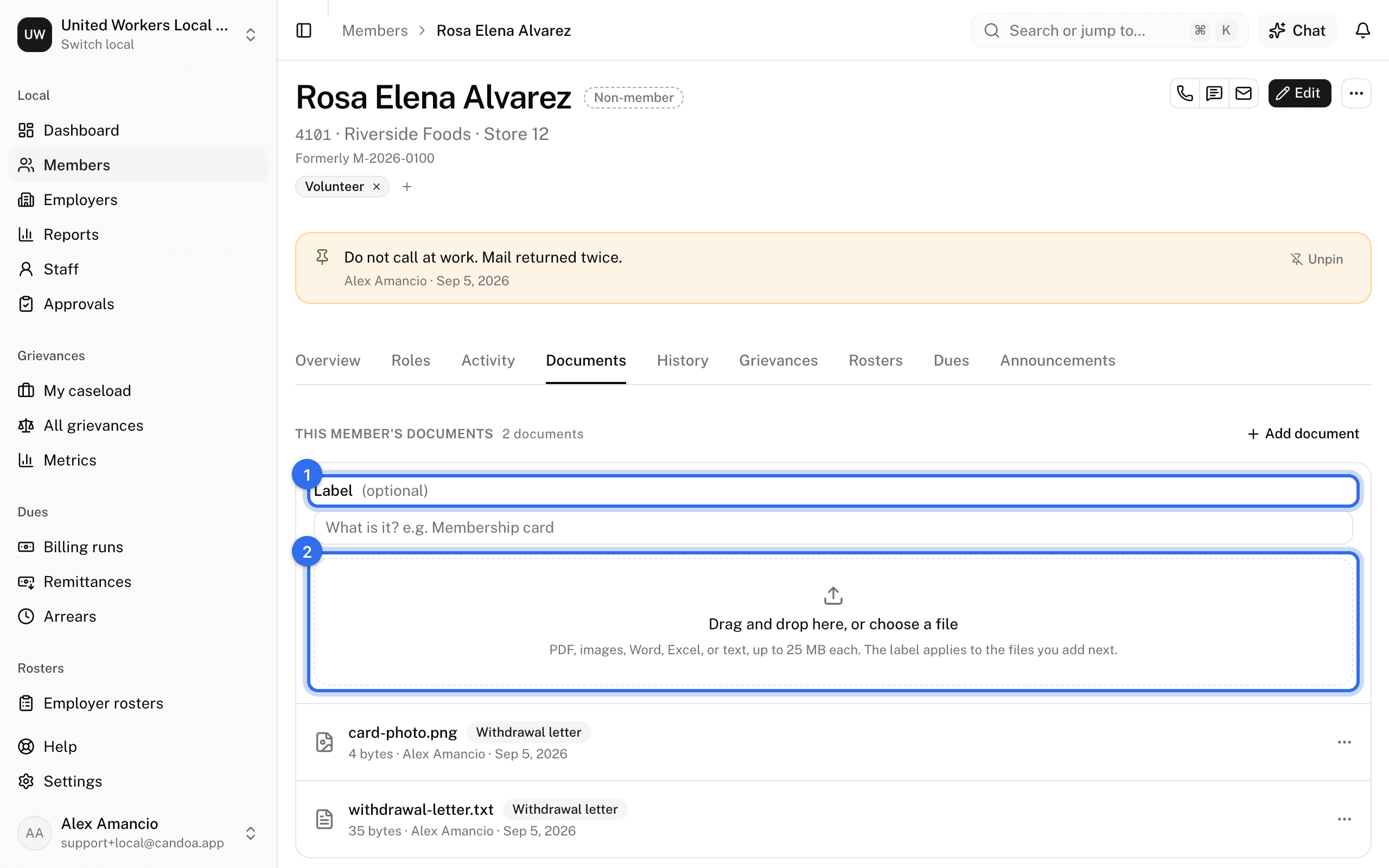
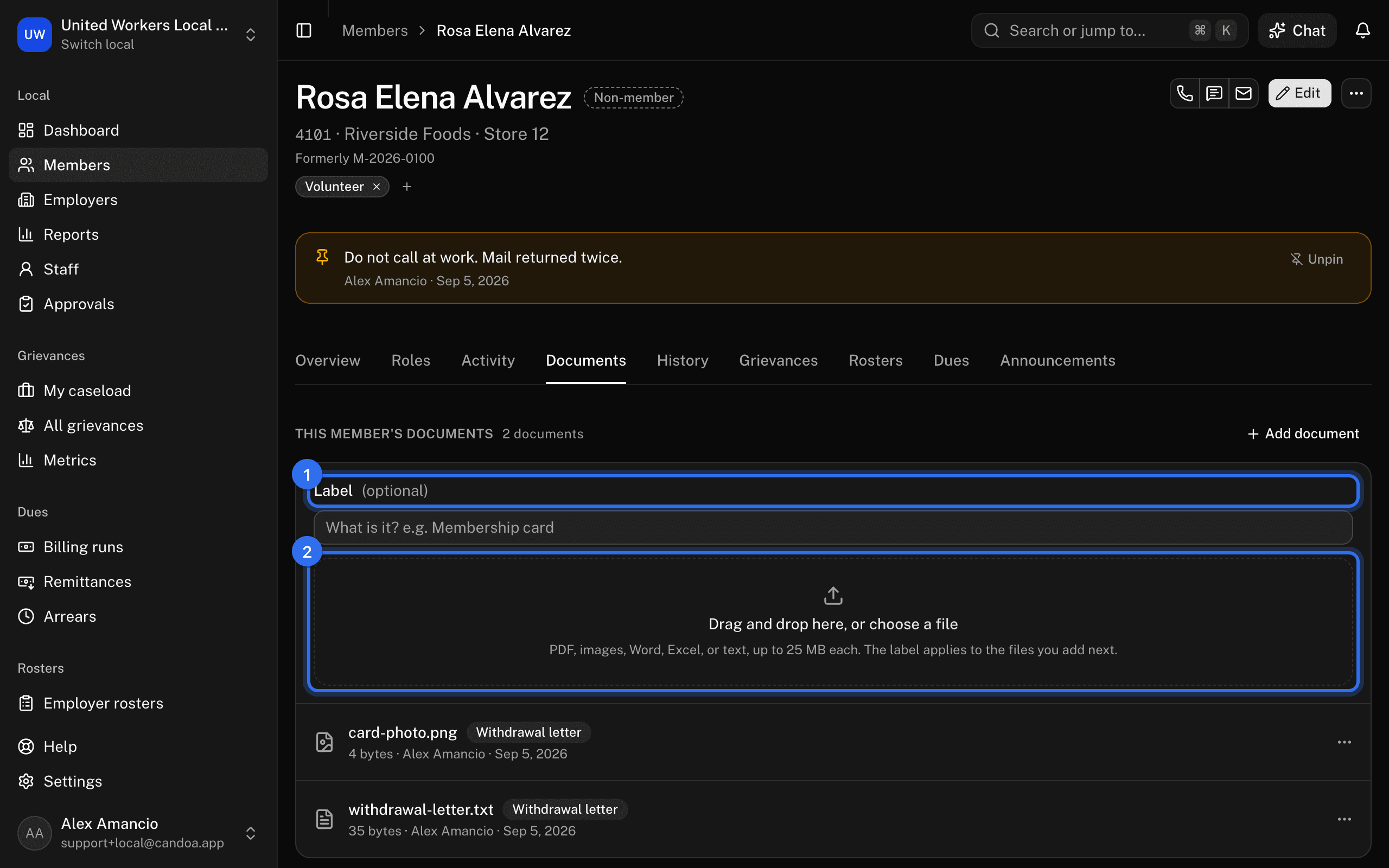
Each document's menu offers Open, Download, Change label, and Delete document. A deleted document is recoverable for 30 days by asking support.
Who sees and adds documents is set apart from who sees the member. Out of the box, owners, admins, and agents see a member's documents and can add, relabel, and delete them; stewards and read-only staff do not see the Documents tab at all. An owner or admin changes this in Settings › Permissions, where "See a member's documents" and "Add, relabel, and delete a member's documents" are their own rows; a permission with the first but not the second sees the documents without the drop zone or the Change label and Delete document items. See Permissions.
Read what changed and when
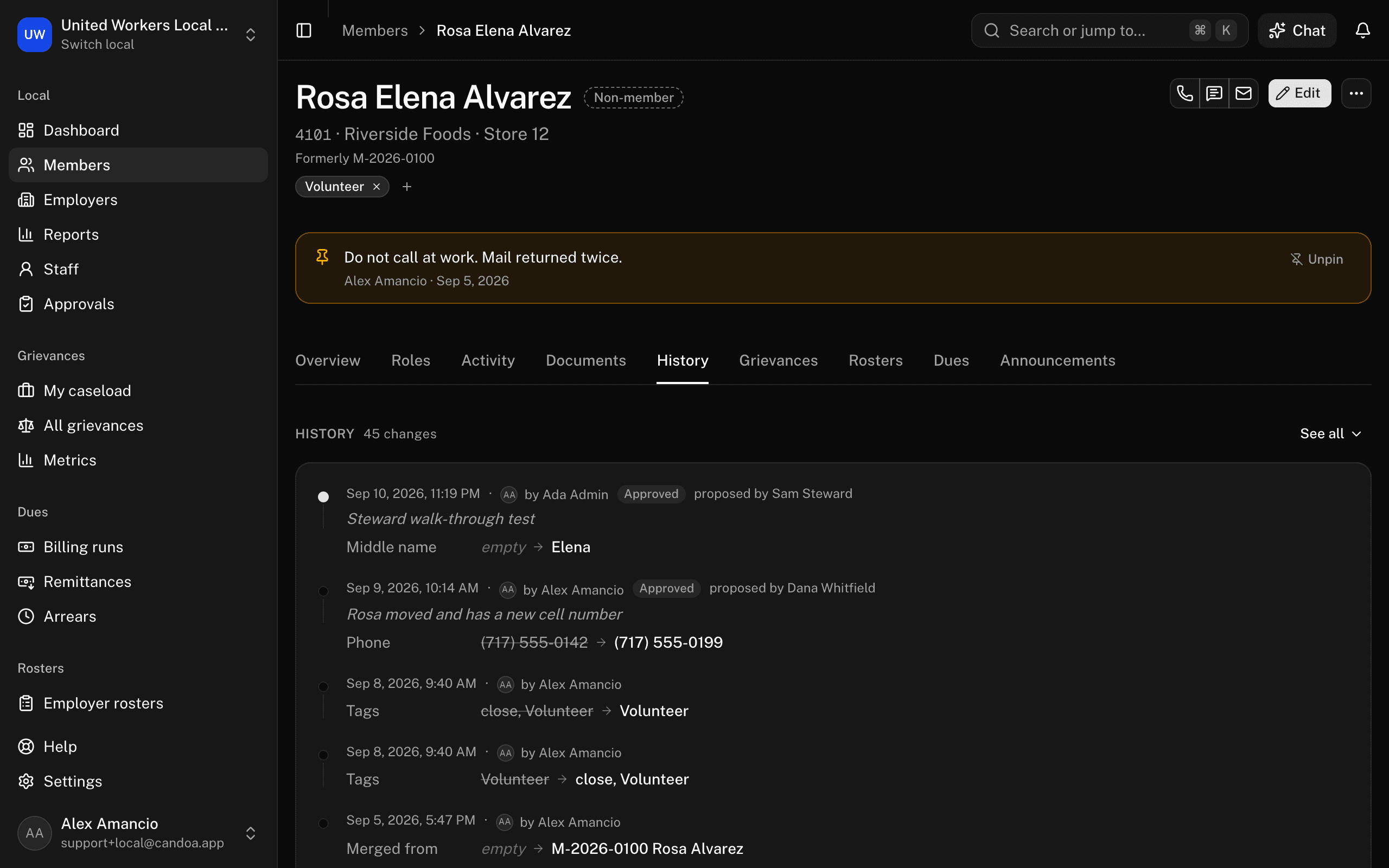
The History tab lists every change to a field, grouped by save: who, when, and each field's old and new value. Imports, status changes, approved proposals, and automatic changes are labelled. History is the fields; Activity is everything, fields or not.
See whether a member uses the portal
Needs the Member portal add-on. On the Overview tab, the Contact section ends with a Member portal line: Last signed in with the date, and how many devices they are signed in on now; Hasn't signed in yet; or Can't sign in until an email is on file, which the Email field above it fixes. See The Member portal add-on.
See or remove a member's photo
Needs the Member portal add-on. A member can send a photo of themselves from their portal; once someone approves it under Approvals, it shows beside their name at the top of the record, on every tab. Staff don't add the photo; it is the member's own.
To take it down, open the ⋯ menu at the top right and choose Remove photo, then confirm. It comes off the record and the member's portal page, and the Activity tab records that you did it. The member can send a new one, which waits for approval again. The menu item is there for permissions that can edit members, while the member has a photo.
Sign a member out of the portal
Needs the Member portal add-on and a permission that can edit members. While the member is signed in somewhere, open the ⋯ menu at the top right and choose Sign out of the portal, then confirm with Sign out of the portal. Every phone and computer they were signed in on is signed out at once, and the Activity tab records that you did it. Use it when a member reports a lost phone or a shared computer, or when the email on their record turns out not to be theirs. The member can sign in again with a new code whenever they like; to keep them out for good, change the email on their record or their status.
Send this member a join link
Needs the Join add-on. Open the ⋯ menu at the top right and choose Send join link to email them a personal sign-up link with their details filled in. See Signing up members.
Text, email, or call this member
Needs the Communications add-on. At the top right, the three joined icons are Call, Text, and Email; point at one to see its name. Text opens your conversation with the member in the side panel, Email writes them a short email from the local, and Call dials their number on your own phone and asks how the call went when you're done. Each one stays in the member's conversation, and a call or an email sent also moves their Last contacted date. The command palette offers the same three. See The Inbox and conversations.
Merge with a duplicate
Open the ⋯ menu at the top right and choose Merge with…. See Duplicates and merging.
File a grievance for this member
Open the ⋯ menu at the top right and choose File a grievance, or press it on the Grievances tab, which lists the member's cases with where each one stands. Both are there when the Grievances add-on is on and your permission can file. See Filing a grievance.
These pages are the help for Candoa, the software a local runs its members, employers, and grievances on.
Set up your localUpdated 2026-09-19