Your account
Change your name, email, or password; turn two-step sign-in on; sign out other devices; set your profile at this local; choose which notices you get.
Your account is yours across every local you belong to. The first sections on this page belong to you everywhere; the last two belong to you at this local only.
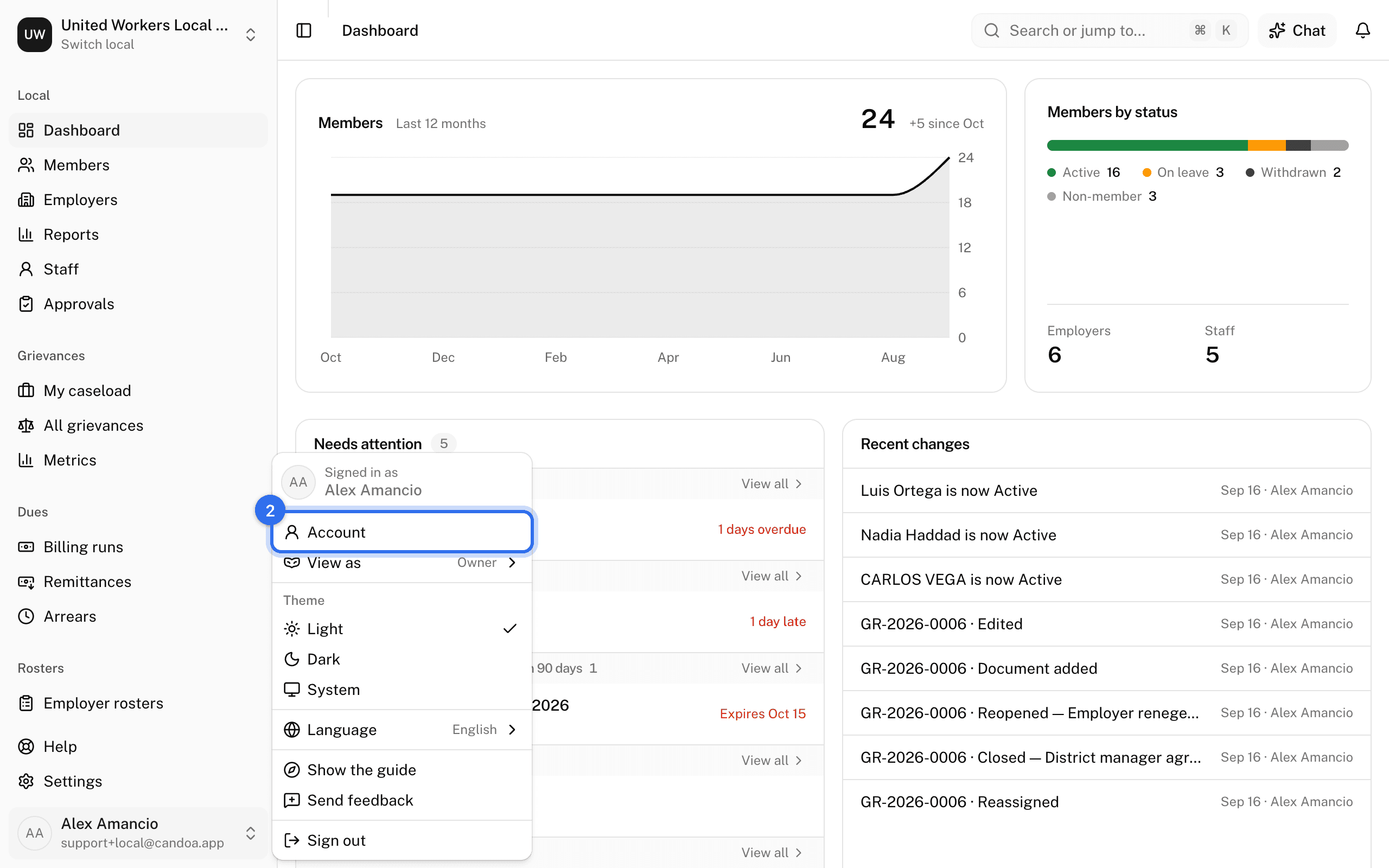
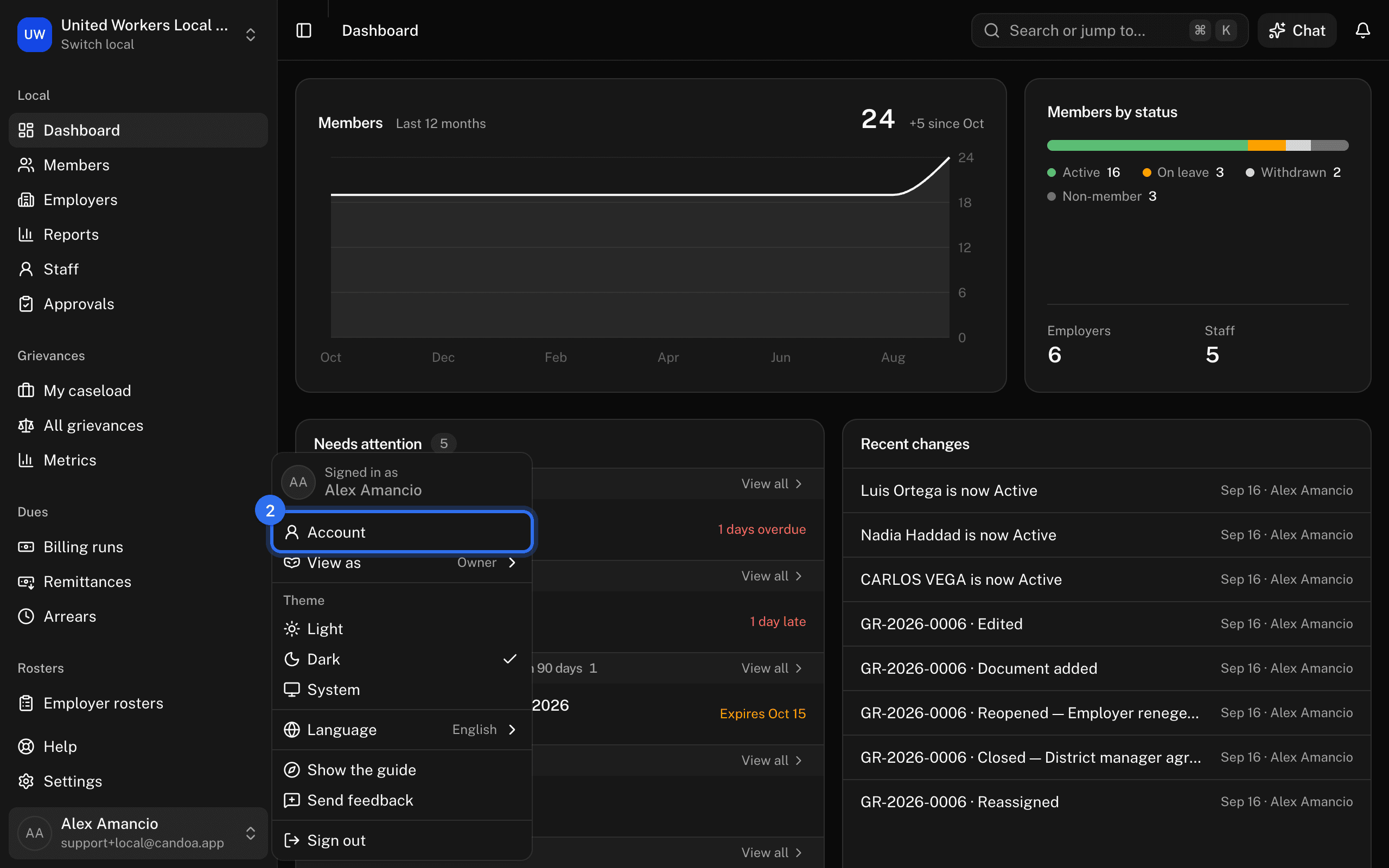
Open your account page
- Click your name at the bottom of the sidebar.
- Choose Account.
Change your name
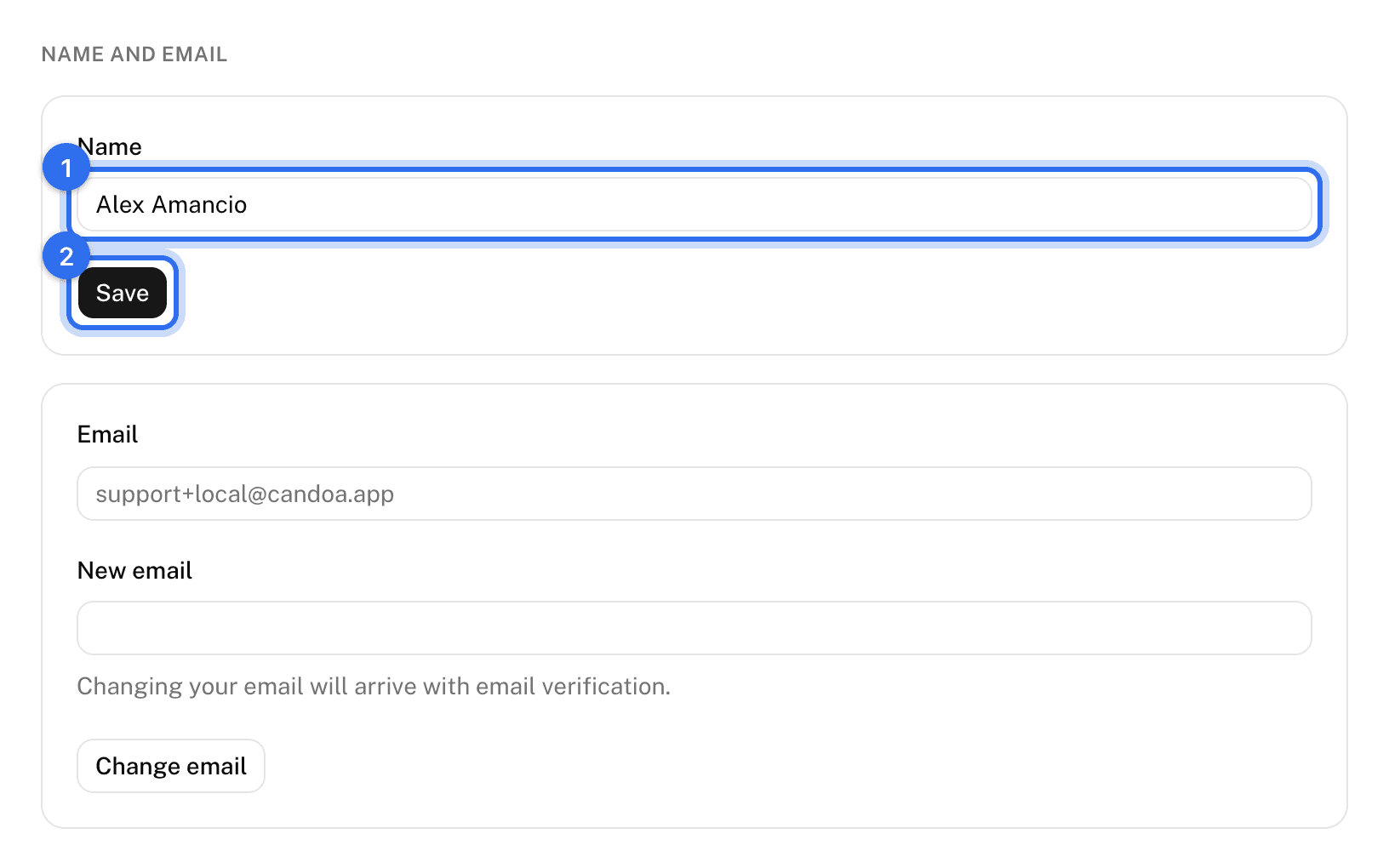
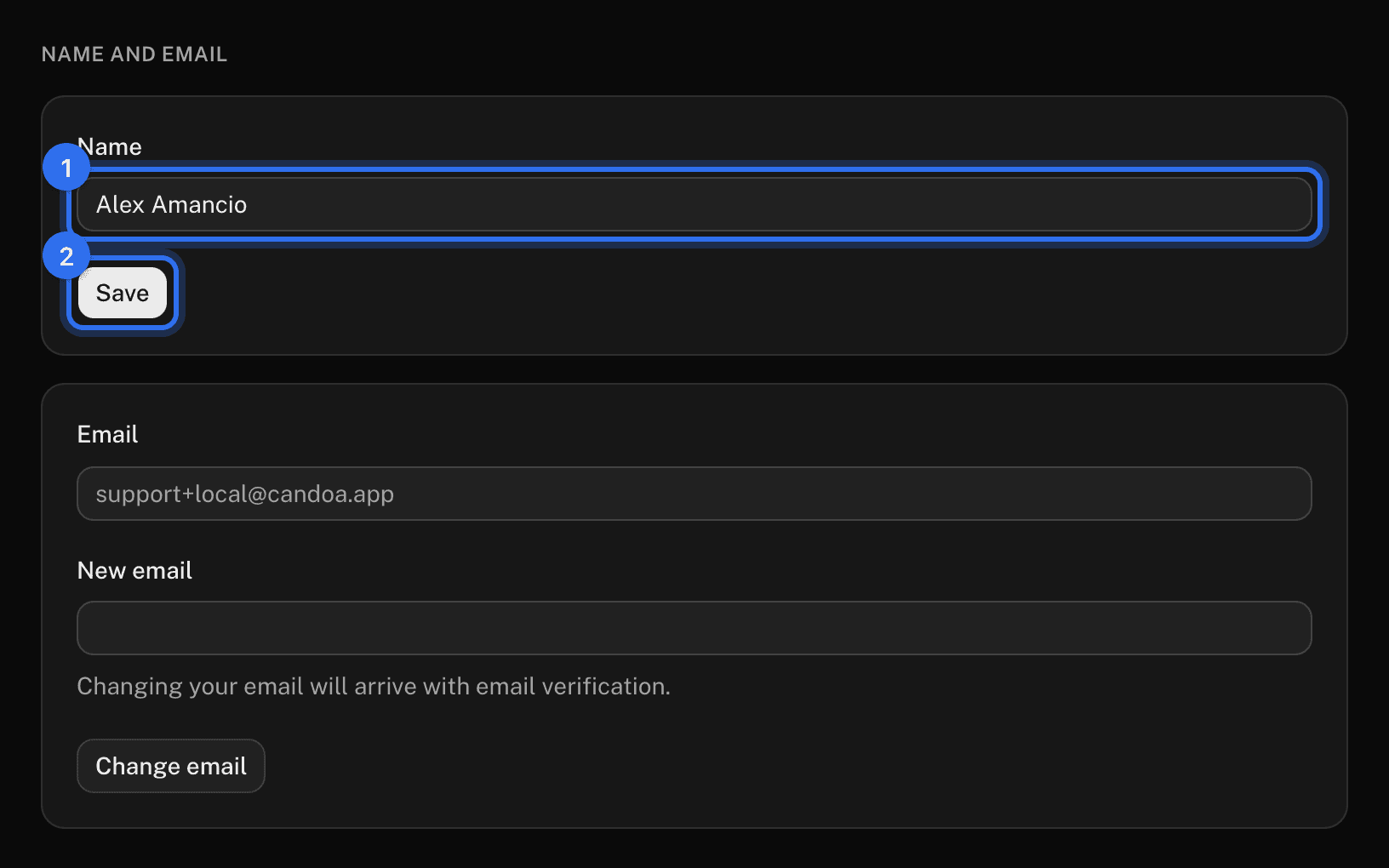
- On the Account page, under Name and email, change the Name field.
- Press Save.
Change your email
- Under Name and email, type the New email.
- Press Change email.
- Open your current inbox and click the approval link in the email titled "Confirm your new Candoa email".
- Open the new inbox and click its confirmation link.
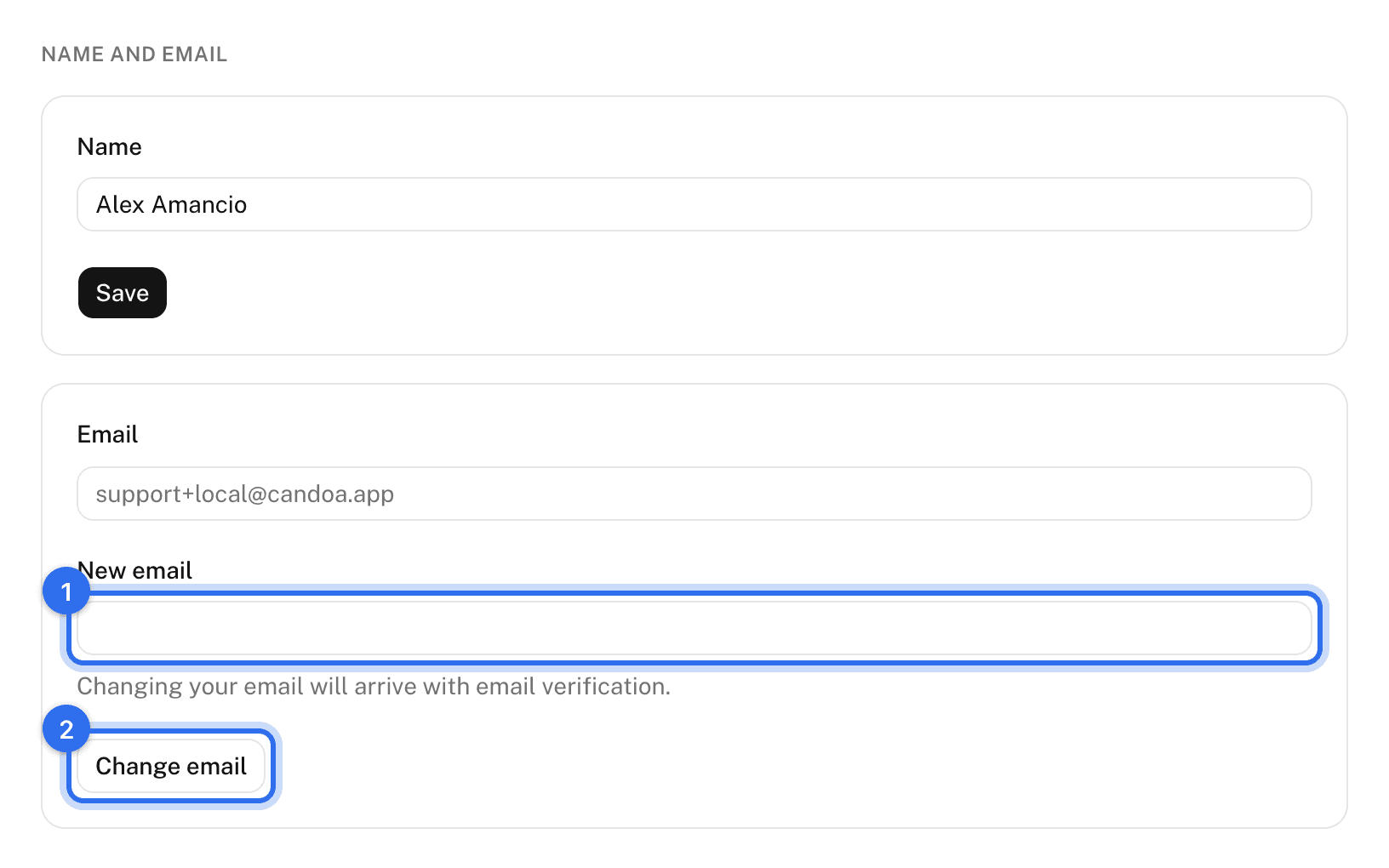
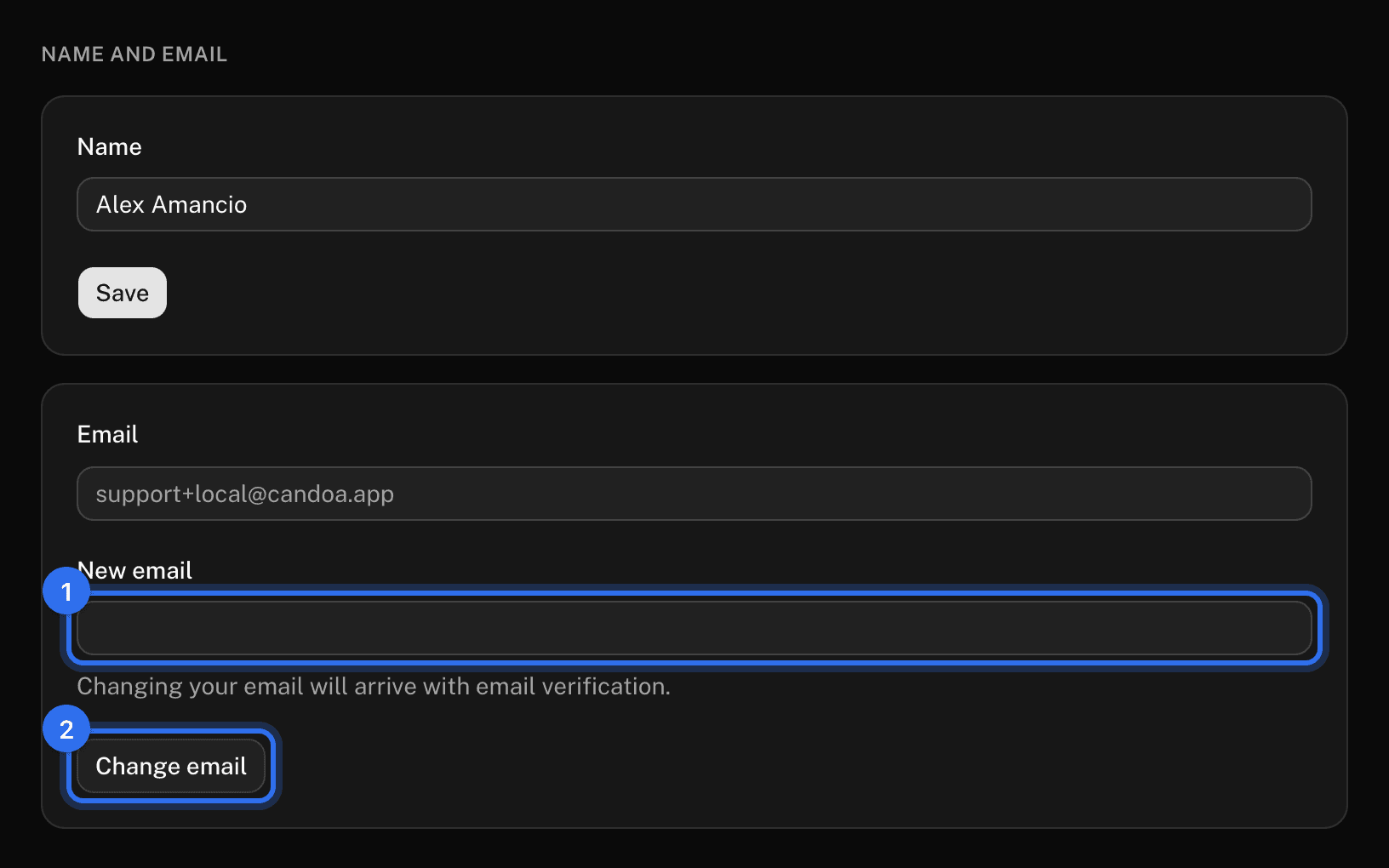
Nothing changes until both links are clicked. "Already in use" means another account has that email.
Change your password
- Under Password, enter your Current password.
- Enter the New password twice. At least 12 characters, and not one that has leaked in a breach.
- Press Change password.
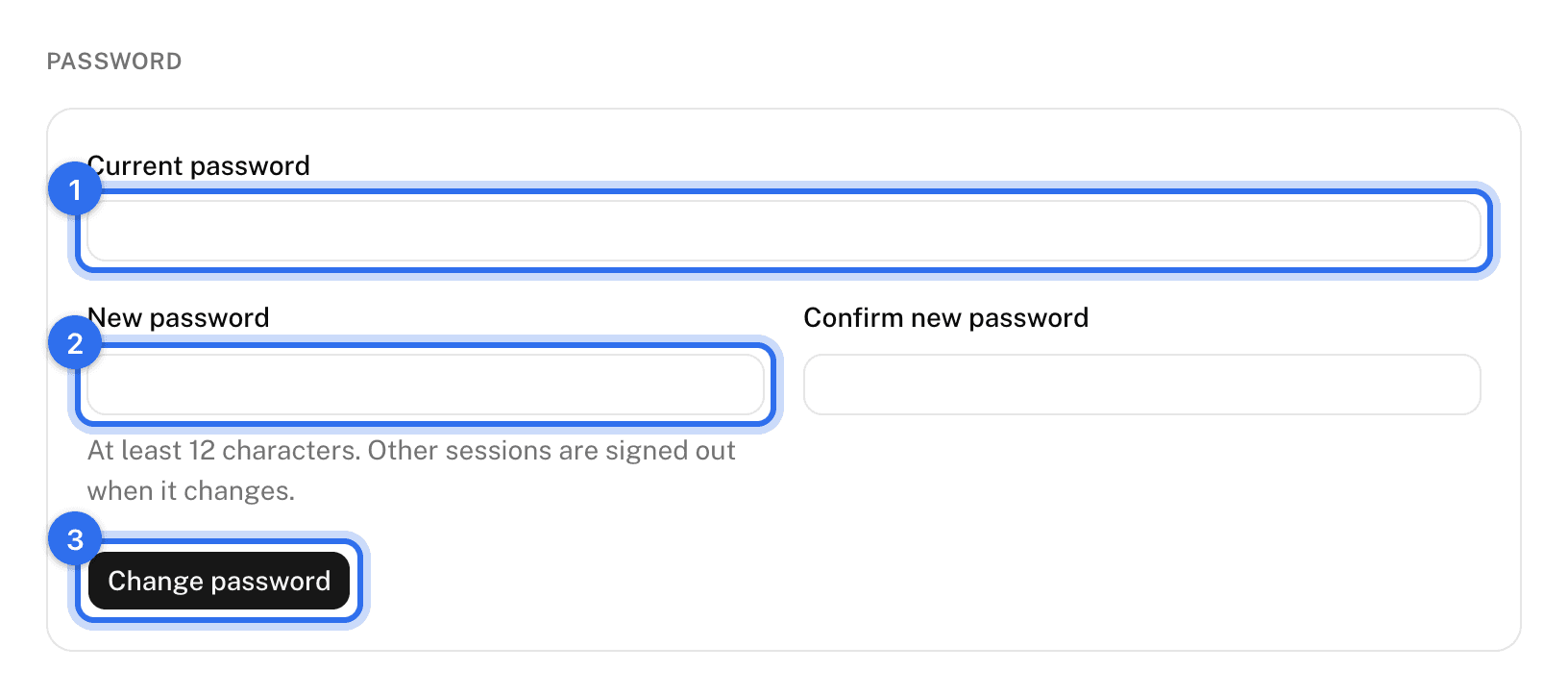
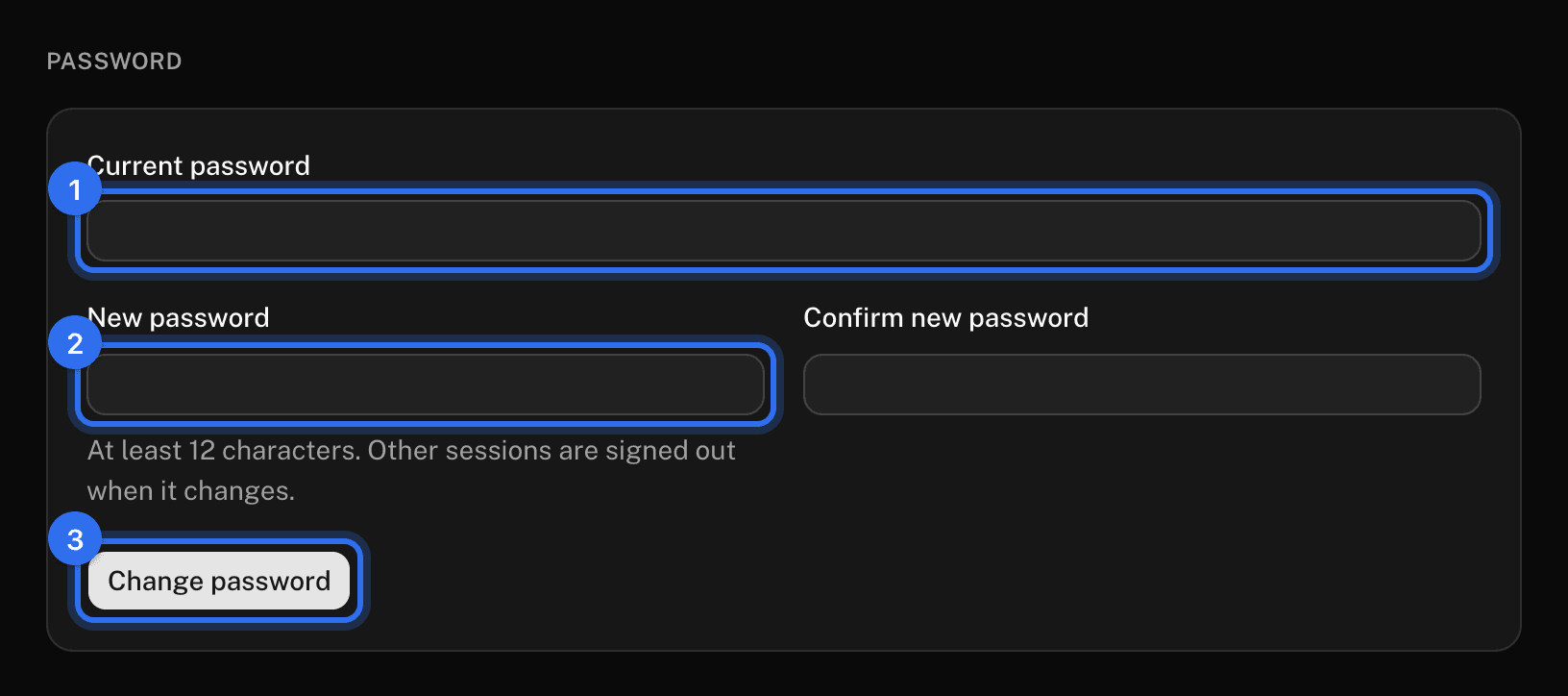
Every other browser where you were signed in is signed out.
Turn two-step sign-in on or off
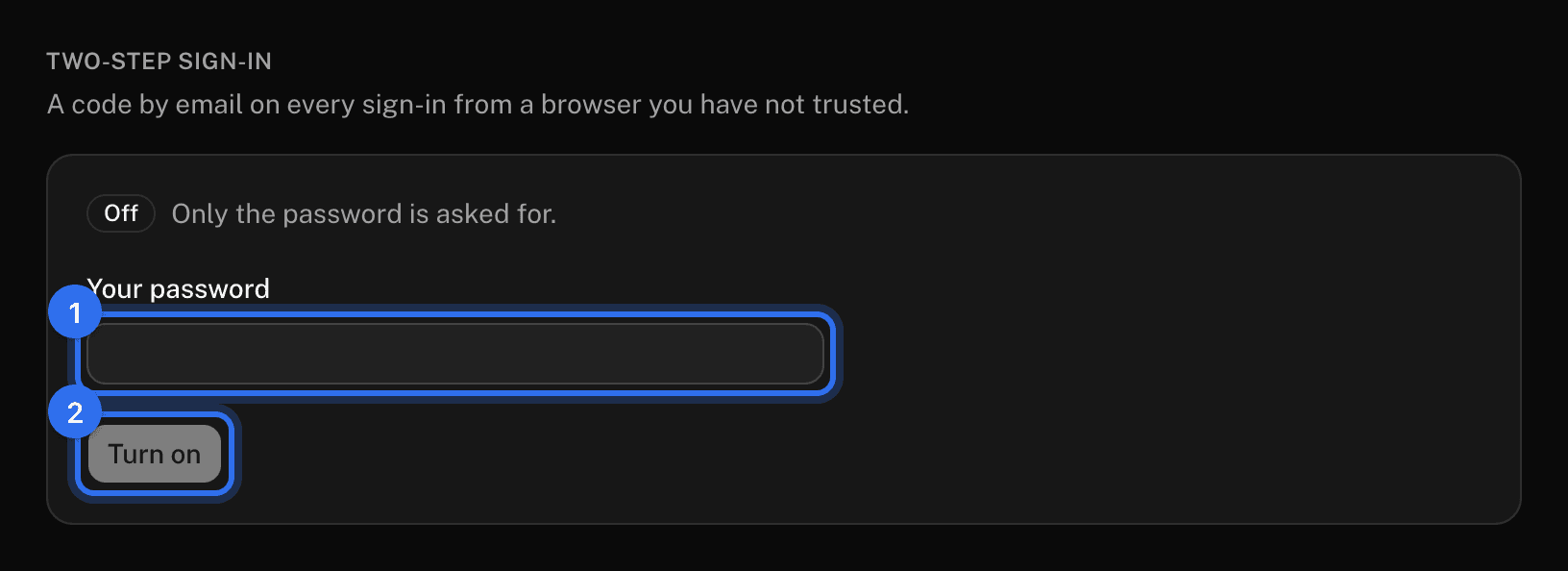
- Under Two-step sign-in, type your password.
- Press Turn on or Turn off.
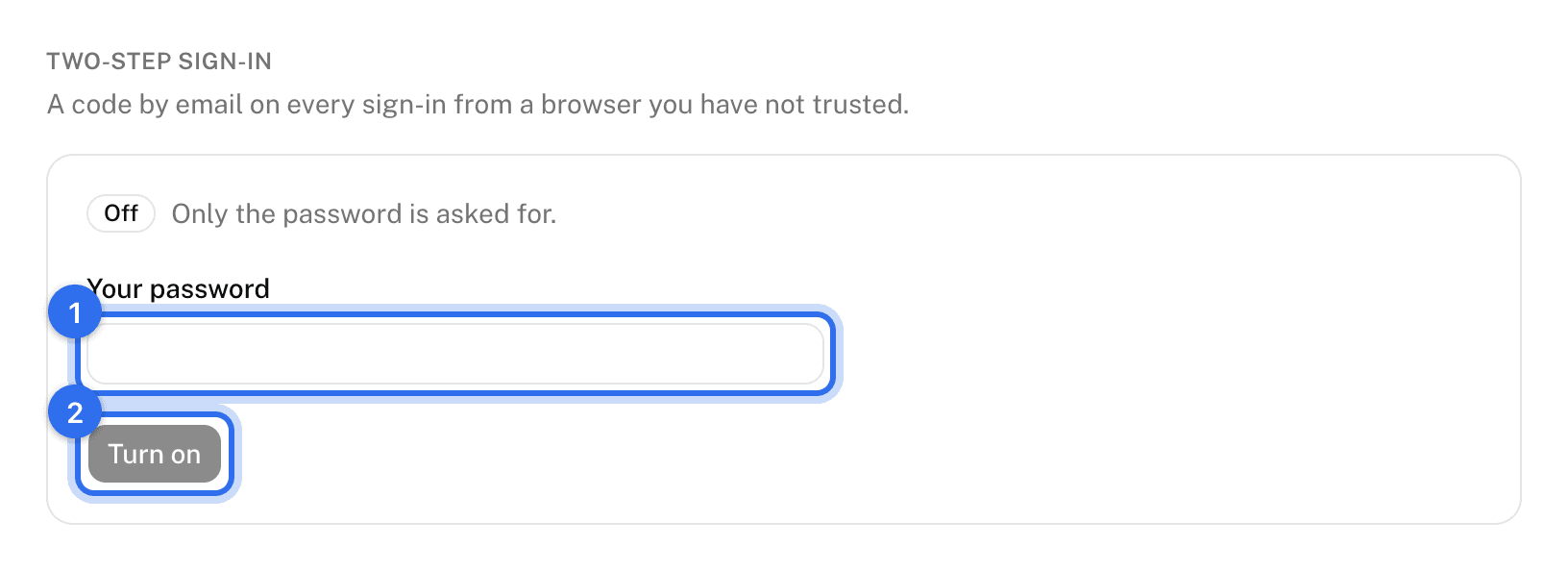
With it on, a six-digit code is emailed to you whenever you sign in from a browser you haven't trusted. See Two-step sign-in.
Sign out of another device
- Under Where you're signed in, find the row for the other browser. Yours is marked This browser. Each row shows the browser, roughly where it signed in from (city, region, and country, worked out from its internet address, so it can be off by a town or two), and the address itself.
- Press Sign out this one on that row, or Sign out everywhere else to end all of them.




Check who has signed in as you
Under Sign-in history, read your last 20 sign-in attempts over the past 90 days: whether each worked, from which browser, from which address. If you see attempts you don't recognize, change your password.
Set your title, work phone, and photo
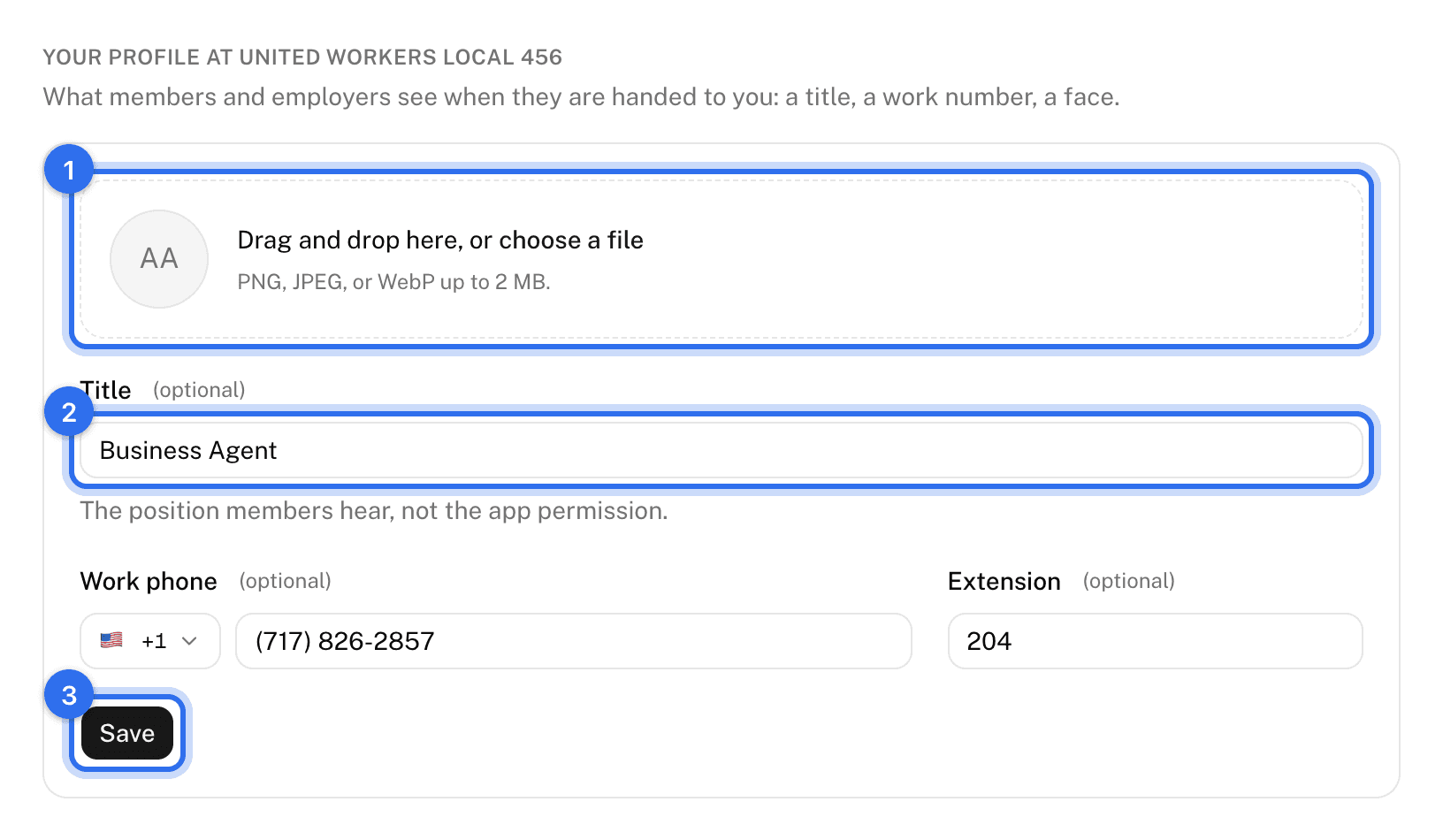
This is what members and employers see when they're handed to you. Each local has its own.
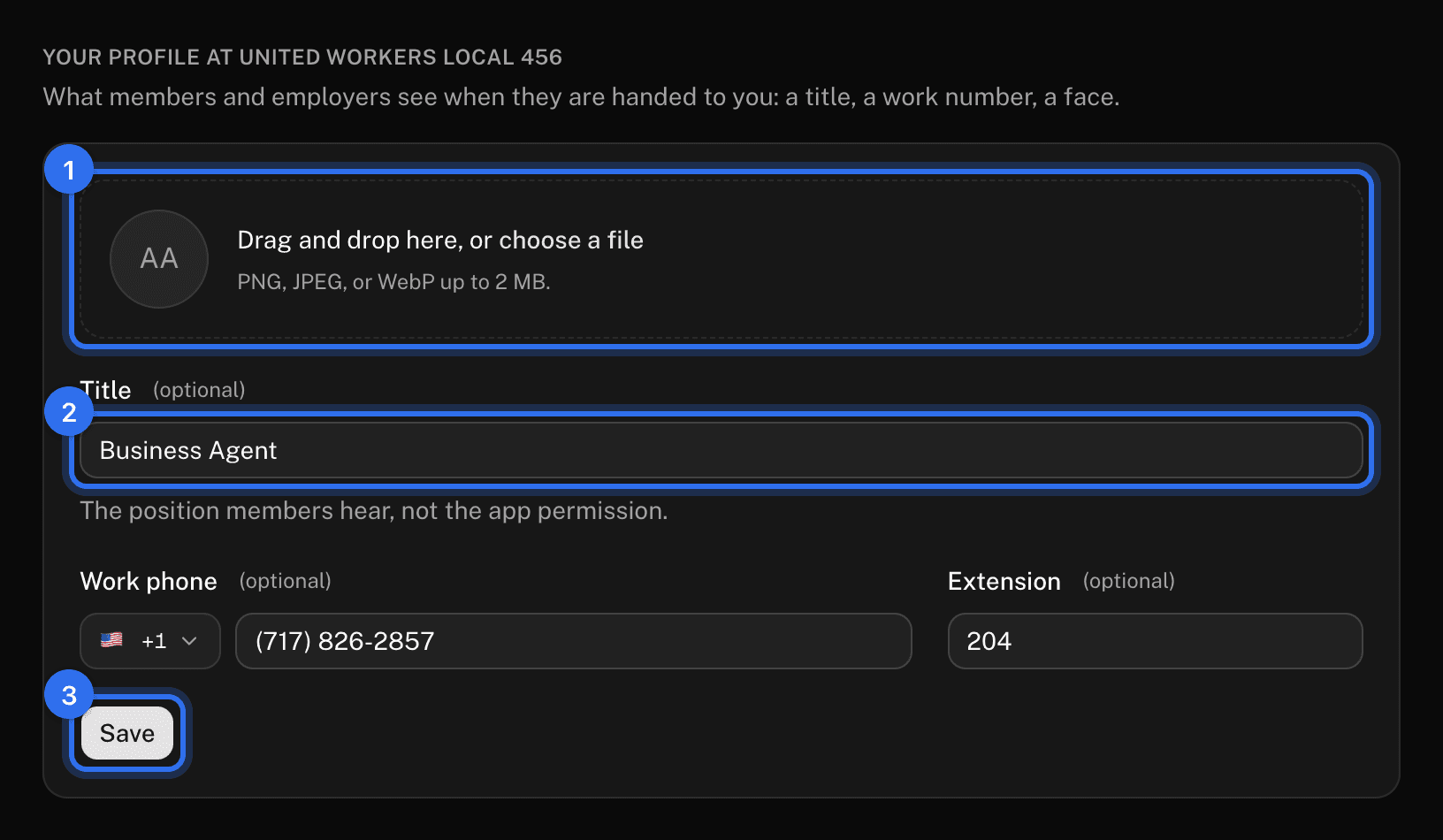
- Under Your profile at the local's name, drop a photo on the avatar or press choose a file. PNG, JPEG, or WebP under 2 MB.
- Fill in Title (the position members hear, such as "Business Agent"), Work phone, and Extension.
- Press Save.
Choose which notices you get
Under What this local tells you, tick or untick each notice. It saves as you click. Each switch quiets both the email and the bell in the app, and each local has its own settings.
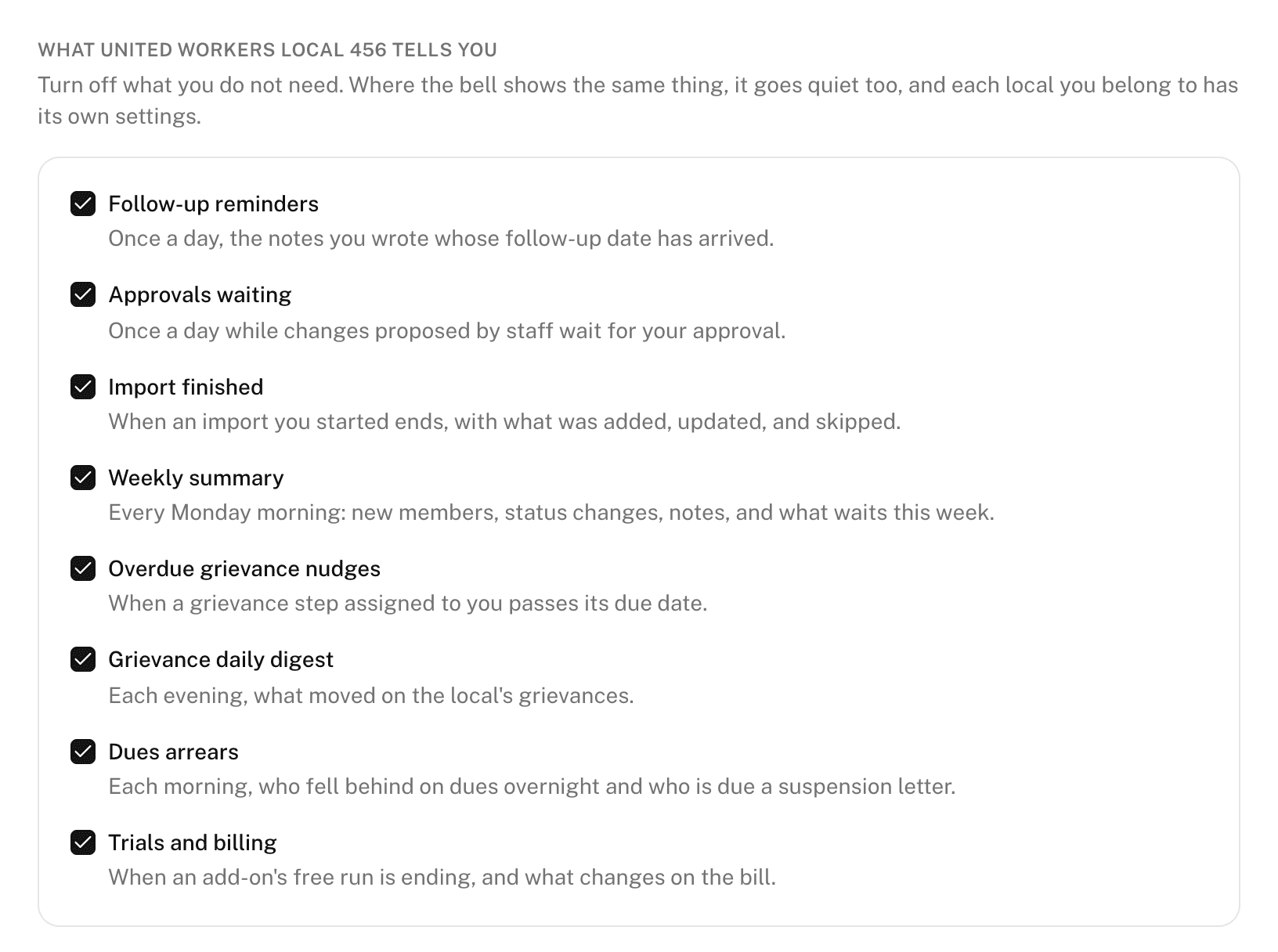
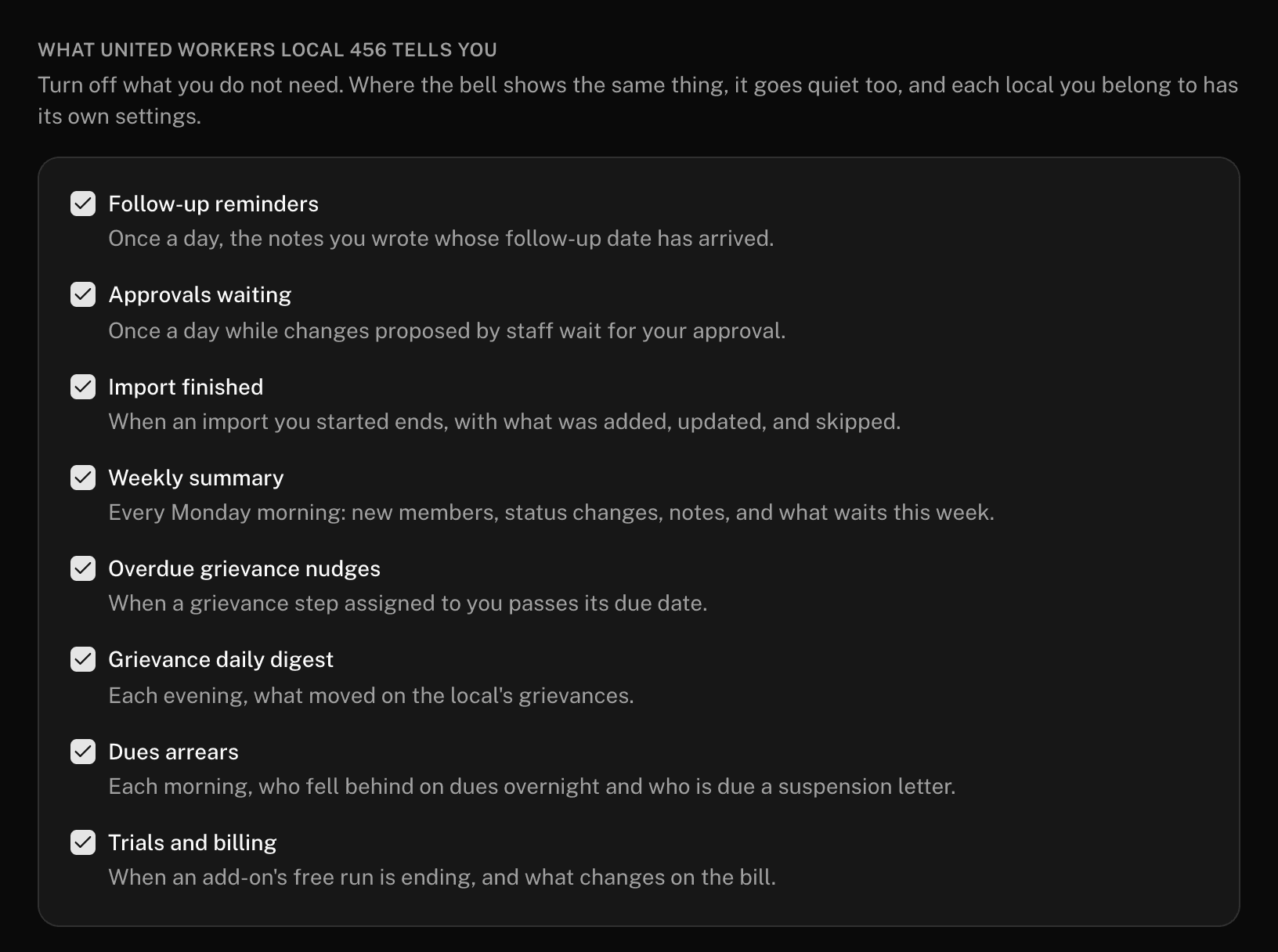
- Follow-up reminders: once a day, the notes you wrote whose follow-up date has arrived.
- Approvals waiting: once a day while proposed changes wait for your approval. Only shown if you can approve.
- Import finished: when an import you started ends. Only shown if you can import.
- Weekly summary: every Monday morning.
- Overdue grievance nudges and Grievance daily digest: only with the Grievances add-on.
- Trials and billing: when an add-on's free trial is ending and what changes on the bill.
See the app as another permission
Owners and admins have View as in the menu under their name, to see the local as a lower permission would. How it works is on Permissions.
Change the language or theme
- Click your name at the bottom of the sidebar.
- Choose Theme (Light, Dark, or System) or open Language and pick one.
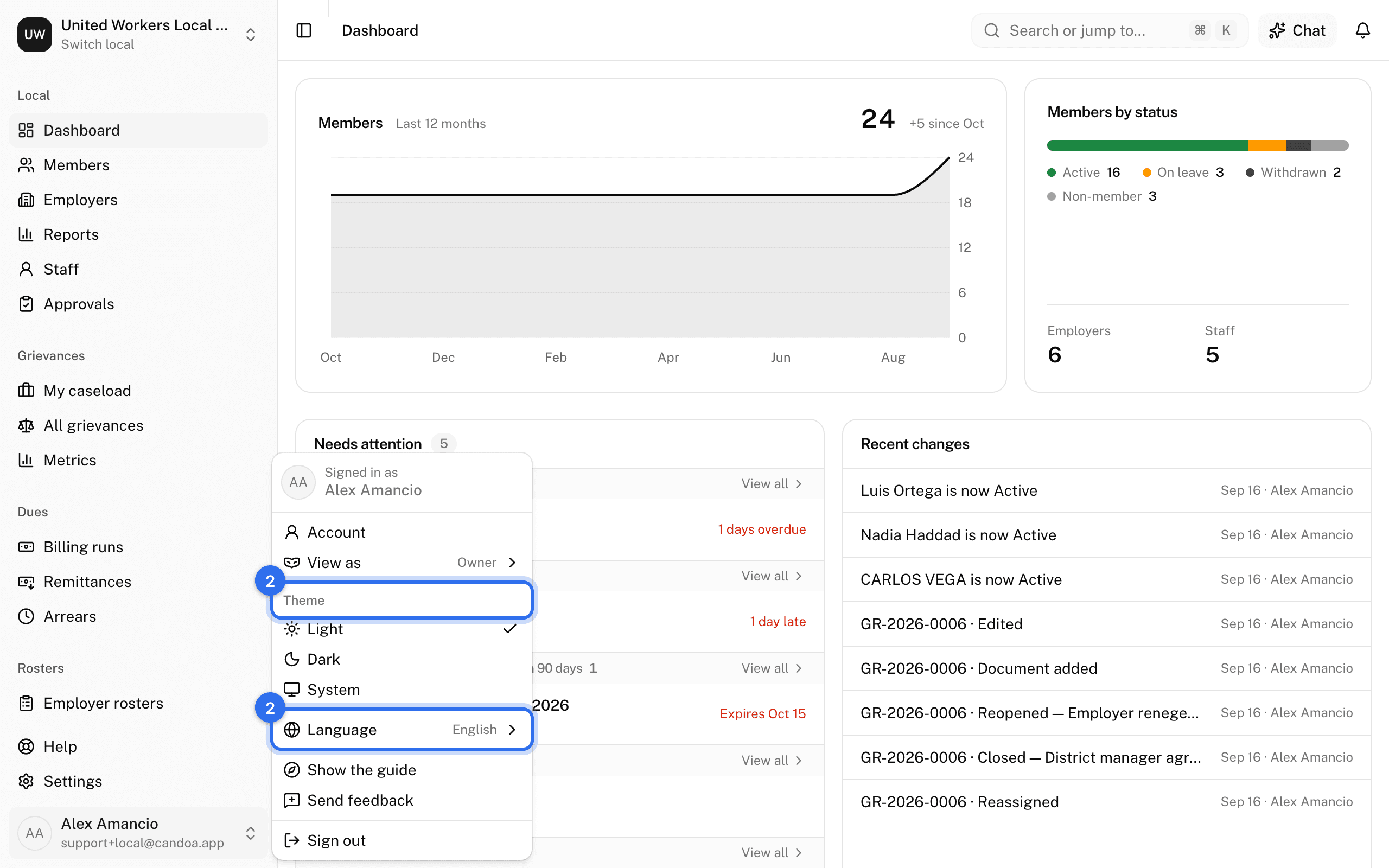
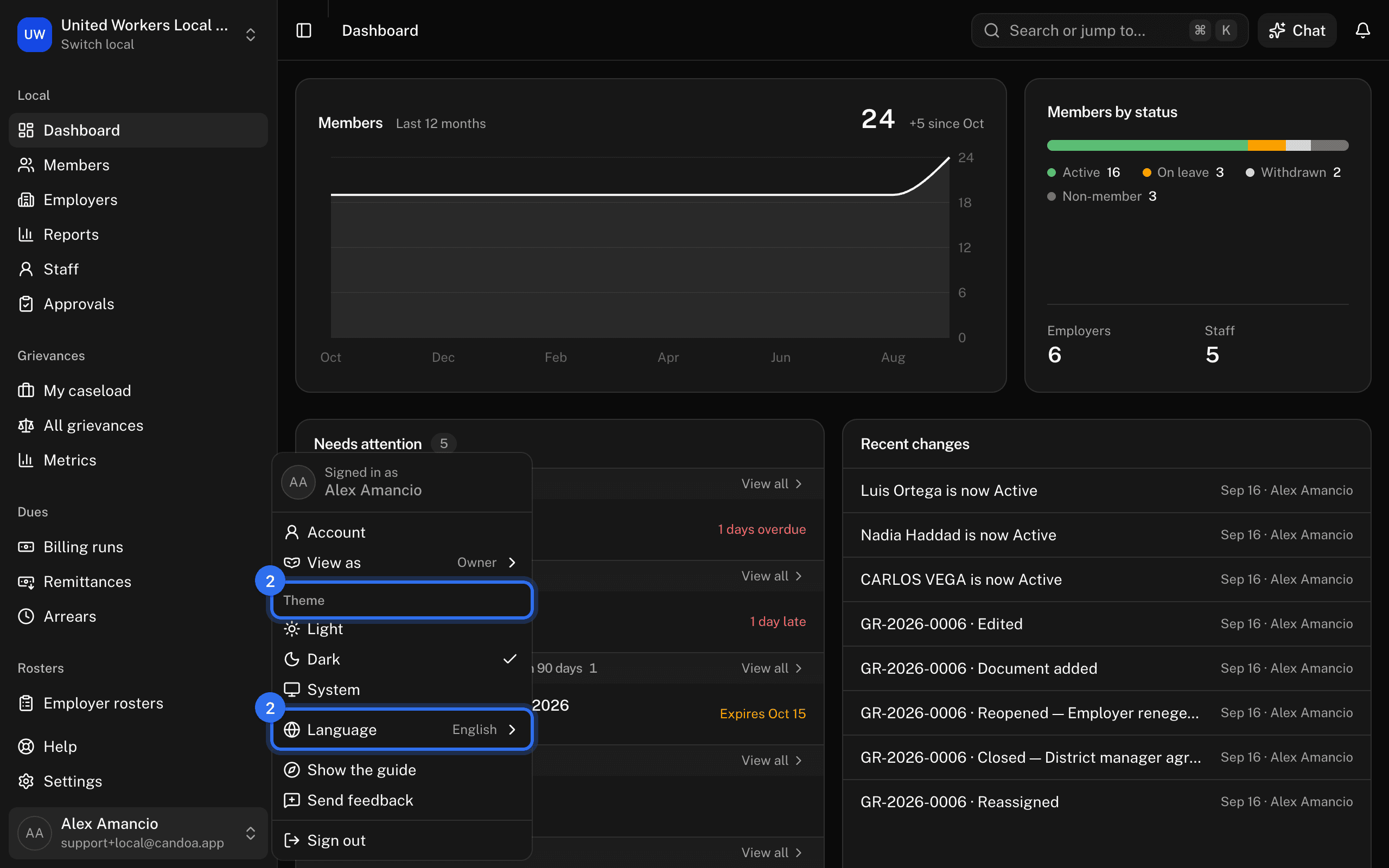
The language choice is remembered on this browser.
Sign out
Click your name at the bottom of the sidebar and choose Sign out. During setup, where there's no sidebar, press your picture or initials at the top right and choose Sign out; the same menu shows who's signed in and which local you're setting up.
These pages are the help for Candoa, the software a local runs its members, employers, and grievances on.
Set up your localUpdated 2026-09-19