Import employers from a spreadsheet
Bring in employers and their worksites, or the managers you deal with at them, from a CSV: choose the file, check the columns, preview, and import.
What an employer spreadsheet is
It's the list of companies your members work for, with their stores, plants, or offices. The file has one row per worksite, and each row repeats its employer's columns (name, number, address). A row with the worksite left blank describes the employer itself, so an employer with no worksites is a single row.
Employers and worksites already in Candoa are updated, never duplicated. Blank cells never erase what's already on file. The whole file goes in together: if the import stops partway, nothing from the file is written.
The same screen also imports your management list, the managers you deal with at each employer; see Import management below. Candoa tells the two kinds of file apart by their headings, so you never pick one.
Staff who can edit employers can import them. Staff limited to certain employers can't; ask an owner or admin.
Open the employer import
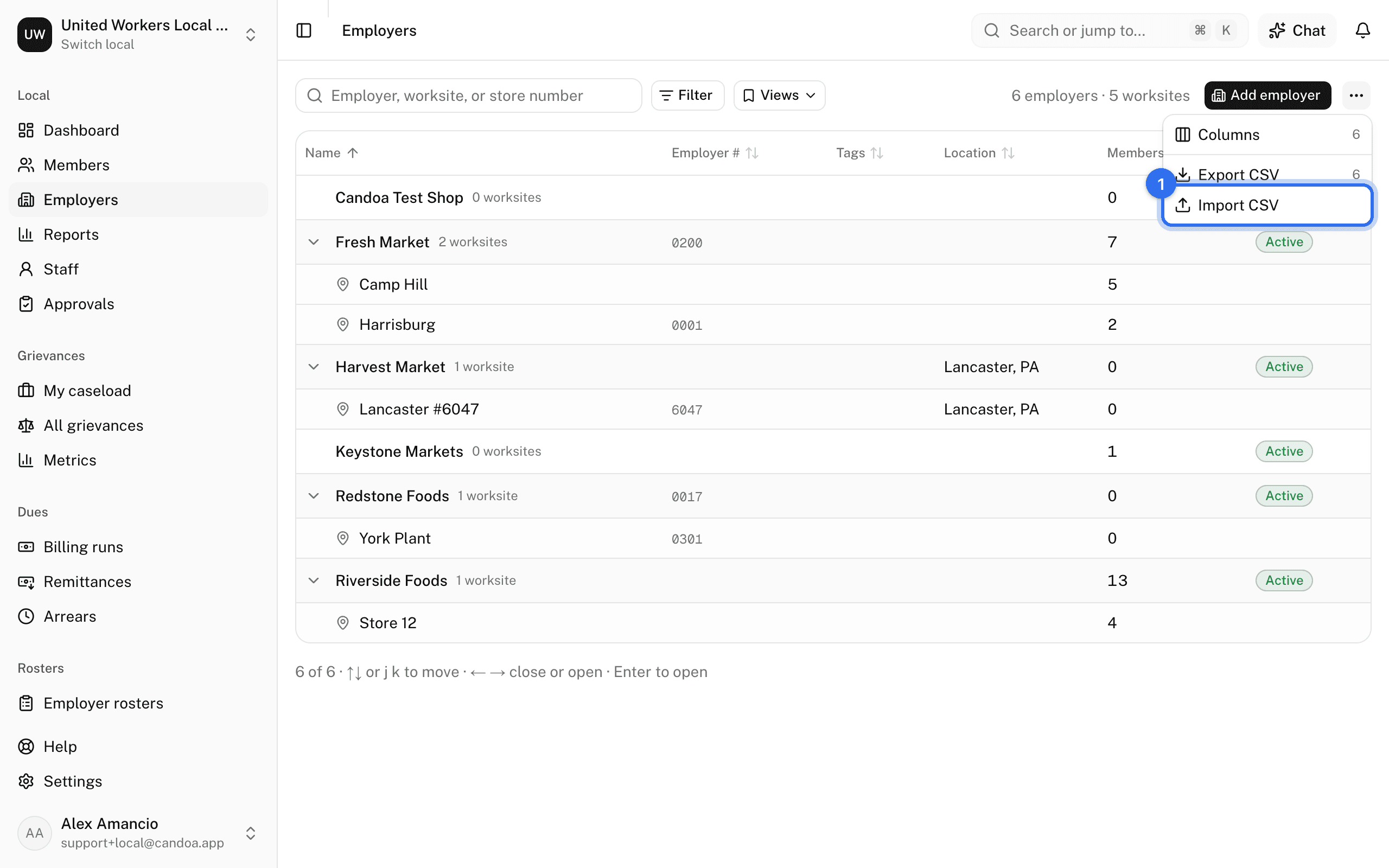
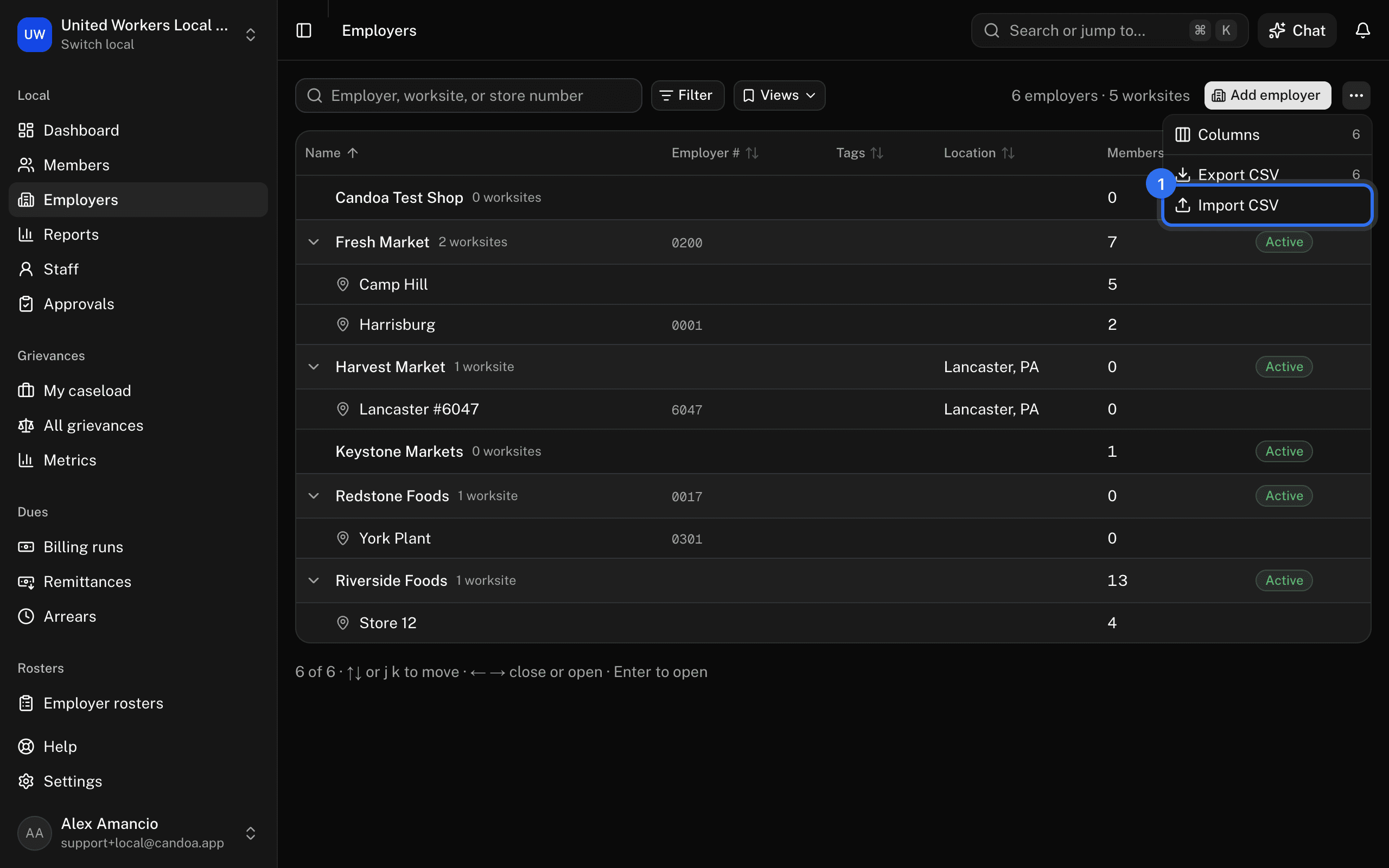
- On the employers list, open the ⋯ menu and choose Import CSV. With no employers yet, press Import CSV beside Add employer.
- Or press i then e anywhere.
- During setup, press Or import them from a spreadsheet on the employers step. Add them one at a time instead goes back to the form.
You can also drop the file into Eli: Eli tells from the headings whether it's employers and worksites or management, and opens this import at step 2 with the file already loaded.
Step 1: Choose a file
Save the spreadsheet as a CSV with a header row, then drag it in or browse for it. A file can be up to 500 KB; split a larger one into several files. If Candoa can't read it, export it from your spreadsheet program as CSV again.


Step 2: Check the columns
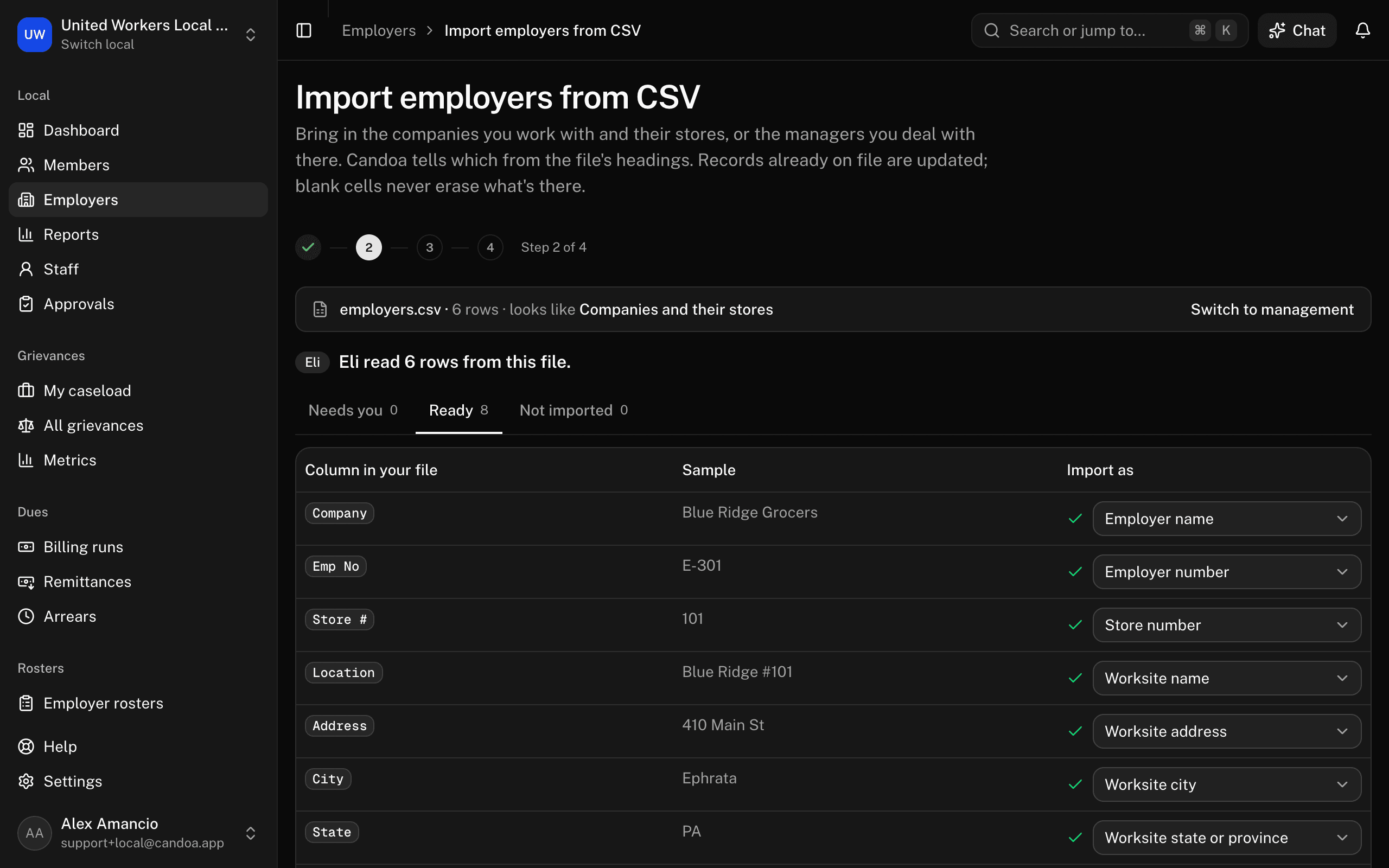
This is the same step as the member import; see Import members from a spreadsheet for the Needs you, Ready, and Not imported tabs and what Eli is sent. At the top, Candoa says what it read the file as, such as looks like Companies and their stores. If that's wrong, press Switch to management. Candoa fills in the headings it knows: "Company" becomes Employer name, "Emp No" becomes Employer number, "Store #" becomes Store number, "Location" becomes Worksite name. The mapping you used last time is remembered.
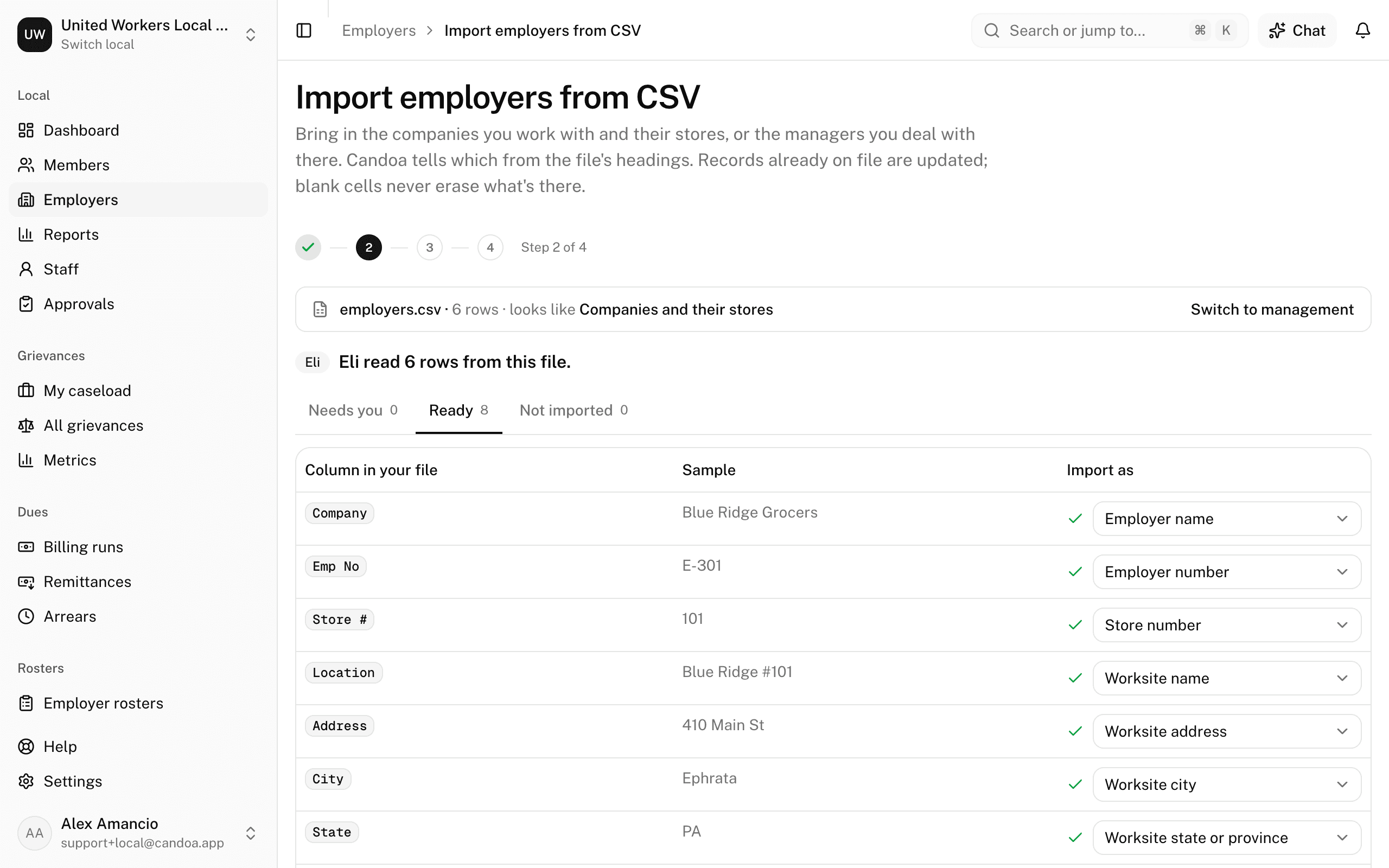
The fields are grouped under Employer, Worksite, and Your employer fields (your local's own employer fields). A plain "Phone", "Address", "City", or "Zip" column goes to the worksite when the file has a worksite column, and to the employer when it doesn't. A column named for the employer, such as "Company phone" or "Corporate address", goes to the employer. Change any column in its box.
Employer name must be matched to continue. Press Continue.
Step 3: Preview
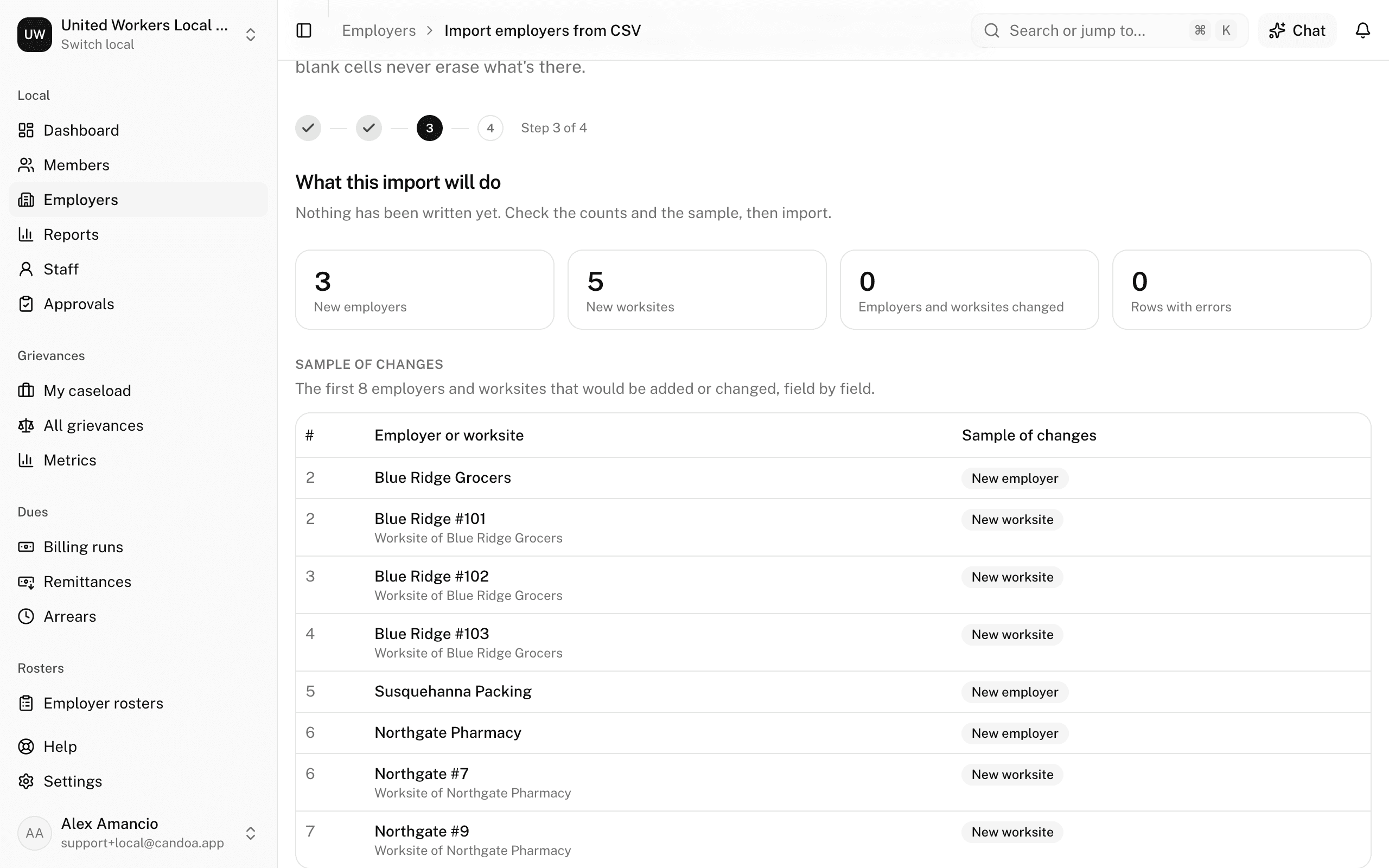
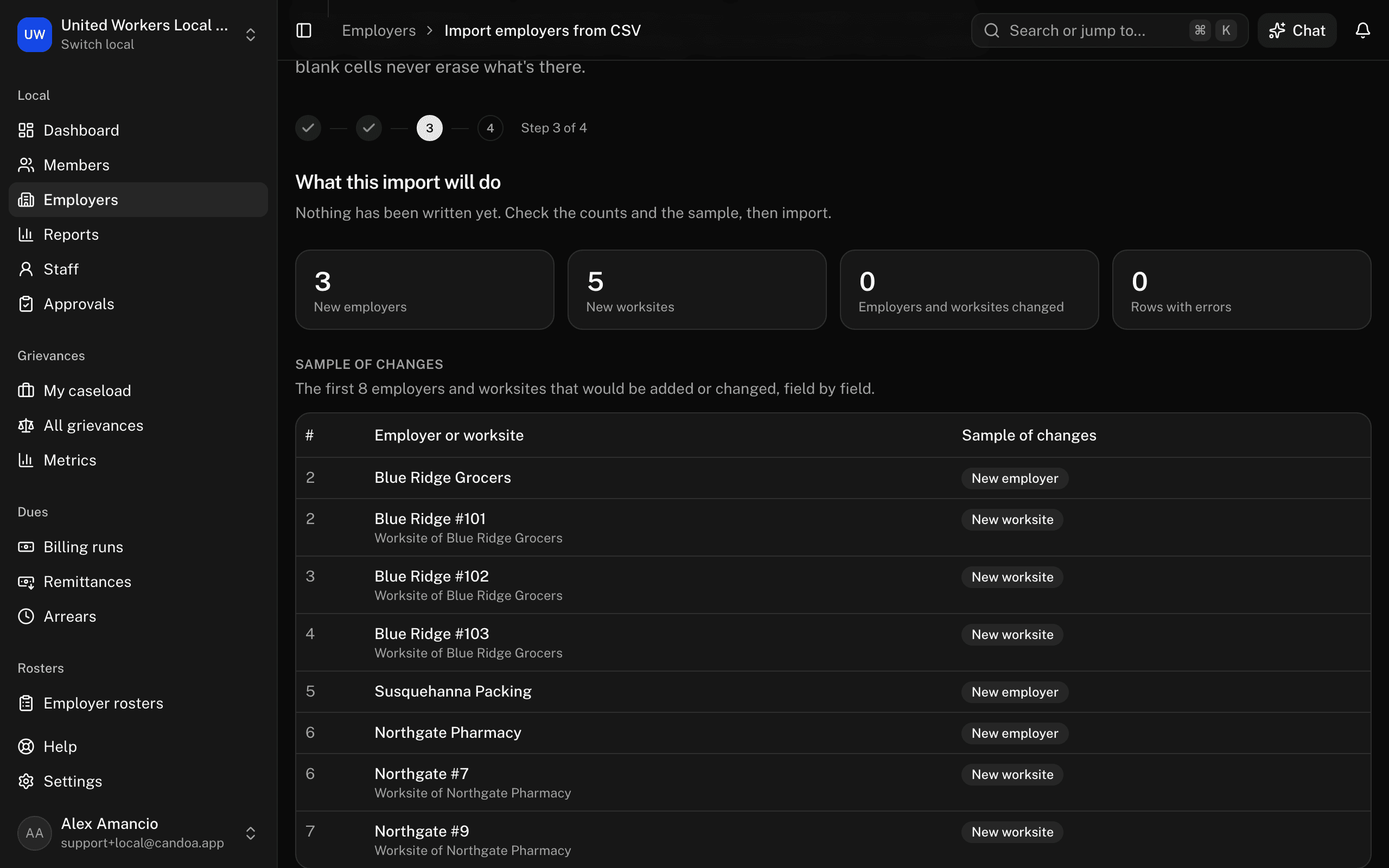
Nothing has been written yet. You'll see how many New employers, New worksites, and Employers and worksites changed the file makes, how many Rows with errors would be skipped, and how many employers and worksites already match what's on file. A sample shows the changes field by field.
Rows with errors are listed with the row number as it appears in your spreadsheet. Common ones:
- A later row says something different about an employer than an earlier row did, such as another industry.
- A store number or worksite appears twice under the same employer.
- The industry isn't on your list yet. Add it under Settings › Employers first.
- The employer in Part of isn't in the file or already in Candoa, or would put an employer under itself.
- A tag doesn't exist yet and you can't add tags.
When an employer's row can't be imported, every row for that employer is skipped with it. Fix the file and choose it again, or import the good rows now. Press Import N rows.
Step 4: Results
Counts of employers and worksites added, changed, unchanged, and rows skipped. View this import opens the run record (for staff who can import members); View employers goes to the list.
How rows are matched and read
- Employers are matched by Employer number, then by name, ignoring capitals. An employer the member import created from a name is updated in place, and keeps the spelling already on file.
- Worksites are matched under their employer by Store number, then by name.
- Industry must be one on your list. Part of takes the name or number of another employer in the file or already in Candoa.
- Active accepts yes, no, active, inactive, open, and closed. On a worksite's row it's the worksite's; on an employer's own row, the employer's.
- Last day closes the worksite. The people working there keep their employment; to end or move it, close the worksite from its page instead. A closed worksite marked active again reopens and loses its last day.
- Opened and Last day accept the same date formats as the member import.
- Tags are added, never removed. A tag that doesn't exist yet is created if you can manage settings; otherwise the employer's rows are skipped.
- Every employer and worksite the import adds or changes shows it in its history, and in the activity feed as updated by import.
Past imports
Employer imports are listed under Members › Import history beside the member imports, with the file, the column mapping, the counts, and the first errors. See Import members from a spreadsheet.
Import management
Your list of store managers, HR directors, and labor relations people can come in the same way, once the employers they work at are in Candoa. The file has one row per person. These are the company's people, not your members or your staff.
- Open the employer import as above and choose the file. A file with a column for a person's name or title reads as management, and the columns step says looks like Management. If Candoa read it as companies and stores instead, press Switch to management.
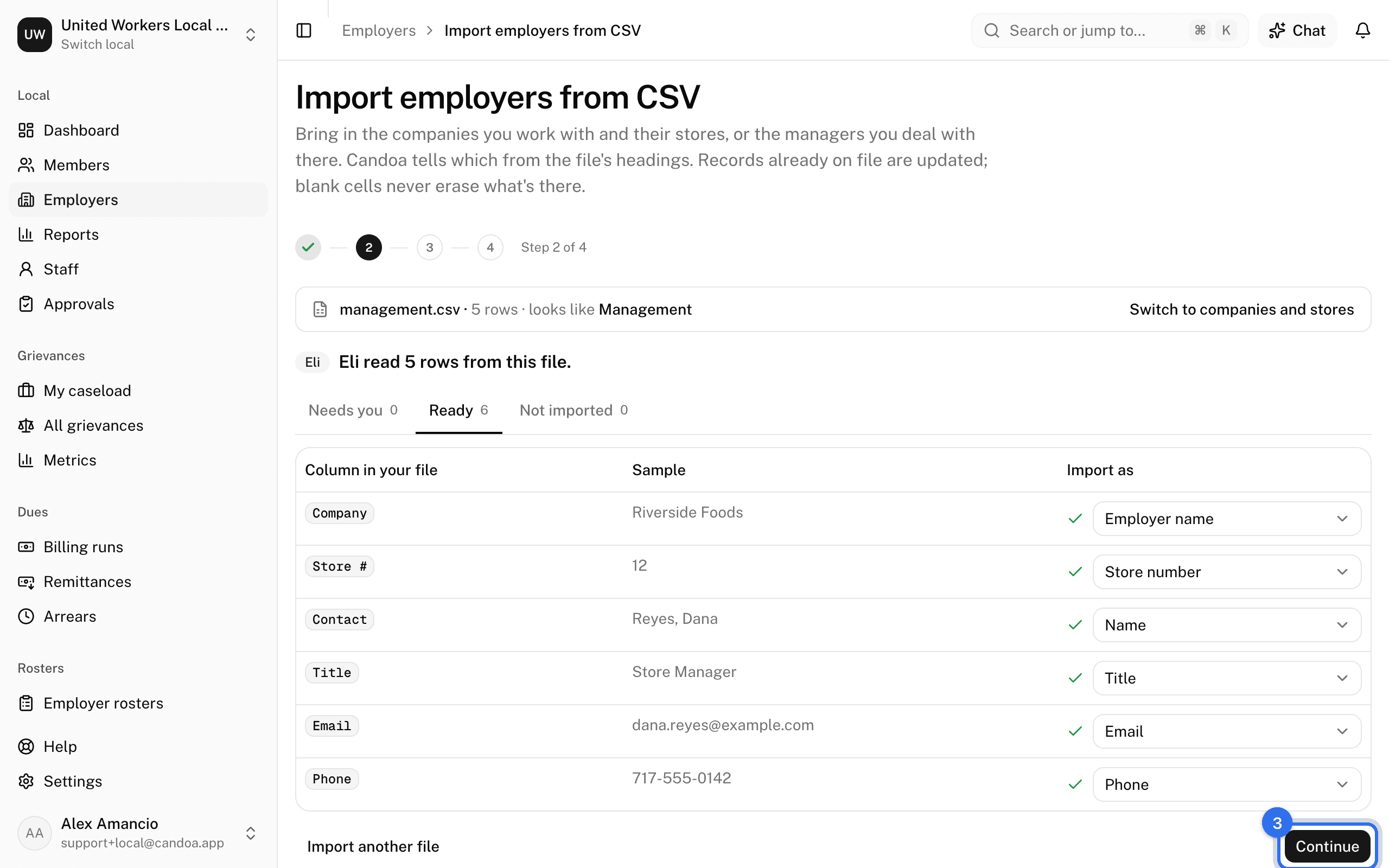
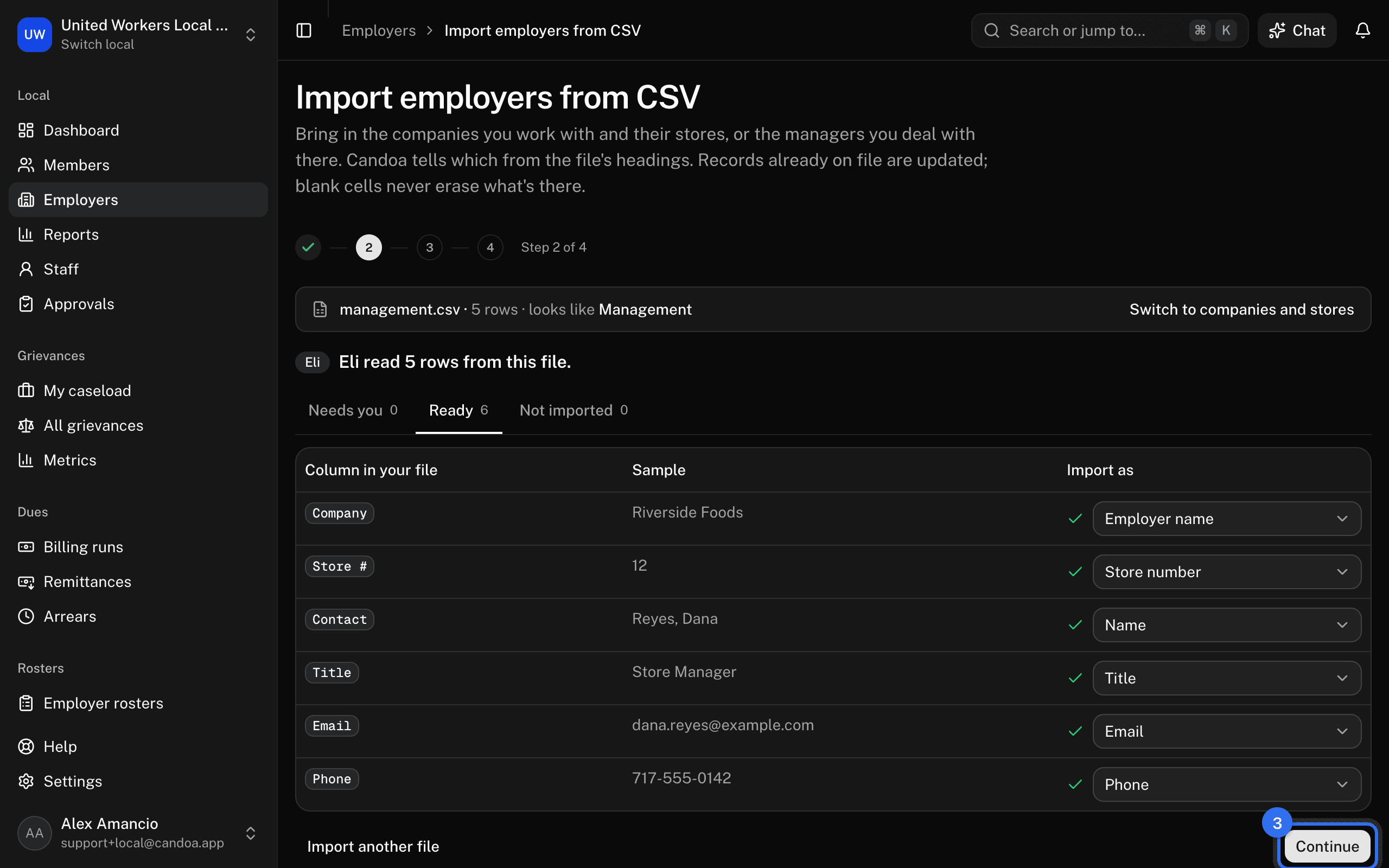
- Check the columns. The fields are grouped under Manager, Employer, and Worksite. Candoa fills in the headings it knows: "Contact", "Mgr", or "HR Rep" becomes Name, "Title" becomes Title, "Company" becomes Employer name, "Store #" becomes Store number. A Name column is split into first and last name ("Reyes, Dana" and "Dana Reyes" both work); separate First name and Last name columns work too.
- The manager's name and their employer (Employer name or Employer number) must be matched to continue. Press Continue.
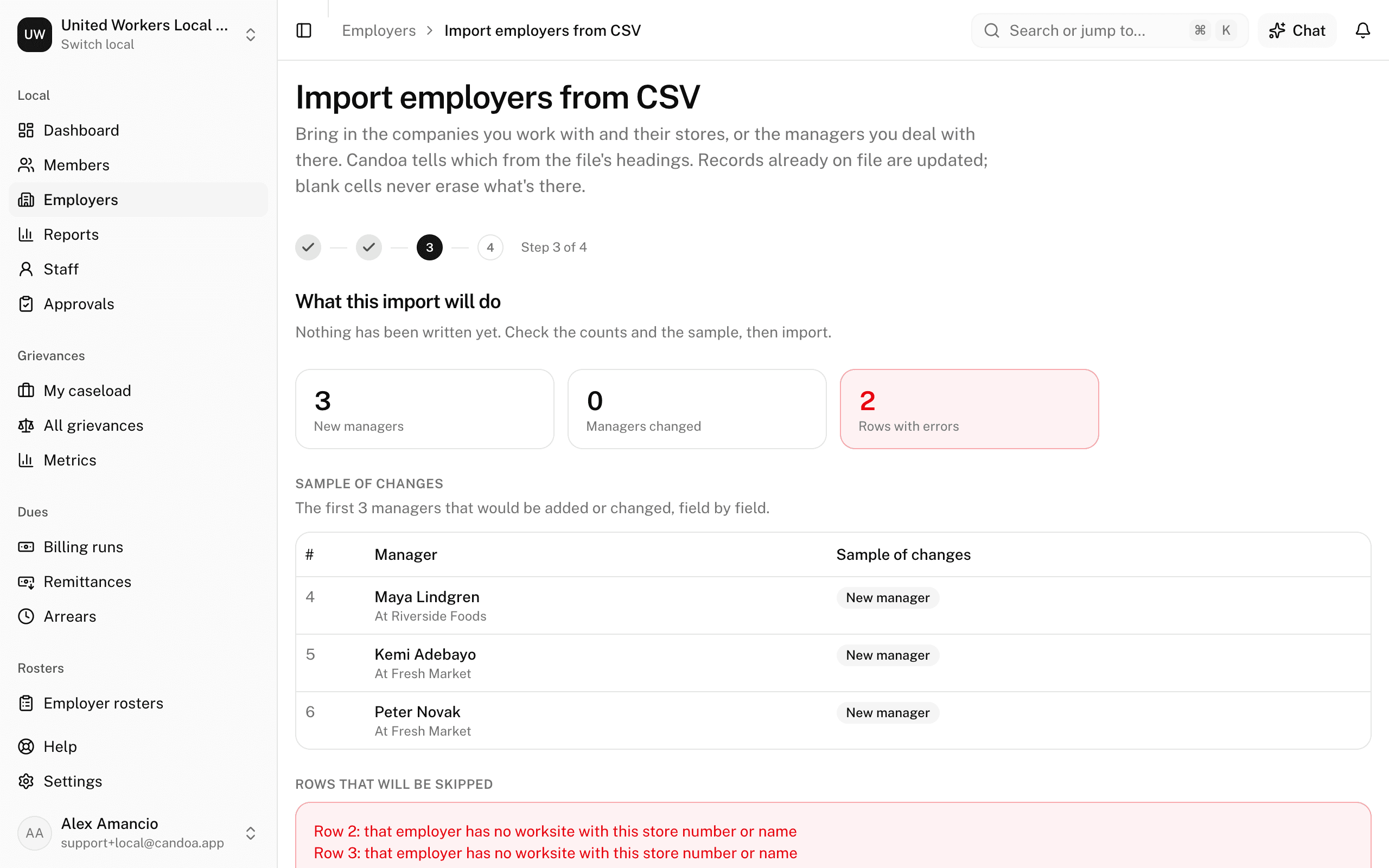
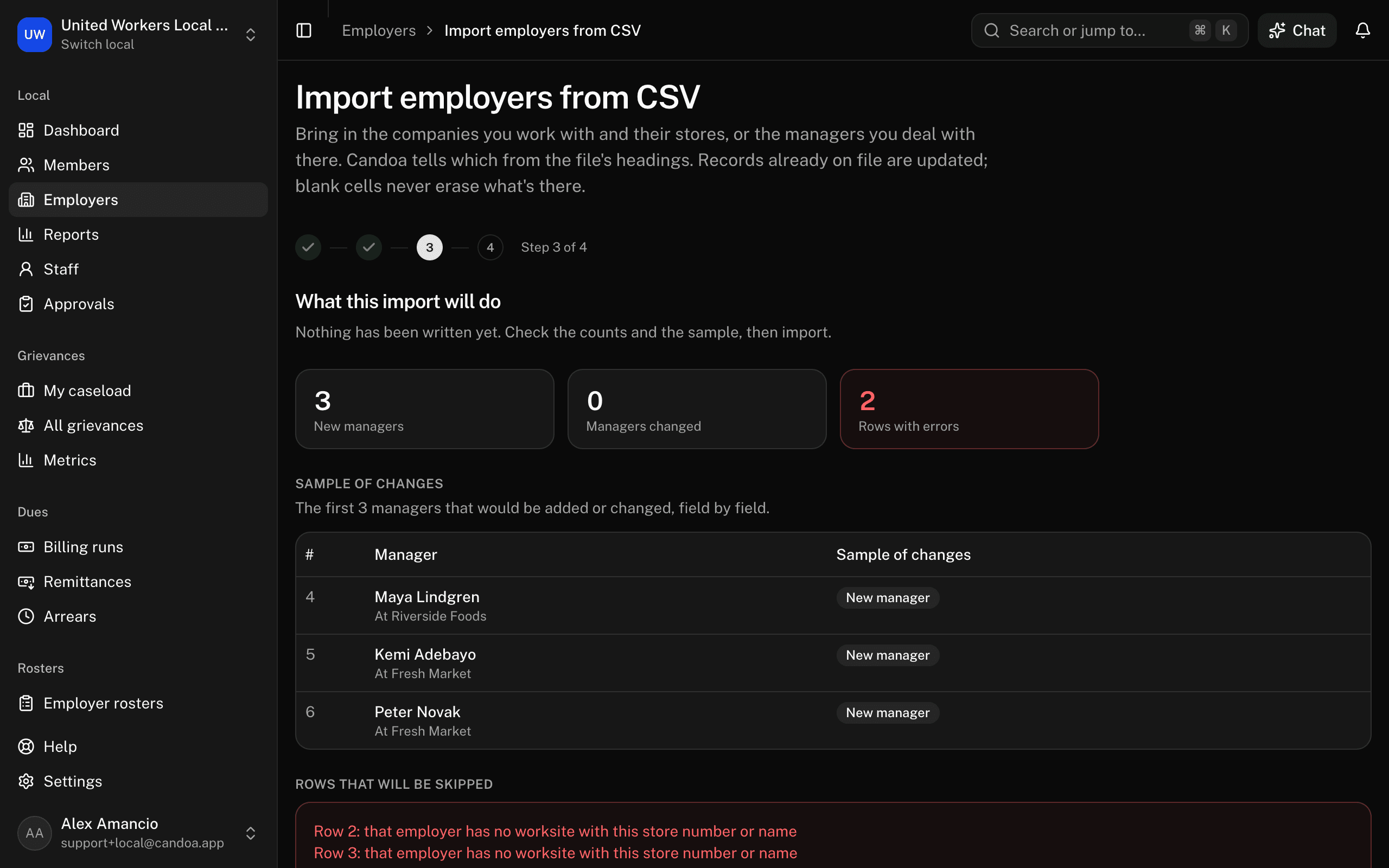
- The preview shows New managers, Managers changed, and Rows with errors, with a sample of the changes. Press Import N rows.
How management rows are read:
- The employer is found by Employer number, then by name. The worksite, when the file has one, is found under that employer by Store number, then by name. A manager never adds an employer or a worksite: a row whose employer or worksite isn't in Candoa is skipped, so a typo can't create a second employer.
- A manager already on file is matched under the same employer by email, then by first and last name. Two people with the same name but different emails are kept apart. If two managers at one employer already share a name, add an email column so Candoa can tell which one a row means.
- Blank cells never erase what's on file. A manager in no worksite column stays where they are.
- Still in this role accepts yes, no, active, and inactive. A manager marked no stays listed for the record.
- A row is skipped when it has no first and last name, names no employer, names an employer or worksite that isn't on file, repeats a manager already in the file, or has an email that isn't one.
- Once imported, they're listed on each employer's Contacts tab under Management.
Management imports are listed under Members › Import history too.
These pages are the help for Candoa, the software a local runs its members, employers, and grievances on.
Set up your localUpdated 2026-09-15