Your local's profile
Change the local's name, logo, office details, address, and time zone; see the current officers; find each settings section.
Open Settings
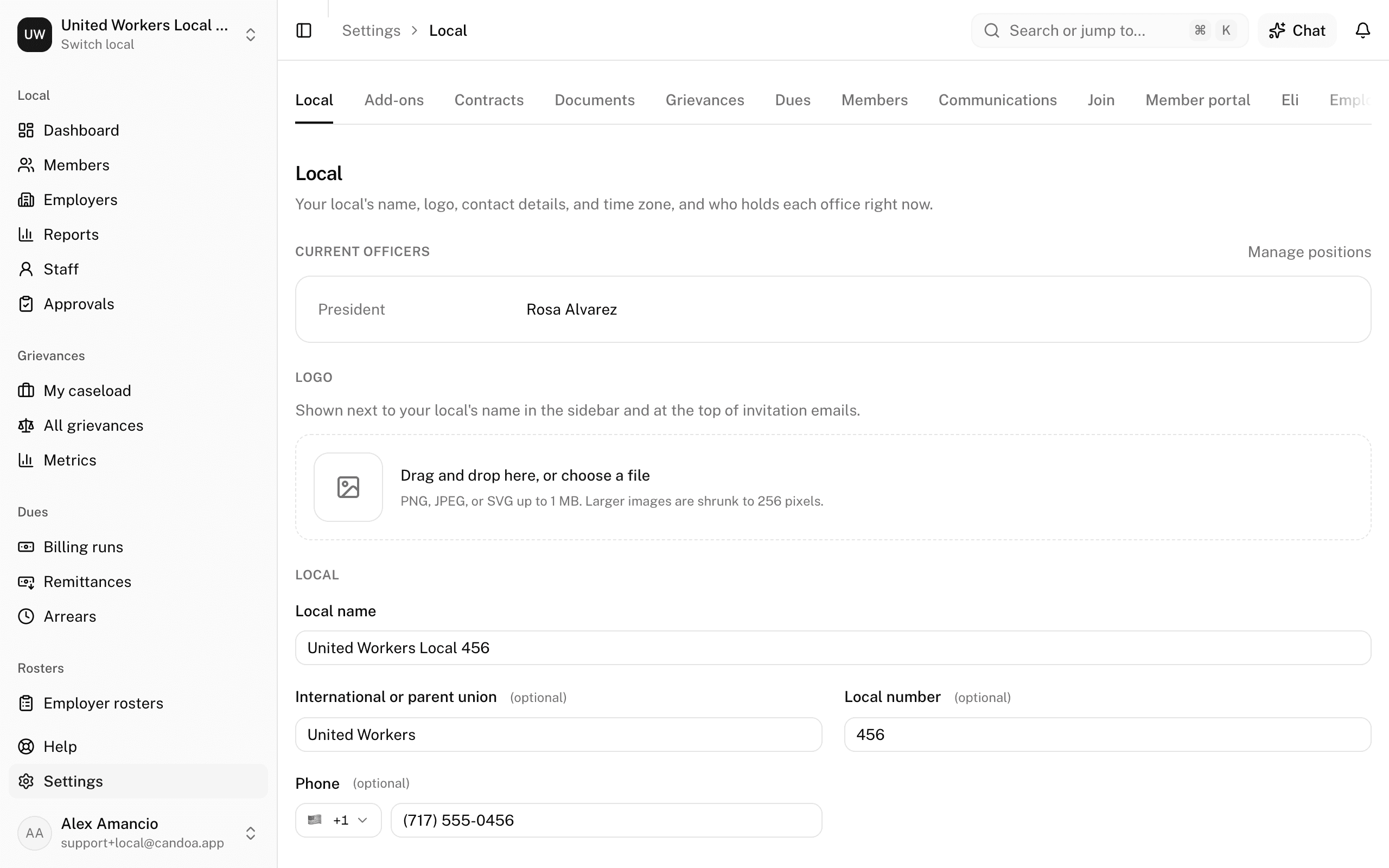
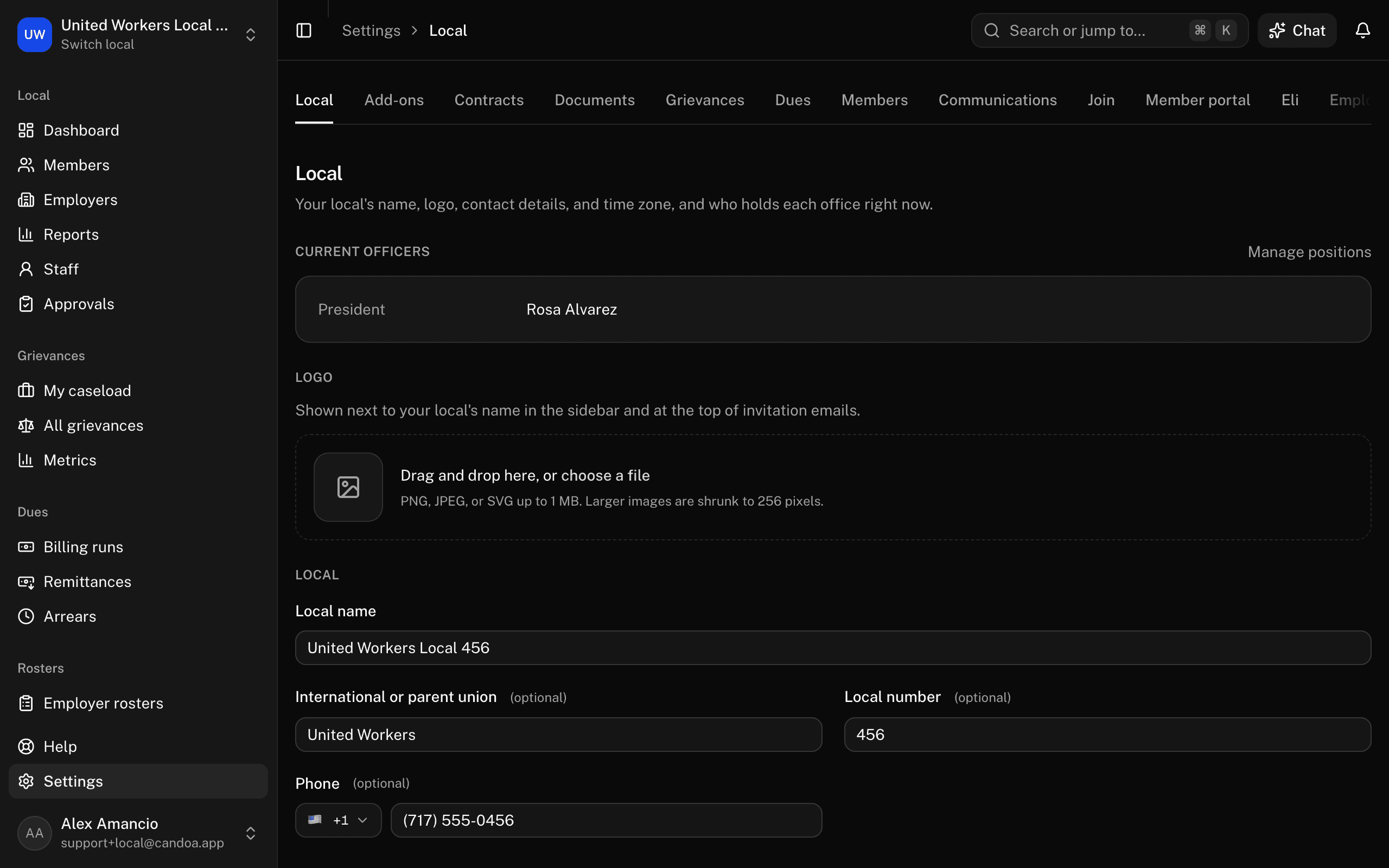
Click Settings at the bottom of the sidebar, or press g then ,. The first section, Local, is how your local appears in Candoa. Owners and admins can change it; other staff who can reach Settings see it read-only.
Upload or change the logo
- Under Logo, drop a file in or press choose a file. PNG, JPEG, or SVG up to 1 MB; larger images are shrunk.
- It saves at once. Press Remove to take it off.


The logo shows next to your local's name in the sidebar and at the top of invitation emails.
Change the local's name, contact details, or address
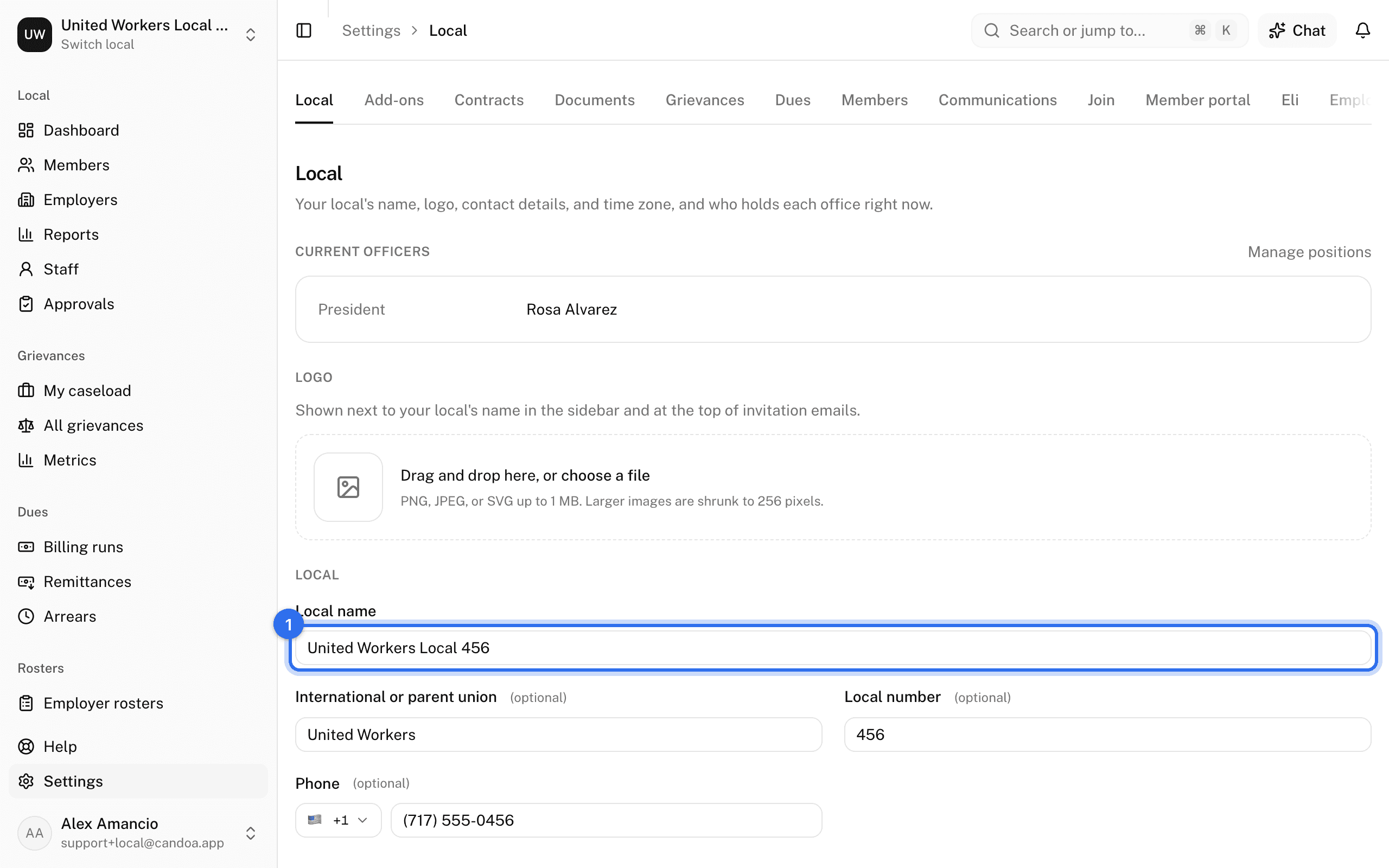
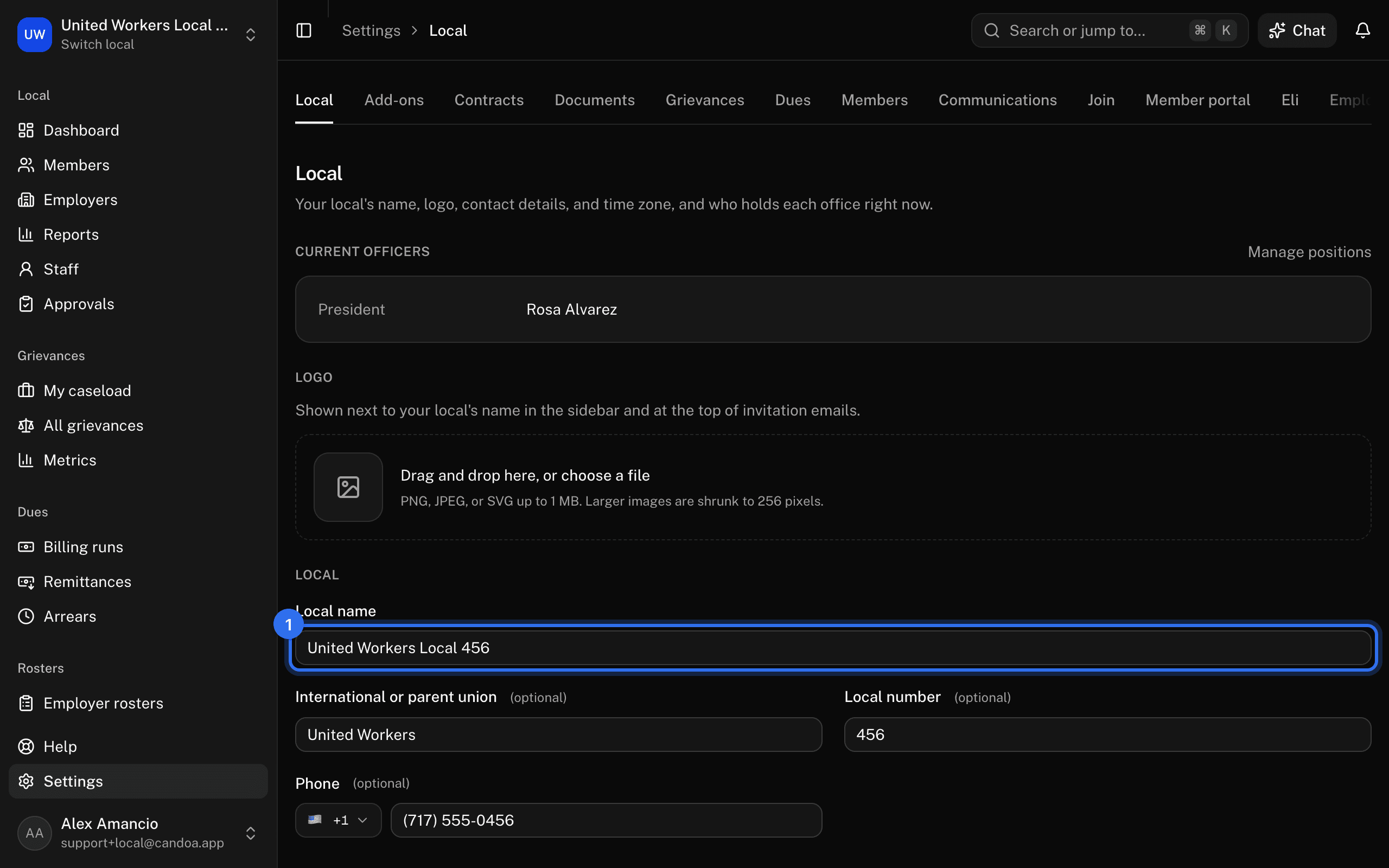
- Under the profile form, change the Local name (required), International or parent union, Local number, Phone, Office email, Website, or the office address. Start typing an address and pick from the suggestions.
The Country here offers the United States and Canada, the two countries Candoa serves. It decides the money the local is billed in, whether State or Province is asked for, and which register the carriers check if the local texts members. A member, an employer, or a worksite can still have an address anywhere, so a member who retires abroad keeps their record. 2. Press Save.
Emails to members reply to the office email.
Set the time zone
- In the same form, pick the Time zone: Eastern, Central, Mountain, Arizona, Pacific, Alaska, Hawaii, or Puerto Rico.
- Press Save.
This decides what "today" means for deadlines, status dates, and the daily emails.
See the current officers
At the top of the Local section, Current officers lists who holds each active position. Press Manage positions to change them; see Positions.
Find a settings section
The tabs across the top of Settings depend on your permission:
- Local and Add-ons: everyone who can open Settings.
- Billing: the owner. See Add-ons and billing.
- Contracts: owners and admins. See Contracts.
- Grievances: owners and admins, when the add-on is on. See Grievance settings.
- Join: owners and admins, when the add-on is on. See Join settings.
- Members, Eli, Employers, Tags, Fields, Positions, Permissions: owners and admins. For Eli, see Ask Eli.
These pages are the help for Candoa, the software a local runs its members, employers, and grievances on.
Set up your localUpdated 2026-09-19