Create an account
Create your own Candoa account, from an invitation or on your own, and get the confirmation email again.
Your account is yours, not the local's. After you create it, you either set up a new local or accept an invitation to join one.
Create an account
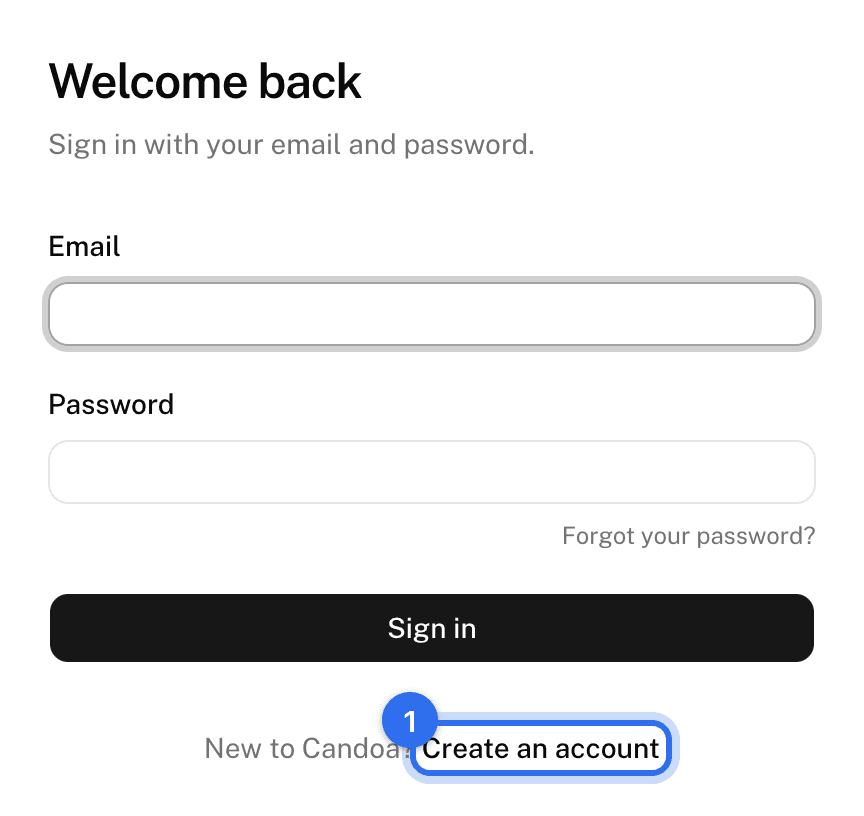
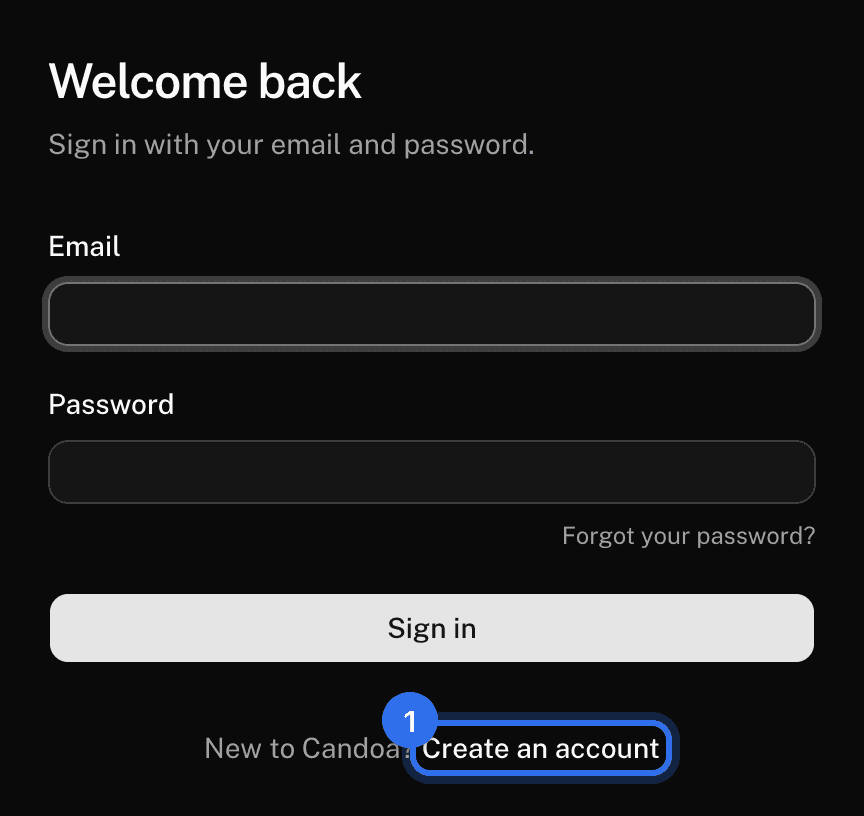
- On the sign-in screen press Create an account.
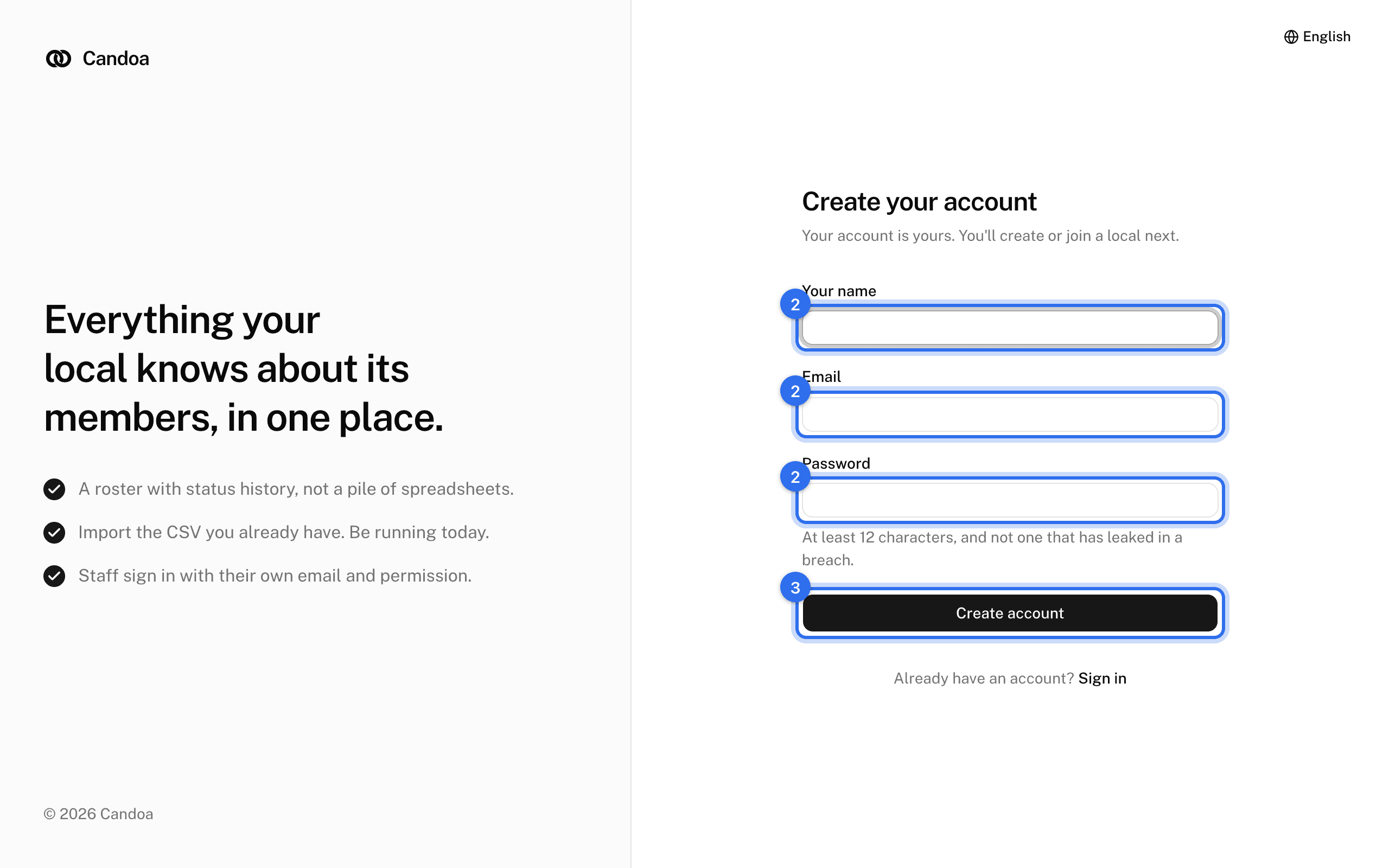
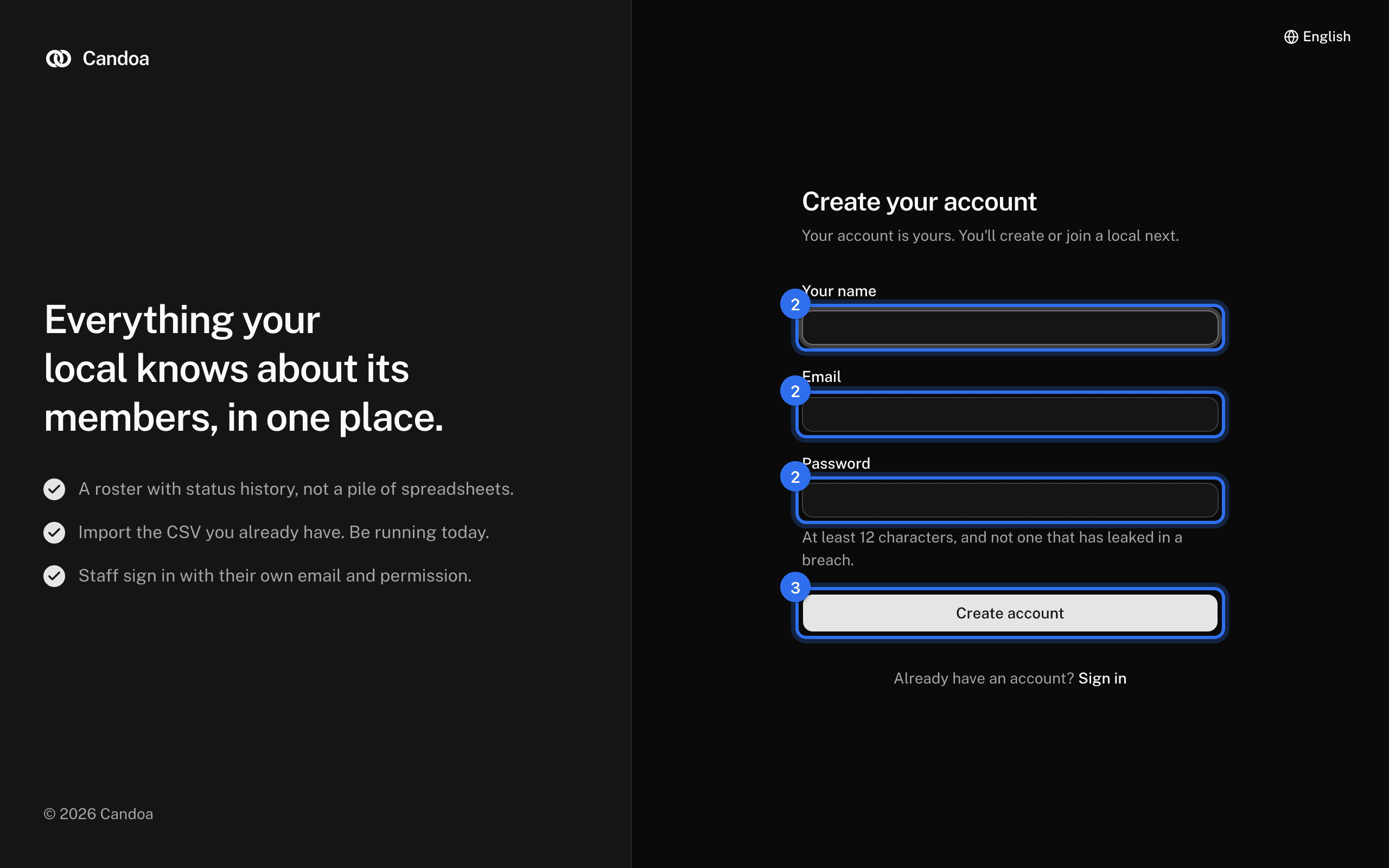
- Enter Your name, Email, and a Password: at least 12 characters, and not one that has appeared in a known data breach.
- Press Create account.
- Open the email titled "Confirm your Candoa email" and click Confirm email. That signs you in and takes you to the next step.
"We couldn't create the account. That email may already be in use." means an account with that email exists. Sign in instead, or use Forgot your password?
Create an account from an invitation
- Click Accept invitation in the invitation email.
- Press Create an account. The email is filled in and can't be changed; using a different one would create an account the invitation doesn't recognize.
- Enter your name and a password and press Create account.
- Confirm your email from the message you receive. The invitation is accepted for you.
Get the confirmation email again
The link lasts one hour. On the screen that says "Check your email", press Send the link again. If the address was mistyped, create the account again with the right one.
These pages are the help for Candoa, the software a local runs its members, employers, and grievances on.
Set up your localUpdated 2026-09-15