Join settings
Decide whether staff joins become members at once, how long personal links last, the words around the form, which fields each kind of join asks, and the consents members sign.
Open Settings › Join. Owners and admins. The tab is there while your local has the Join add-on. How people sign up is in Signing up members.
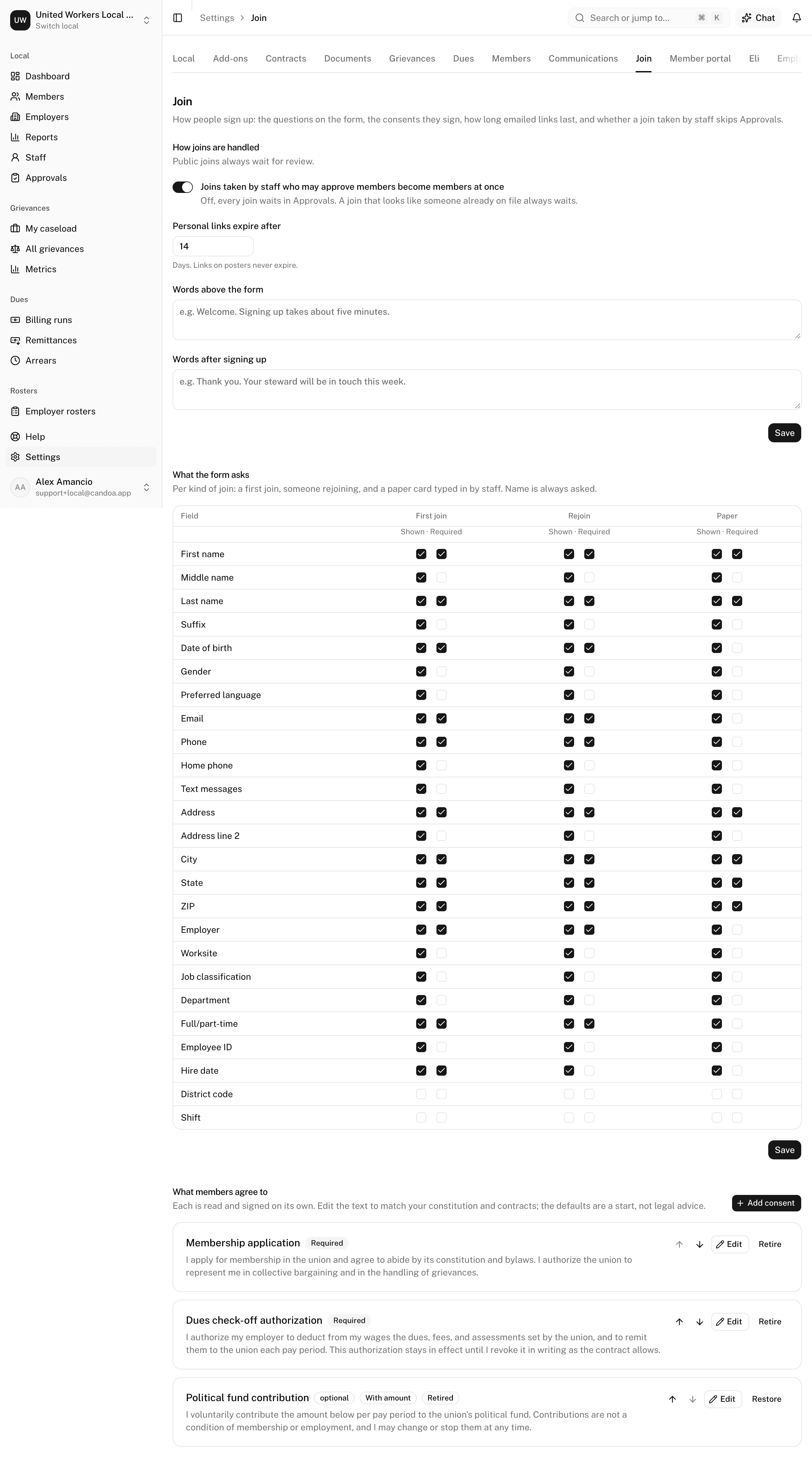
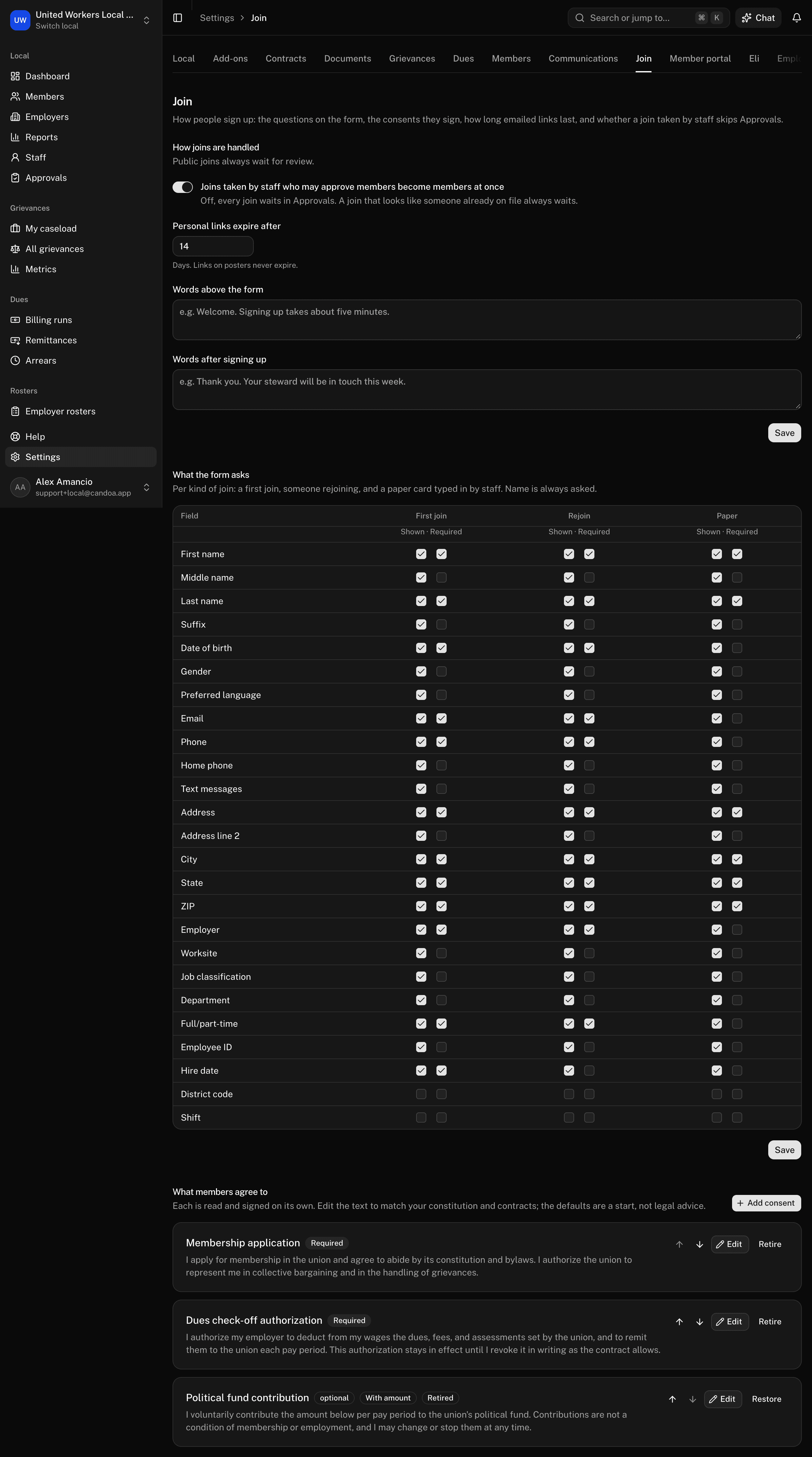
Decide whether staff joins become members at once
Under How joins are handled, tick or untick Joins taken by staff who may approve members become members at once and press Save. On by default. Off, every join waits in Approvals. Public joins always wait, and a join that looks like someone already on file always waits.
Set how long an emailed link lasts
Under Personal links expire after, enter the days, 1 to 365, and press Save. Default 14. Links on posters never expire.
Change the words around the form
Fill in Words above the form and Words after signing up and press Save. Up to a couple of paragraphs each.
Choose what the form asks
Under What the form asks, each row is a field and each column a kind of join: First join, Rejoin, and Paper. Tick Shown and Required as you want, then press Save. First and last name are always asked and always required.
Show documents on the join form
The bylaws, a contract summary, or the dues schedule can appear on the form under Read before you sign, above the consents, so people can read what they are joining. Which documents show is set in the library, not here: open Settings › Documents and pick Show on the join form on the document's menu. A whole-local document shows on every form; one that belongs to an employer or a worksite shows only on that place's link and poster. See Documents.
Edit what members sign
Under What members agree to, a new local starts with Membership application, Dues check-off authorization, and Political fund contribution. Edit the text to match your constitution and contracts; the defaults are a start, not legal advice.
- Press Edit on a consent, or Add consent.
- Set the Title and the Text, and tick Required to join and Asks for an amount per pay period with a Suggested amount as needed.
- With the Dues add-on on, a consent that asks for an amount can also say what it Signs them up for: pick one of your voluntary assessments, and accepting the application signs the member up for it at the amount they gave, so a political fund card is not typed in twice. Leave it on Nothing to record the signature only.
- Press Save.
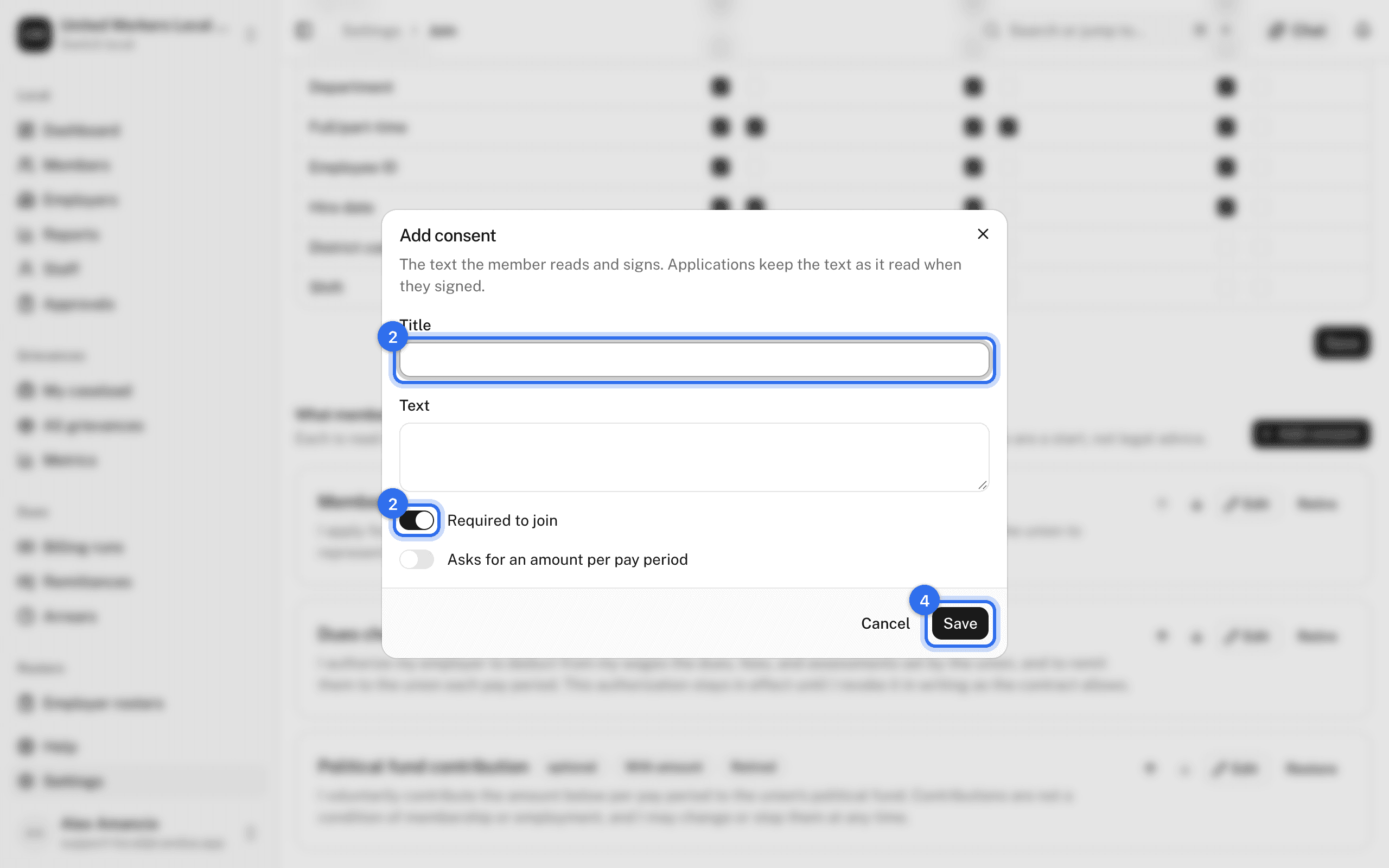
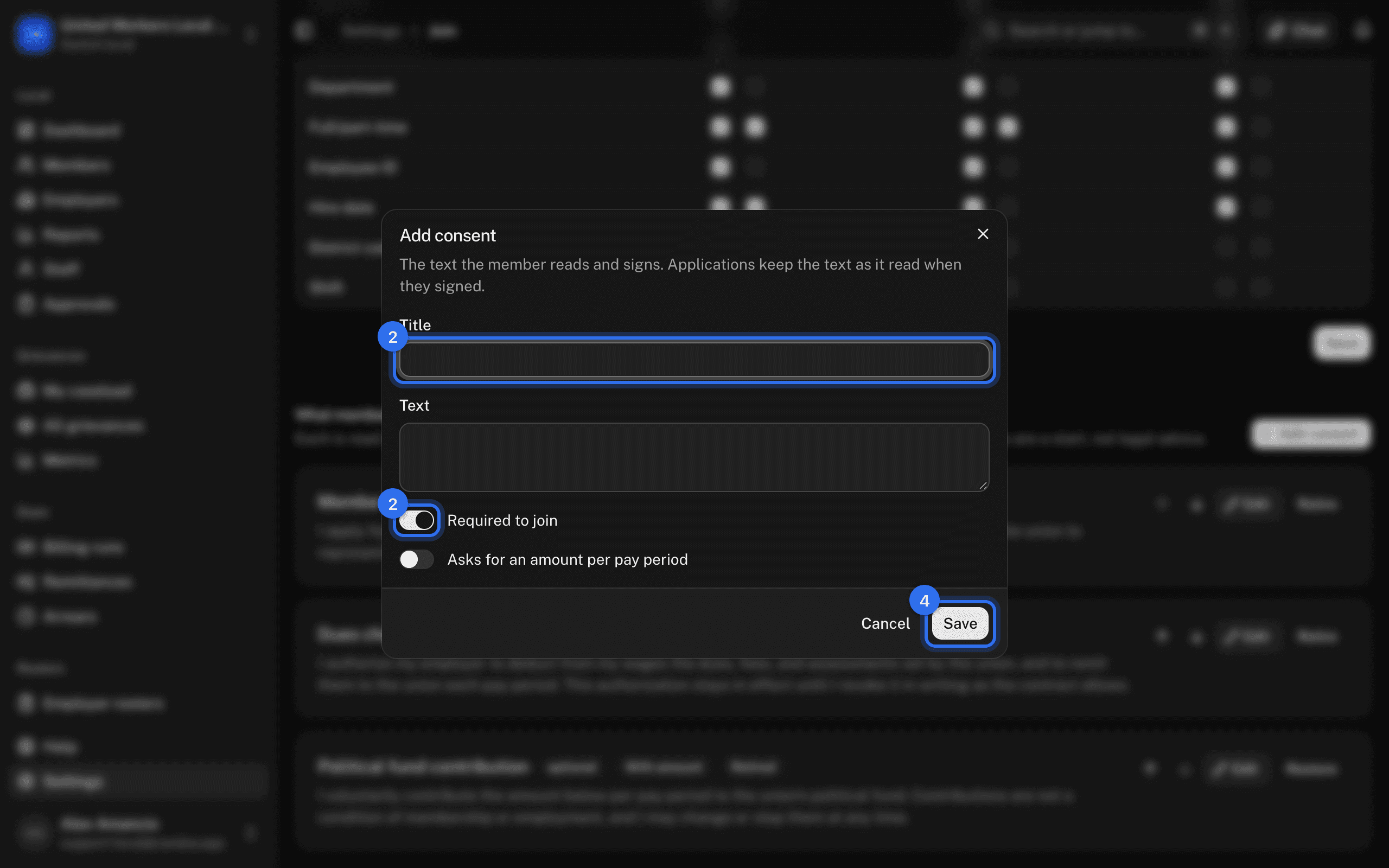
Use Move up and Move down to order them, and Retire to stop asking one. Applications keep the text as it read when the member signed.
These pages are the help for Candoa, the software a local runs its members, employers, and grievances on.
Set up your localUpdated 2026-09-15