Worksites
Edit a worksite, close one and decide what happens to the people there, reopen it, or remove it, and find its contacts, notes, documents, and history by tab.
What a worksite is
A worksite is one place where members work: a store, a plant, a warehouse, a clinic, an office. It belongs to exactly one employer. Contracts often treat each worksite as its own unit for scheduling and stewards, which is why Candoa keeps them as separate records with their own store number, address, and contacts rather than as a text field on the member.
A member's job points at a worksite, so the roster can answer "who works at Store 12" and, with the Join add-on, a join poster can be made for one store.
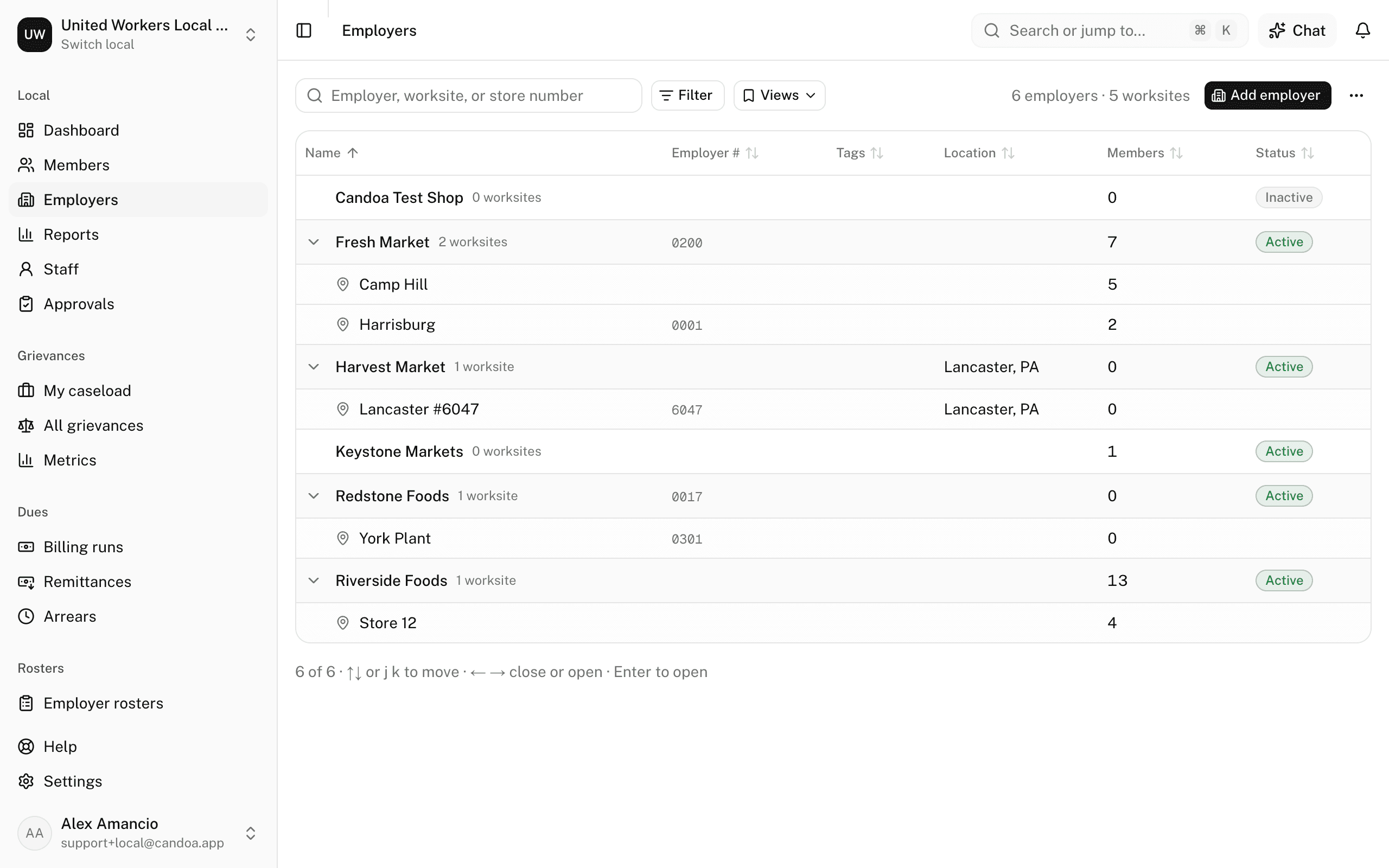
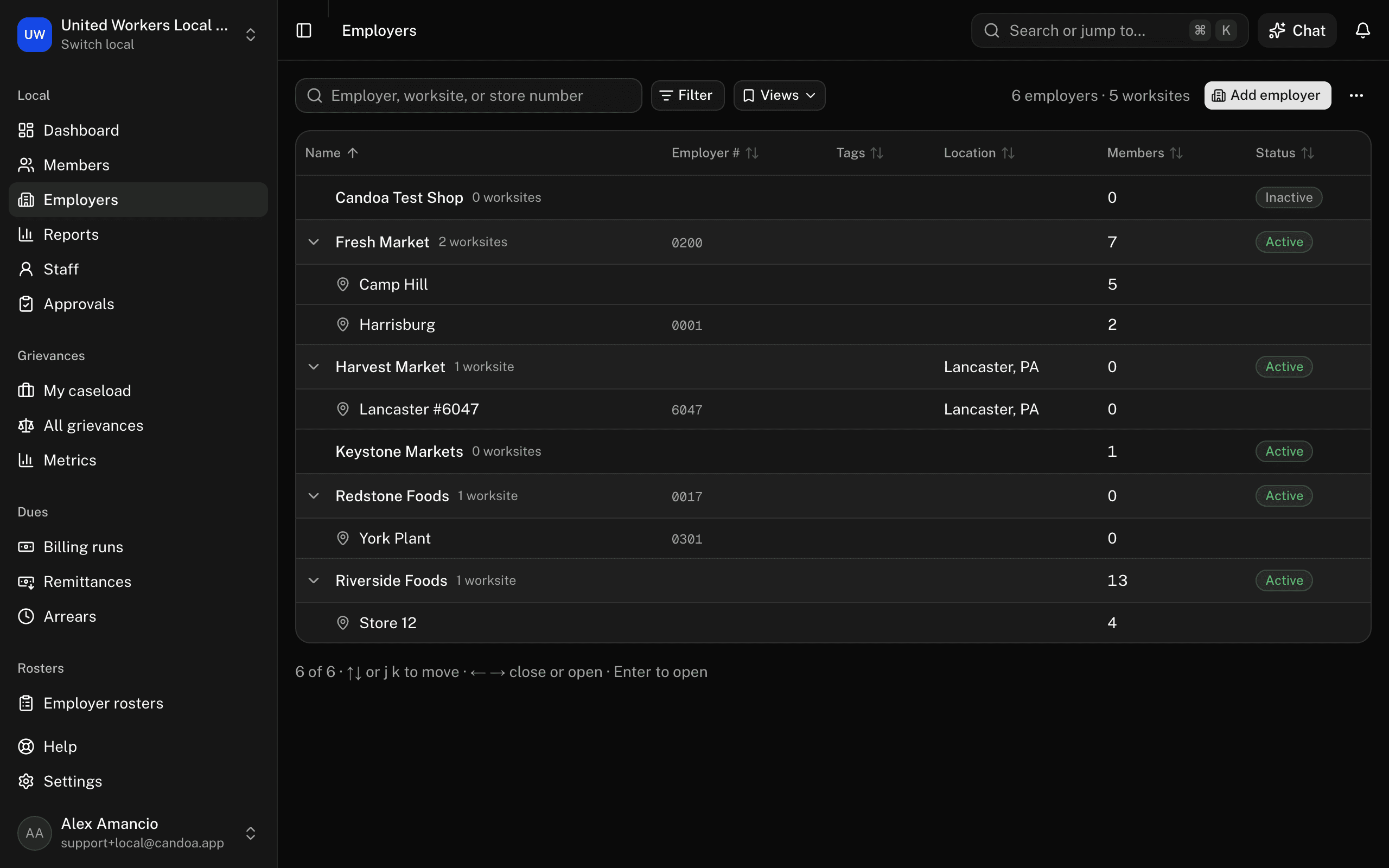
Open a worksite
Click it on the employer's page or on the employers list. Everyone can read a worksite; agents and admins edit; stewards and treasurers propose changes for an approver.
Which tab has what
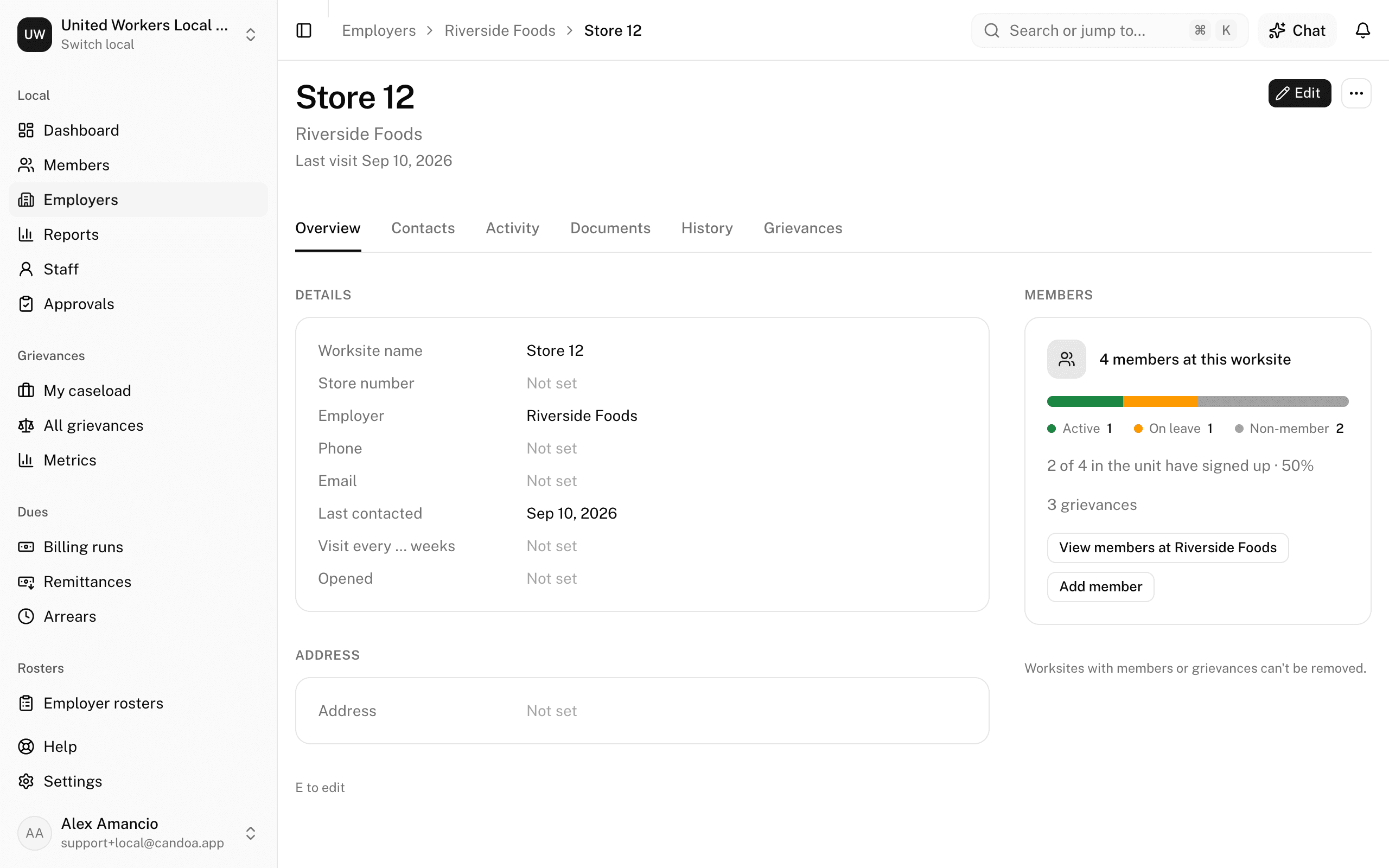
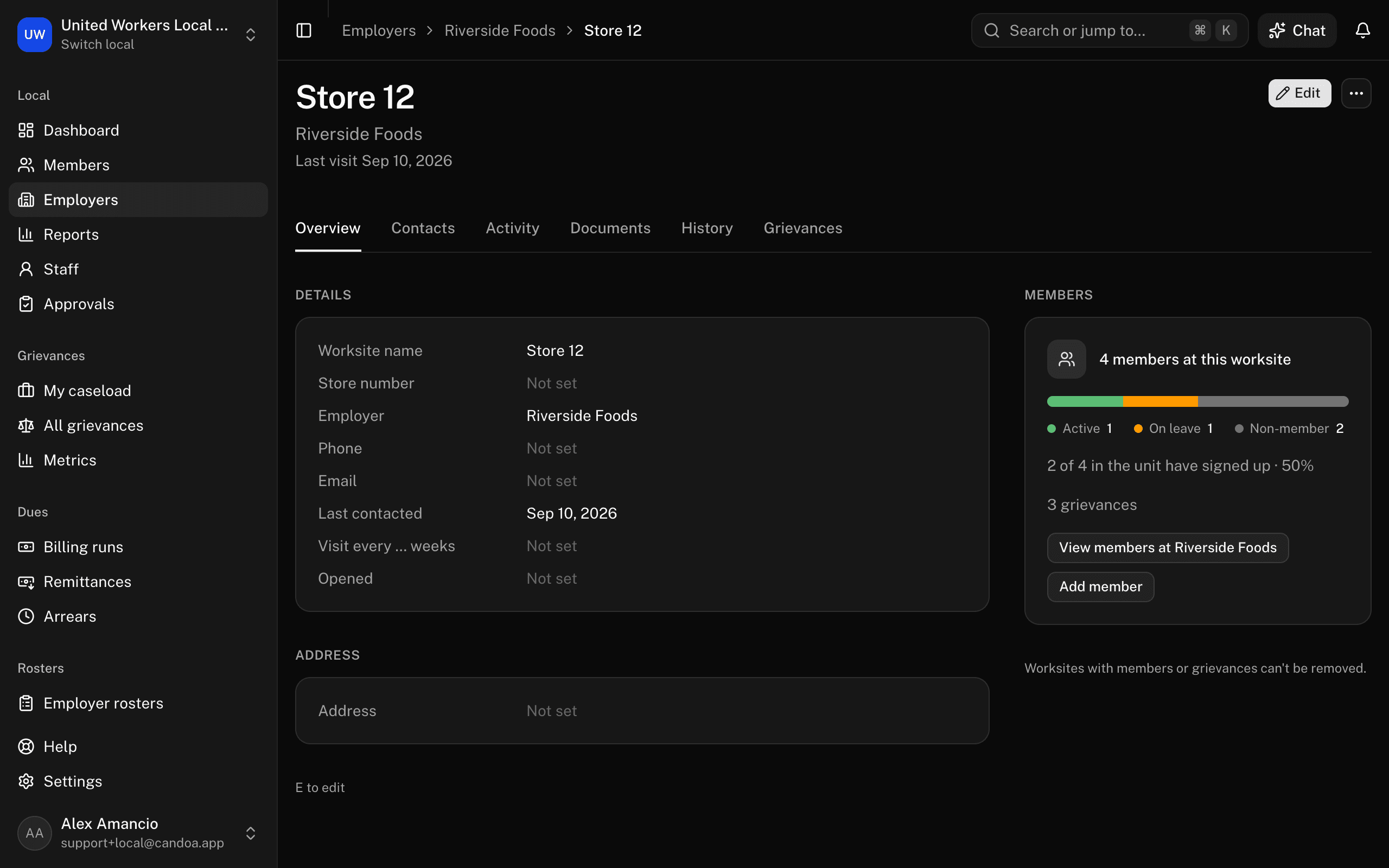
The top of the record stays the same wherever you are: the name, the store number, a Closed badge if it's closed, a link to the employer with the city, a Last visit … · next due … line once a visit has been logged or a cadence is set, the pinned notes, and the buttons: Edit, and a ⋯ menu holding Close worksite (or Reopen worksite) and Remove worksite. Under that, a row of tabs:
- Overview opens first: Details and Address, and beside them the Members panel with the counts and View members at the employer, which opens the roster filtered to this worksite. Last contacted in Details is the latest call, visit, email, or meeting logged on the worksite or on any of its members.
- Contacts: the Stewards, Management, and the Staff, narrowed to this worksite.
- Activity: the note box and the notes, then the timeline of everything that happened to the record.
- Documents: the worksite's own paperwork on top, under This worksite's documents, then From the library, what the local publishes for this worksite. The paperwork shows only for permissions that can see documents on employers and worksites.
- History: every change to a field, who made it and when.
- Grievances: the cases filed at this worksite. This tab is there when your local has the Grievances add-on.
Each tab is its own address, so the back button, a bookmark, or a link from a reminder lands on the right one; Cmd-click a tab to open it in a new browser tab. With a tab focused, ← and → move to the next one. The palette lists them too: type Go to Contacts.
Add a member at this worksite
In the Members panel on Overview, press Add member. Quick add a member opens over the page with the employer and this worksite already chosen; it clears for the next person after each add, and Done closes it. For every field, press Use the full form. See Add a member.
See how much of the worksite has signed up
The Members panel on Overview shows this store's roster as a bar by status, and above it a line saying how much of the unit has joined. It counts the same way as on the employer; see An employer's record.
Edit a worksite
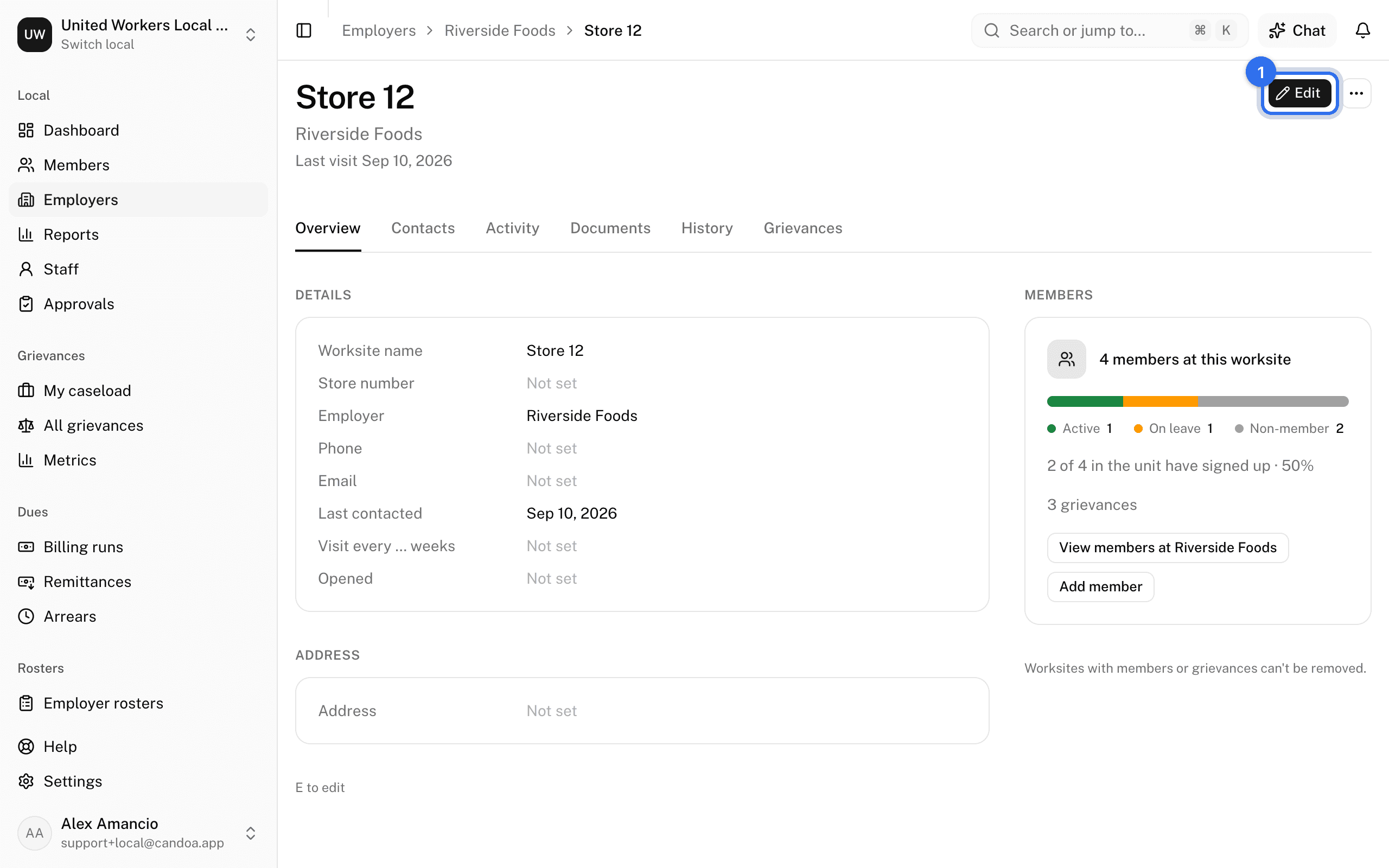
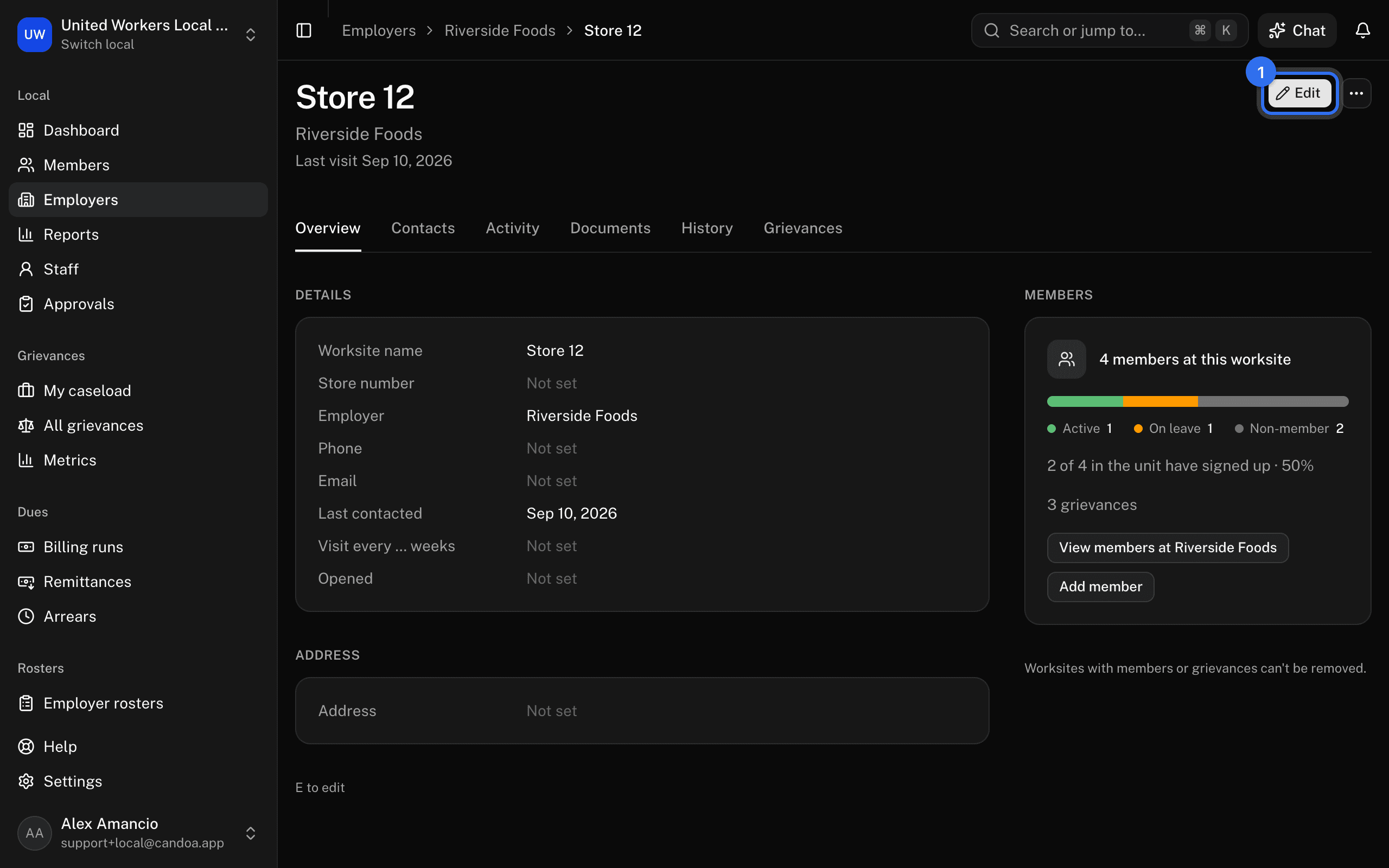
- Press Edit at the top right, or press E. The form opens on the Overview tab, from whichever tab you were on.
- Change the Worksite name (unique within the employer), Store number, phone, email, Opened date, Visit every … weeks, or address.
- Press Save. Proposers see Send for approval.
A worksite can't be moved to a different employer.
Set how often reps should visit this worksite
- Press Edit and fill in Visit every … weeks. Blank reads Same as employer, so the cadence set on the employer's record applies; a number here overrides it for this worksite only.
- Press Save. Proposers see Send for approval.
The Details section shows the cadence in force: Every 2 weeks, or Same as employer · Every 4 weeks. The header then reads Last visit and next due: the last visit is the latest note of kind Visit logged on the worksite or on any of its members (a call or an email doesn't count), and the next due date is that visit plus the cadence. A worksite with a cadence and no visit logged yet counts from the day it was added to Candoa. Once the due date has passed it shows in red and the worksite appears under Visits overdue on the dashboard; logging a Visit note on the Activity tab clears it. A closed worksite is never due, and neither is a worksite with no cadence on it or its employer.
Close a worksite
When a store shuts:
- Open the ⋯ menu at the top right, from any tab, and choose Close worksite.
- Set the Last day.
- Under People working here, choose what happens to their jobs: End their employment here on the last day, Move them to another worksite (pick which), or Leave their employment as it is.
- Press Close worksite.
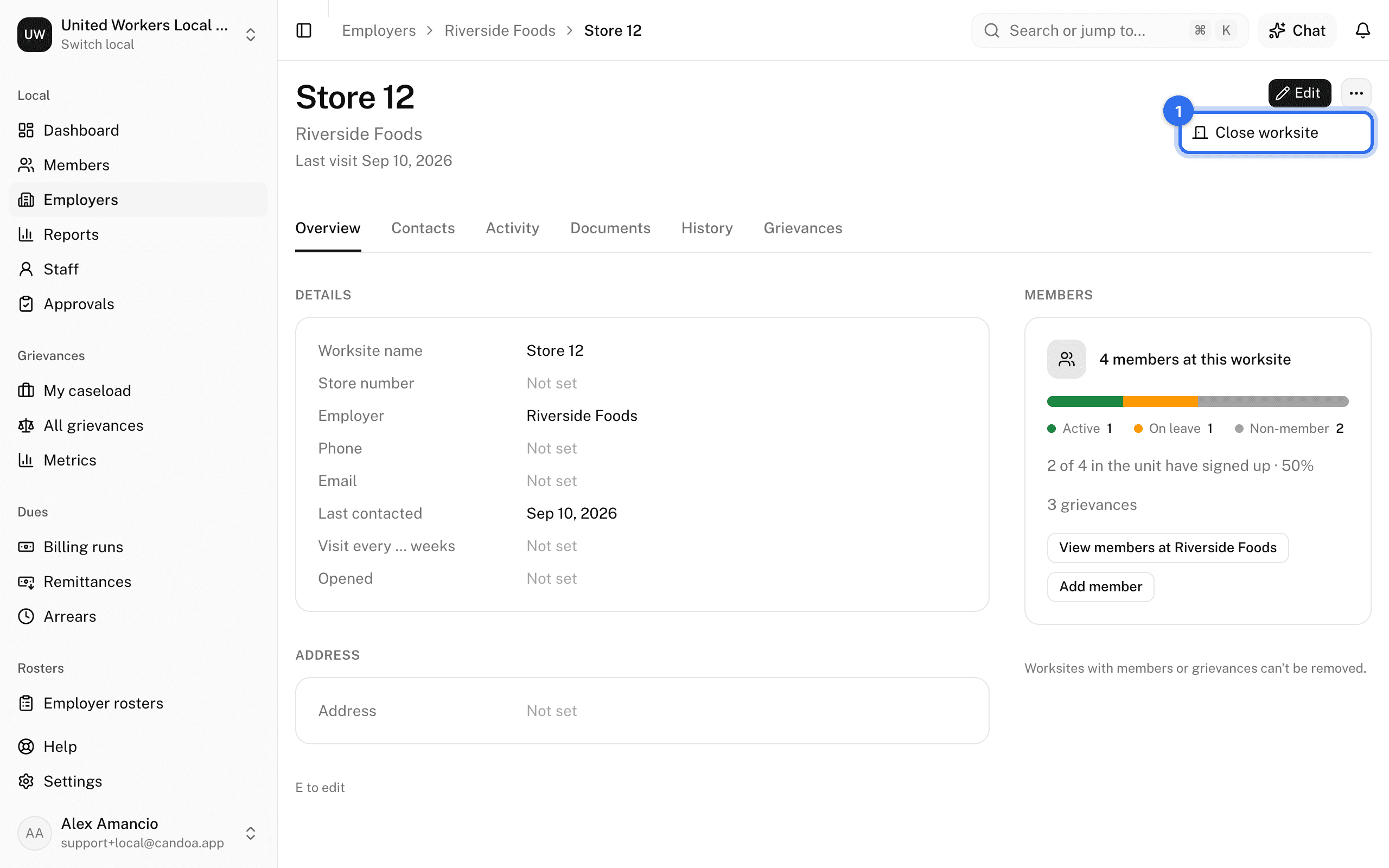
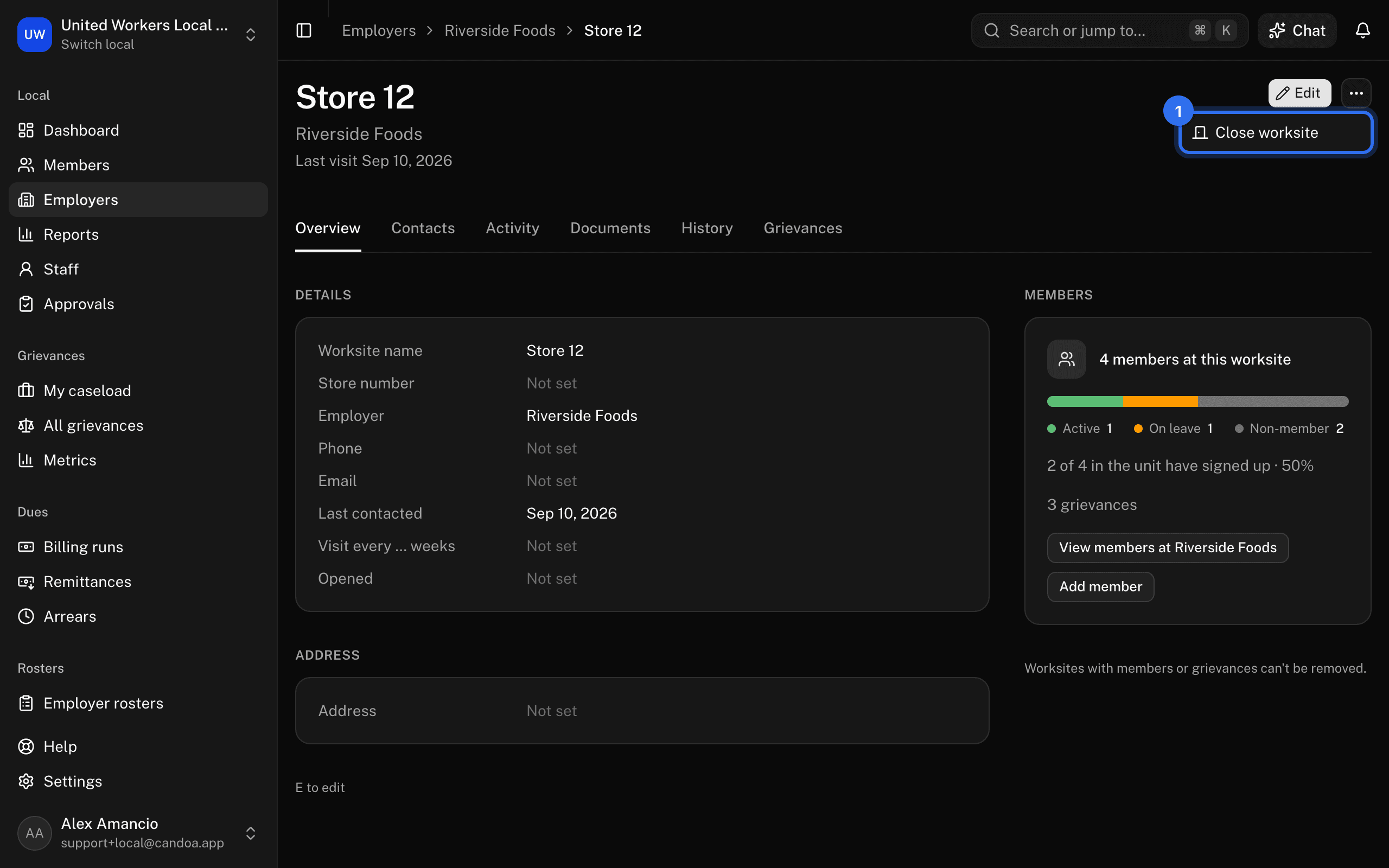
The worksite leaves the pickers and keeps its history.
Reopen a worksite
Press Reopen worksite at the top right. The closing date is cleared and it's back in the pickers.
Remove a worksite
Open the ⋯ menu, choose Remove worksite, and confirm. It deletes the worksite for good and only works when no member, no grievance, and no published file points at it. Otherwise close it instead.
Manage stewards, contacts, and staff
On the Contacts tab, the Stewards, Management, and Staff sections work the same as on the employer, narrowed to this worksite. See An employer's record.
Add a note, a document, or read the activity
- Add note in the Notes section of the Activity tab, or press N from any tab: it opens the Activity tab with the note box ready.
- Drop files on the Documents tab, up to 25 MB each.
- The Activity section, under the notes on the Activity tab, is the worksite's timeline; the History tab is every change to a field.
These work the same as on the employer. See An employer's record.
A worksite's documents follow the same two permissions as the employer's: "See documents on employers and worksites" and "Add, relabel, and delete documents on employers and worksites" in Settings › Permissions. Out of the box, owners, admins, and agents have both; stewards and read-only staff open the Documents tab and see only the From the library section. See Permissions.
Add a document the local publishes here
The This worksite's documents section is the worksite's own paperwork, what the local keeps about it. Under it, From the library is what the local publishes for it: the worksite's own first, then the employer's, marked with the employer's name, then the whole local's, marked Whole local. Anyone who can open the worksite opens or downloads from the row's menu.
Owners and admins press Add document in the From the library section; the form opens with this worksite already picked under Where it shows. Rename, Move to…, and Delete document appear only on the rows that belong to this worksite; a document from the employer is edited in the employer's Documents tab, and one for the whole local in Settings › Documents. See Documents.
See the grievances filed here
The Grievances tab lists every case filed at this worksite, open cases first and the soonest due on top, with the same search box, filter chips, and columns as All grievances. Click a row to open the case. The tab is there when your local has the Grievances add-on; see Case lists.
These pages are the help for Candoa, the software a local runs its members, employers, and grievances on.
Set up your localUpdated 2026-09-19