Two-step sign-in
Sign in with the emailed code, trust a browser, and turn two-step sign-in on or off.
Two-step sign-in asks for a six-digit code, sent to your email, whenever you sign in from a browser you haven't trusted. It's off by default, and each person turns it on for their own account.
Sign in with a code
- After entering your password you land on "One more step". A code is sent to your email automatically.
- Type the six digits from the email titled "… is your Candoa sign-in code". The code lasts five minutes.
- Leave Trust this browser for 30 days ticked on your own computer; untick it on a shared one.
- Press Continue.
If the code expired or didn't arrive, press Send a new code.
Turn two-step sign-in on or off
- Open Account from the user menu at the bottom of the sidebar.
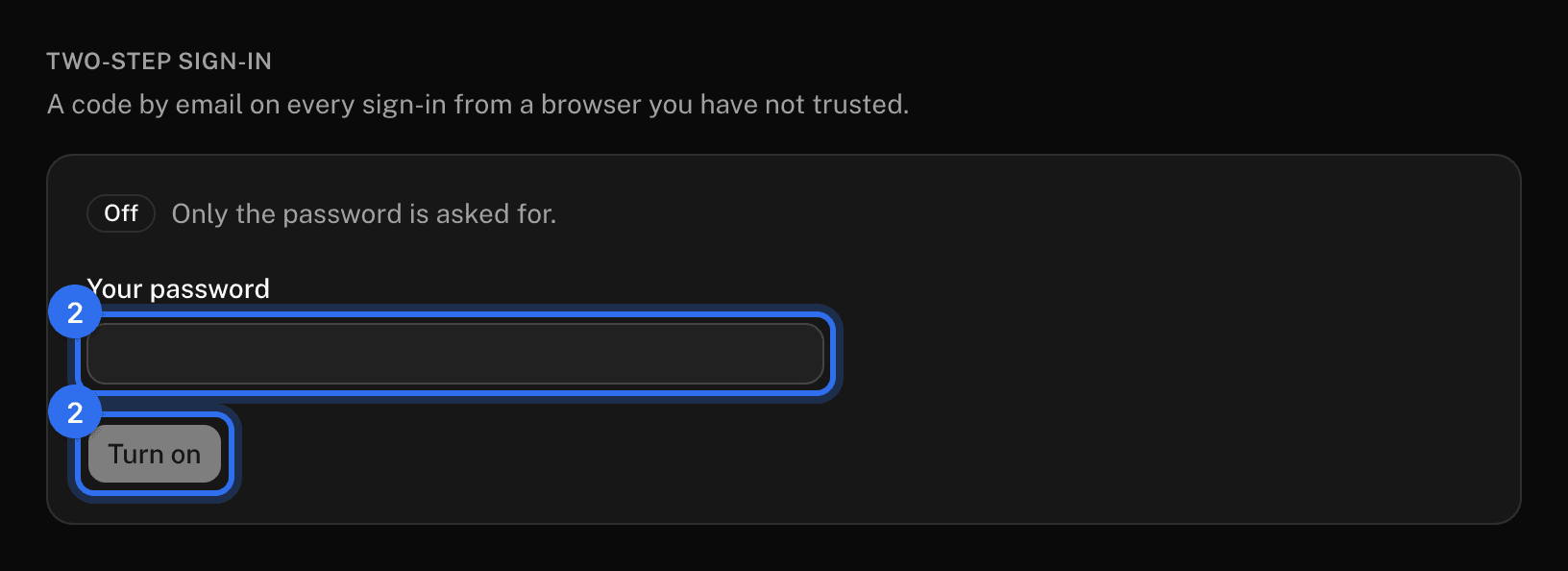
- Under Two-step sign-in, type your password and press Turn on or Turn off.
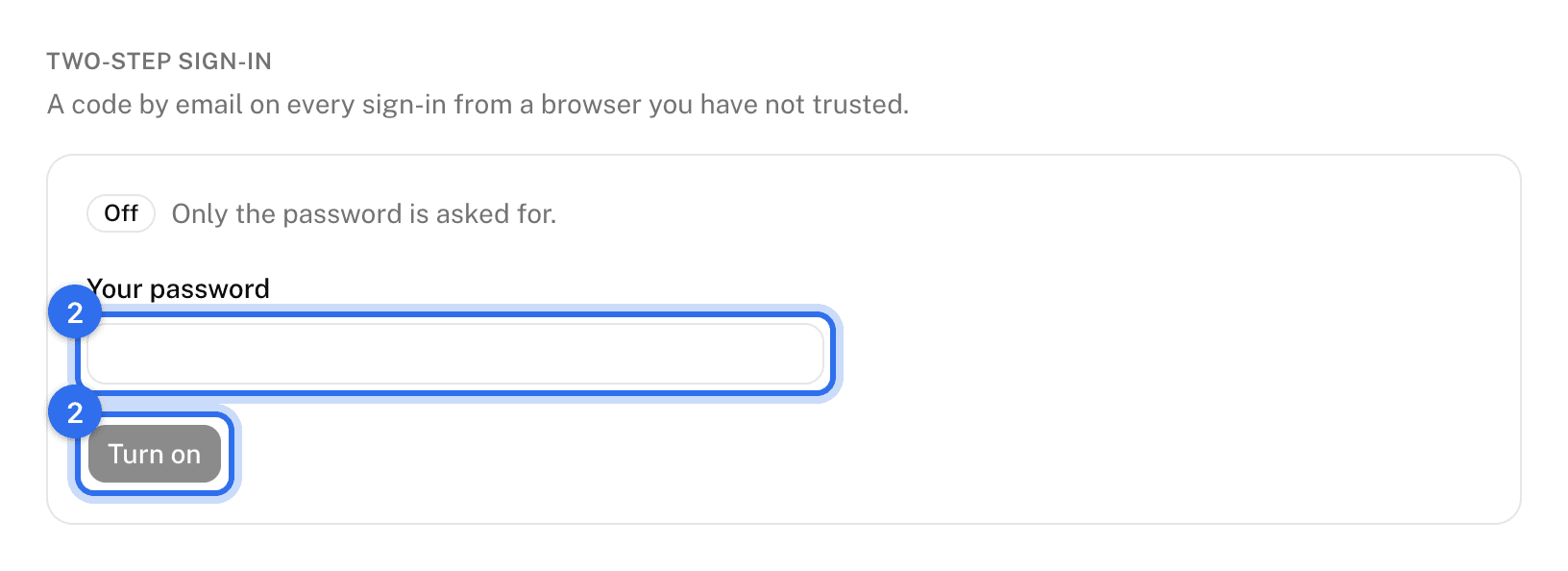
It takes effect right away. There's no authenticator app or backup code; the code always comes by email.
Deal with a code you didn't ask for
Someone has your password. Change it right away on the Account page; that signs out every other browser.
These pages are the help for Candoa, the software a local runs its members, employers, and grievances on.
Set up your localUpdated 2026-09-15