Approvals
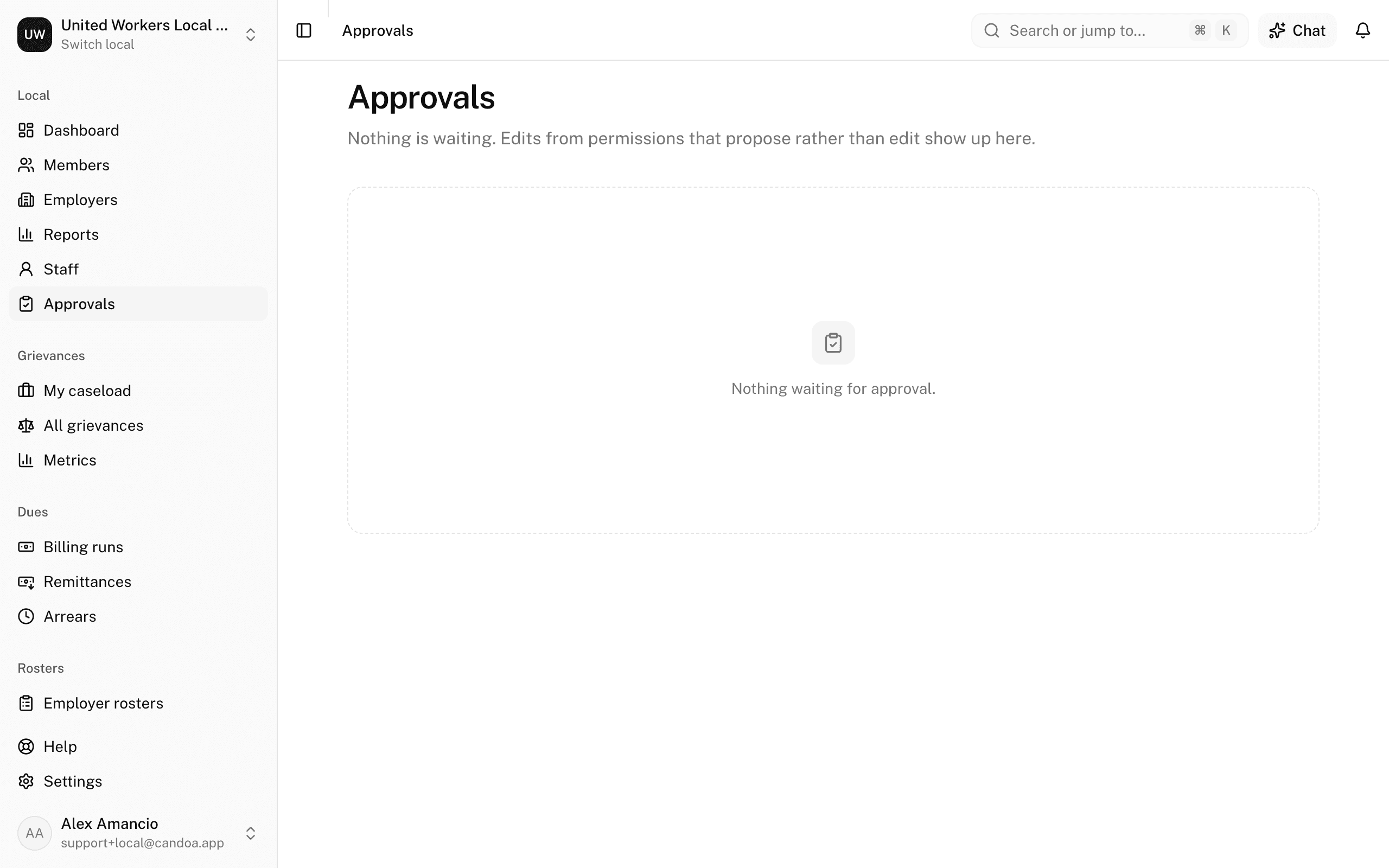
Approve or reject a change someone proposed, and accept or reject a join application.
What approvals are
Some people should be able to suggest a change without being able to make it. A steward notices a coworker's phone number is wrong; a volunteer doing a phone bank hears someone moved. They propose the change, and someone in the office with authority accepts it. That keeps the roster clean while letting many hands help.
With the Join add-on, join applications work the same way: a person signs up, and the office confirms they belong before they become a member.
With the Member portal add-on, a member can ask to change their own contact details from their portal page, and send a photo of themselves. That request lands here too, marked Sent from the member portal instead of a proposer's name, and nothing on their record changes until someone approves it. The member sees on their portal page that their update is waiting, and what is on file today, until you decide.
Open Approvals
Click Approvals in the sidebar, or press g then a. The sidebar shows a count of what's waiting. Only owners and admins see the screen. If you can approve, you also get one email a day while anything waits; turn it off on your Account page.
Approve or reject a proposed change
Each card shows the record, who proposed the change and when (or Sent from the member portal for a member's own request), their reason, and a table of fields with what's On file and what's Proposed.
- Read the table. Every field starts ticked. A field that changed on the record since the proposal is highlighted, starts unticked, and says what it was then.
- Untick anything you don't want applied.
- Write a Note to the proposer if you like.
- Press Approve to apply the ticked fields, or Reject to apply nothing.
The proposer gets a notice either way. A member who sent the request from the portal gets no notice; their portal page simply shows the record as it stands.
Accept or reject a join application
Needs the Join add-on; without it no applications come in and the Joins section isn't there. Under Joins, each card shows the applicant, how they joined, their employer and worksite, their details, and a tick or cross for each consent.
- If the card says the applicant looks like someone already on file, choose Bring this member back with the new details or Make a new member anyway.
- Add a note if you like.
- Press Accept to create or update the member and file the signed card, or Reject to keep the application with your note.
Approve or reject a member's photo
Needs the Member portal add-on; without it no photos come in and the Member photos section isn't there. Each card shows the member, when they sent the photo, and the New photo beside their Photo today.
- Look at the new photo. It should be a clear picture of the member.
- Write a Note to the member if you like. They see it on their portal page if you reject.
- Press Approve to make it their photo, on their portal page and beside their name on their record, or Reject to delete it.
Nobody but the member sees a photo before it is approved. Only permissions that can approve member changes see this section.
Withdraw something you proposed
On the record's page, the banner "changes waiting for approval" has a Withdraw button for the person who proposed them.
These pages are the help for Candoa, the software a local runs its members, employers, and grievances on.
Set up your localUpdated 2026-09-19