Signing up members
Sign someone up on a staff device, make a poster or public link for an employer, email a personal link, or enter a paper card. Where applications go.
What joining is
Joining is a worker becoming a member of the union. In practice it means signing a membership application and, usually, a dues check-off authorization that lets the employer deduct dues from their pay and send them to the local. Some locals add a political fund contribution. Each of those is a consent: a document the person reads and signs, and the local keeps the signed copy because the employer or a court may ask for it years later.
What the form asks and what people sign is set under Settings › Join; see Join settings. The form can also list documents to read first, such as the bylaws or the dues schedule, under Read before you sign; which ones is set in the local's document library, see Documents.
Letting people sign themselves up is the Join add-on. Everything on this page is there while your local has it. Without it, staff still add members one at a time or from a spreadsheet; see Add a member. The owner turns Join on under Settings › Add-ons; see Add-ons and billing.
Sign someone up on your tablet or laptop
For a meeting, an orientation, or the office counter.
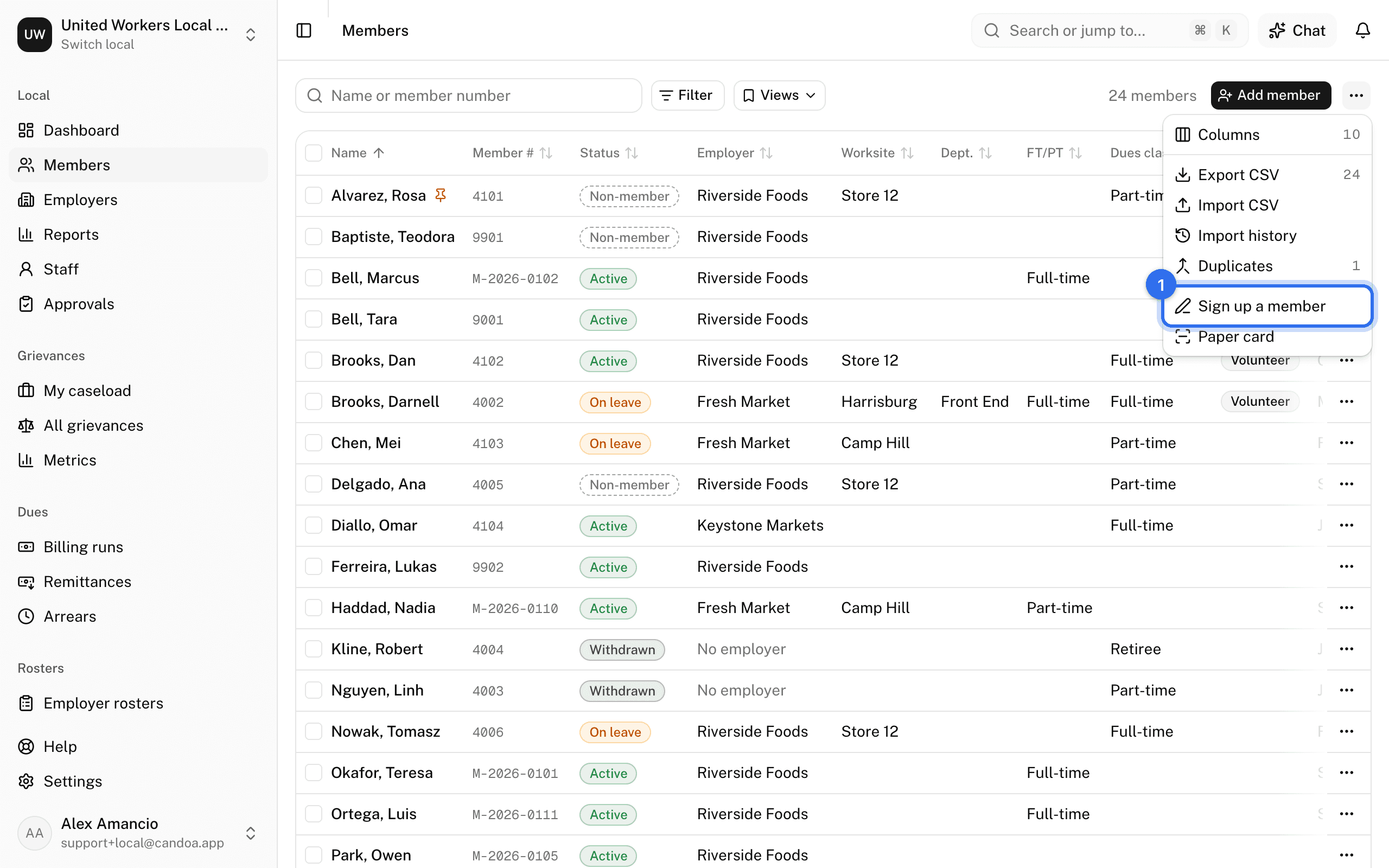
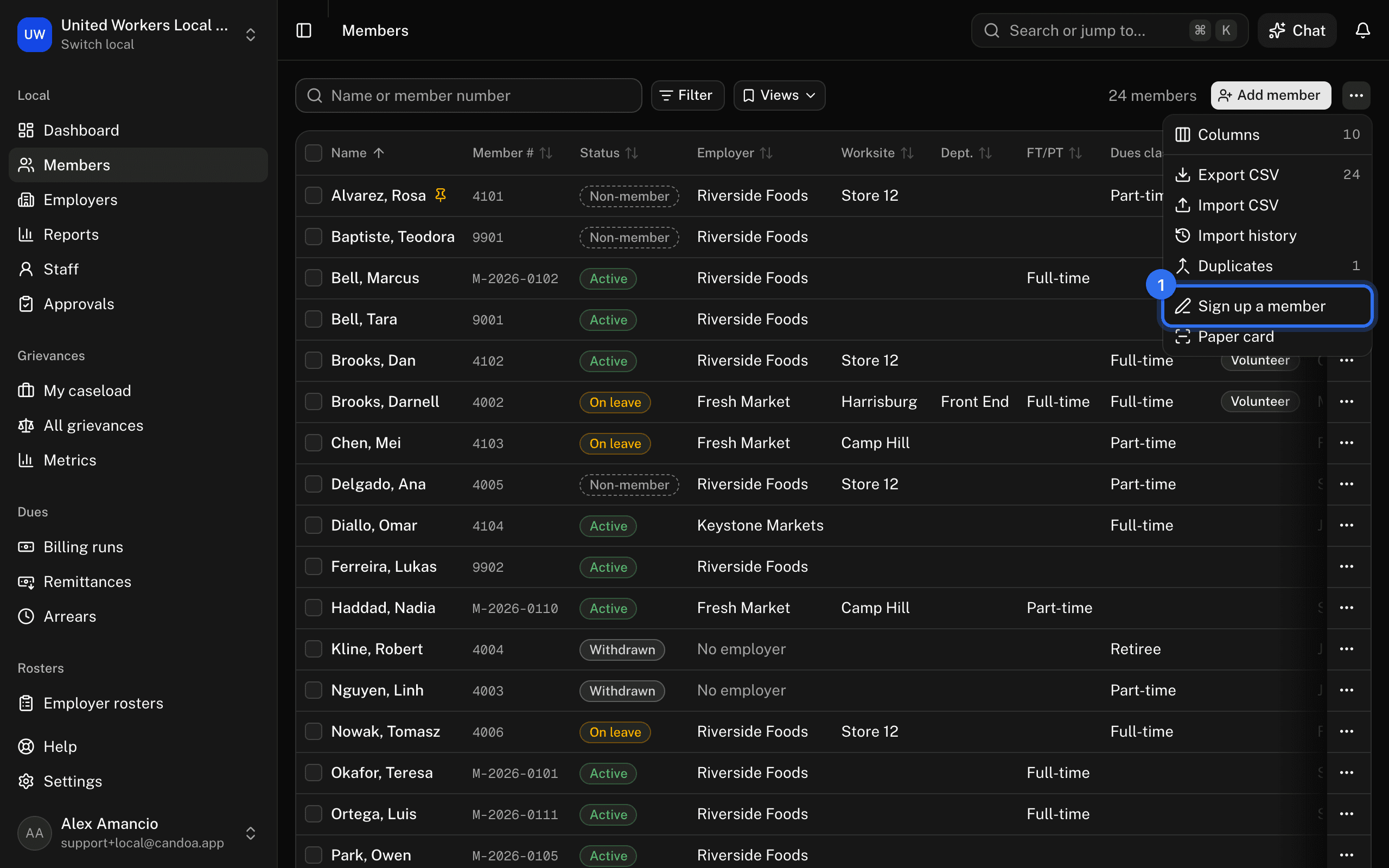
- On the members list press ⋯ › Sign up a member.
- Hand the device over. The screen runs outside the app, so the person can't wander into the roster.
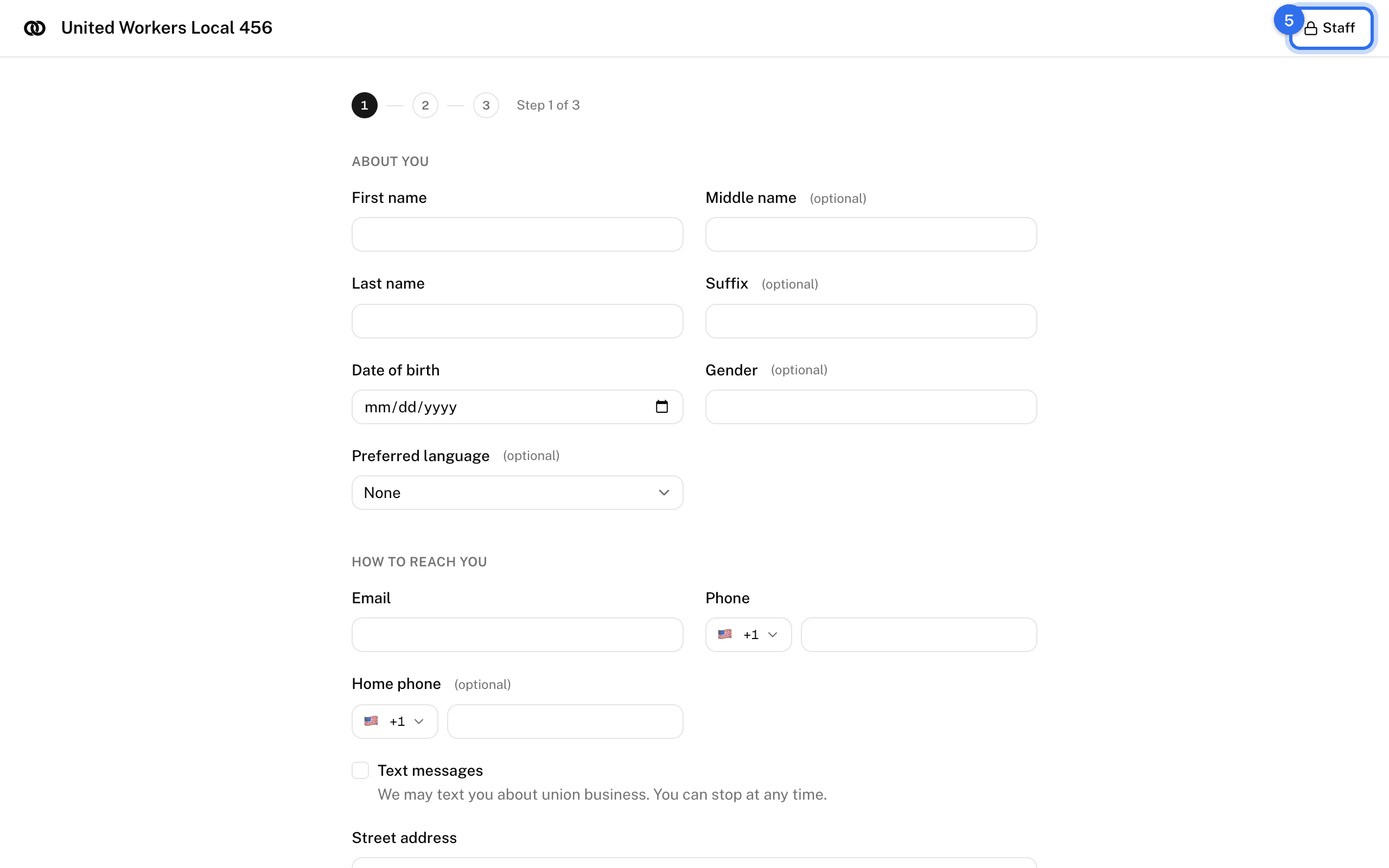
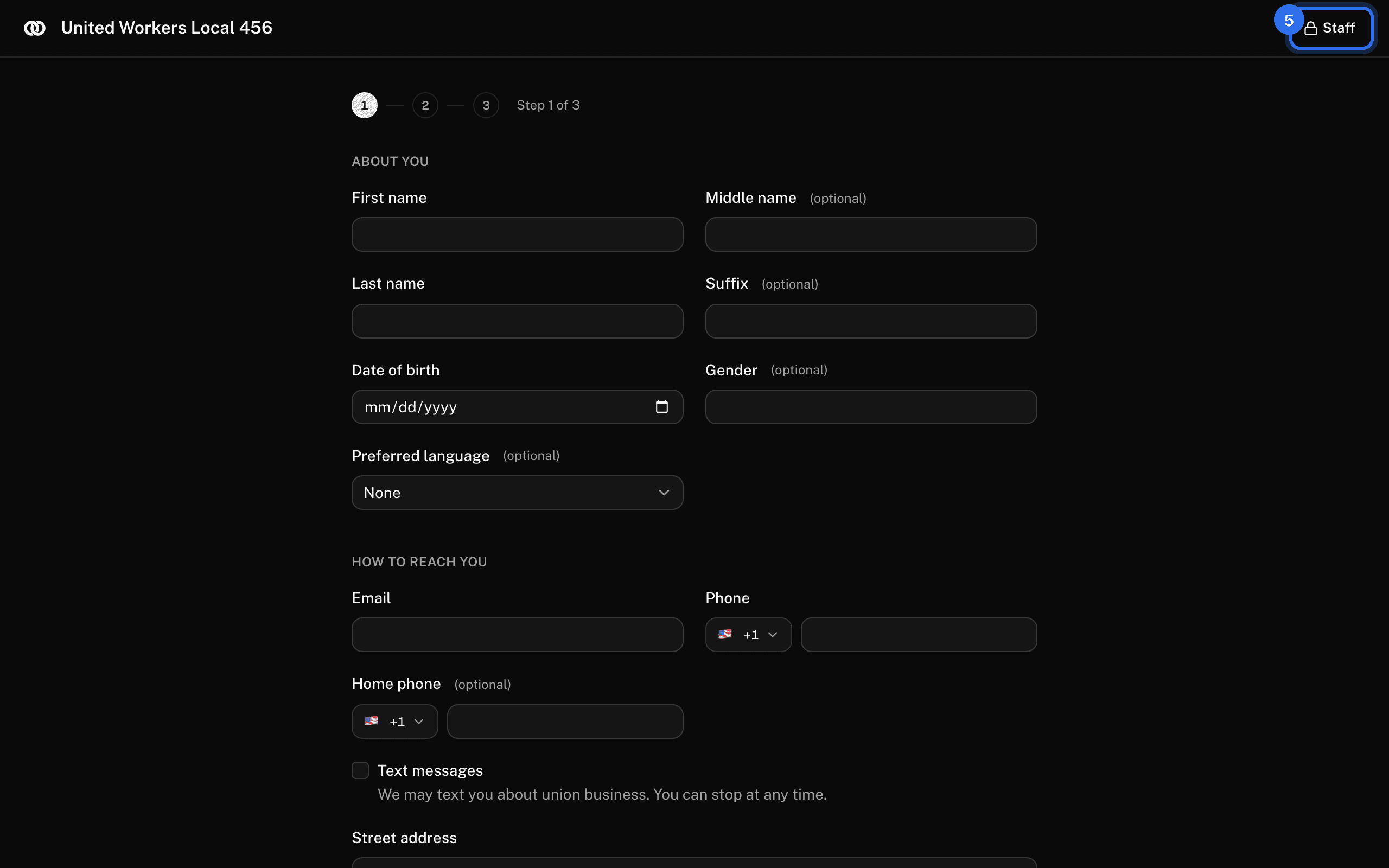
- They fill in the form one step at a time: About you, Where you work, then Read and sign. Continue moves on and checks the step; Back returns. On the last step they open anything under Read before you sign (each opens in a new tab), read and sign each consent, and press Sign up. They see "Welcome to the union".
- Press Sign up another person for the next one.
- To get back into Candoa, press Staff in the corner and enter your password.
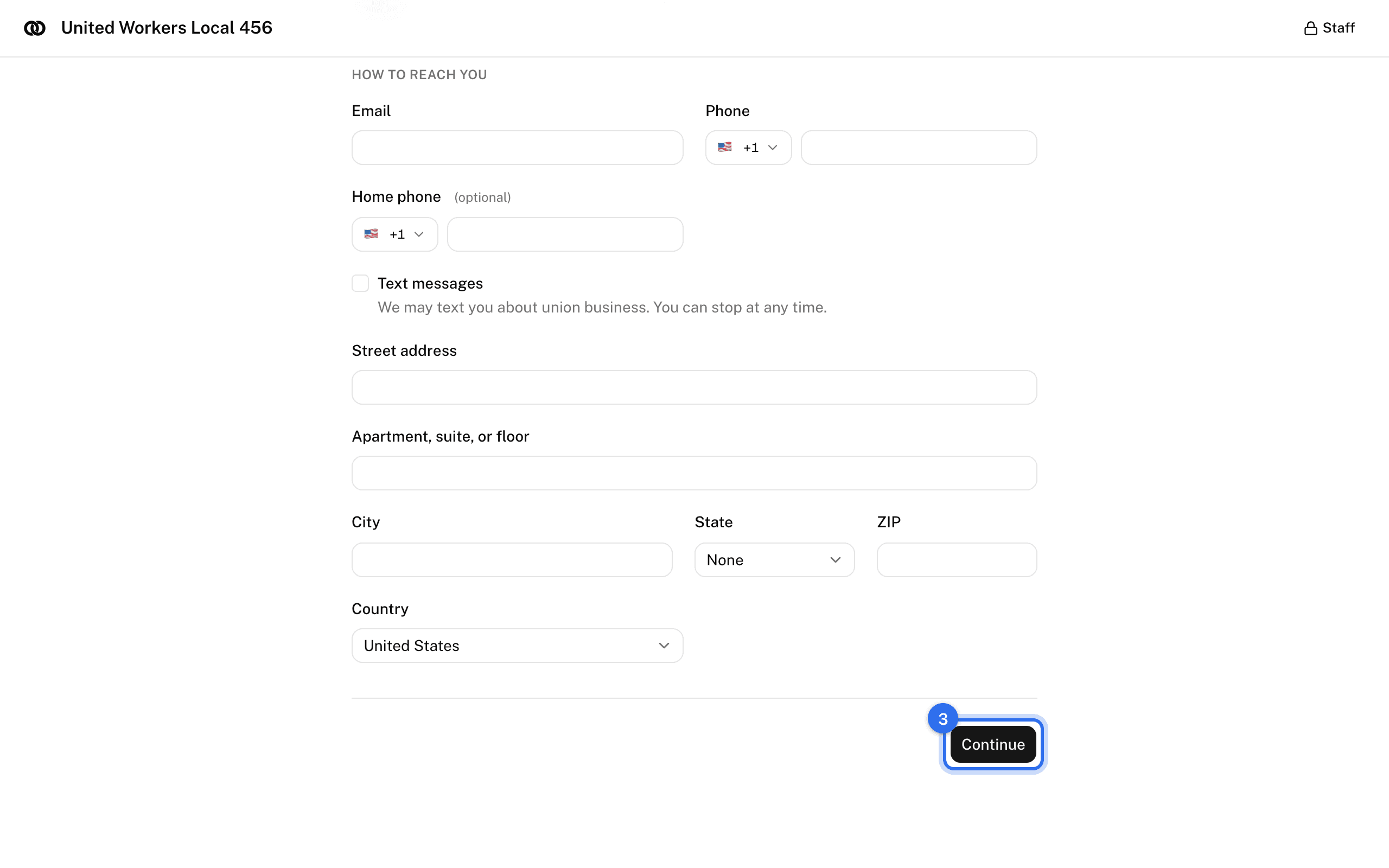
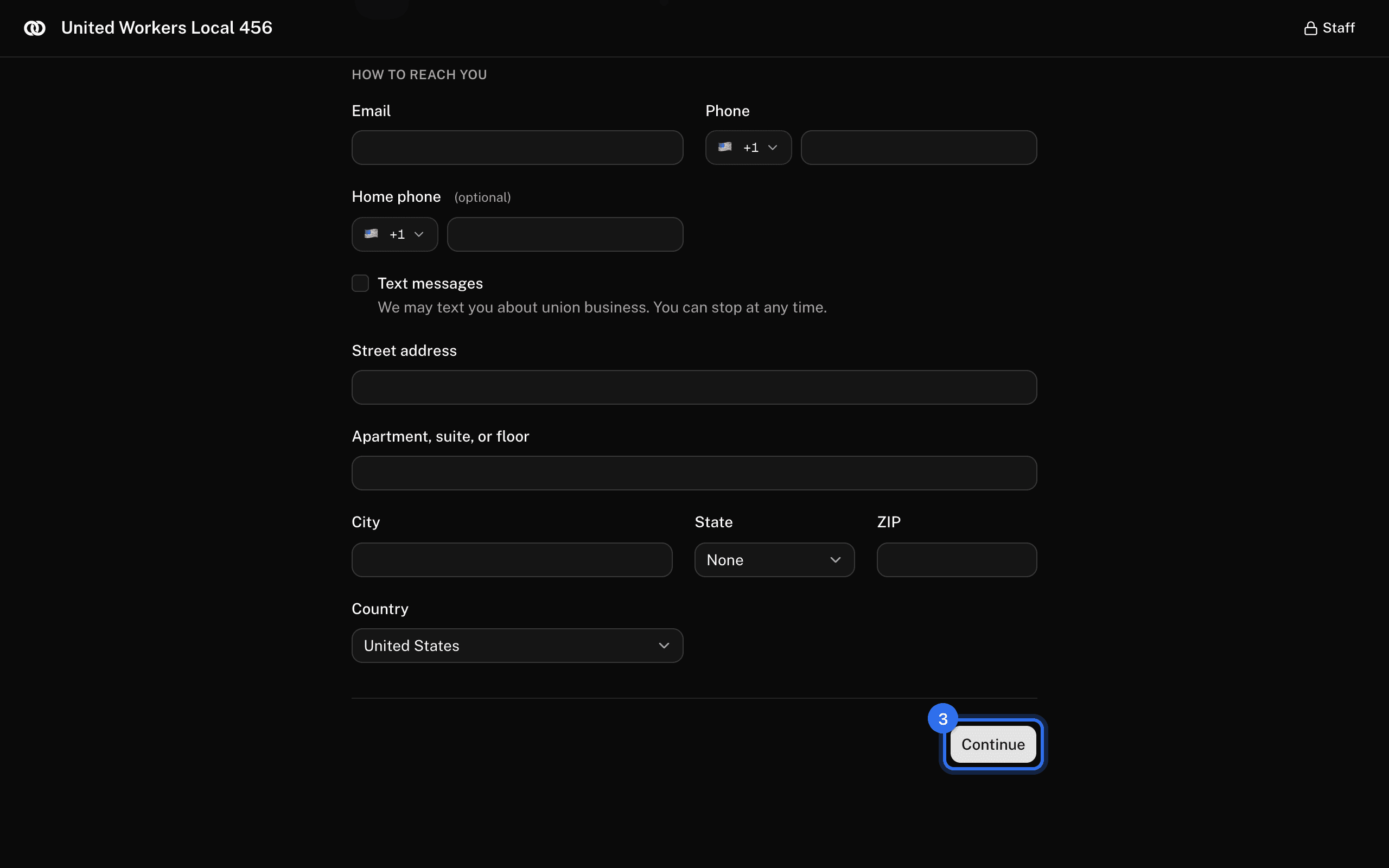
If your Join settings allow it and you can approve members, the person becomes a member on the spot. Otherwise the application waits in Approvals.
Make a poster or link for an employer
Each employer or worksite can have one standing link. Anyone who opens it or scans its QR code signs up with that employer. It never expires, works any number of times, and every application from it waits in Approvals. The form shows the local's documents marked for the join form, plus that employer's or worksite's own.
- Open the employer's page (or the worksite's).
- In the Join link panel press Make a join link.
- Press Copy link to paste it into an email or a message, or Print poster for a sheet with the QR code for the break room.
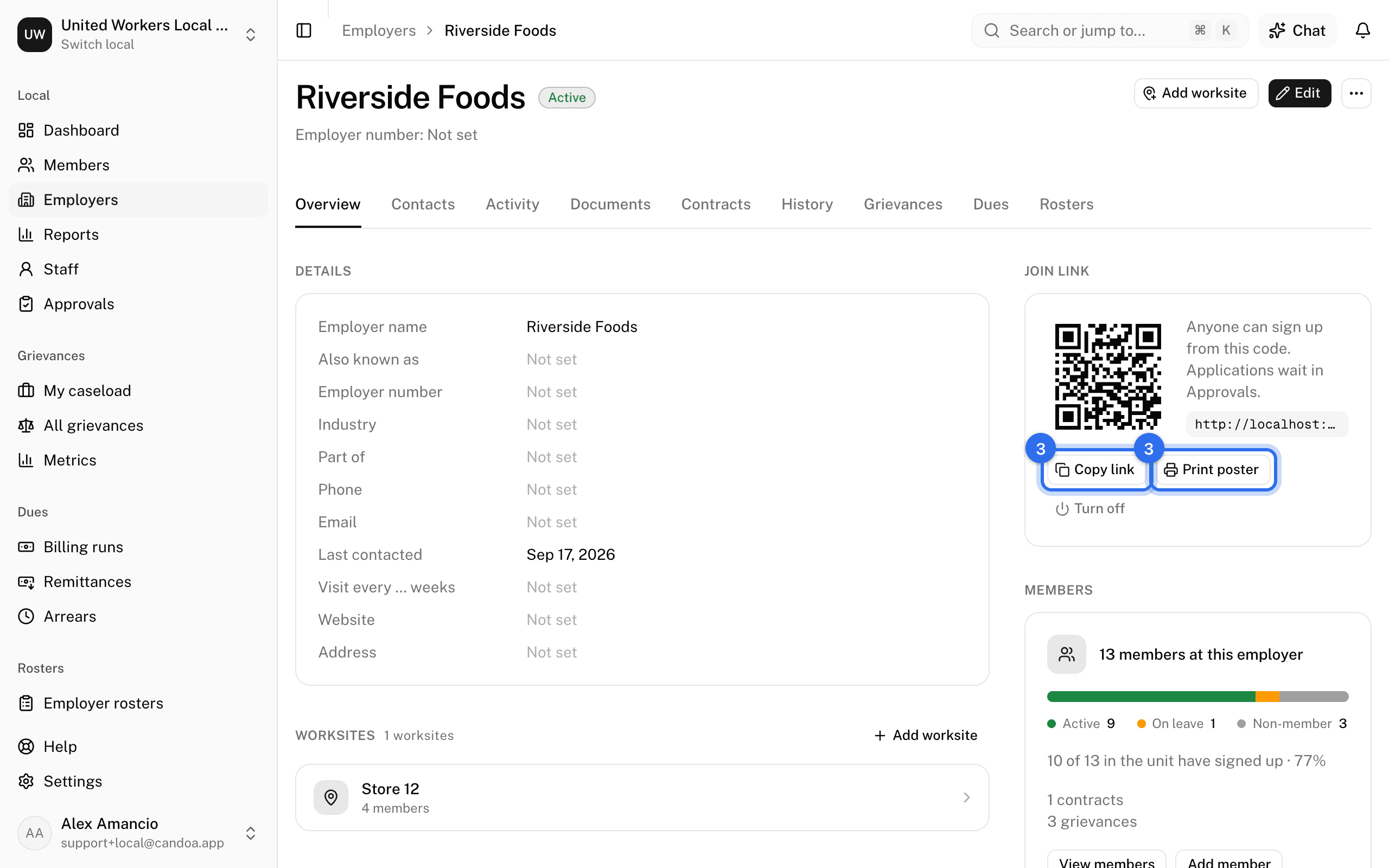
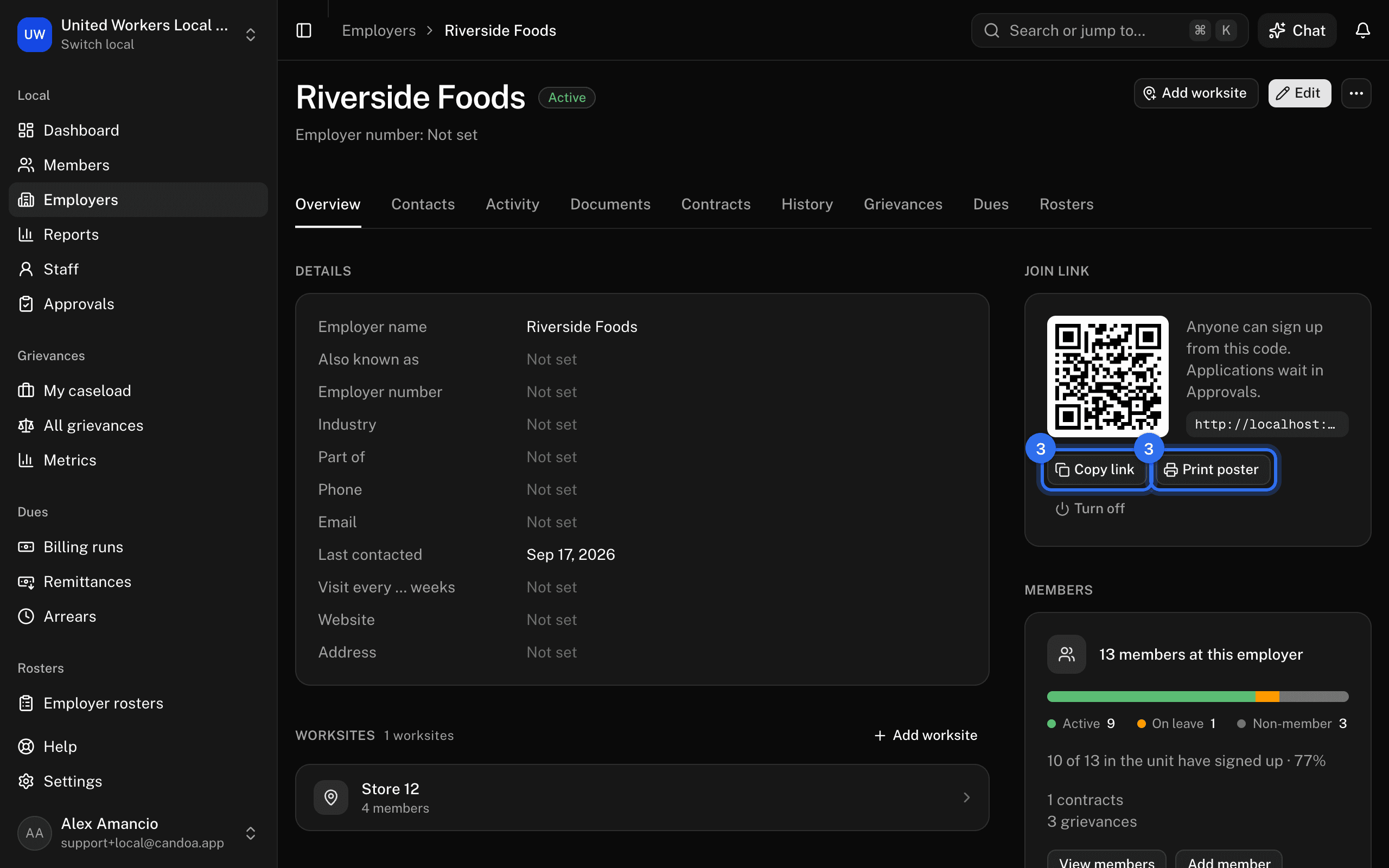
To kill a link, press Turn off in the same panel. The link and every poster carrying it stop working; a new link gets a new code.
Email a personal link to one person
- On the member's record open the ⋯ menu and choose Send join link, or press Send join link on an employer's page.
- Enter their Name and Email and press Send.
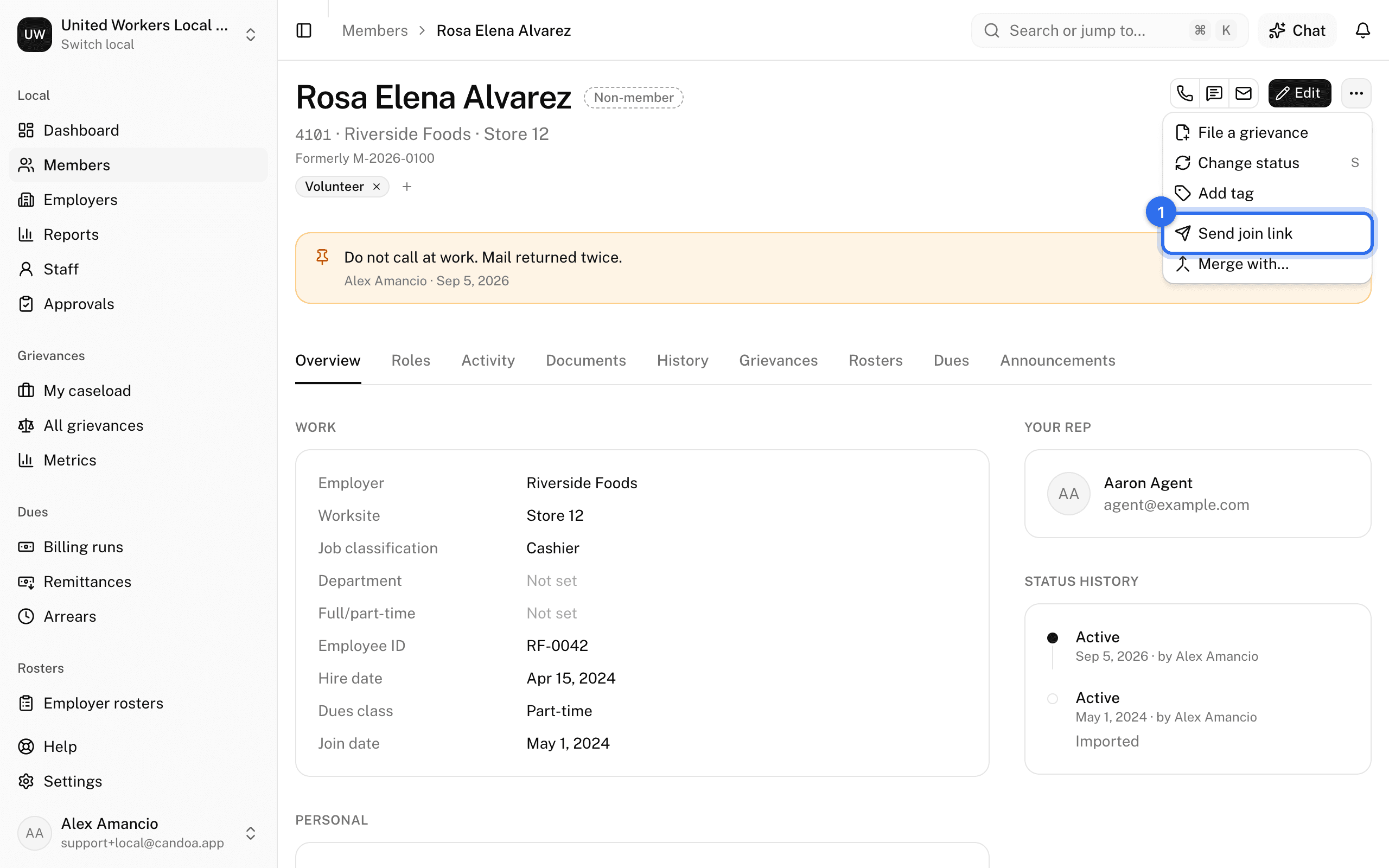
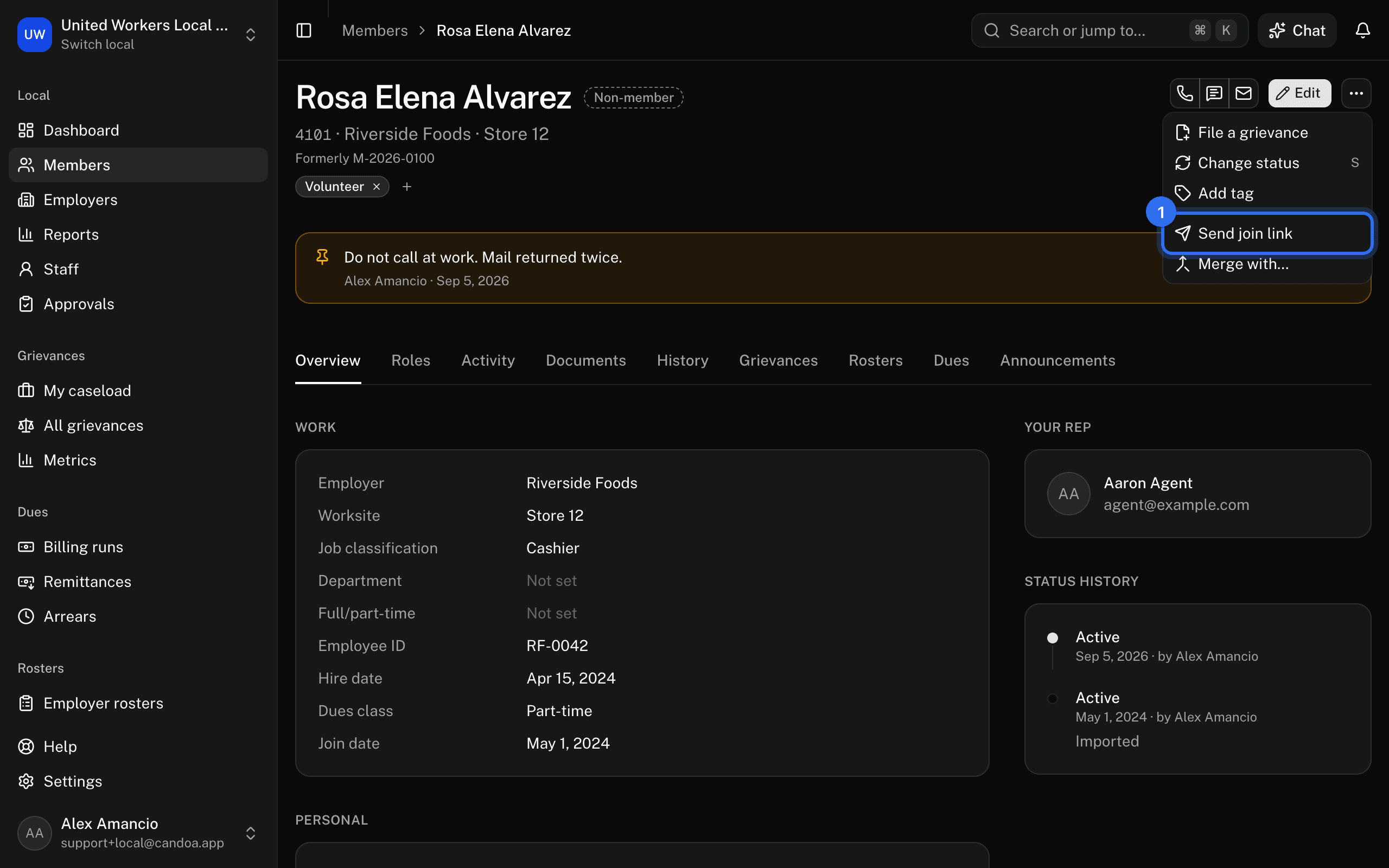
They get an email with a Sign up button. The link works once and expires after the number of days set in Join settings. Sent from a member's record, the form comes pre-filled and the join counts as a rejoin.
Enter a card signed on paper
- On the members list press ⋯ › Paper card.
- Upload the scan or photo of the card. PDF or image, up to 25 MB. It is the only thing on the page until it is in, since what you type is read from it.
- The scan then sits beside the form, where you can read it while you type. Replace swaps it for another. Type in what the card says and tick the consents it shows. There are no signature pads; the signatures are on the paper. The documents under Read before you sign are there for you to check against, if the local shows any.
- Press Sign up.
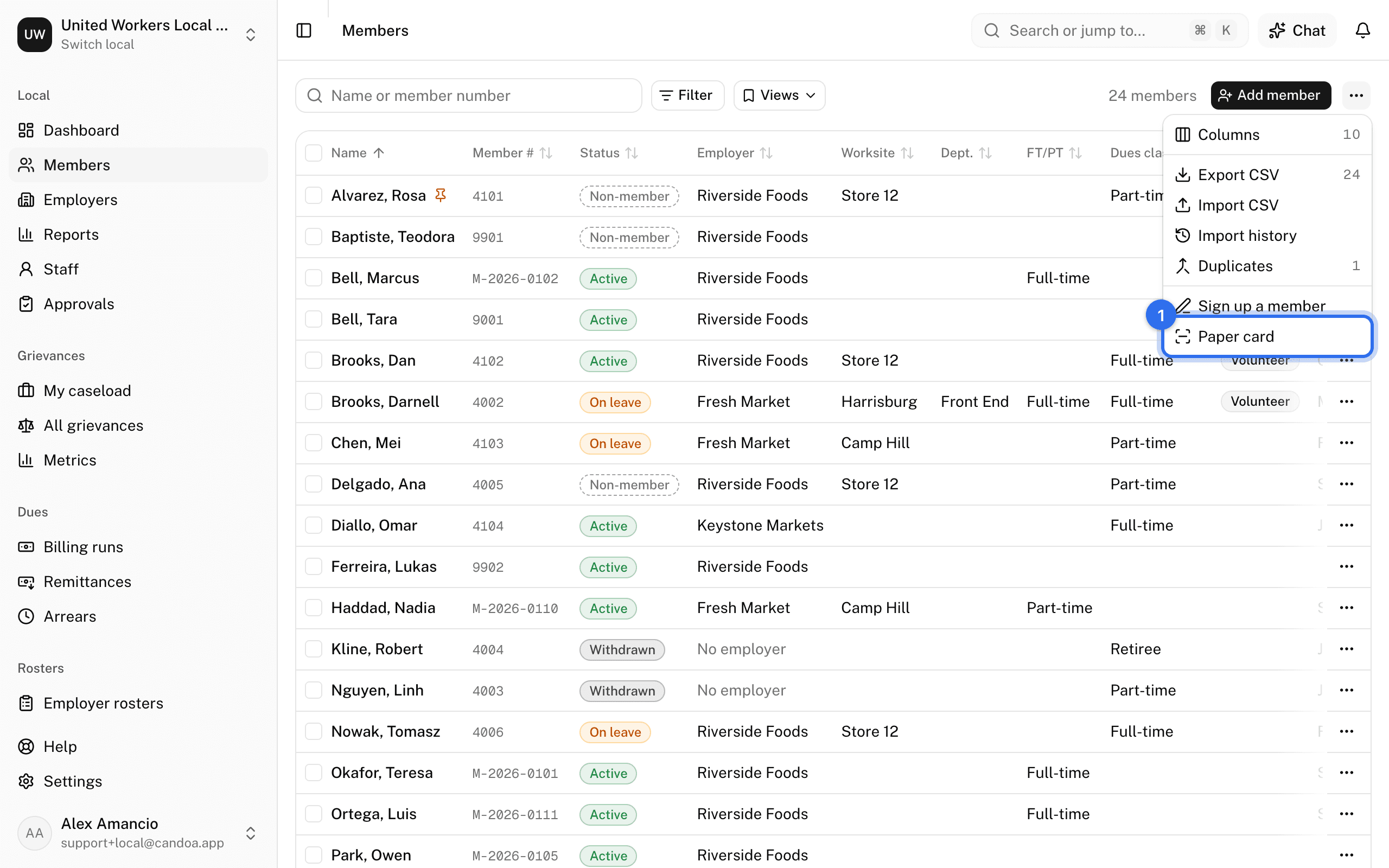
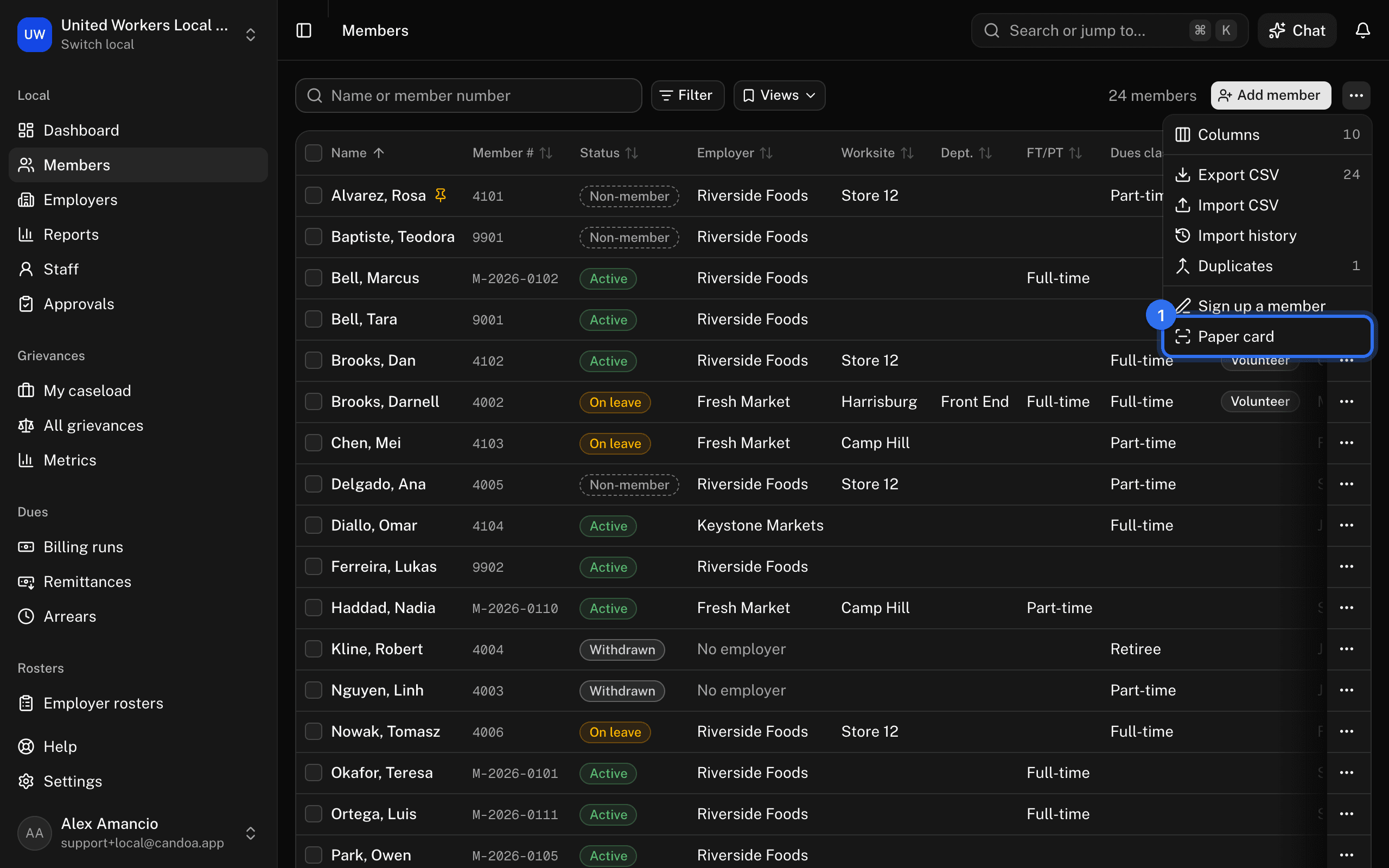
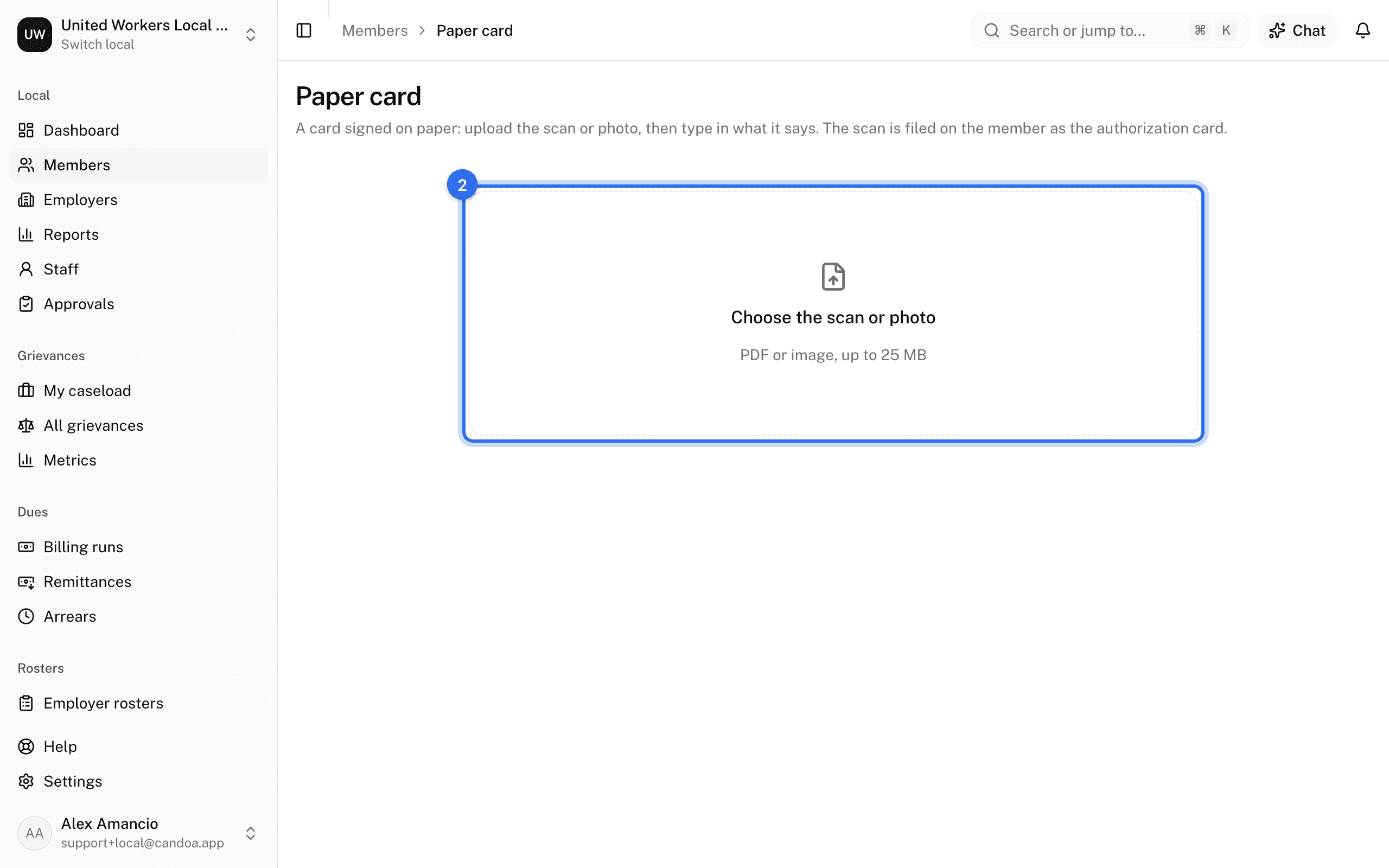
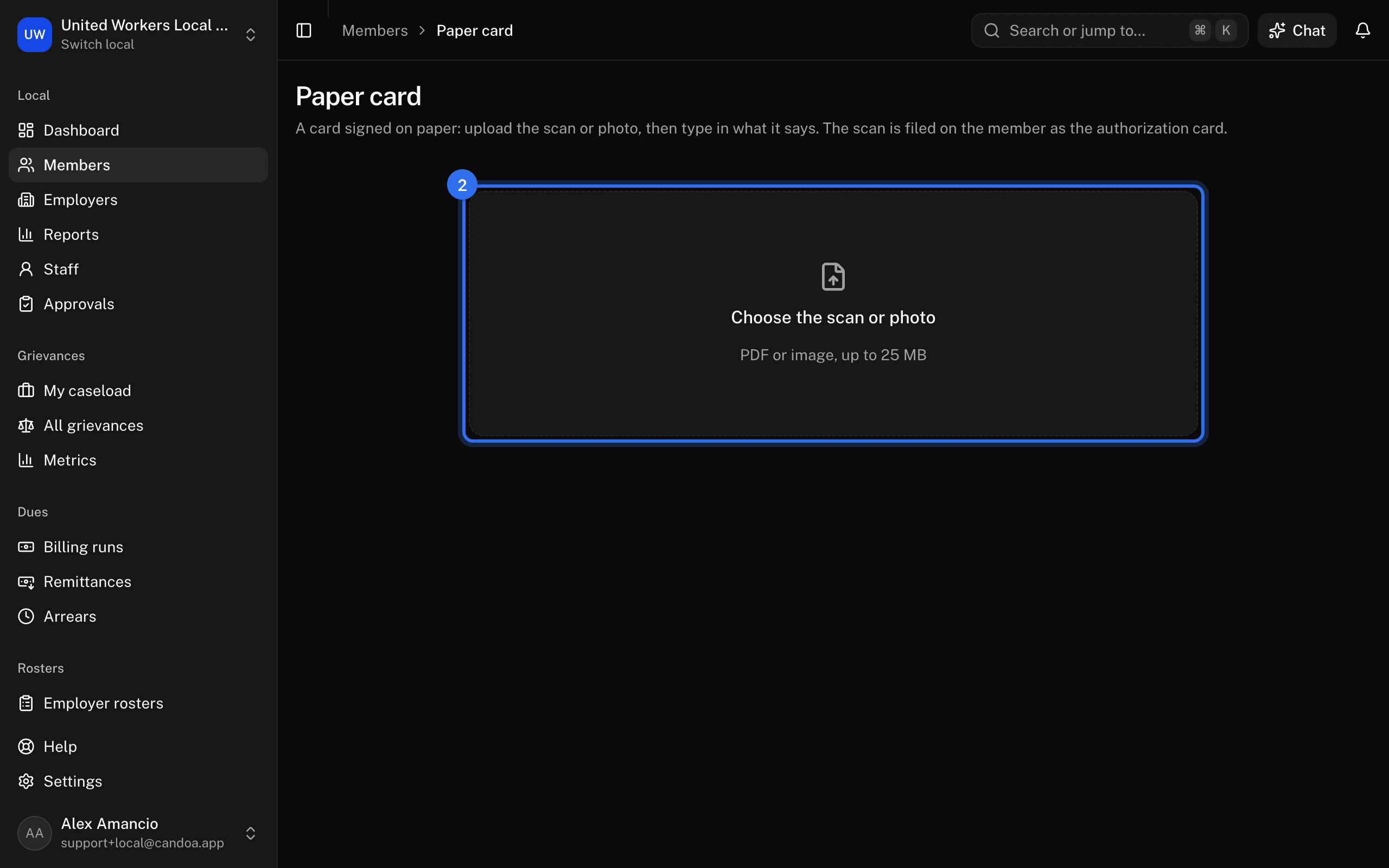
The scan is filed on the member as their authorization card. As with a staff device, the card becomes a member at once when settings allow and you can approve; otherwise it waits in Approvals.
Find applications that are waiting
Open Approvals in the sidebar and look under Joins. See Approvals. Everyone who can approve members gets a notice when an application arrives.
An application is accepted immediately only when all of these are true: the Join setting for staff joins is on, the join came from a staff device or a paper card, the person taking it can approve members, and the applicant doesn't look like someone already on file. When an application is accepted, the member is created, or brought back if rejoining, the signed card is filed on their record, and each consent is kept with the exact text they signed.
These pages are the help for Candoa, the software a local runs its members, employers, and grievances on.
Set up your localUpdated 2026-09-16