Online dues payments
Connect the local's Stripe account so members can pay dues from a bank account or by card, send a member a pay link, and see where each online payment stands.
What online payments are
Online payments let members pay their dues from a bank account or by card, instead of cash, a check, or a deduction from their pay. A member pays from the member portal, or from a pay link the office sends them.
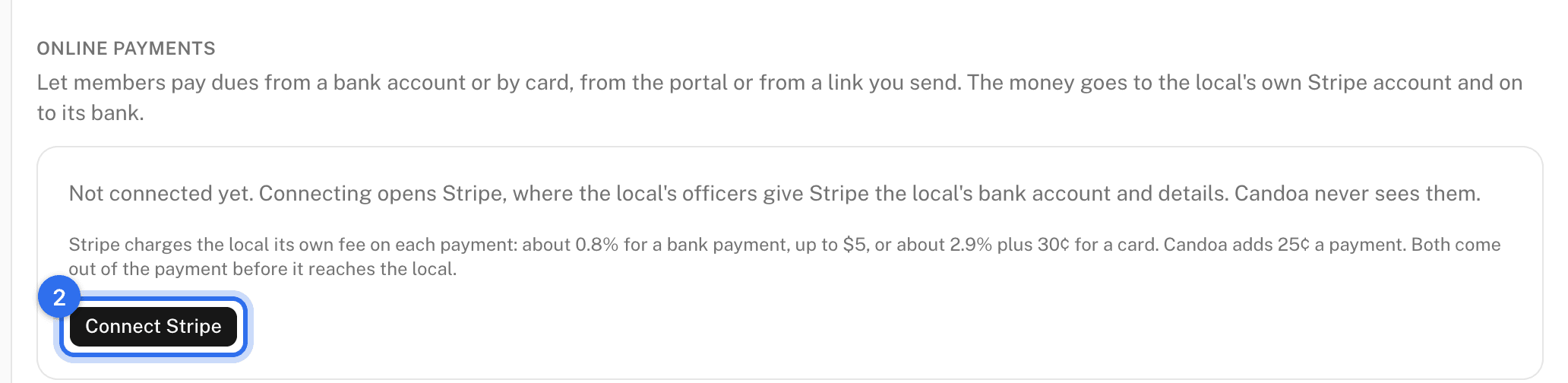
The money goes straight to the local. Your local connects a Stripe account of its own. Stripe is the payment company that takes the payment and pays it out to the local's bank. The officers give their bank account and details to Stripe, never to Candoa, and the local sees every payment in its own Stripe dashboard.
A payment shows on the member's dues only once the money has actually arrived. A card payment arrives within moments. A bank payment takes a few business days to clear, and shows as Clearing until it has. Once it arrives, it's recorded on the member's dues like a payment taken at the counter, paid from a bank account or by card, and the member gets a receipt by email.
Online payments are in US dollars.
What online payments cost
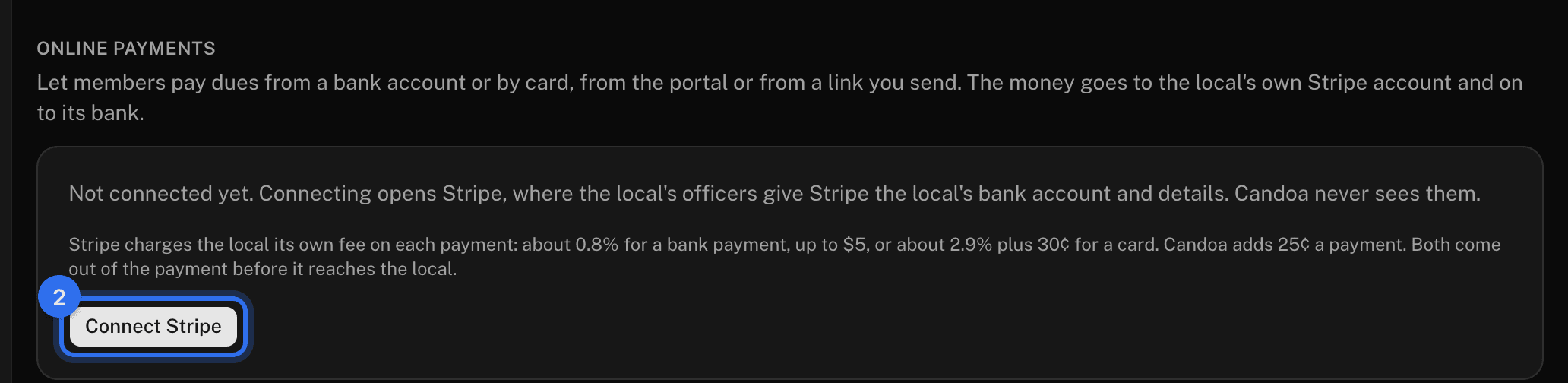
Stripe charges the local its own fee on each payment: about 0.8% for a bank payment, up to $5, or about 2.9% plus 30¢ for a card. Candoa adds 25¢ a payment, whatever the amount. Both come out of the payment before it reaches the local's bank. Candoa never takes a percentage of your members' dues.
Connect the local's Stripe account
Whoever manages dues settings can do this.
- Open Settings › Dues and find Online payments.
- Press Connect Stripe. Stripe's own pages open.
- Give Stripe what it asks for: the local's legal name, its bank account for payouts, and an officer's details. Stripe keeps these; Candoa never sees them.
- When Stripe sends you back, the card shows where things stand: Card payments, Bank payments, and Payouts to the local's bank, each On or Not yet.
Stripe usually checks the details in a few minutes, sometimes a day or two. Press Check again to see if it has finished. If Stripe needs more, press Finish setting up to go back to it. Once the local can take payments, the card reads Members can pay online, and Open Stripe takes you to the local's Stripe dashboard. To change the bank account or the officer's details later, press Update details with Stripe.
Send a member a pay link
Whoever takes payments can do this, once the local can take payments online.
- Open the member, then the Dues tab.
- Press Pay online.
- Check the Amount. It starts at what the member has past due, or what they owe.
- Press Email it to the member's address to send it. Or press Get a link to copy it into a message.
The link works for 30 days. It opens a page with the local's name, the amount, and a Pay button, which takes the member to Stripe's secure checkout. A member who closes the checkout without paying can use the link again. Once a payment through it has gone through, or while one is clearing, the link can't be used again.
Take an online payment at the counter
- Open the member, then the Dues tab.
- Press Pay online, check the Amount, and press Get a link.
- Press Open it here. The pay page opens in a new tab, for the member to pay by card or from their bank account on your screen.
See where a member's online payments stand
Open the member's Dues tab. Online payments lists each one with its amount, when it started, how it was paid, and where it stands:
- Not paid yet: the checkout was opened but not finished.
- Clearing: a bank payment the bank is still clearing, which takes a few business days.
- Paid: the money arrived and it's on the member's dues.
- Failed: the bank payment didn't go through. Nothing was recorded.
- Not finished: the checkout lapsed without a payment.
- Refunded: the local gave it back in Stripe. The payment on the member's dues is voided, so they owe it again.
- Disputed: the member's bank took it back and the local lost the dispute. The payment on the member's dues is voided.
You can also ask Eli: "who paid online this week?" or "which online payments are still clearing?"
Refund an online payment
Refunds are made in the local's Stripe dashboard. Press Open Stripe under Settings › Dues › Online payments, find the payment, and refund it there. A full refund voids the payment on the member's dues by itself. A partial refund doesn't: adjust the member's dues by hand with a credit.
What members see in the portal
When your local has the member portal and can take payments online, the Dues card in the portal has a Pay dues button. The member chooses what's past due, their full balance, or another amount, and pays on Stripe's secure page. Back in the portal, a bank payment still clearing shows under their dues until it arrives.
These pages are the help for Candoa, the software a local runs its members, employers, and grievances on.
Set up your localUpdated 2026-09-27