Bring your records
Drop every file your local has, let Eli read and order them, answer its questions, and approve each stage before anything lands.
Most locals arrive with a pile, not a spreadsheet: a member list from the old system, an employer list, a stewards list, dues history, contract PDFs. Bring your records is one place to drop all of it. Eli, the assistant, reads every file, says what each one is, puts them in the order they have to go in (employers before the people who work for them), and lays out a plan. You answer the few things only you can know, then approve each stage one at a time. Nothing lands in Candoa until you press Approve.
Anyone who can import members and sees the whole local can do this. Staff limited to certain employers can't; ask an owner or admin.
What bringing your records is
It is the regular imports, run for you, in order, from one screen. Employers and worksites, employer contacts, and members go through the same imports you'd run by hand, so the results, the import history, and the rules about blank cells are the same. Contract PDFs are filed under their employer, ready for contract search. A file Candoa has no import for yet, such as a grievance log or a stewards list, is kept in Documents with a note saying why, so nothing you dropped is lost.
The three steps are Gather, Plan, and Run. The stepper at the top shows which one you're on, and Eli opens beside the screen to talk you through it.
Open the screen
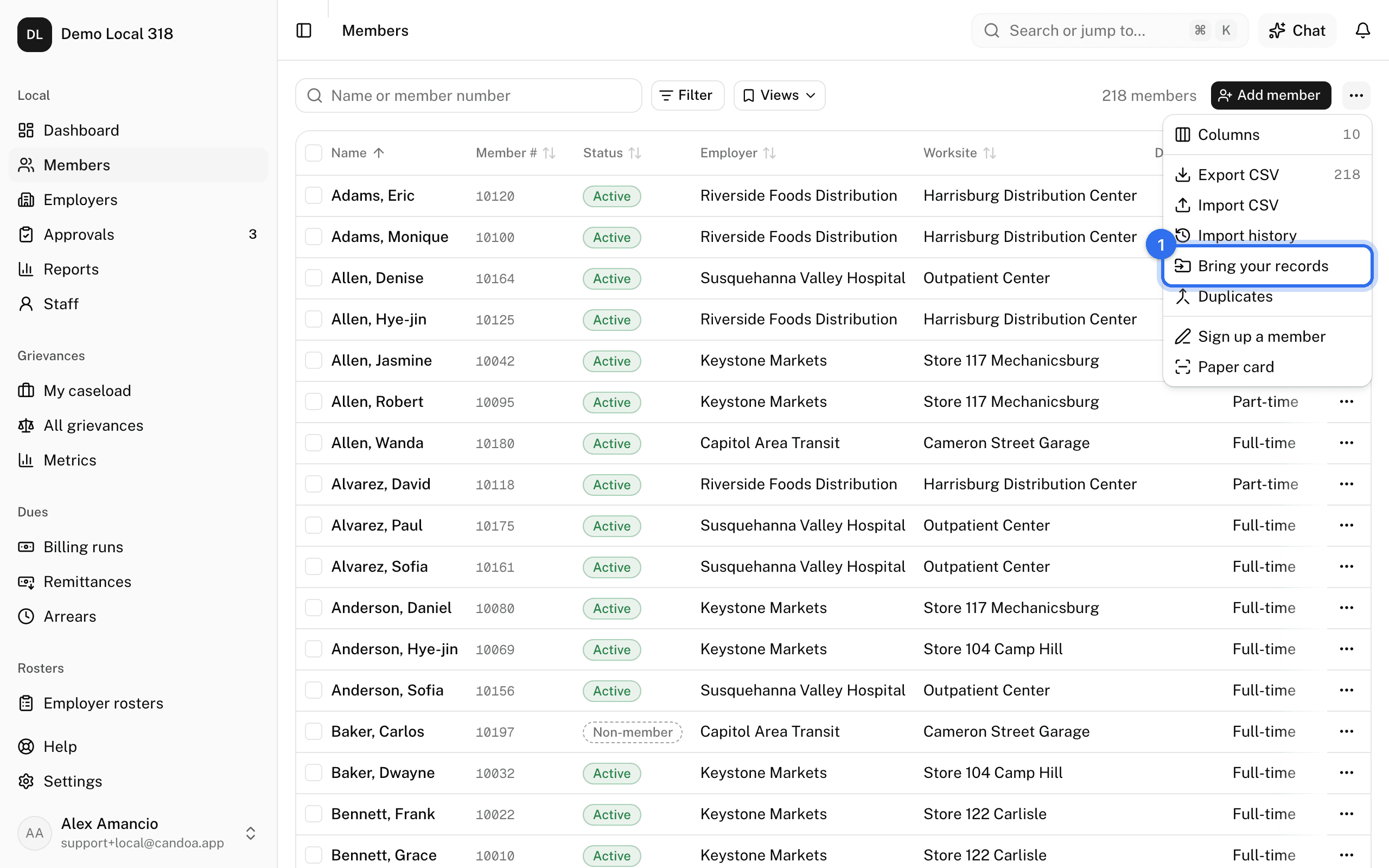
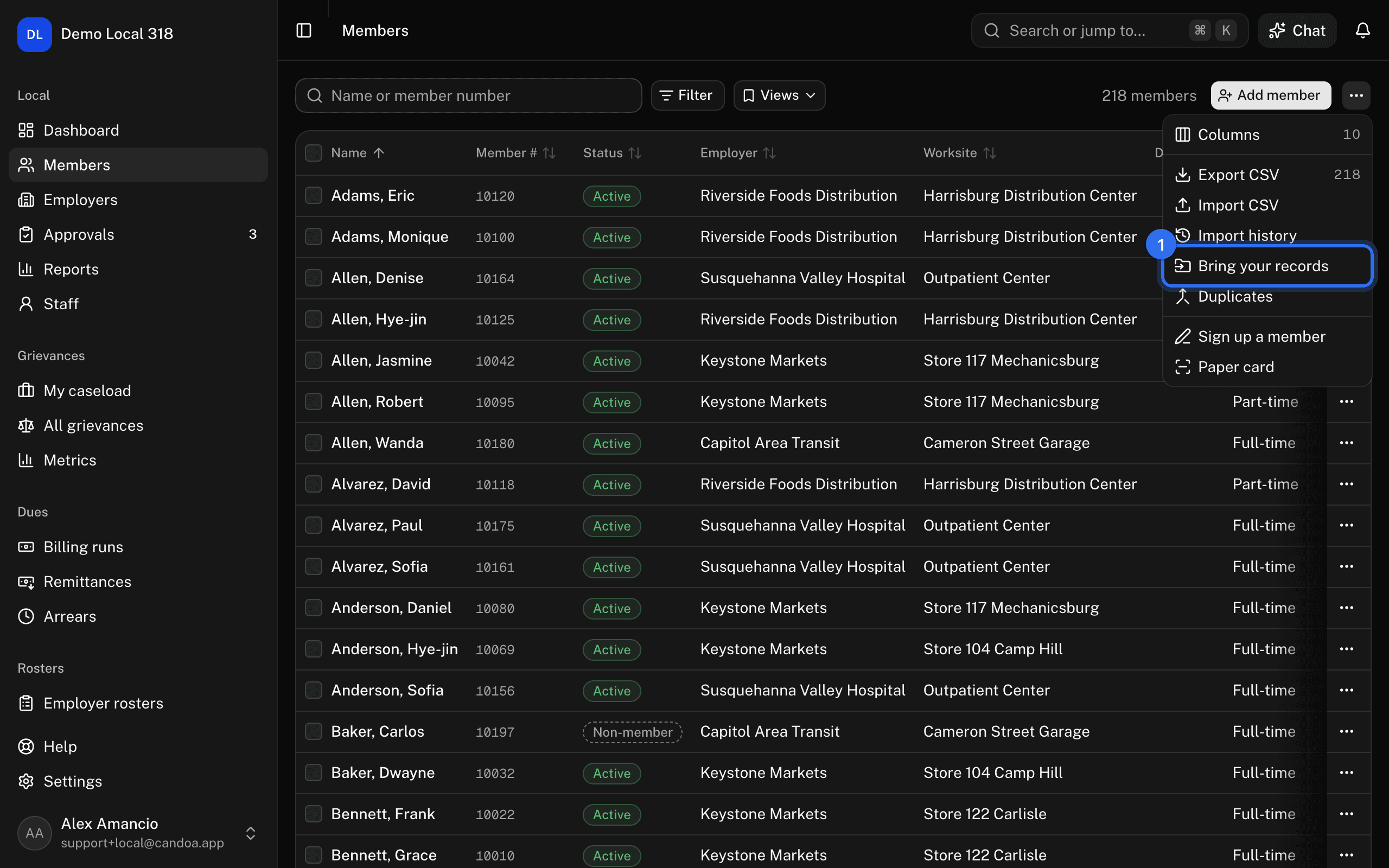
Press the ⋯ menu on the members list and choose Bring your records, or open it from Import history, or press Cmd+K and type its name. A new local meets it as the second step of setup, right after creating the local; see Set up a new local.
Drop your files
- Drag your files into the box, or press Choose files. CSV, Excel, PDF, Word, and text files, up to 50 MB each and 40 at a time. Each sheet of an Excel workbook counts as its own file.
- Each file appears in the list as it uploads, with its name and how many rows and columns it has.
- Press Plan the import. Eli reads the files. This takes a minute or two for a big pile; the list says Reading… while it does.
Eli sees the headings, the shape of the values (a date looks like a date, a phone number like a phone number), a handful of rows with sensitive columns removed, and the first page of a document. It never keeps the rows.
Change what a file is
After the plan, every file shows what Eli thinks it is (Members, Employers and worksites, Contracts, and so on) and how sure it is: Sure, Fairly sure, or Not sure. A file Eli isn't sure about says Eli will ask.
- Press Change on the file's row.
- Pick the kind from the list, or Leave out to keep the file out of the import.
- Press Plan the import again if you changed anything; the plan is rebuilt.
Remove takes a file off the list entirely.
Read the plan
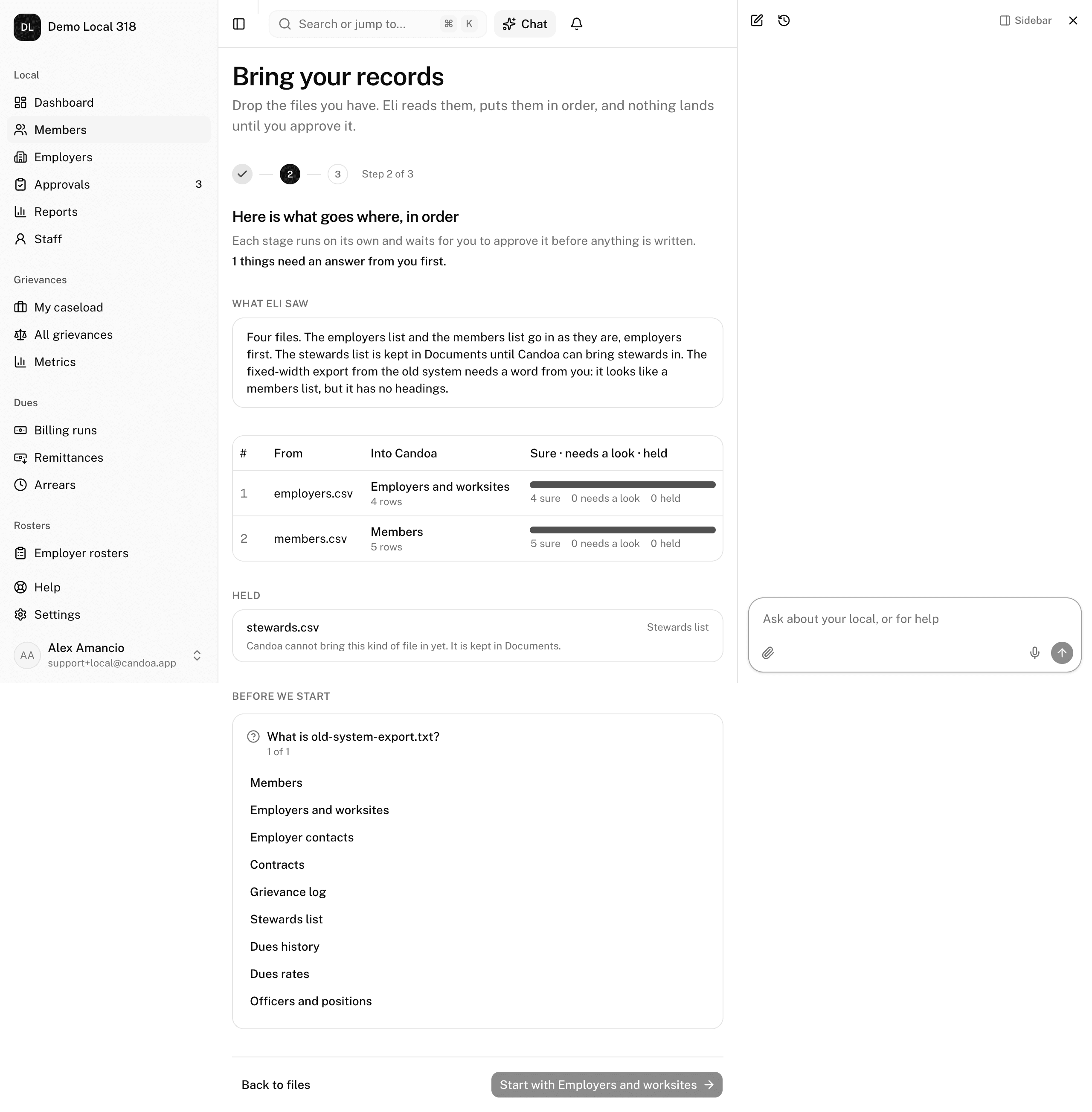
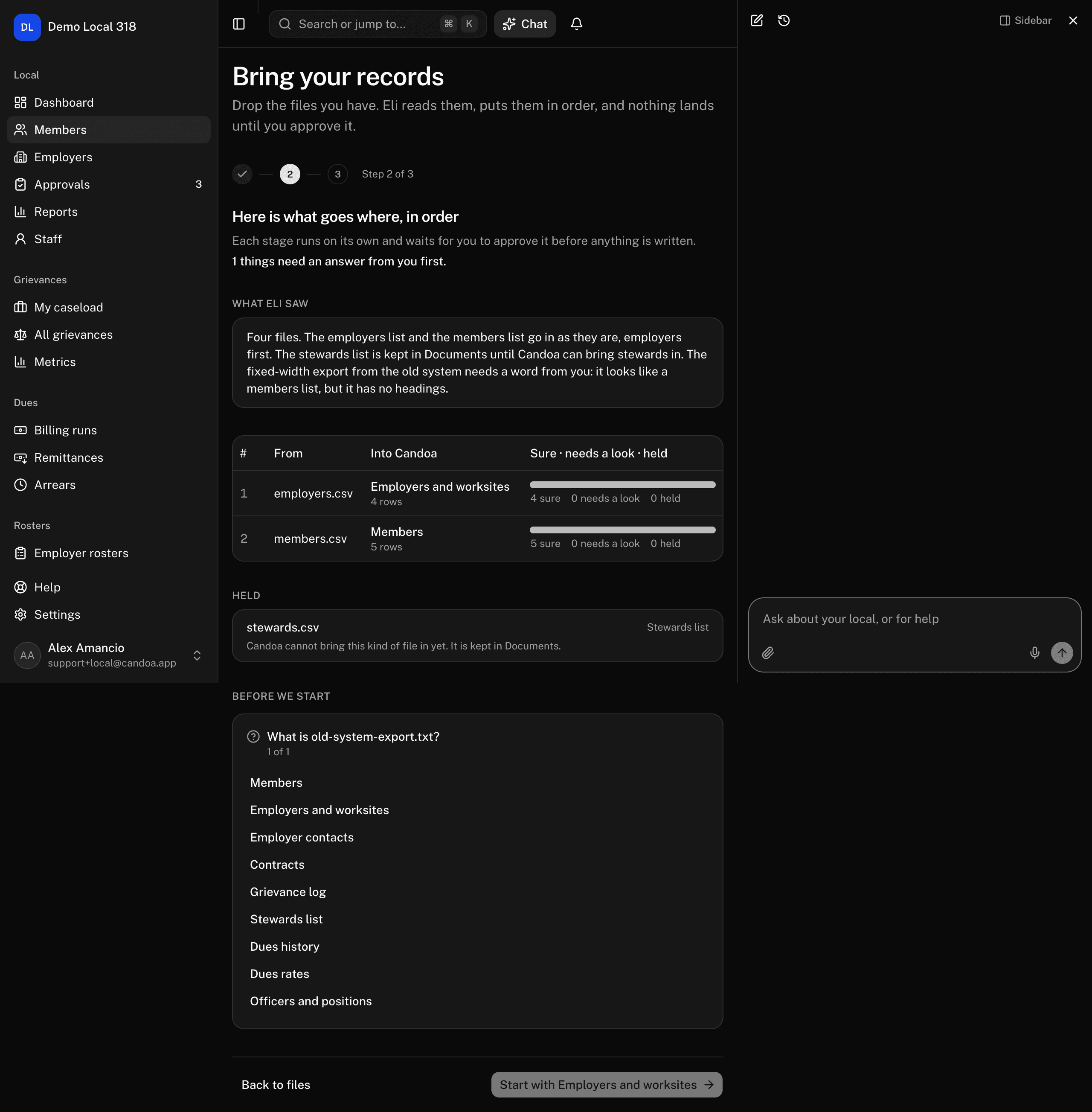
The Plan step lists each stage in the order it will run: which files go in, what they go into, how many rows, and a bar showing how much is settled. Sure rows need nothing from you; needs a look rows have a question attached; held rows won't go in. Under the table, Held lists the files that won't be imported and why, with Turn on beside one that needs an add-on your local doesn't have yet.
Answer the questions before you start
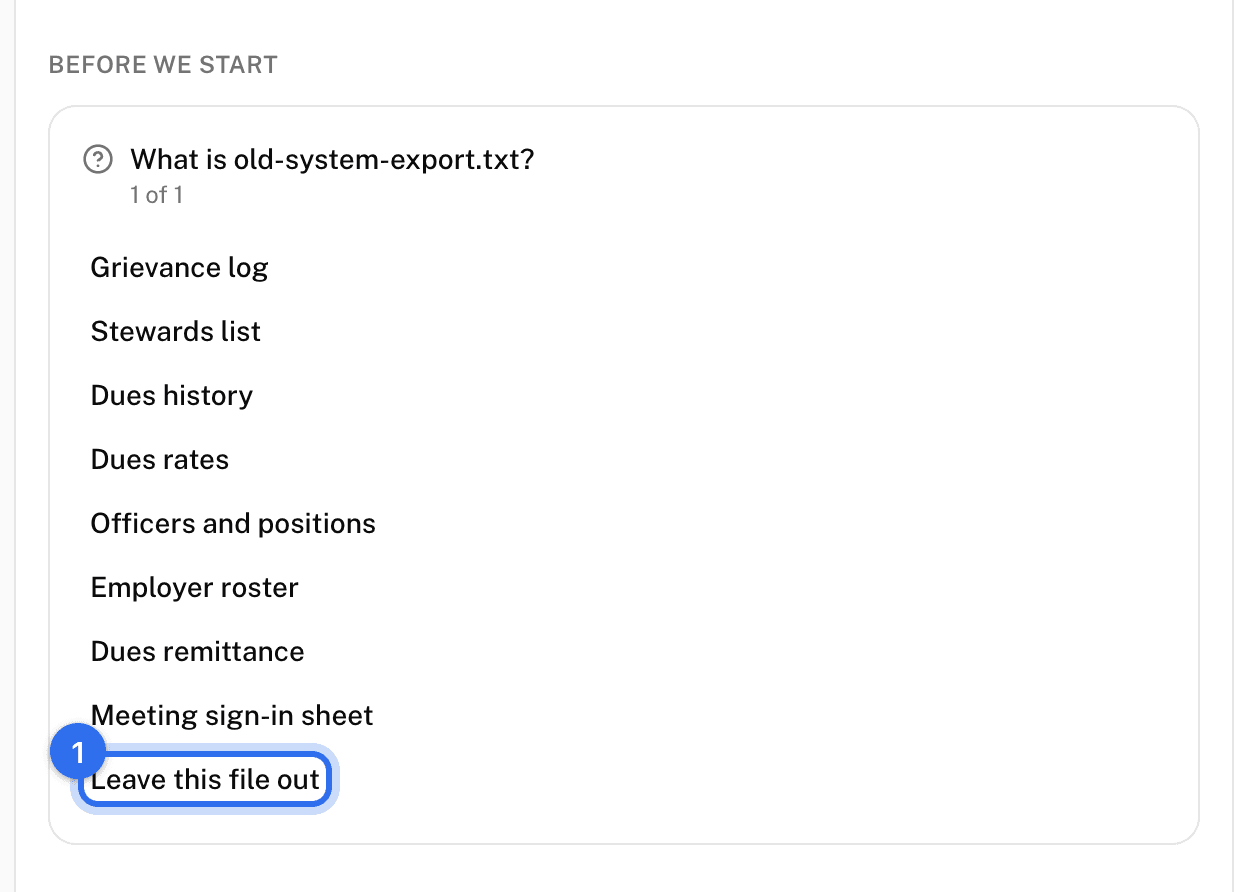
Under Before we start, Eli asks what it couldn't settle on its own: what a file is when it couldn't tell, which column holds a field a stage can't do without, whether to bring a file in at all. Press a choice to answer; Leave this file out keeps the file out. Some questions take a typed answer too. You can also answer in the chat beside the screen; either way, both update. Start with … lights up once every question here is answered.
Approve a stage
- In Run, the stages sit down the side. Press one to open it. A stage marked Waits on an earlier stage opens once that stage is done.
- Press Preview. Eli reads the rows and shows what would be New, Changed, Placed by your answers, and Held back, with the first rows and any rows it would skip and why.
- Read it, then press Approve. The rows are written; a bar shows how far along it is. Leave the tab open or come back later; the stage picks up where it stopped.
- When a stage finishes, View this import opens it in Import history, exactly as a spreadsheet import would appear there.
A question that comes up while reading the rows, such as a contract whose employer isn't on file, appears above the preview. Answer it and press Preview again.
Leave this stage out skips a stage without writing anything. A stage that stops partway says so: what was written stays, the rest wasn't; press Try again to finish it or leave it out.
Change the mapping of a stage
If a column went to the wrong field, press Change the mapping before approving. The same column table as the imports opens: each heading in the file and what it imports as. Save, and the preview is read again.
Send a file to Candoa
When neither you nor Eli can tell what a file is, such as an export with no headings, Eli offers Send this to Candoa. Press Confirm on the card. The file, its first twenty lines, and what Eli tried go to a person at Candoa, who answers from inside your screen. Everything else carries on in the meantime; the screen says {file} is with Candoa and you get a bell notice when it's answered. The answer teaches Candoa that file's layout, so the next local with the same export never has to ask.
Come back to an unfinished migration
Close the tab whenever you like. Import history shows a card for the open migration with where it stands and a Continue button, and the screen opens on the step you were at. A new local's setup brings you back to it too.
Download the summary
When every stage is done or left out, the screen shows what came in: members, employers and worksites, contracts, files held, and rows written, then a table of what came from which file and what didn't, with a reason. Press Download the summary for the same table as a CSV to keep with your records. Start another begins a fresh migration for more files.
Ask Eli
While you're on the screen, Eli's panel is on that migration. Ask it what a file is, which stage goes first, or what is still waiting on you, and it answers from the plan. It can ask you a question with the same choices the page shows, and it offers Send this to Candoa when it's stuck; it never picks a kind for a file, a column, or an employer on its own, and it never approves a stage. See Ask Eli.
These pages are the help for Candoa, the software a local runs its members, employers, and grievances on.
Set up your localUpdated 2026-10-01