Automations
Set up routine work in a sentence, see the dry run before it is on, let it ask first in Approvals, then let it run on its own; pause it, read what it did, and change or delete it.
What an automation is
An automation is a standing instruction the local gives once, in a sentence, and Candoa carries out from then on without anyone remembering to do it: "When a member's dues are 30 days behind, text them a reminder." "When a grievance is filed, tell their rep." "When a contract expires in 90 days, tell me."
Every automation is one of a short list of ready-made sentences with a few words in boxes you can change. There is nothing else to build and no way to write a wrong one. Each rule chooses from things that already exist: the trigger is something that happens to a record or a date on it, the people it reaches are members the way an announcement names them, and the action is a button the screen already has, done as the person who set the rule up. A rule can only ever do what that person may do themselves.
Every rule carries the same guards, always on. It never reaches the same person twice in 30 days. If one run would touch more than 50 records, it stops and asks instead. It can be paused. And every time it acts, the log says on whom and what it did, so "why did Maria get that text?" has an answer.
A new rule starts by asking. Each thing it wants to do waits in Approvals until someone says yes. Once the local has watched it be right, whoever set it up lets it run on its own.
Needs the Automations add-on (see Add-ons and billing). Only people who may set up automations see this screen; out of the box that is the owner, admins, agents, and staff.
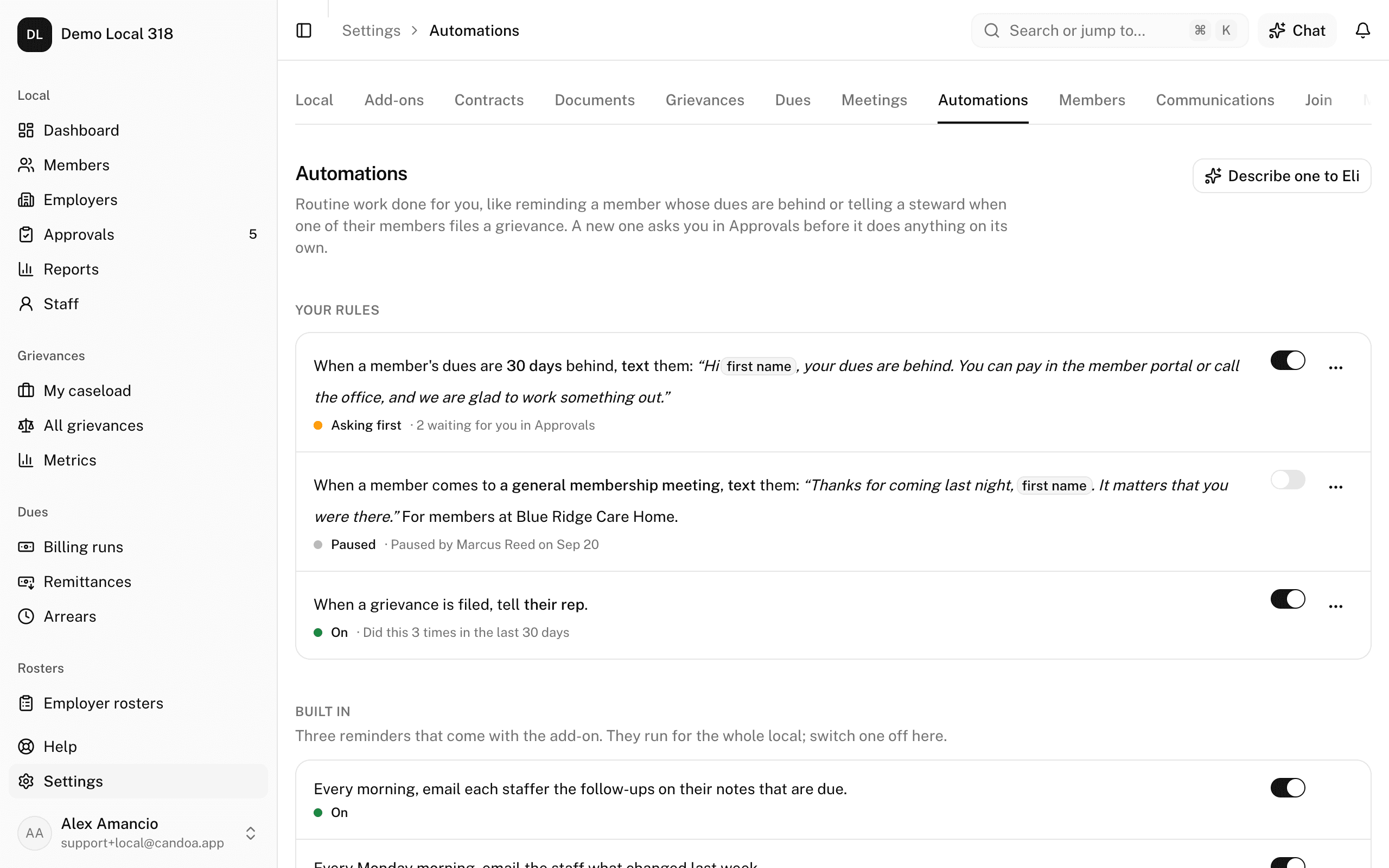
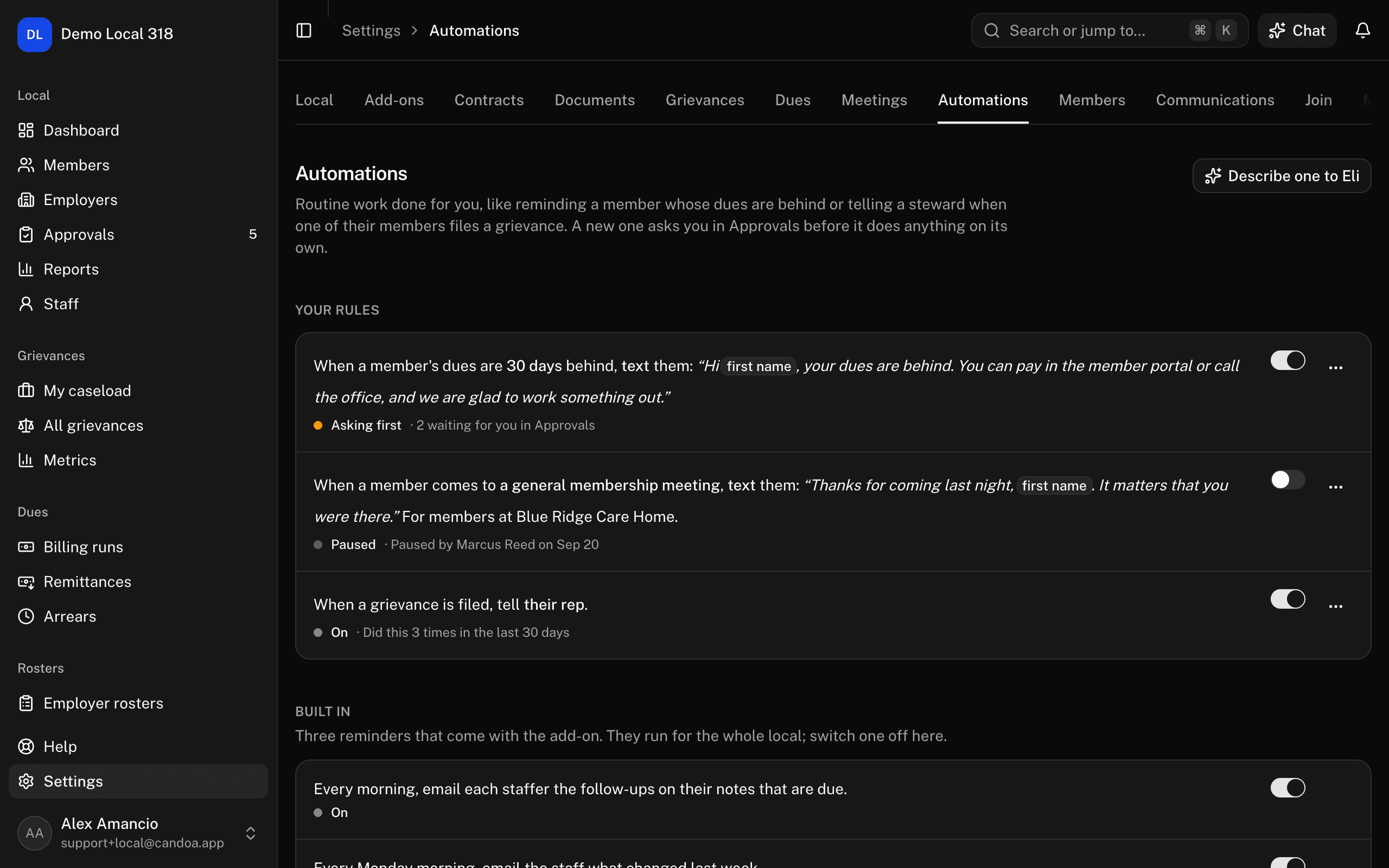
Open Automations
- Open Settings in the sidebar.
- Pick the Automations tab.
Your rules lists every rule the local wrote as its sentence, with a dot and a word for where it stands: Asking first, On, Paused, or Stopped, and under it what it did lately or how many of its requests wait in Approvals. Built in lists the three reminders that come with the add-on, each with only a switch. Templates lists every sentence the local can start from, grouped by what it is about.
Set up an automation
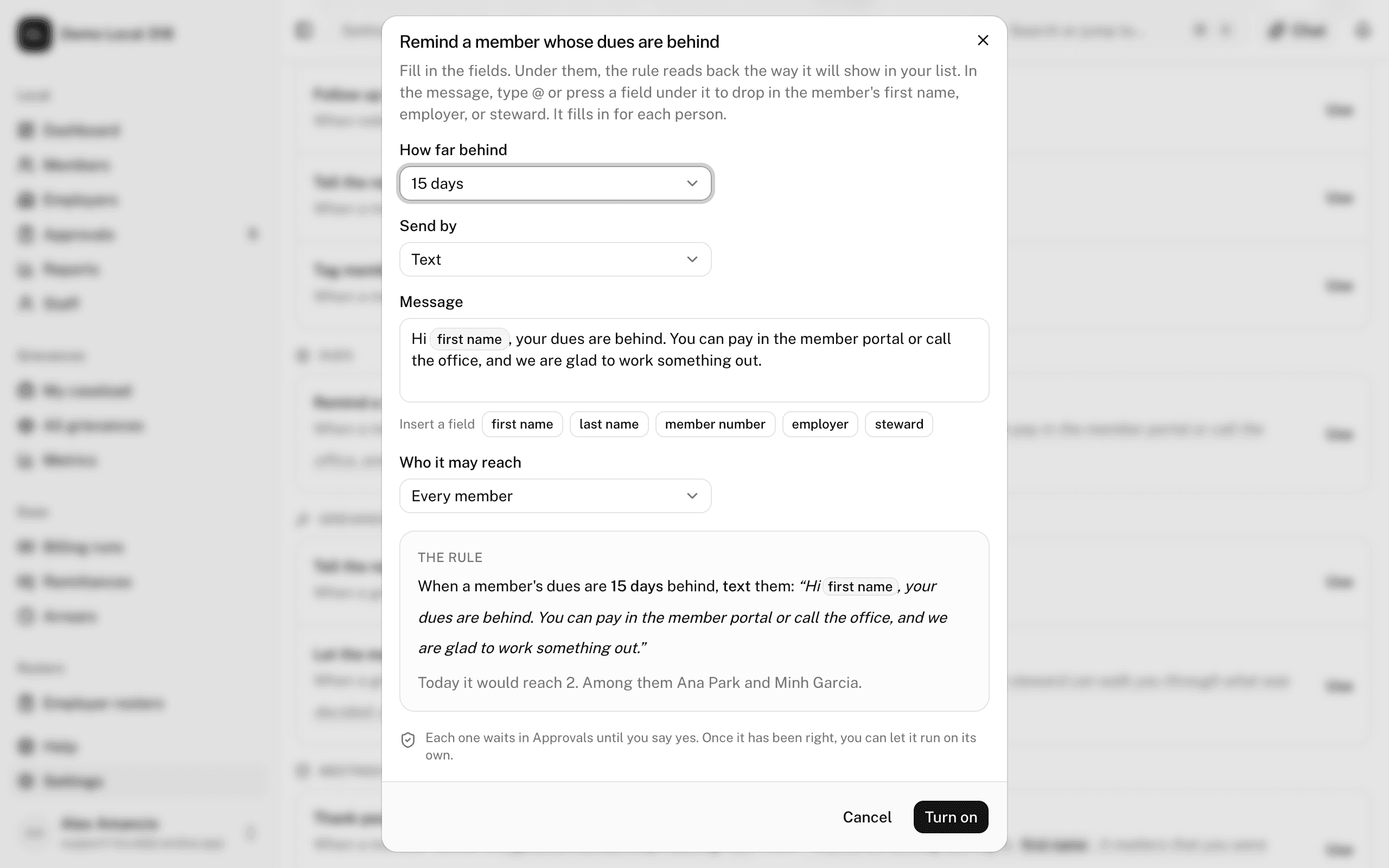
- Under Templates, press the sentence nearest to what you want, or Use beside it. A sentence that needs an add-on the local does not have says so and cannot be pressed.
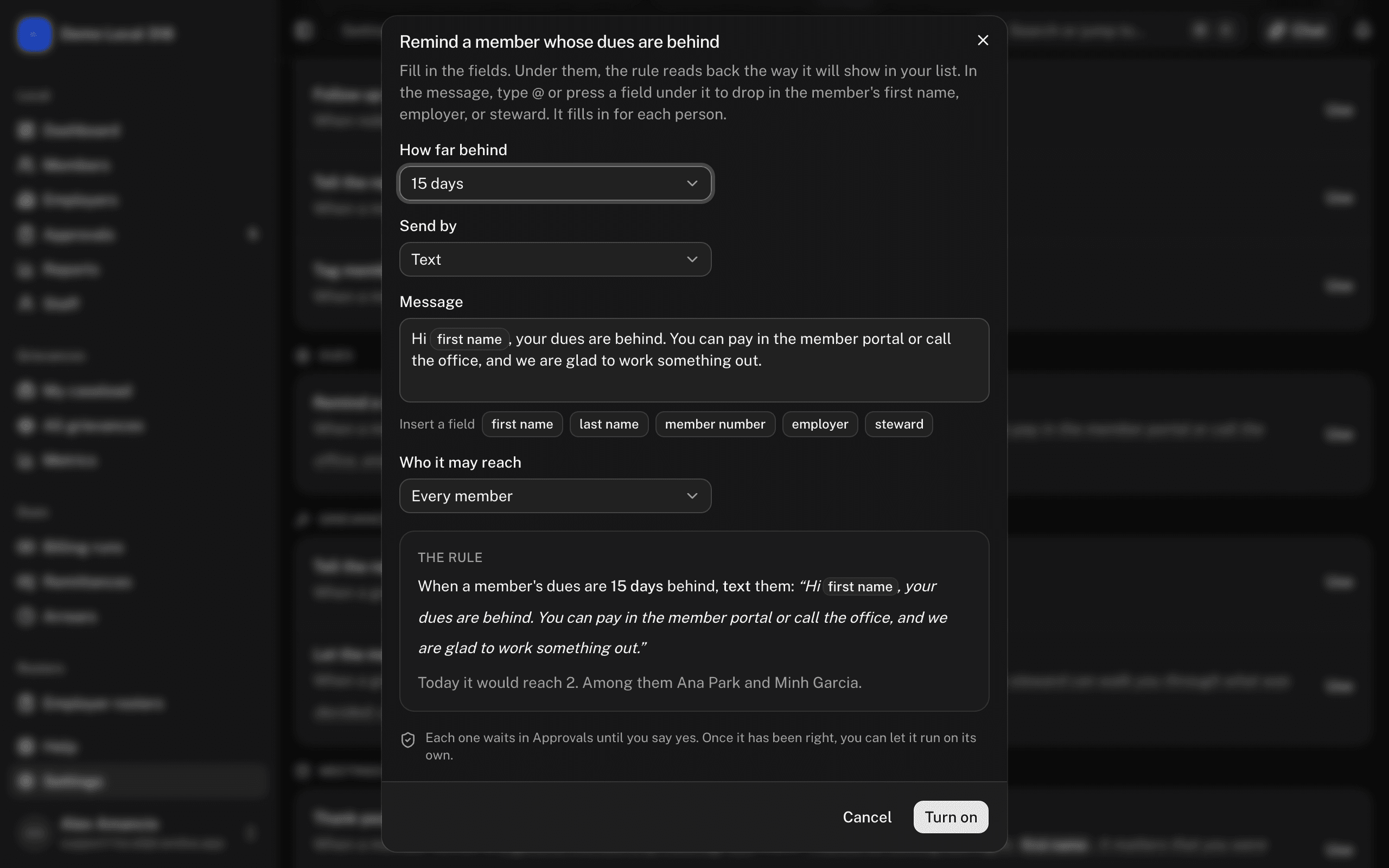
- In the box that opens, fill in the fields. Each one is a word of the sentence: a choice such as Send by or How long is a dropdown, Who it may reach narrows the rule from every member to the members at one employer, and a Message is written in your own words. Type @ in the message, or press a field under it, to drop in the member's first name, employer, or steward; it fills in for each person, the same fields an announcement can carry.
- Under the fields, The rule reads back the sentence as it will show in your list, and changes as you type.
- Read the line under it. It says how many times the rule would have acted in the last 90 days, or how many people it would reach today, with a few of their names. Nothing has happened yet.
- Press Turn on.
The rule appears under Your rules as Asking first. Its first requests will wait in Approvals (see Approvals).
You can also tell Eli what you want in a sentence, with Describe one to Eli or from anywhere Eli is open. Eli picks the nearest sentence and shows the same fields and the same check, with one button that turns it on.
Change the words of a rule
- Press the rule's sentence, or open its ⋯ menu and pick Change the words.
- Change what you like and press Save. Where the rule stands does not change.
Let a rule run on its own, or ask again
- Open the rule's ⋯ menu.
- Pick Let it run on its own. From then on it acts without asking, and the log records each time.
- Pick Ask me first again to go back to having each request wait in Approvals.
Pause or turn a rule back on
Use the switch on the rule's row. A paused rule does nothing until it is switched back on; it then asks first again. The row says who paused it and when.
See what a rule did
- Open the rule's ⋯ menu and pick See what it did.
- The panel lists each time the rule acted or asked, newest first: who it was about, what it did, and whether it was done, is waiting in Approvals, could not be done, or was turned down and by whom. A member's name opens their record.
When a rule stops
A rule that would reach more than 50 records in one run does not. It shows as Stopped, says how many it would have reached, and whoever set it up gets a line in the bell. Open its ⋯ menu and pick Go on with all to have it do them now (each one asks first, as usual), or pause it with the switch.
A rule also pauses itself when the person who set it up leaves the staff, when an add-on it needs is turned off, or when that person may no longer do what the rule does.
Delete a rule
- Open the rule's ⋯ menu and pick Delete.
- Confirm. The rule and its log are gone. Pause it instead if you may want it back.
The built-in reminders
Under Built in, three reminders come with the add-on and are on from the start: the follow-up reminder (every morning, each staffer gets the follow-ups on their notes that are due), the weekly summary (every Monday morning, the staff get what changed last week), and the Approvals reminder (every morning, whoever approves gets what is still waiting). Each has a switch on its row to pause it for the whole local. Anyone who would rather not get one can turn it off for themselves under their account (see Your account).
These pages are the help for Candoa, the software a local runs its members, employers, and grievances on.
Set up your localUpdated 2026-10-02